


 Video Converter


TS (Transportstroom) en MPG (MPEGTS-bestanden zijn twee populaire videoformaten die veel gebruikt worden voor het opslaan en verzenden van digitale videocontent. TS-bestanden worden veel gebruikt voor het uitzenden en streamen van video, terwijl MPG een breed ondersteund formaat is dat compatibel is met de meeste mediaspelers en apparaten.
Als je een TS-videobestand hebt dat je naar MPG wilt converteren, vraag je je misschien af hoe je dat moet doen. In dit artikel leggen we je stap voor stap uit hoe je dat doet. TS naar MPG en u voorzien van de beste tools en software om de conversie zo eenvoudig en efficiënt mogelijk te laten verlopen.
Inhoud: Deel 1. De beste tool om TS-bestanden offline naar MPG te converteren.Deel 2. Aanbevolen manieren om TS-bestanden gratis naar MPG te converteren Deel 3. Is een MPG hetzelfde als een TS? Deel 4. Conclusie
Deel 1. De beste tool om TS-bestanden offline naar MPG te converteren.
Zoekt u een efficiënte en betrouwbare manier om TS offline om te zetten naar MPG? iMyMac-video-omzetter is een uitstekende keuze. Deze krachtige software biedt niet alleen een laag brandstofverbruik, maar maakt het ook mogelijk om eenvoudig... Converteer je TS-bestanden naar WMV., MP4, MOV, AVI en meer, met slechts een paar klikken.
Naast formaatconversie biedt iMyMac Video Converter ook ingebouwde bewerkingsfuncties, zoals: trimmenJe kunt video's bijsnijden, ondertitels toevoegen en video-effecten aanpassen. Of je nu video's voorbereidt voor weergave, bewerking of delen, deze tool biedt een gebruiksvriendelijke interface en uitstekende prestaties op zowel Windows als Mac.
Hieronder vindt u een stapsgewijze handleiding voor het gebruik van iMyMac Video Converter om TS-bestanden naar MPG te converteren:
Stap 1: Download en installeer iMyMac Video Converter
Allereerst moet je iMyMac Video Converter downloaden en installeren op je Mac. Je vindt de software op de officiële iMyMac-website en de installatie is eenvoudig.
Stap 2: Voeg het TS-videobestand toe
Open vervolgens iMyMac Video Converter en klik op de knop "Bestand toevoegen" om uw TS-videobestand in de software te importeren. U kunt het bestand ook rechtstreeks naar het programma slepen.
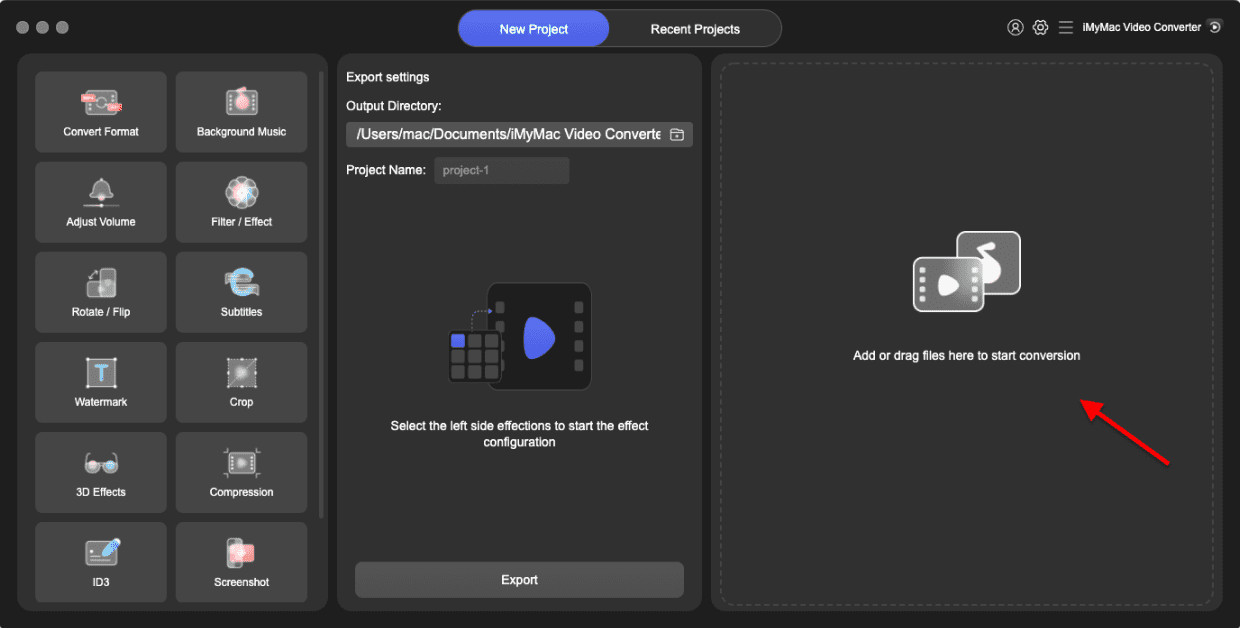
Stap 3: Kies MPG als uitvoerformaat.
Nadat je het TS-videobestand hebt toegevoegd, selecteer je MPG als uitvoerformaat. Kies een map op je computer waar de bestanden worden opgeslagen.
Stap 4: Instellingen aanpassen (optioneel)
Als u de video-instellingen wilt aanpassen, zoals resolutie, bitrate of framesnelheid, kunt u dit doen in het gedeelte 'Instellingen'. Deze stap is optioneel en u kunt deze overslaan als u tevreden bent met de standaardinstellingen.
Stap 5: Converteer TS-bestanden naar MPG
Klik ten slotte op de knop "Converteren" om het conversieproces te starten. Zodra de conversie is voltooid, vindt u het MPG-bestand in de uitvoermap.
Al met al is iMyMac Video Converter een veelzijdig en gebruiksvriendelijk programma waarmee je TS-bestanden eenvoudig offline naar MPG kunt converteren. Het ondersteunt een breed scala aan videoformaten en levert een hoogwaardige uitvoer met een snelle conversiesnelheid. Bovendien beschikt het over een ingebouwde video-editor waarmee je video's kunt inkorten, bijsnijden, samenvoegen of effecten kunt toevoegen.
Deel 2. Aanbevolen manieren om TS-bestanden gratis naar MPG te converteren
VLC Media Player
VLC Media Player is een populaire open-source mediaspeler die een breed scala aan audio- en videoformaten ondersteunt. Het is gratis te downloaden en te gebruiken en is beschikbaar voor Windows, Mac, Linux en andere platforms. Naast het afspelen van mediabestanden biedt VLC ook een aantal geavanceerde functies, waaronder mediaconversie.
Zo converteer je TS naar MPG met VLC Media Player:
- Open VLC Media Player en klik op het tabblad "Media".
- Selecteer 'Converteren / Opslaan' in het keuzemenu.
- Klik in het tabblad "Bestand" op de knop "Toevoegen" en selecteer het TS-bestand dat u wilt converteren.
- Nadat het bestand is toegevoegd, klikt u op de knop 'Converteren / Opslaan'.
- In het venster 'Converteren' selecteert u 'Video - MPEG-1 (MPG)' als bestemmingsformaat.
- Kies de locatie waar u het geconverteerde bestand wilt opslaan en geef het een naam.
- Klik ten slotte op de knop "Start" om het conversieproces te starten.
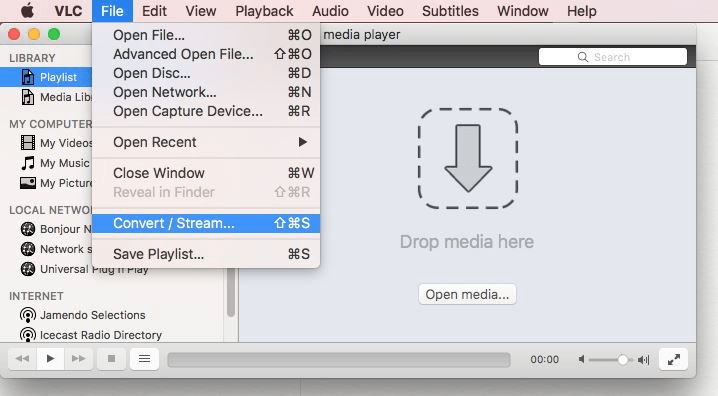
VLC Media Player is een handige en eenvoudige manier om TS-bestanden gratis naar MPG te converteren. Het conversieproces kan echter tijdrovend zijn en de uitvoerkwaliteit is mogelijk niet zo goed als met andere professionele conversieprogramma's. Als u grote of meerdere bestanden moet converteren, kunt u overwegen om speciale videoconversiesoftware te gebruiken, zoals iMyMac Video Converter, die in deel 1 van dit artikel wordt genoemd.
FFmpeg
FFmpeg is een commandoregelprogramma dat veel gebruikt wordt voor het coderen, decoderen en transcoderen van video en audio. Het is gratis open-source software die beschikbaar is voor Windows, Mac, Linux en andere platforms. FFmpeg biedt een scala aan krachtige functies, waaronder ondersteuning voor een breed scala aan audio- en videocodecs, -formaten en -protocollen.
Zo gebruik je FFmpeg om TS naar MPG te converteren:
Stap 1: Download en installeer FFmpeg op uw computer. U kunt FFmpeg downloaden van de officiële website.
Stap 2: Open de opdrachtprompt (Windows) of terminal (Mac) en navigeer naar de map waarin het TS-bestand zich bevindt.
Stap 3: Typ de volgende opdracht om TS naar MPG te converteren:
ffmpeg -i input.ts -c:v mpeg1video -c:a copy output.mpg
In dit commando is "input.ts" de naam van het TS-bestand, "mpeg1video" de videocodec die gebruikt wordt om het uitvoerbestand te coderen, en "copy" wordt gebruikt om de audiostream te kopiëren zonder deze te transcoderen.
Stap 4: Druk op Enter om het conversieproces te starten. Wacht tot het conversieproces is voltooid.
FFmpeg is een krachtige en flexibele tool voor videoconversie, maar vereist wel enige technische kennis om het effectief te gebruiken. De commandoregelinterface kan voor sommige gebruikers intimiderend zijn en het kan even duren voordat je vertrouwd bent met de verschillende opties en parameters. Als je niet graag met de commandoregel werkt, kun je overwegen om een grafische gebruikersinterface (GUI) voor FFmpeg te gebruiken, zoals FFmpeg Batch AV Converter of WinFF, die een gebruiksvriendelijkere interface bieden voor videoconversie.
Windows Media Player
Windows Media Player is een ingebouwde mediaspeler voor Windows die diverse audio- en videoformaten kan afspelen. Het is gratis te gebruiken en is standaard geïnstalleerd op de meeste Windows-computers. Hoewel het niet zoveel geavanceerde functies biedt als sommige andere mediaspelers, is het nog steeds een handig hulpmiddel voor eenvoudige mediaweergave en -conversie.
Zo gebruik je Windows Media Player om TS-bestanden naar MPG te converteren:
- Open Windows Media Player op uw computer.
- Klik op de knop 'Organiseren' linksboven in het venster.
- Selecteer ‘Opties’ in het keuzemenu.
- Klik in het venster 'Opties' op het tabblad 'Muziek rippen'.
- Klik op de knop 'Wijzigen' onder 'Rip-instellingen' en selecteer 'MP3' in het keuzemenu.
- Klik op de knop "OK" om het venster "Opties" te sluiten.
- Navigeer in Windows Verkenner naar de map waarin het TS-bestand zich bevindt.
- Klik met de rechtermuisknop op het TS-bestand en selecteer 'Openen met' > 'Windows Media Player' in het下拉菜单.
- Zodra het bestand wordt afgespeeld in Windows Media Player, klikt u op de knop 'CD rippen' in het bovenste menu.
- Kies de locatie waar u het geconverteerde bestand wilt opslaan en klik op de knop "Start Rip" om het conversieproces te starten.
Windows Media Player is een handig hulpmiddel om TS naar MPG te converteren als je alleen audio hoeft te converteren. Het biedt echter geen optie om video direct te converteren. Als je video wilt converteren, kun je overwegen een speciaal videoconversieprogramma te gebruiken, zoals de programma's die eerder in dit artikel zijn genoemd.
Deel 3. Is een MPG hetzelfde als een TS?
TS en MPG zijn beide videobestandsformaten die worden gebruikt voor het opslaan en afspelen van digitale videocontent. TS staat voor Transport Stream, terwijl MPG staat voor Moving Picture Experts Group.
Transport Stream (TS) is een containerformaat dat wordt gebruikt voor het verzenden en opslaan van video, audio en andere gegevens. Het wordt veel gebruikt voor digitale tv-uitzendingen, streaming media en Blu-ray-schijven. TS-bestanden kunnen meerdere video- en audiostreamen bevatten en worden vaak gebruikt voor video-inhoud in hoge definitie.
Moving Picture Experts Group (MPG) is een populair videocompressieformaat, ontwikkeld door de Moving Picture Experts Group. Het wordt veel gebruikt voor het opslaan van digitale videocontent en is compatibel met een breed scala aan mediaspelers en apparaten. MPG-bestanden kunnen worden gecomprimeerd om hun grootte te verkleinen, waardoor ze gemakkelijker op te slaan en te verzenden zijn.
Hoewel TS en MPG beide videobestandsformaten zijn, zijn ze niet hetzelfde. TS-bestanden worden voornamelijk gebruikt voor de verzending en opslag van digitale tv-uitzendingen en video in hoge definitie, terwijl MPG-bestanden worden gebruikt voor het opslaan en afspelen van digitale video. De twee formaten hebben verschillende technische specificaties en gebruiken verschillende compressiemethoden, waardoor ze niet direct uitwisselbaar zijn. Als u TS naar MPG of andersom wilt converteren, moet u een speciaal videoconversieprogramma gebruiken om de beste resultaten te garanderen.
Deel 4. Conclusie
Kortom, hoewel gratis programma's zoals VLC en FFmpeg TS-bestanden naar MPG kunnen converteren, vereisen ze mogelijk technische kennis. Voor een snellere en gebruiksvriendelijkere optie is iMyMac Video Converter een absolute aanrader. Het ondersteunt de conversie van TS naar MPG en vele andere formaten, biedt batchverwerking en levert hoogwaardige resultaten zonder ingewikkelde handelingen. Dankzij de intuïtieve interface en geavanceerde functies is het een ideale keuze voor zowel beginners als ervaren gebruikers op Mac en Windows.


