


 Konwerter wideo


Pliki TS (Transport Stream) są powszechnie używane do transmisji wysokiej jakości treści wideo za pośrednictwem telewizji cyfrowej lub systemów streamingowych. Chociaż pliki TS są wydajne w transmisji, nie zawsze są kompatybilne z popularnymi odtwarzaczami multimedialnymi lub urządzeniami. Może to stanowić wyzwanie, gdy użytkownicy próbują edytować, przeglądać lub udostępniać pliki TS na różnych platformach. Jeśli pracujesz z plikami TS i zależy Ci na lepszej kompatybilności i wygodzie, przekonwertuj je na… MPEG Format to sprytny ruch. W tym poście podzielimy się prostymi sposobami, które Ci pomogą. konwertuj TS do MPEG.
Spis treści: Część 1: Dlaczego warto konwertować pliki TS do formatu MPEG?Część 2: Najlepszy sposób konwersji plików TS do formatu MPEG w systemach Windows/MacCzęść 3: Jak bezpłatnie konwertować pliki TS do formatu MPEG onlineCzęść 4: Wniosek
Część 1: Dlaczego warto konwertować pliki TS do formatu MPEG?
Pliki TS są zazwyczaj używane w środowiskach nadawania cyfrowego i znane są ze swojej zdolności do przechowywania wielu danych (takich jak wideo, dźwięk i napisy) w jednym strumieniu. Dzięki temu doskonale nadają się do transmisji, ale mniej nadają się do edycji lub odtwarzania na standardowych urządzeniach konsumenckich.
Oto kilka powodów, dla których warto przekonwertować TS na MPEG:
- zgodnośćPliki MPEG są obsługiwane przez niemal wszystkie główne odtwarzacze multimedialne i urządzenia, w tym Windows Media Player, VLC, iPhone'y, telefony z systemem Android i telewizory Smart TV. Do odtwarzania plików TS często wymagane jest specjalistyczne oprogramowanie.
- Łatwość edycji:Większość programów do edycji wideo, takich jak Adobe Premiere Pro, Final Cut Pro i iMovie, obsługuje pliki MPEG płynniej niż pliki TS.
- Rozmiar pliku i kompresja:MPEG oferuje lepszą kompresję przy zachowaniu jakości, co przekłada się na mniejszy rozmiar plików. Dzięki temu przechowywanie, udostępnianie i przesyłanie danych jest szybsze i bardziej wydajne.
- Transmisja strumieniowa i udostępnianiePliki MPEG są preferowane do przesyłania na YouTube, Vimeo i inne platformy internetowe. Są łatwiejsze w przesyłaniu strumieniowym, zapewniając widzom lepsze wrażenia wizualne.
Konwertując format TS do formatu MPEG, zyskujesz możliwość korzystania z treści wideo na więcej sposobów, na większej liczbie urządzeń i platform.
Część 2: Najlepszy sposób konwersji plików TS do formatu MPEG w systemach Windows/Mac
Jeśli szukasz niezawodnego i profesjonalnego sposobu na konwersję TS do MPEG, Konwerter wideo iMyMac to jedno z najlepszych dostępnych narzędzi. Obsługuje szeroką gamę formatów, zapewnia wysoką jakość wydruku i oferuje przyjazny interfejs, odpowiedni zarówno dla początkujących, jak i zaawansowanych użytkowników. To potężne oprogramowanie pozwala nie tylko na obsługę formatu MPEG, ale także na łatwe przekonwertuj pliki TS do formatu MP4, WMV, MOV, AVI i wiele innych, zaledwie kilkoma kliknięciami.
Oprócz konwersji formatu iMyMac Video Converter oferuje także wbudowane funkcje edycji, takie jak przycinanie, kadrowanie, dodawanie napisówi dostosowywanie efektów wideo. Niezależnie od tego, czy przygotowujesz filmy do odtwarzania, edycji czy udostępniania, to narzędzie zapewnia przyjazny dla użytkownika interfejs i doskonałą wydajność zarówno na platformach Windows, jak i Mac.
Zobaczmy, jak przekonwertować TS na MPEG za pomocą programu iMyMac Video Converter.
- Uruchom oprogramowanie iMyMac Video Converter na swoim komputerze, w wersji Mac lub Windows. Po zakończeniu zaloguj się na swoje konto.
- Inną opcją jest po prostu przeciągnięcie i upuszczenie pliku TS na ekran systemu.
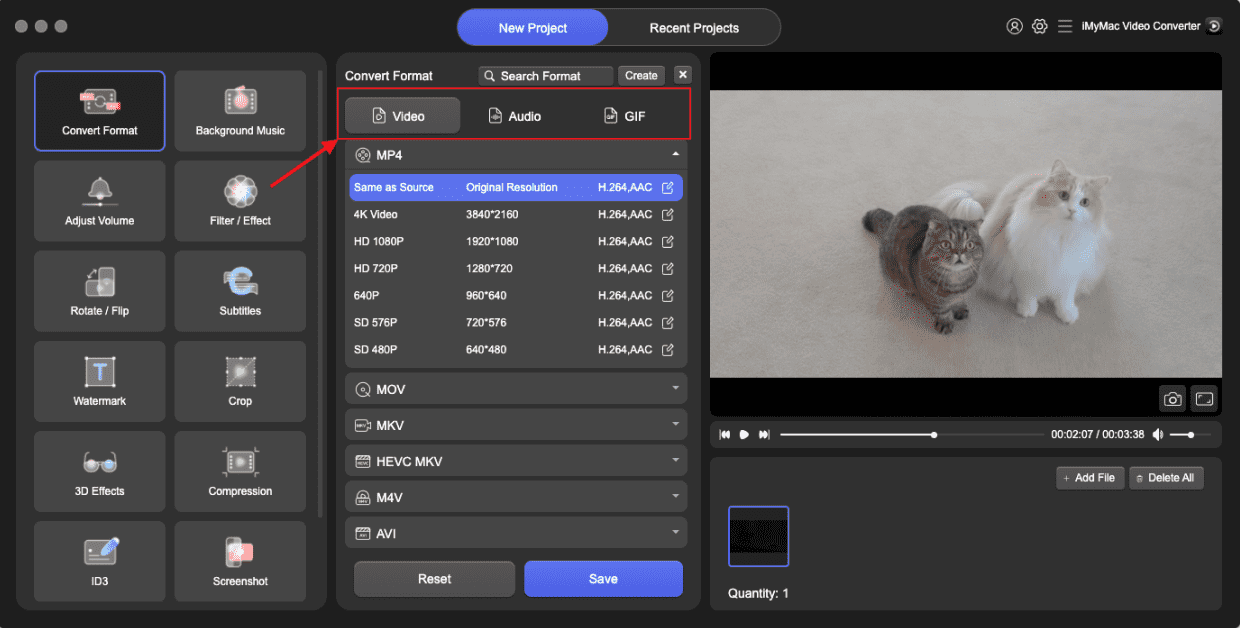
- Po kliknięciu przycisku „Konwertuj format” pojawi się rozwijana opcja umożliwiająca wybranie rodzaju pliku, do którego ma zostać przekonwertowany oryginał, np. MPEG.
- Znajdowanie modyfikacji plików jest teraz o wiele łatwiejsze dzięki nowemu interfejsowi użytkownika. Możesz modyfikować pliki w dowolny sposób.
- Możesz zapisać wszystkie zmiany, wybierając opcję Zapisz.
- Aby rozpocząć proces konwersji, wybierz opcję konwersji z paska narzędzi.
To idealne rozwiązanie dla użytkowników, którym zależy na wysokiej jakości rezultatach przy minimalnym wysiłku. Niezależnie od tego, czy pracujesz z domowymi filmami wideo, nagraniami telewizyjnymi, czy strumieniami online, iMyMac gwarantuje płynny, szybki i efektywny proces konwersji.
Część 3: Jak bezpłatnie konwertować pliki TS do formatu MPEG online
Jeśli szukasz szybkiego i darmowego rozwiązania do konwersji TS do MPEG bez instalowania oprogramowania, Online-Convert.com to świetna opcja. To narzędzie internetowe, które pozwala konwertować pliki TS do MPEG w kilku prostych krokach, za pośrednictwem przeglądarki.
Funkcje Online-Convert:
- Całkowicie darmowy w użyciu.
- Do podstawowych konwersji nie jest wymagana rejestracja.
- Konwertuje szeroką gamę formatów, w tym TS na MPEG.
- Umożliwia zmianę podstawowych ustawień, takich jak rozdzielczość, liczba klatek na sekundę i jakość dźwięku.
- Działa we wszystkich popularnych przeglądarkach Windows, Mac i urządzeniach mobilnych.
Aby przekonwertować TS na MPEG przy użyciu Online-Convert, wykonaj poniższe czynności.
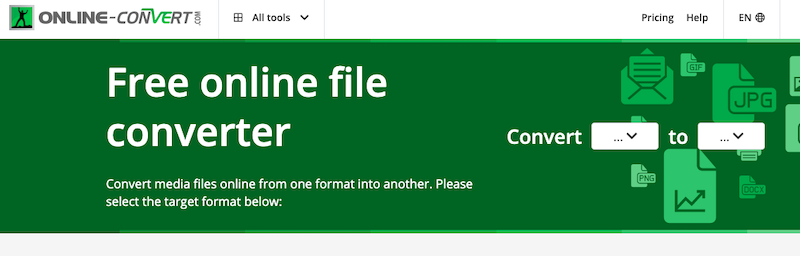
- Przejdź do https://www.online-convert.com/.
- Na stronie głównej przejdź do sekcji „Konwerter wideo” i wybierz opcję „Konwertuj na MPEG”.
- Kliknij przycisk „Wybierz pliki”, aby przesłać plik TS. Możesz również zaimportować pliki z Dropboxa, Dysku Google lub adresu URL.
- W razie potrzeby zmień ustawienia, takie jak rozdzielczość wideo, szybkość transmisji dźwięku i rozmiar pliku w sekcji „Ustawienia opcjonalne”.
- Kliknij „Start”, aby rozpocząć konwersję. Platforma przetworzy Twój plik, co może potrwać kilka minut, w zależności od rozmiaru.
- Po zakończeniu konwersji pobierz plik MPEG na swoje urządzenie.
Online-Convert.com to idealne rozwiązanie dla użytkowników, którzy potrzebują sporadycznych konwersji lub pracują w podróży. Jest szybki, łatwy w obsłudze i nie wymaga instalacji – wystarczy przesłać, przekonwertować i pobrać. Należy jednak pamiętać o stabilnym połączeniu internetowym, aby przyspieszyć przesyłanie i pobieranie plików, korzystając z narzędzia online. W przypadku konwersji wsadowych lub większych plików warto rozważyć skorzystanie z wersji płatnej lub oprogramowania desktopowego, takiego jak iMyMac.
Część 4: Wniosek
Konwersja plików TS do MPEG może znacząco poprawić kompatybilność odtwarzania, wygodę edycji i elastyczność udostępniania. Niezależnie od tego, czy wybierzesz solidne rozwiązanie desktopowe, takie jak iMyMac Video Converter, zapewniające profesjonalną jakość, czy darmowe narzędzie online, takie jak Online-Convert, do szybkich zadań, proces konwersji TS do MPEG jest prosty i przystępny. Dzięki odpowiednim narzędziom Twoje filmy TS będą bardziej wszechstronne i łatwiejsze w zarządzaniu na wszystkich platformach i urządzeniach.


