


 Conversor de vídeo


Você está procurando extrair áudio do seu dispositivo? RMVB (RealMedia Variable Bitrate) Converter arquivos e salvá-los como MP3s? Seja para criar uma coleção das suas trilhas sonoras de filmes favoritos ou para curtir o áudio dos seus vídeos caseiros mais queridos, a conversão é a solução ideal. RMVB para MP3 Esta é a solução que você precisa. Este guia completo lhe dará o conhecimento e as ferramentas necessárias para converter seus arquivos sem esforço e embarcar em uma jornada de extração de áudio perfeita.
Neste artigo, exploraremos os métodos e softwares mais eficientes disponíveis para converter arquivos RMVB para o formato MP3, amplamente compatível. Vamos guiá-lo pelo processo passo a passo, oferecendo dicas valiosas para otimizar a qualidade do áudio e garantir uma conversão tranquila. Então, vamos começar e desbloquear o potencial dos seus arquivos RMVB, transformando-os em MP3s versáteis que podem ser apreciados em diversos dispositivos e plataformas.
Conteúdo: Parte 1. Onde posso reproduzir arquivos RMVB?Parte 2. Como converter arquivos RMVB para MP3 sem perder qualidade?Parte 3. Software online gratuito para converter arquivos RMVB em MP3Parte 4. Conclusão
Parte 1. Onde posso reproduzir arquivos RMVB?
Os arquivos RMVB (RealMedia Variable Bitrate) são associados principalmente ao software RealPlayer, desenvolvido pela RealNetworks. O RealPlayer foi um reprodutor multimídia popular e amplamente utilizado no início dos anos 2000. No entanto, o suporte para arquivos RMVB diminuiu com o tempo, e muitos reprodutores de mídia modernos não oferecem suporte nativo a esse formato.
Se você possui arquivos RMVB e deseja reproduzi-los, ainda existem algumas opções disponíveis. Uma delas é utilizar o próprio software RealPlayer, que é capaz de lidar com arquivos RMVB sem problemas. Você pode baixar e instalar a versão mais recente do RealPlayer no site oficial da RealNetworks.
Alternativamente, você pode converter seus arquivos RMVB para formatos mais amplamente suportados, como MP4 ou AVI, que podem ser reproduzidos em diversos reprodutores de mídia e dispositivos. Essa conversão permite que você aproveite seu conteúdo RMVB em plataformas populares, como o Windows Media Player. VLC Media Player, QuickTime, ou mesmo em dispositivos móveis como smartphones e tablets.
Utilizando um software de conversão de vídeo de terceiros, você pode facilmente converter arquivos RMVB para formatos compatíveis com seu reprodutor de mídia preferido. Dessa forma, você supera as limitações do RMVB e garante a reprodução perfeita do seu conteúdo multimídia.
Parte 2. Como converter arquivos RMVB para MP3 sem perder qualidade?
Para converter arquivos RMVB para o formato MP3 sem comprometer a qualidade do áudio, uma ferramenta confiável que você pode usar é o Conversor de vídeo iMyMacEste software versátil permite extrair áudio de vídeos RMVB e convertê-los em arquivos MP3 de alta qualidade sem esforço. Além de MP3, ele também pode te ajudar facilmente a criar outros formatos de vídeo. Converter RMVB para MP4. Além disso, uma variedade de recursos de edição, incluindo corte, recorte, rotação, combinação e compactação de vídeo, estão incluídos.
Aqui está um guia passo a passo para ajudá-lo(a) durante o processo:
- Baixe e instale o iMyMac Video Converter do site oficial. Execute o programa após a instalação.
- Clique no botão “Adicionar arquivos” na interface do software e selecione o arquivo RMVB que deseja converter.
- Após importar o arquivo RMVB, clique no menu suspenso “Perfil” e escolha “MP3” como formato de saída. Você também pode personalizar as configurações de áudio, como taxa de bits, taxa de amostragem e canal, se desejar.
- Selecione a pasta de destino onde deseja salvar o arquivo MP3 convertido.
- Por fim, clique no botão “Converter” para iniciar o processo de conversão. O iMyMac Video Converter converterá rapidamente o arquivo RMVB para o formato MP3, preservando a qualidade de áudio original.
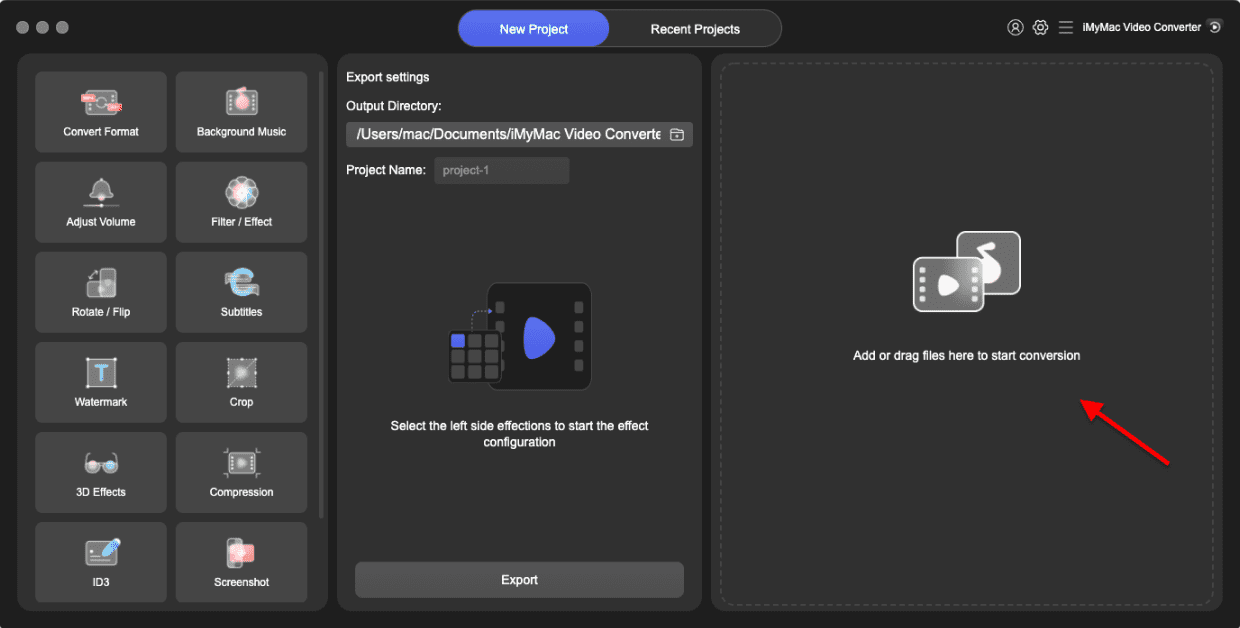
Após a conversão, você encontrará o arquivo MP3 convertido na pasta de saída designada. Agora você converteu com sucesso seu arquivo RMVB para MP3 sem perda de qualidade, permitindo que você curta suas faixas de áudio favoritas de vídeos RMVB em diversos dispositivos e reprodutores de mídia.
Parte 3. Software online gratuito para converter arquivos RMVB em MP3
Quando se trata de converter arquivos RMVB para MP3, existem vários programas online que oferecem essa opção. conversores de vídeo gratuitos Existem opções disponíveis para uso em sistemas Mac e Windows. Essas ferramentas oferecem uma maneira prática e descomplicada de converter seus arquivos sem a necessidade de instalação de software. Vamos dar uma olhada em três plataformas online populares para conversão de RMVB para MP3:
FreeFileConvert.com:
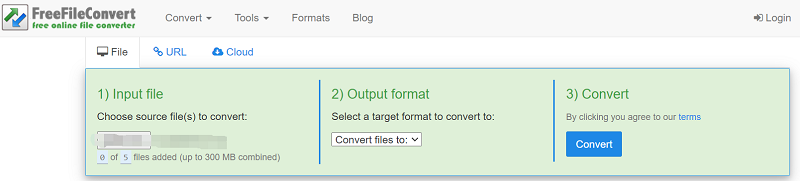
O FreeFileConvert.com é uma ferramenta online fácil de usar que oferece suporte a uma ampla variedade de conversões de arquivos, incluindo RMVB para MP3. Veja como você pode converter seus arquivos usando esta plataforma:
- Acesse FreeFileConvert.com no seu navegador.
- Clique no botão "Escolher arquivo" para carregar o arquivo RMVB que deseja converter.
- Selecione "MP3" como formato de saída.
- Opcionalmente, você pode ajustar configurações avançadas como taxa de bits de áudio ou canais.
- Clique no botão "Converter" para iniciar o processo de conversão.
- Após a conversão, você poderá baixar o arquivo MP3 convertido.
Zamzar. com:
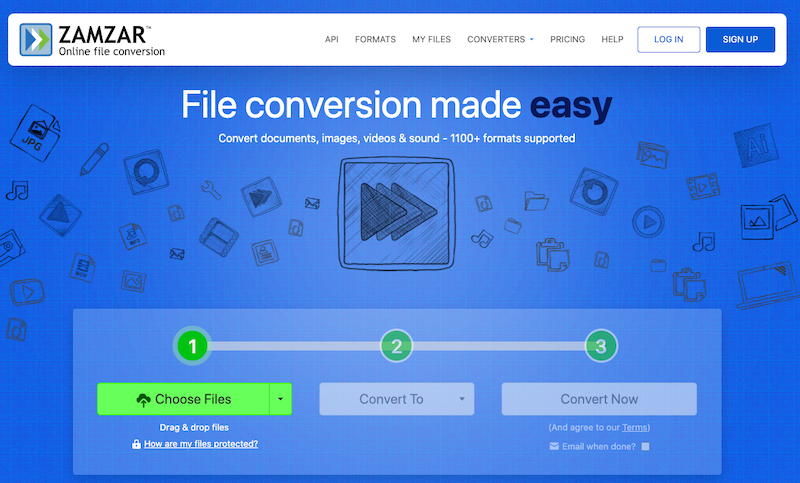
O Zamzar.com é outro serviço popular de conversão de arquivos online que oferece suporte à conversão de RMVB para MP3. Aqui está um guia rápido sobre como usar o Zamzar:
- Acesse Zamzar.com usando seu navegador da web.
- Clique no botão "Adicionar arquivos" para carregar seu arquivo RMVB.
- Selecione "MP3" como formato de saída.
- Digite seu endereço de e-mail para receber o arquivo convertido.
- Clique no botão "Converter" para iniciar a conversão.
- Aguarde a conclusão do processo de conversão e você receberá um e-mail com um link para baixar o arquivo MP3.
AnyConv.com:
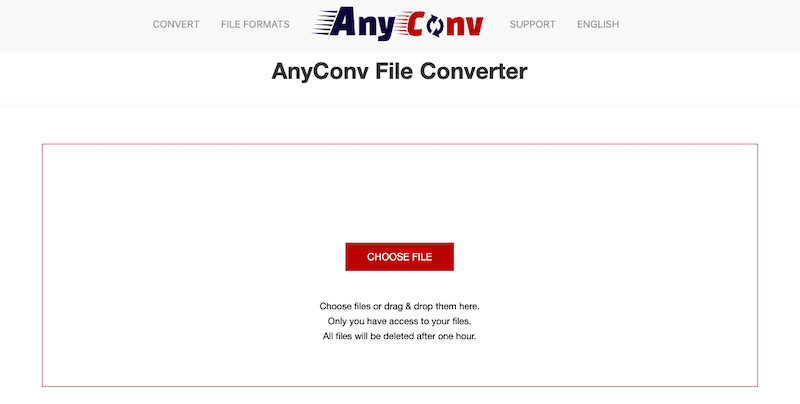
O AnyConv.com é um conversor de arquivos online versátil que suporta uma ampla variedade de formatos, incluindo a conversão de RMVB para MP3. Veja como usar o AnyConv.com:
- Acesse AnyConv.com no seu navegador.
- Clique no botão "Escolher arquivo" para carregar seu arquivo RMVB.
- Selecione "MP3" como formato de saída.
- Clique no botão "Converter" para iniciar o processo de conversão.
- Após a conversão, você poderá baixar o arquivo MP3 do site.
Essas opções gratuitas online oferecem uma maneira prática de converter seus arquivos RMVB para MP3 sem a necessidade de instalar nenhum software. No entanto, é importante observar que os serviços de conversão online podem ter limitações, como restrições de tamanho de arquivo e possíveis problemas de privacidade. Certifique-se de ler e compreender os termos e condições dessas plataformas antes de usá-las.
Se você busca uma conversão rápida e fácil de RMVB para MP3, ferramentas online gratuitas como FreeFileConvert.com, Zamzar.com e AnyConv.com oferecem uma solução prática. Basta fazer o upload do seu arquivo RMVB, selecionar o formato de saída desejado e iniciar o processo de conversão. Lembre-se de considerar as limitações e garantir a segurança dos seus arquivos ao usar serviços de conversão online.
Parte 4. Conclusão
Em conclusão, embora existam opções gratuitas online para converter RMVB para MP3, o iMyMac Video Converter se destaca como a melhor ferramenta para essa tarefa. Enquanto os serviços online podem ter limitações e potenciais problemas de privacidade, o iMyMac Video Converter oferece uma experiência confiável, completa e fácil de usar para converter arquivos RMVB para o formato MP3 em sistemas Mac e Windows.
Com o iMyMac Video Converter, você tem a vantagem de uma solução de software dedicada que garante a extração de áudio de alta qualidade sem qualquer perda de fidelidade. A ferramenta oferece um processo de conversão perfeito, permitindo que você personalize as configurações de áudio e escolha o formato de saída desejado. Além disso, o iMyMac Video Converter suporta uma ampla variedade de formatos de vídeo e áudio, oferecendo flexibilidade para trabalhar com diversos arquivos multimídia.


