


 PowerMyMac


GlobalProtect, liksom all programvara, kan ibland stöta på cacherelaterade problem som kan störa dess funktionalitet. Om du upplever anslutningsproblem eller autentiseringsfel kan nyckeln till att lösa dessa problem vara att rensa GlobalProtect-cachen.
I den här artikeln kommer vi att guida dig genom processen rensa appens cache på dina enheter effektivt. Våra steg-för-steg-instruktioner hjälper dig att säkerställa en smidig och säker anslutning så att du kan felsöka problem med GlobalProtect-cache och återställa nätverksprestanda.
Innehåll: Del 1. Är det nödvändigt att behålla GlobalProtect-cachen?Del 2. Hur rensar jag GlobalProtects cache?Del 3. Hur rensar man GlobalProtects cache och cookies på en Mac?Del 4. Slutsats
Del 1. Är det nödvändigt att behålla GlobalProtect-cachen?
Även om GlobalProtect-cachen tjänar syftet att förbättra prestanda och minska nätverksbelastningen, finns det tillfällen där det blir nödvändigt att rensa den. Här är några vanliga problem som användare kan stöta på:
- AutentiseringsfelIbland kan GlobalProtect-cachen lagra föråldrad eller felaktig autentiseringsinformation, vilket leder till autentiseringsfel. För att åtgärda dessa fel och möjliggöra lyckad autentisering måste du rensa GlobalProtects cache.
- AnslutningsproblemOm du upplever anslutningsproblem, till exempel frekventa frånkopplingar eller låga nätverkshastigheter kan det hjälpa att uppdatera anslutningen och eventuellt lösa problemet genom att rensa GlobalProtect-cachen.
- KonfigurationsuppdateringarCachminnet kan innehålla föråldrade inställningar när GlobalProtect-klienten tar emot konfigurationsuppdateringar. Att rensa cachen säkerställer att klienten hämtar den senaste konfigurationen, vilket undviker konflikter eller avvikelser.

Del 2. Hur rensar jag GlobalProtects cache?
För Mac-användare:
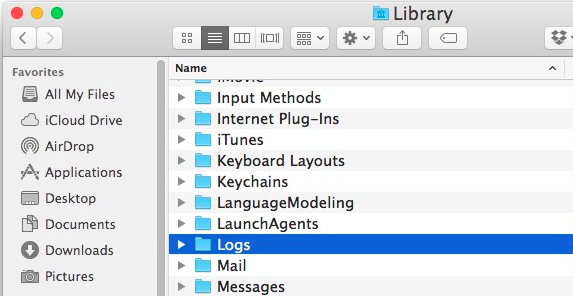
Det är en enkel process att rensa GlobalProtect-cachen på en Mac. Följ stegen nedan:
- Stäng GlobalProtect-applikationen, om den körs för närvarande.
- Öppna ett nytt Finder-fönster.
- I menyraden högst upp på skärmen klickar du på "Go”Och välj“Gå till mapp”Från rullgardinsmenyn.
- Ett litet fönster kommer att visas. Skriv in följande sökväg:
/Library/Logs/PaloAltoNetworks/GlobalProtect/ - Klicka på knappen ”Gå” eller tryck på angeFinder-fönstret navigerar nu till GlobalProtect-cachemappen.
- När du är inne i GlobalProtect-mappen markerar du alla filer och mappar som finns.
- Högerklicka på de markerade filerna och välj "Flytta till papperskorgen” från kontextmenyn. Alternativt kan du trycka på Kommando + Radera tangenterna för att flytta filerna till papperskorgen.
- Om du uppmanas att göra det, ange ditt administratörslösenord för att bekräfta åtgärden.
- Tömma papperskorgen för att permanent rensa GlobalProtect-cachefiler från din Mac.
- Starta om GlobalProtect-appen och återanslut till nätverket. Cachminnet kommer att byggas om med nya data.
För Windows-användare:
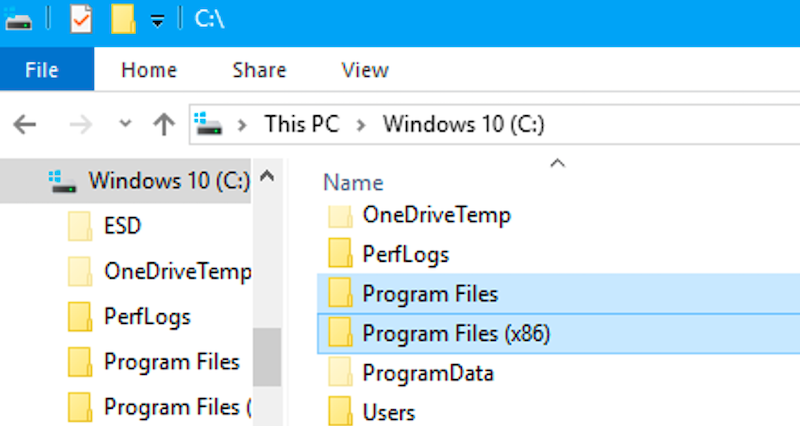
Det är en enkel process att rensa GlobalProtect-cachen på en Windows-enhet. Följ stegen nedan:
- Stäng GlobalProtect-programmet om det körs.
- Öppet File Explorer genom att trycka på Windows-tangent + E. på tangentbordet.
- I adressfältet högst upp i Utforskaren anger du följande sökväg:
C:\Program Files\Palo Alto Networks\GlobalProtect\ - Tryck på Enter eller klicka på “Go”-knappen. Utforskaren navigerar nu till GlobalProtect-cachemappen.
- När du är inne i GlobalProtect-mappen markerar du alla filer och mappar som finns.
- Högerklicka på de valda filerna och välj "Radera” från snabbmenyn. Alternativt kan du trycka på Delete-tangenten på tangentbordet för att ta bort filerna.
- Om du blir ombedd att bekräfta klickar du på “Ja” för att permanent radera de markerade filerna.
- Starta om GlobalProtect-appen och återanslut till nätverket. Cachminnet kommer att byggas om med nya data.
För Linux-användare:
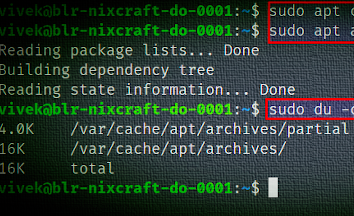
Om du använder ett Linux-baserat operativsystem innebär rensning av GlobalProtect-cachen att specifika filer tas bort från den angivna cachemappen. Följ stegen nedan:
- Öppet en terminal på din Linux-enhet.
- Navigera till GlobalProtect-cachekatalogen genom att ange följande kommando:
cd /tmp/gpclient - Väl inne i cachekatalogen, ta bort alla filer och mappar inuti den genom att köra följande kommando:
sudo rm -rf * - Om du uppmanas Till New Earth ditt administratörslösenord för att bekräfta åtgärden.
- Omstart GlobalProtect-applikationen och återanslut till ditt nätverk. Cachen kommer att regenereras med nya data.
Del 3. Hur rensar man GlobalProtects cache och cookies på en Mac?
Om du är en Mac-användare som letar efter ett bekvämt och effektivt sätt att rensa appcacher, inklusive GlobalProtect-cachen, iMyMac PowerMyMac är ett kraftfullt verktyg som kan hjälpa till att effektivisera processen.
PowerMyMac är ett allt-i-ett-optimeringsverktyg för Mac som är utformat för att identifiera och ta bort onödiga filer, inklusive programcacher, systemloggar, tillfälliga filer med mera. Den här modulen erbjuder en problemfri lösning för att rensa appcacher, till exempel GlobalProtect-cachen, med bara några få klick. Om du vill ta bort GlobalProtect-applikationen, kan du använda modulen "App Uninstaller".
Så här rensar du GlobalProtect-cachen med PowerMyMac:
- Ladda ned och installera PowerMyMac från den officiella webbplatsen.
- Starta PowerMyMac på din Mac.
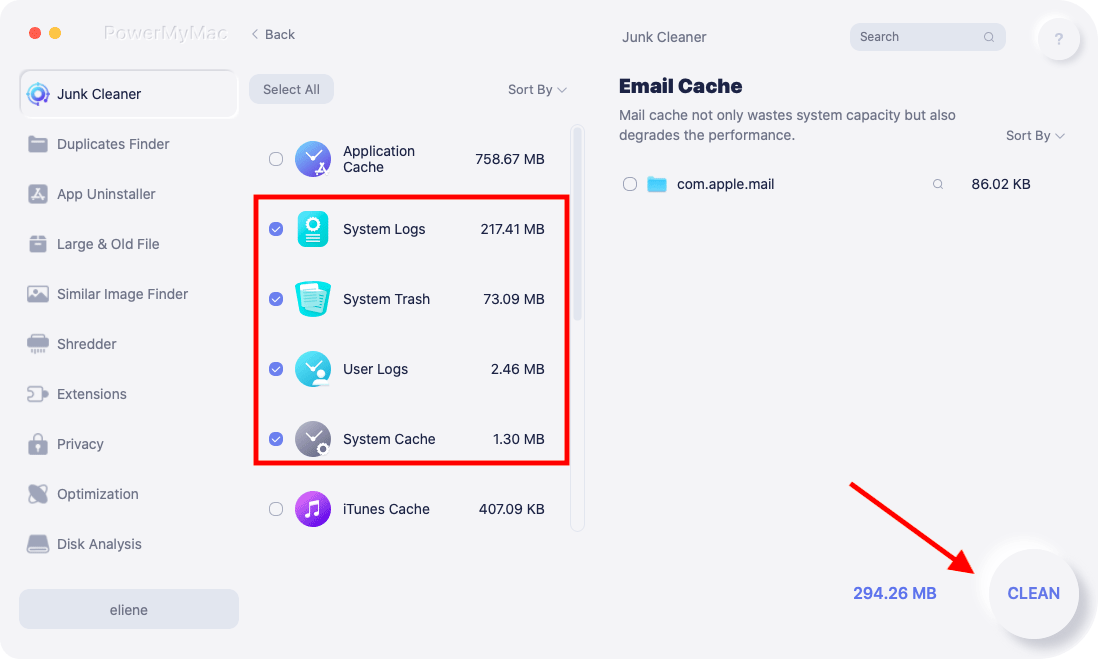
- Välj "Skräpstädare”-modul från huvudgränssnittet.
- Klicka på "SCAN”-knappen för att starta skanningen efter skräpfiler.
- När skanningen är klar visar PowerMyMac en lista över skräpfiler, inklusive programcacheminnen.
- Leta reda på GlobalProtect-cachefilerna från skanningsresultaten och markera dem för borttagning.
- Klicka på "REN”-knappen för att radera de valda skräpfilerna, inklusive GlobalProtect-cachen.
Del 4. Slutsats
Att rensa GlobalProtect-cachen är avgörande för att lösa problem med nätverksanslutningen och säkerställa en smidig VPN-upplevelse. Även om vi har tillhandahållit manuella metoder för att rensa cachen på olika operativsystem, är en alternativ lösning som är värd att överväga PowerMyMac.
Genom att använda PowerMyMac kan du enkelt rensa GlobalProtects cache och dra nytta av ett mer effektivt och optimerat Mac-system.


