


 PowerMyMac


Vi kommer att prata om hur man avinstallerar VirtualBox på MacVirtualBox har blivit en typ av applikation som gör det möjligt för användare att skapa virtuella datorer på sitt system utan att behöva ta bort operativsystemet (OS). Vilket är riktigt användbart. Virtuella maskiner, å andra sidan, förbrukar en stor mängd lagringsutrymme såväl som RAM-minne.
En sådan guide hjälper dig när du behöver ta bort VirtualBox från din Mac, till exempel när du upplever problem och vill installera om den, eller om du helt enkelt vill skapa mer utrymme på din Mac, precis som ta bort alla andra onödiga apparHär skulle du då se hur man avinstallerar VirtualBox på Mac.
Innehåll: Del 1. Avinstallera VirtualBox från Mac med hjälp av TerminalDel 2. Avinstallera VirtualBox direkt via FinderDel 3. Konventionella sätt att ta bort VirtualBox associerade filer från MacDel 4. Snabbaste sättet att avinstallera VirtualBox och dess relaterade filerSlutsats:
Del 1. Avinstallera VirtualBox från Mac med hjälp av Terminal
Du kan implementera hur man avinstallerar VirtualBox på Mac med hjälp av Terminal. Oracle Corporation har hittills utvecklat VirtualBox, ett annat gratis virtualiseringsprogram med öppen källkod riktat mot x86-system. När en virtuell maskin är i drift kan den förbruka en betydande mängd lagringskapacitet såväl som RAM-minne.

Eftersom du är missnöjd med VirtualBox tillförlitlighet och väljer att avinstallera den under andra omständigheter kan följande handledning vara användbar. VirtualBox inkluderar ett avinstallationsverktyg med en sådan kommandotolk i Terminalen som standard. Ta reda på var du ska leta efter det och hur det används för att korrekt avinstallera VirtualBox. Följ steg-för-steg-instruktionerna nedan:
- Du måste först gå in i din Dock och därifrån högerklicka på programmets ikon och sedan välja alternativet "AvslutaDu kan också använda Mac Aktivitetsmonitorn, här öppnar du helt enkelt Aktivitetsmonitorn, sedan väljer du processen under namnet i listan över program, trycker sedan på symbolen "X" och klickar sedan på alternativet "Avsluta" i popup-fönstret. Om programmet inte avslutas kan du prova alternativet "Tvinga avsluta” precis där i Aktivitetsmonitorn.
- Därefter, när det äntligen var klart, kunde du nu fortsätta med standardavinstallationen.
- Så, efter att du har avslutat appen, behöver du bara titta och starta VirtualBox installationsfiler. Dessa lagras vanligtvis i nedladdningskatalogen på din Mac. Om du inte kan hitta eller har raderat dessa installationsfiler kan du ladda ner dem igen till VirtualBox huvudsida.
- När du har hämtat filen måste du nu klicka på den "verktyg".
- Från det skulle detta sedan starta Terminal-applikationen, och den skulle faktiskt fungera på kommandot för att avinstallera VirtualBox.
- Om detta sedan skulle be om verifiering, behöver du bara skriva in "Ja" och sedan trycka på "Enter".
- Och närhelst detta återigen frågar efter ytterligare annonser från VirtualBox, måste du helt enkelt göra samma sak från föregående steg och trycka på "Ja" för bekräftelse.
- Varefter, om det inte krävs, ange din Macs användarnamn samt lösenordet för att avinstallationsprocessen ska kunna slutföras.
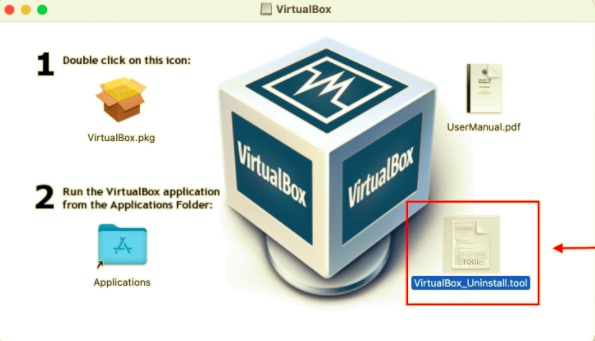
Så här avinstallerar du VirtualBox på Mac med hjälp av Terminal. Du kan se att det är väldigt enkelt att implementera, eller hur?
Del 2. Avinstallera VirtualBox direkt via Finder
Du kan också implementera hur man avinstallerar VirtualBox på Mac med hjälp av Finder. Det verkar finnas flera sätt att hjälpa dig igenom korrekt avinstallation av VirtualBox. Användare kan använda några av dessa för att helt avinstallera VirtualBox från din Mac.
Det finns en aspekt du bör vara medveten om när du tar bort ett program. Om programmet du vill avinstallera redan har fungerat och fortsätter att fungera under processen, måste du avsluta alla operationsprocedurer innan du faktiskt fortsätter med borttagningen. Här är en steg-för-steg-guide om hur du gör det med Finder:
- Du måste först gå in i din Dock och därifrån måste du högerklicka på programmets ikon och sedan välja alternativet "Avsluta". Du kan också använda Mac Aktivitetsmonitorn, här öppnar du helt enkelt Aktivitetsmonitorn, varefter du nu måste välja processen under namnet i listan över program, tryck sedan på symbolen "X" och sedan tryck på alternativet "Avsluta" i popup-fönstret. Om programmet inte avslutas måste du prova alternativet "Tvinga avsluta” precis där i Aktivitetsmonitorn.
- Därefter, när det äntligen var klart, kunde du nu fortsätta med standardavinstallationen.
- Nu måste du starta Finder, och sedan från sidofältet måste du välja Program så att det sedan leder dig till mappen.
- Efter det behöver du bara titta och klicka på VirtualBox-applikationen, och därifrån flyttar du appens ikon till Mac-papperskorgen och släpper sedan appens ikon där.
- När det var nödvändigt för dig att tillåta denna åtgärd var det bara att ange ditt administratörsanvändarnamn samt lösenordet.
- Där måste du klicka på Mac-papperskorgen och därefter tömma den för att slutföra proceduren helt.
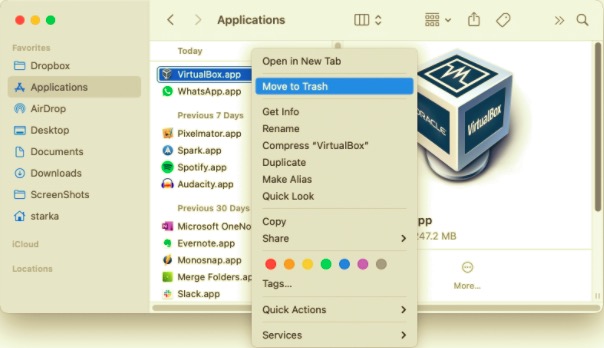
Notera: Var uppmärksam när du slutför det allra sista steget. Att rensa papperskorgen raderar allt innehåll du har kastat i papperskorgen på ett ögonblick, och då är denna åtgärd oåterkallelig. Kontrollera om du raderade det felaktigt någonstans, även innan du rensade papperskorgen kan du återställa filen genom att högerklicka på den och välja knappen Lägg tillbaka.
Genom att följa dessa instruktioner måste VirtualBox avinstalleras från din Mac. Om du inte stöter på några problem eller är osäker på om programmet har tagits bort korrekt från din Mac, använd iMyMacs avinstallationsprogram. Det tar bort VirtualBox stödfiler och avinstallerar appen helt.
Del 3. Konventionella sätt att ta bort VirtualBox associerade filer från Mac
Här kommer vi att prata om konventionella sätt att avinstallera VirtualBox på Mac. Det konventionella sättet att avinstallera VirtualBox från Mac är manuellt. Generellt sett är Mac-program fristående program som kan tas bort genom att helt enkelt dra och släppa dem i papperskorgen, men det finns vissa undantag.
Flera av er kanske undrar om sådana ovan nämnda traditionella tekniker skulle hjälpa er att ta bort relaterade filtyper som produceras av VirtualBox.
Även om det verkar vara betydligt enklare att helt ta bort program på Mac än på Windows, bör du fortfarande kontrollera om det finns andra stödjande och andra inställningsfiler kvar på din hårddisk ända sedan VirtualBox redan har tagits bort.
Rester av VirtualBox kanske inte har varit skadliga för dina system, även om de använder diskutrymme. Som ett resultat, om du inte alls planerar att använda dessa VirtualBox-filer, kan sådana rester raderas helt.
För både bibliotek och inställningsmapparna, där program sparar diverse data och tillhörande filer. Förutom alla dessa mappar kan VirtualBox sprida diverse komponenter i hela datorn, till exempel inloggningselement, start av daemoner/agenter och även kärnmodifieringar. Läs anvisningarna nedan för att radera eventuella rester av VirtualBox från din Mac:
Översta nivåbiblioteket på hårddisken: /Library
- Du måste starta Finder, därifrån trycker du på alternativet "Gå" som finns i menyraden, sedan måste du nu välja alternativet "Gå till mapp".
- Nu måste du mata in på sökvägen
/Library, som finns i den övre delen av hårddisken, och därifrån ska du nu trycka på tangenten “Enter”. - Efteråt måste du nu använda sökalternativet för att hitta alla filer som heter "VirtualBox".
- Sedan behöver du bara klicka på alla motsvarande mappar och filer, och sedan överföra var och en av dessa filer till papperskorgen på din Mac.
Användarbibliotek i hemmappen (~/Library)
- Gå till "Gå", sedan till "Gå till mapp", och därifrån skriver du in "
~Library”, tryck sedan på tangenten “Enter”. - Kontrollera och ta sedan bort mappar eller filer som har samma namn.
- Därefter måste du tömma Mac-papperskorgen så att resterna av VirtualBox raderas permanent.
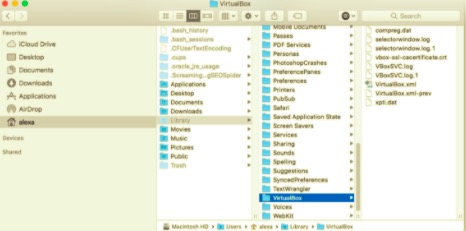
För nybörjare på Mac kan det ha varit tidskrävande att manuellt ta bort VirtualBox-rester. Men om du fortfarande är osäker på hur du raderar programrester helt, eller om du vill spara energi genom att ta bort VirtualBox Standalone med de flesta av dess rester, kan det vara en bättre metod att använda ett professionellt avinstallationsverktyg än manuell borttagning. Nu har du implementerat hur du manuellt avinstallerar VirtualBox på Mac.
Del 4. Snabbaste sättet att avinstallera VirtualBox och dess relaterade filer
Det finns ett snabbare sätt att avinstallera VirtualBox på Mac. Många användare har rapporterat att de inte kan avinstallera VirtualBox med traditionella metoder. Det verkar vara möjligt eftersom olika användare alltid kommer att ha specifika utmaningar baserat på deras system samt hur de som utför avinstallationen.
Lyckligtvis upptäckte vi ett starkt och pålitligt avinstallationsverktyg som fungerar på (åtminstone) majoriteten av programvara som körs under moderna operativsystem.
PowerMyMacApp-avinstallationsprogram är ett pålitligt och användbart program skapat för alla användare att avinstallera all oönskad, besvärlig, envis eller farlig programvara utan problem. Detta har sedan en enkel design och en kraftfull processor. Vi testade detta program och fann att det kan avinstallera de flesta VirtualBox-funktioner med bara några få klick.
 Få en gratis provperiod nu!
PowerMyMacs appavinstallationsprogram blev i huvudsak ett gratis avinstallationsprogram som används för att ta bort program från en sådan Mac. Sammantaget utvecklades resten av tidigare systemavinstallationsprogram till relativt användbara verktyg, vilket gjorde det möjligt för användare att helt ta bort all sådan programvara samt dess tillhörande filer med några få musklick.
Användare skulle troligtvis också spara tid genom att faktiskt analysera en viss typ av apprelaterad information. Kanske borde du ha insett hur effektivt hela programmet skulle ha varit för att ta bort många kanske tvivelaktiga och onödiga filer från din Mac? Följ enkelt de enkla metoderna för att ta bort VirtualBox-åtkomst via vilken Mac som helst:
- Innan du fortsätter bör du först skaffa dig PowerMyMacs appavinstallationsprogram från dess webbsida, installerade allt på din Mac och kör det sedan när du har laddat ner det. För att fortsätta, välj ett avinstallationsprogram och starta sedan skanningsprocesserna för att identifiera alla appar som redan har installerats på din Mac.
- Återigen, när skanningsmetoden är klar, visas flera alternativ i det digitala systemet, bland dessa som redan finns runt den vänstra regionen, från något du kan välja mellan som alla oanvända, alla program, valda men även rester.
- Välj det program som ska tas bort från listan. Välj sedan den utvikta ikonen för att studera de länkade filerna, men tryck slutligen på sökikonen för att läsa mer. Tryck sedan på “REN”-ikonen, och alla program, inklusive all tillhörande data, skulle raderas helt.
- Efter det kommer du att visa ett popup-meddelande som lyder "Rengörs klar", vilket innebär att den har meddelat dig hur mycket data som har raderats samt hur mycket totalt utrymme som nu ska finnas tillgängligt med ditt Mac-styrsystems lagringsmedium.
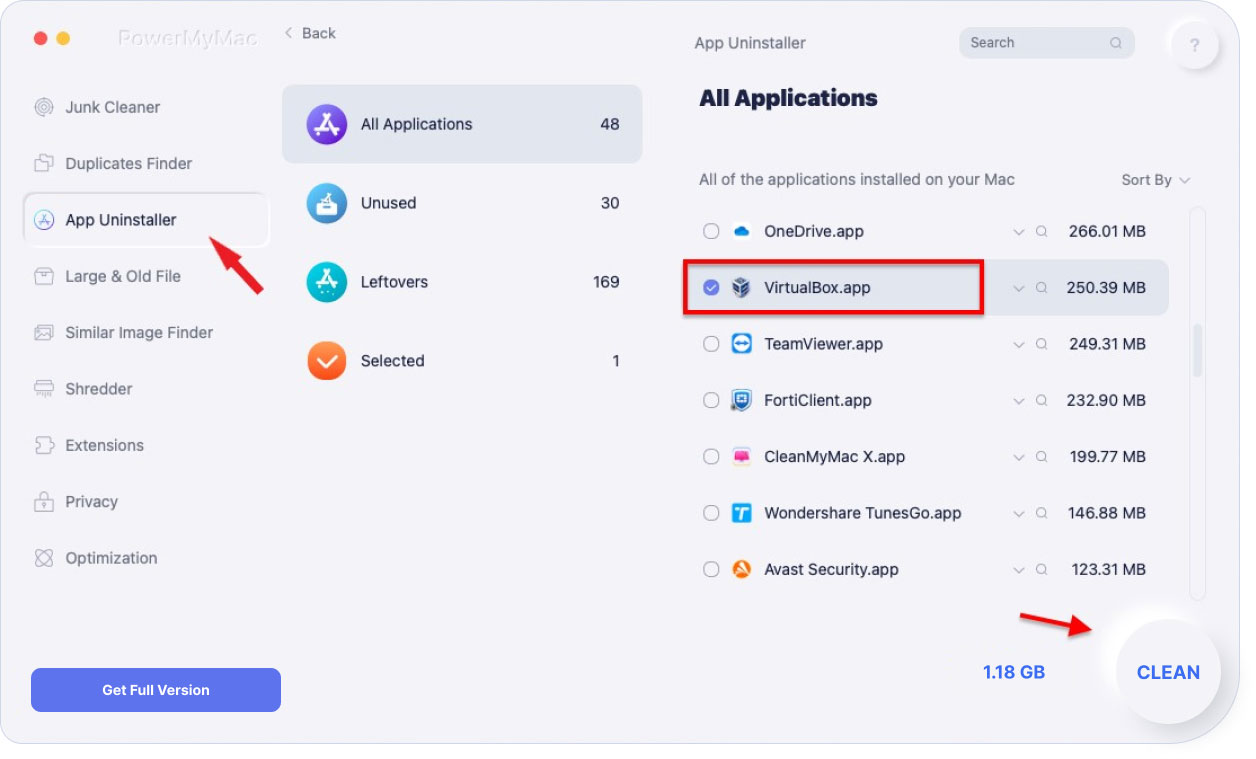
Om du däremot tvekar att använda den svåra borttagningsmetoden, även om du lyckades avinstallera apparna med hjälp av teknikerna som nämnts ovan, kan du välja ett automatiserat alternativ, vilket vanligtvis hjälper dig att uppnå en felfri avinstallation.
Som inget annat än ett resultat, snarare än med den tidskrävande, komplicerade metoden som omfattade flera steg, måste det ha fastställts att det var att föredra att använda en automatiserad procedur för att radera sådan oönskad programvara.
Slutsats:
Som det har tagits upp i den här artikeln handlade allt om hur man avinstallerar VirtualBox på MacFörutom olika sätt att avinstallera VirtualBox på din Mac, till exempel med hjälp av Terminal-appen eller kanske Finder, presenterar vi också hur du gör det med bara några få klick med denna superpraktiska automatiserade avinstallationsprogramvara. PowerMyMacs appavinstallationsprogram.
Det här verktyget har slagit många avinstallationsprogram som fanns tillgängliga på marknaden, och det har använts sedan dess eftersom det egentligen bara avinstallerar en app men också tar bort alla rester och programrester som du just avinstallerat. Vi hoppas att den här artikeln kommer att vara till stor hjälp för dig. Ha en framgångsrik vecka.


