


 Browser Cleanup


 Jag använder min MacBook Pro till många saker. För det första använder jag den för att redigera mina videor och foton. Jag använder den också för att titta på filmer. Ännu viktigare är att jag använder den för att surfa på webben för att göra research inför mitt jobb. Nu vill jag veta hur jag ändrar standardwebbläsaren på min Mac-enhet. Men jag vet inte hur jag ska göra. Kan du hjälpa mig?
Hur ställer man in Chrome som standardwebbläsare på Mac?
- Öppna Chrome.
- Tryck på Chrome-menyn.
- Välj Inställningar.
- En webbsida öppnas. Scrolla ner till slutet av gränssnittet tills du faktiskt kan se orden Standardwebbläsare.
- Tryck på Ange som standard.
Innehåll: Del 1. Introduktion till standardwebbläsaren på MacDel 2. Konfigurera standardwebbläsaren (för OS X Yosemite, macOS El Capitan eller senare versioner)Del 3. Andra sätt du kan implementera för att ändra din standardwebbläsareDel 4. Tips som hjälper dig att förbättra hastigheten på din webbläsareDel 5. Slutsats
Del 1. Introduktion till standardwebbläsaren på Mac
Standardwebbläsaren i ditt Mac-operativsystem är Safari. Denna uppstod ända sedan varumärket skapade sin egen webbläsare. Innan Safari kom till spel var standardwebbläsaren Internet Explorer. Och innan dess var det Netscape Navigator. Levde du under den tiden? Kommer du ihåg den?
Safari är en ganska perfekt webbläsare. Den tillhandahåller de flesta funktioner från sina konkurrenter som Firefox och Chrome. Till exempel har den autofyll eller autoförslag för dina uppgifter (t.ex. kreditkortsinformation). Den lagrar också lösenord säkert. Det ger dig till och med möjligheten att begära webbplatser utan att spåras.
Apple har prioriterat integritet, särskilt i dessa tider. Med tanke på detta kan Safari inom en snar framtid vara den bästa webbläsaren för Mac-användare. Detta gäller särskilt för dem som helt enkelt vill surfa på webben och vara säkra hela tiden. Dessutom kan det komma en tidpunkt då dina personuppgifter hålls privata från din webbläsare.
Även om Safari är en bra webbläsare kan du välja en annan webbläsare som Firefox och Chrome av olika anledningar. Prestanda kan vara en av anledningarna. Safari är faktiskt snabb som webbläsare. Ibland kan den dock vara långsammare jämfört med Firefox eller Chrome.
Eller så kanske du helt enkelt vill ha tillägg eller plugins som inte stöds av Safari och som stöds av de andra två webbläsarna. Ibland fungerar webbplatser inte korrekt i Safari heller. Det här är bara några av anledningarna till varför du kanske vill... byt webbläsare.

Vad är en standardwebbläsare?
Webbläsare är verktyg som låter dig surfa på webben och besöka en mängd olika webbplatser. Det kan till och med ha tillägg och plugins som gör surfupplevelsen bättre. Innan vi fördjupar oss i att ändra din Mac-enhets standardwebbläsare, låt oss ta itu med vad en standardwebbläsare faktiskt är.
Standardwebbläsaren är den webbläsare som startas när du klickar på en länk i ett annat dokument eller e-postprogram. När du använder Spotlight och klickar på en specifik URL från internet öppnas standardwebbläsaren. Alla uppgifter eller åtgärder som startar en URL öppnar standardwebbläsaren. Detta betyder dock inte att du inte kan använda andra webbläsare för att surfa på webben.
Det är inte nödvändigt att du ändrar din faktiska standardwebbläsare om du bara behöver besöka en viss webbplats i Firefox eller Chrome. Om Safari är din nuvarande standardwebbläsare kan du öppna en viss länk i en annan webbläsare. Du kan göra detta genom att trycka på CTRL-tangenten medan du klickar på en URL och sedan välja Kopiera länk. Därefter kan du klistra in den i en annan webbläsares adressfält.
Del 2. Konfigurera standardwebbläsaren (för OS X Yosemite, macOS El Capitan eller senare versioner)
Apple har ändrat metoden för att ställa in standardwebbläsaren i Yosemite. Den har dock behållits densamma sedan den nämnda versionen av Macs operativsystem. Tidigare var man tvungen att starta Safari för att göra en annan webbläsare till standardwebbläsaren. Det är helt enkelt fånigt. Men det har ändrats nyligen. Så här gör du det korrekt.
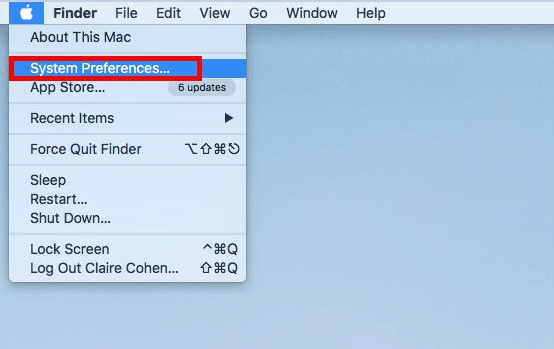
Steg 01 - Välj Systeminställningar
Tryck på Apple-menyn och välj sedan Systeminställningar.
Steg 02 - Välj Allmänt
Välj sedan fliken Allmänt.
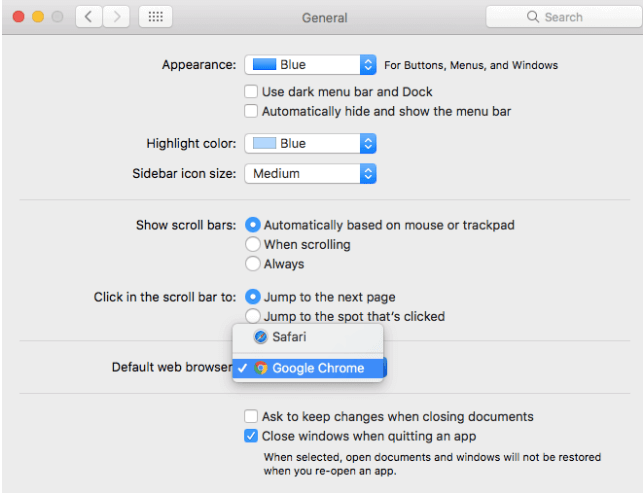
Steg 03 - Ändra standardwebbläsare
Halvvägs ner i gränssnittet kan du se en meny bredvid Standardwebbläsare. Klicka på den här menyn och välj den specifika webbläsaren som du vill använda som standard.
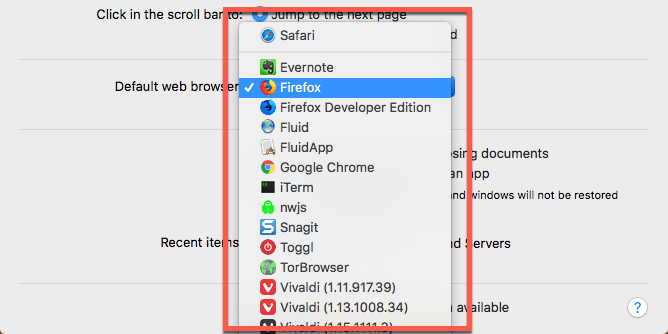
Det är allt! Det är lätt som 1-2-3. Låt oss nu kolla in hur du kan ändra standardwebbläsaren i tidigare versioner av operativsystemet. Stegen nedan visar det för OS X Mavericks och tidigare versioner:
Steg 01 - Öppna Safari.
Steg 02 - Tryck på Safari-menyn.
Steg 03 - Välj Inställningar.
Steg 04 - Klicka på fliken Allmänt.
Steg 05 - Tryck på menyn bredvid orden Standardwebbläsare.
Steg 06 - Välj den webbläsare du vill ha som standard.
Steg 07 - Avsluta inställningar.
Steg 08 - Avsluta Safari.
Del 3. Andra sätt du kan implementera för att ändra din standardwebbläsare
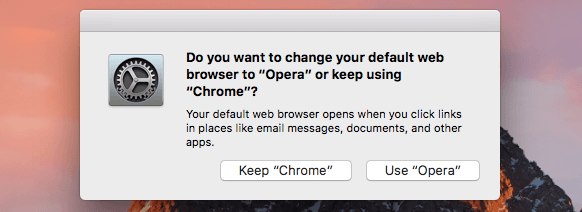
Egentligen vill varje webbläsare där ute vara standard. Detta för att öka antalet användare de har. När du faktiskt öppnar en webbläsare som inte är standard, frågar den dig om du vill ställa in den som standardwebbläsare för din enhet. Ett enkelt popup-fönster kommer att visas som ställer den här frågan.
Om du vill ställa in nämnda webbläsare som standard ändras helt enkelt inställningarna i Systeminställningar. På så sätt blir nämnda webbläsare standard. Men om du vägrade ändra det tidigare och bara vill ändra det nu är det enkelt. Så här ställer du in standardwebbläsaren i några av de populära webbläsarna som finns.
Ändra standardwebbläsaren till Chrome:
Steg 01 - Öppna Chrome.
Steg 02 - Tryck på Chrome-menyn.
Steg 03 - Välj Inställningar.
Steg 04 - En webbsida kommer att startas. Scrolla ner till slutet av gränssnittet tills du faktiskt kan se orden Default Browser.
Steg 05 - Tryck på Gör som standard.
Ändra standardwebbläsaren till Firefox:
Steg 01 - Öppna Firefox.
Steg 02 - Gå till Firefox-menyn.
Steg 03 - Välj Inställningar.
Steg 04 - Gå till den vänstra sidofältet. Se till att Allmänt är valt.
Steg 05 - Överst bör du kunna se orden "Allmänt". Nedanför det ser du ett meddelande som anger att Firefox inte är din standardwebbläsare. Gå till högerdelen av den och tryck på "Använd som standard".
Dricks: Det har nyligen rapporterats att webbläsaren Mozilla Firefox ofta kraschar och att användarna inte längre står ut med det. denna länk för att lösa problemet med att Firefox kraschar.
Ändra standardwebbläsaren till Opera:
Steg 01 - Öppna Opera.
Steg 02 - Tryck på Opera-menyn.
Steg 03 - Tryck på Inställningar.
Steg 04 - En webbsida kommer att startas. Se till att Basic är den valda. Denna finns på vänster sida av gränssnittet.
Steg 05 - Tryck på alternativet som gör Opera till din standardwebbläsare.
Ändra standardwebbläsaren till Vivaldi:
Steg 01 - Öppna Vivaldi.
Steg 02 - Gå till Vivaldi-menyn.
Steg 03 - Välj Inställningar.
Steg 04 - Välj Startup. Detta finns på vänster sida av gränssnittet.
Steg 05 - Tryck på Ange som standard.
Del 4. Tips som hjälper dig att förbättra hastigheten på din webbläsare
Även om du använder en viss typ av webbläsare kan du göra några av tipsen som vi beskriver nedan för att hjälpa dig att förbättra dess hastighet och prestanda:
Tips 01: Använd den senaste eller uppdaterade versionen
Se till att du installerar systemuppdateringar när de är tillgängliga. Safari uppdateras vanligtvis när din macOS genomgår systemuppdateringar, vilket är bra. Webbläsare som Chrome och Firefox uppdateras vanligtvis automatiskt när du stänger dem och startar dem igen. Men om du alltid håller dem öppna kommer de inte att kunna uppdatera sig själva. Det är därför det är bäst att stänga webbläsaren då och då för att uppdatera den regelbundet.
Tips 02: Undvik att öppna många flikar samtidigt
Flikar som är öppna förbrukar fortfarande processorcykler, RAM och energi även om de inte används för närvarande. Ju fler flikar du har öppnat, desto långsammare blir prestandan för din Mac. Därför är det nödvändigt för dig att stänga flikar som du inte använder eller inte behöver.
Tips 03: Håll din Mac och din webbläsare rena
Våra webbläsare innehåller många onödiga filer. Dessa inkluderar cookies, cache, gamla uppdateringar och språkfiler. Dessa filer gör att din Mac-enhet och till och med din webbläsare blir långsammare.
Det bästa sättet att bli av med dessa onödiga filer som tar upp mycket plats är att använda PowerMyMac Browser Cleanup verktyg - IntegritetspolicyNedan följer fördelarna med det här verktyget och hur du använder det steg för steg:
 Få en gratis provperiod nu!
*iMyMac PowerMyMac hjälper till att skydda din privata information genom att rensa hela din webbläsare från historisk data, sparad personlig information och lösenord, cookies, cacheminne etc. *Det hjälper till att snabba upp din webbläsares prestanda och ger dig en bättre användarupplevelse.
*Den skannar omfattande hela din Mac efter onödig webbläsardata som kan leda till att din surfupplevelse blir långsammare.
*Den omfattande skanningen och fullständiga rensningen av din webbläsare kan göras med bara några få enkla klick.
*Det är väldigt enkelt att använda. Även om du inte är tekniskt kunnig kan du enkelt använda verktyget för att rensa upp i din webbläsare.
*Den är väldigt snabb och kraftfull.
*Du får en gratis provperiod för de första femhundra (500) megabyte (MB) data. Du kan testa verktyget direkt utan att behöva betala för det.
*Enskild support och e-postsupport finns tillgänglig för att hjälpa dig om du skulle köra fast med att använda verktyget.
Så här använder du det steg-för-steg för att rensa din webbläsare:
Steg 1: Ladda ner och starta iMyMac PowerMyMac
Ladda ner verktyget från varumärkets officiella webbplats. Starta programvaran på din dator.
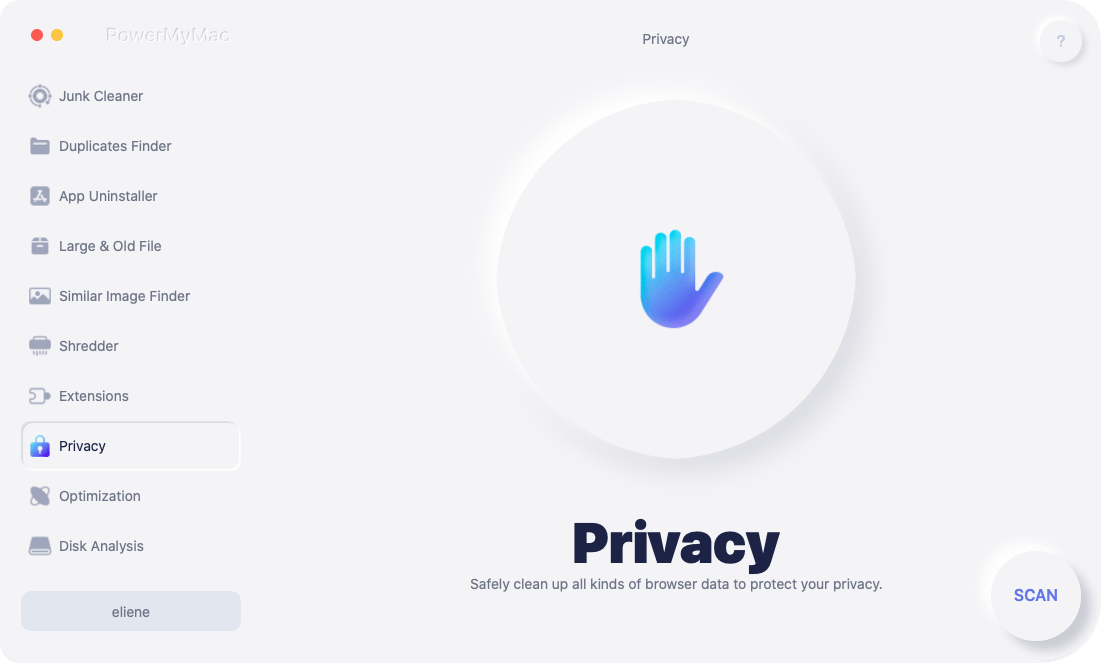
Steg 2: Välj sekretessalternativ och starta skanningen
Gå till vänster sida av gränssnittet. Välj alternativet Sekretess. Tryck på Skanna.
Steg 3: Förhandsgranska och välj önskad webbläsardata att rensa
När skanningsprocessen är klar väljer du önskad webbläsare. Välj en av kategorierna som Webbläsarcache, cookies, etc. Om du vill göra en fullständig upprensning, välj alla kategorier.
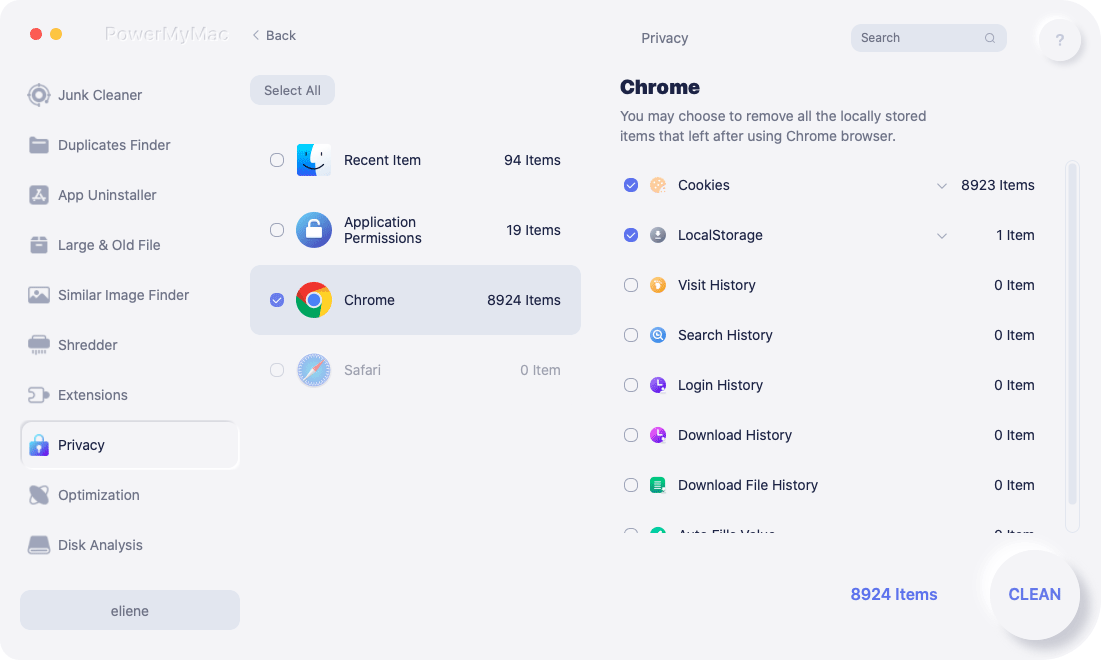
Steg 4: Webbläsarrensningen är klar
Tryck på Rengöringsknappen. Vänta tills rengöringsprocessen är klar.
Människor Läs också:Hur man rensar historia på MacHur tömmer man cachen i Safari för Mac?
Del 5. Slutsats
Du kan enkelt ändra standardwebbläsaren på din Mac-enhet, särskilt om du vill använda Firefox eller Chrome. Om du vill ändra din standardwebbläsare kan du enkelt välja en annan webbläsare genom att följa vår guide här.
Dessutom, för att förbättra webbupplevelsen är det ett måste att du följer våra tips ovan. Det bästa sättet att förbättra din användarupplevelse är att använda PowerMyMacs integritetsverktyg. Detta hjälper till att skydda din integritet och förbättra din webbupplevelse.


