


 Browser Cleanup


Jag har en MacBook Pro och använder den till mitt arbete – videoredigering. Den är väldigt praktisk i jobbet eftersom det är en kraftfull enhet. Men det finns en annan sak jag använder den till, att surfa på internet. Jag använder flera webbläsare och jag har ingen preferens. Jag har dock märkt att alla mina webbläsare känner till min personliga information. Jag ser den i autofyllning/autokomplettering. Hur man tar bort autofyllning på Mac?
~MacBook Pro-användare
Innehåll: Del 1. Vad betyder autofyllning?Del 2. Hur man tar bort autofyllning manuellt i Mac-webbläsare Del 3. Hur rensar jag autofyllning i Mac-webbläsare med ett klickDel 4. Slutsats
Människor Läs också:Topp 2 sätt att ta bort rensbart utrymme på Mac
Del 1. Vad betyder autofyllning?
Varje webbläsare där ute har sin egen autofyll (eller autofyllningsfunktionen). Detta gör webbläsarupplevelsen snabbare och smidigare. Autofyllningsfunktionen lägger automatiskt in din information eller föreslagna data i sökrutan eller fältrutan så att du inte behöver skriva ut allt själv.
Det här är en användbar funktion, särskilt om du alltid rusar runt i tiden. För vissa personer kan det dock orsaka integritetsproblem. Tanken på att webbläsare känner till dina personuppgifter och automatiskt fyller i dem i formulär åt dig är obehaglig.
Den vet helt enkelt för mycket. Och ibland vill folk bara att deras information ska förvaras säkert. Så de kanske vill tydliga cookies och webbhistorik i webbläsarna.
Ett sätt att skydda din personliga information är att radera autofyllnings- eller autokompletteringshistoriken i alla webbläsare på din Mac. Detta kan vara tidskrävande eftersom du har flera webbläsare på din enhet. Det kan vara tröttsamt eftersom du måste anstränga dig. Det bra med det är att du också kan åtgärda problemet med hur man tar bort autofyllning på Mac med ett verktyg.
Låt oss först gå in på det manuella.
Del 2. Hur man tar bort autofyllning manuellt i Mac-webbläsare
Det finns en mängd olika webbläsare. Men vi ska lära dig hur man tar bort autofyllning från 3 populär webbläsareLåt oss börja med Safari.
Rensa autofyllningshistorik i Safari
Nedan följer stegen för att ta bort autofyllning på Mac från Safari:
- Starta Safari på din Mac
- Klicka Safari från menyn och klicka sedan på Återställ Safari
- Klicka Ta bort annan autofyll formulärtext och klicka sedan på Återställa Detta raderar den autofyllningsinformation som du angav tidigare i Safari.
- Gå tillbaka till menyn och klicka på Safari och välj sedan preferenser.
- Välja Autofyll
- Gå till Användarnamn och lösenordKlicka på Redigera för att ta bort de sparade namnen och lösenorden.
- Navigera till Använda information från mitt kontaktkort, välj Redigera för att radera informationen i Safari.
- Gå till Kreditkort och klicka på Redigera för att rensa kreditkortsinformationen.
- Klicka på Redigera för Andra former för att ta bort alla autofyllningsposter.
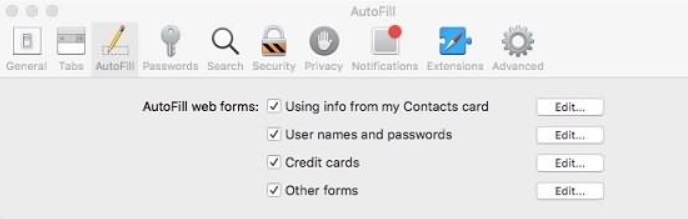
Och så här tar man bort autofyllning på Mac med Safari. Enkelt, eller hur? Även om det finns ett enklare sätt som vi lär dig i slutet av den här guiden.
Ta bort Autofyll från Mac Chrome
Så här tar du bort autofyllning på Mac i din krom webbläsare? Det är faktiskt väldigt enkelt. Följ bara stegen nedan:
- Öppna din Google Chrome.
- Klicka på de tre punkterna i skärmens övre högra hörn. Klicka Historik och välj sedan Visa fullständig historik.
- Klicka Rensa surfhistoriken.
- Klicka Advanced Open water
- Välja Autofyll formulärdata och klicka Rensa datum.
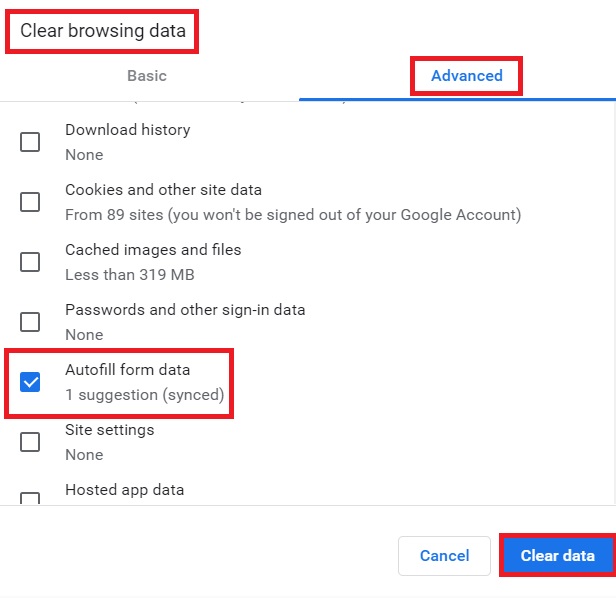
Nu har du åtgärdat problemet "hur man tar bort autofyll på Mac" från Google. Om du vill ta bort vissa specifika autofyllningsposter i Google Chrome kan du följa stegen nedan:
- Öppna Google Chrome på din Mac.
- Klicka på de tre punkterna i det övre högra hörnet av skärmen och välj Inställningar.
- Klicka autofyll och klicka sedan på Password Manager.
- Nu kan du se alla lösenord som du har sparat för alla webbplatser du har besökt tidigare.
- Klicka på ikonen med tre punkter och klicka ta bort för att radera autofyllningsinformationen på din Google-konto.
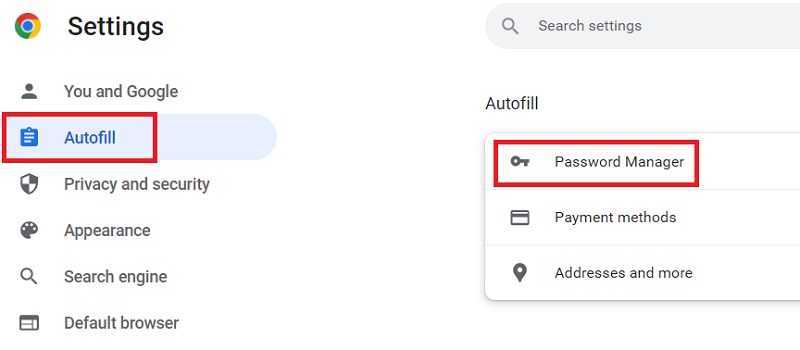
Så, hur tar man bort autofyllning på Mac i Chrome? Det är allt. Väldigt enkelt. Nu går vi vidare till nästa webbläsare.
Rensa autofyllningshistorik på Mac FireFox
Enkelt som ett, två, tre. Så skulle vi beskriva att rensa autofyllningshistoriken i Firefox. Följ bara stegen nedan:
- Öppna Firefox på din Mac
- Tryck på ikonen med tre rader i det övre högra hörnet
- Klicka Historik och klicka sedan på Visa alla History
- Ändra tidsintervallet till Allt
- Klicka Formulär & sökhistorik och klicka sedan på Rensa nu
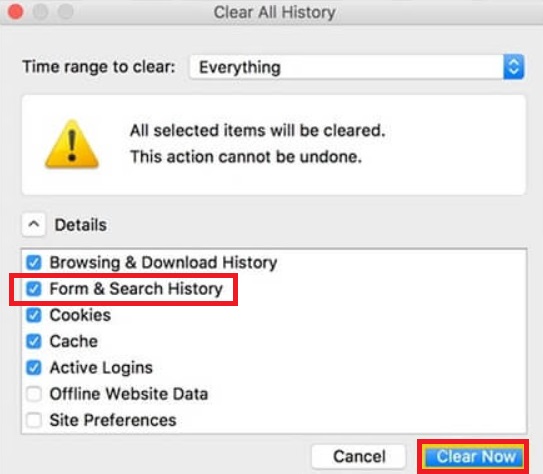
Och så här tar du bort autofyllning på Mac i alla webbläsare. Men hur gör du det automatiskt? Se vår guide nedan.
Del 3. Hur rensar jag autofyllning i Mac-webbläsare med ett klick
För att lösa ditt problem hur man tar bort autofyllning från Mac, verktyget vi rekommenderar är iMyMac PowerMyMacDet här fantastiska programmet kan hjälpa dig att optimera din Mac. Det kan avinstallera onödiga appar, rensa skräpfiler, ta bort apptillägg, rensa cacheminnet från Mac och så vidare.
Ocuco-landskapet Integritetspolicy PowerMyMac-modulen kan enkelt rensa dina webbläsare. Följ stegen nedan så slipper du frågan om hur man tar bort autofyllning på Mac igen.
- Ladda ner PowerMyMac från den officiella webbplatsen och starta programmet.
- På vänster sida av skärmen väljer du Integritetspolicy.
- Klicka på SCAN knappen för att skanna all webbläsardata på din dator.
- När skanningsprocessen är klar visas alla webbläsare och informationen i dem. Välj den webbläsare du vill ta bort information från.
- Välj vilken typ av data du vill rensa i den här webbläsaren. I det här fallet väljer vi automatisk ifyllning av historik. Om du vill radera mer data kan du dock välja fler alternativ.
- Klicka på REN knappen för att data ska rensas.
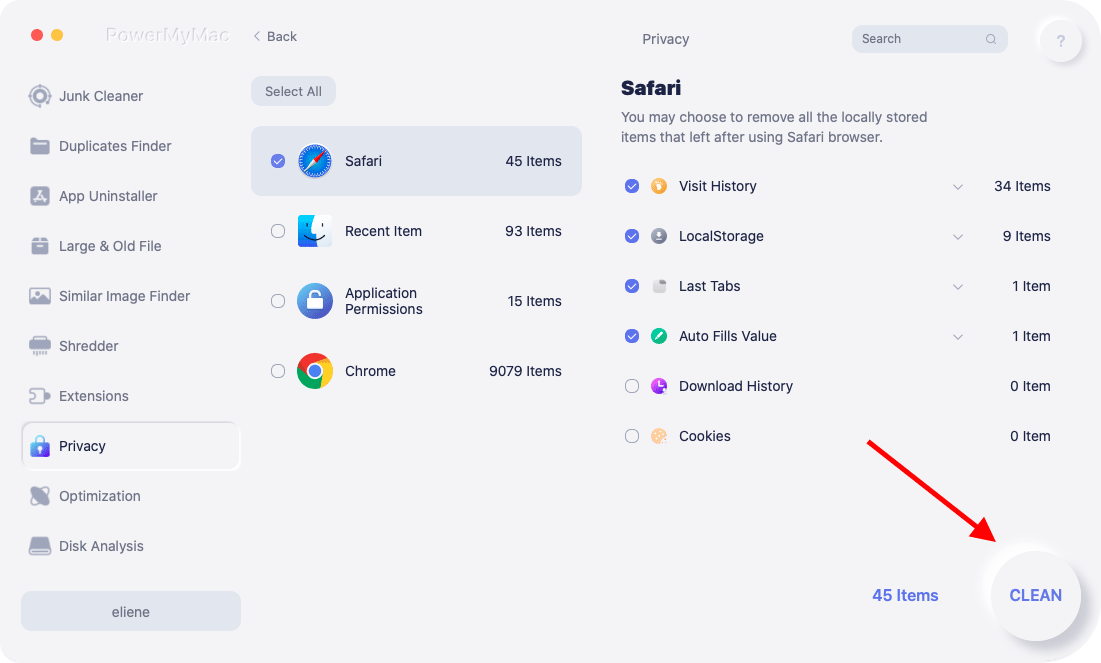
Nu har du lyckats hitta svaret på frågan "hur man tar bort autofyllning på Mac". Du kan också använda PowerMyMac för att snabba upp din Mac. Och nedan följer några fördelar och funktioner med PowerMyMac:
- Lätt att använda. Även om du är nybörjare och inte är bekant med en dator kan du använda det här verktyget för att rensa upp din webbläsare. Det är enkelt att använda och du kan utföra uppgifter med bara några få enkla klick.
- Snabb. Den skannar snabbt hela din dator efter data. Det går också snabbt att rensa webbläsardata med hjälp av sekretessverktyget. Detta är möjligt med bara några få klick.
- Gratis prov. Du får en gratis provperiod för de första 500 MB. Du behöver inte köpa verktyget bara för att testa det. Du kan helt enkelt få den kostnadsfria provperioden så att du kan uppleva fördelarna med sekretess.
Del 4. Slutsats
Autofyllning eller autokomplettering kan innehålla känslig personlig information som du inte vill att din webbläsare ska spara. Därför är det bäst att veta hur man tar bort autofyllning på MacDu kan göra det manuellt eller med ett verktyg som heter PowerMyMacs integritetspolicyOavsett vilken metod du väljer måste du se till att du raderar all autofyllnings-/autokompletteringsdata för att göra dig själv säkrare online.



