


 File Shredder


Hur gör du säkert radera filer på Mac helt och för alltid? Finns det ett sätt att permanent ta bort alla dessa filer för att säkra mina data? Tack!

 Självklart! Låt mig berätta hur du säkert tar bort filer på Mac enligt följande. Fortsätt läsa!
Ingen gillar att någon annan ser och får tillgång till personlig information. Detta inkräktar verkligen på vår integritet och säkerhet. Men vår Mac har all vår information lagrad på hårddisken och kan vara sårbar för säkerhetsintrång om vi lämnar över den eller säljer den till andra. På andra sidan kommer ansamlingen av ett stort antal filer att göra att det återstående utrymmet fortsätter att minska, vilket gör att Mac-datorn körs långsamt. Så du måste radera filerna för att frigöra lagringsutrymme.
Så det är bättre att permanent och säkert radera filer på Mac om du planerar att sälja den till någon annan. Och innan du lägger ut den till försäljning, se till att ta bort alla spår av filer helt inuti enheten.
Hur tar man bort filer säkert på Mac?
- Håll ner ' på tangentbordet
Control' nyckel. - Klicka på ikonen "Papperskorgen".
- Tryck "
Command” på OS X Yosemite/högre. Du kan trycka på ”Control"Eller"Option" istället. - Klicka på "Säker tömning av papperskorgen".
Innehåll: Del 1. Hur tar man bort filer säkert på en Mac?Del 2. Vilket är det säkraste sättet att radera filer?Del 3. Slutsats
Del 1. Hur tar man bort filer säkert på en Mac?
När du tar bort filer från Mac och andra iOS-enheter som iPhone, förblir informationen dold på hårddisken tills informationen skrivs över. Det betyder, de är inte helt bortaDessa uppgifter kan till och med tas emot mot dig om de kan återställas. Det betyder att din personliga information är sårbar för identitetsstöld.

Så är det ett sätt att säkert radera filer på Mac för alltid? Oroa dig inte, vi ger dig fler alternativ om hur du säkert radera filer på Mac att ingen någonsin kan återhämta sig!
1. Töm papperskorgen säkert på Mac
Detta är det grundläggande sättet att ta bort filer från Mac. Du kan göra detta regelbundet eller varje vecka för att också snabba upp Macs prestanda.
- Håll ner ' på tangentbordet
Control' nyckel. - Klicka på ikonen "Papperskorgen".
- Tryck "
Command” på OS X Yosemite/högre. Du kan trycka på ”Control"Eller"Option" istället. - Klicka på "Säkert tomt papperskorgen".
Detta garanterar dock inte att filerna är borta för alltid. Säkert kommer det att finnas spår av koderna som fortfarande kan användas för att hämta informationen.
Radera filer säkert på El Capitan och högre:
För det senaste Mac OS verkade det som att papperskorgen togs bort eller ännu hellre "doldes". Följ dessa steg om hur du startar papperskorgen och tar bort viktiga filer.
- Öppna startplattan
- Öppna Annan mapp
- Hitta och klicka på Terminal
- Skriv in
srm –v(lägg till mellanslag efter v, srm betyder 'säker borttagning') - Dra och släpp filen/filerna du vill ta bort
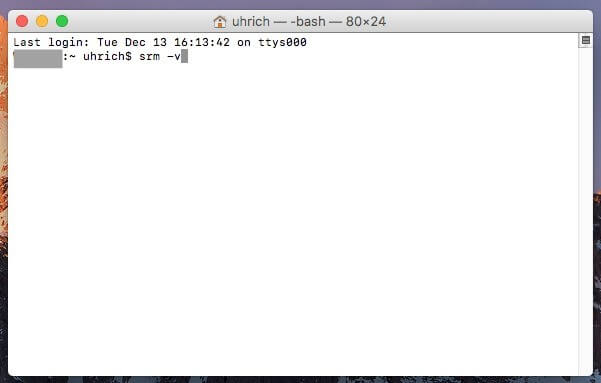
Kom ihåg det "fragmentering" betyder att filerna kommer att skrivas över med slumpmässig kod så att om de återställs kommer originalfilerna inte att avkodas.
2. Radera filer säkert på Mac med Terminal
I tidigare macOS-versioner, srm kommandot tillät säker filradering i Terminal. Med macOS Sierra tog Apple bort den här funktionen, men du kan fortfarande säkert radera filer med hjälp av rm kommando.
Konfigurera först några inställningar:
- Öppna systeminställningar från Apple-menyn.
- Navigera till tangentbordet inställningar.
- Under kortkommandon, Gå till Tjänsteroch sedan Filer och mappar.
- Möjliggöra Ny terminal i mappen och Ny terminalflik i mapp.
Leta sedan reda på filen i Finder:
- Högerklicka på mappen som innehåller filen.
- Välja Tjänster > Ny terminal i mappen.
I terminalfönstret:
- Typ
rm -P filename.ext, byter utfilename.extmed ditt filnamn och filändelse. - Klicka Retur för att utföra kommandot.
3. Radera filer säkert via diskavbildning
Diskavbildningar (.dmg) är mångsidiga för att packa och dela filer på macOS. Du kan skapa och kryptera dem med Skivverktyg och förvandla dem till säkra valv för känsliga data. Så här raderar du filer säkert med hjälp av en diskavbildning:
- Öppna Disk Utility.
- Gå till Arkiv > Ny bild > Tom bild.
- Namnge din bild, välj storlek och välj 128-bitars AES-kryptering. Ange ett lösenord.
- Kopiera filer till den krypterade diskavbildningen.
- Mata ut diskavbildningen för att låsa den.
- Flytta .dmg-filen till papperskorgen och töm den för att radera den på ett säkert sätt.
4. Ta bort filer säkert med TRIM
Många moderna Mac-datorer är utrustade med SSD-diskar (Solid State Drives) snarare än traditionella hårddiskar (HDDs). Säker filradering är mer utmanande på SSD-diskar, men möjligt med TRIM.
TRIM är ett verktyg som automatiskt rensar data i angivna "ej använda"-utrymmen, vilket gör att ny data kan skriva över dessa utrymmen. Även om hårddiskar saknar den här funktionen kan du aktivera TRIM på SSD-diskar med hjälp av trimforce kommandot i Terminalen.
Steg för att aktivera TRIM:
- Öppna Terminal.
- Typ:
sudo trimforce enable - Bekräfta uppmaningarna genom att skriva
yoch trycka påEnter.
Obs: Säkerhetskopiera dina filer med Time Machine innan du fortsätter, eftersom Apple rekommenderar försiktighet när du använder TRIM.
Del 2. Vilket är det säkraste sättet att radera filer?
Vi ger dig den säkraste och mest effektiva metoden för att säkert radera filer på Mac utan rädsla för att hämta filerna igen. Allt du behöver är ett program som gör jobbet åt dig på nolltid -- PowerMyMac.
Det här verktyget tar bort alla filer permanent utan spår. Det har många funktioner som hjälper dig att bli av med sårbara filer, rensa loggfiler, snabba upp prestandan och låter dig göra fler saker.
 Få en gratis provperiod nu!
- Ladda ner och installera PowerMyMac på din Mac och starta den sedan.
- Hitta och välj Shredder på vänster sida. Och klicka sedan på 'Lägg till eller dra filer'.
- Välj Sökväg och lägg till de filer du vill ta bort.
- Klicka på STRIMLA knappen, vänta tills processen är klar.
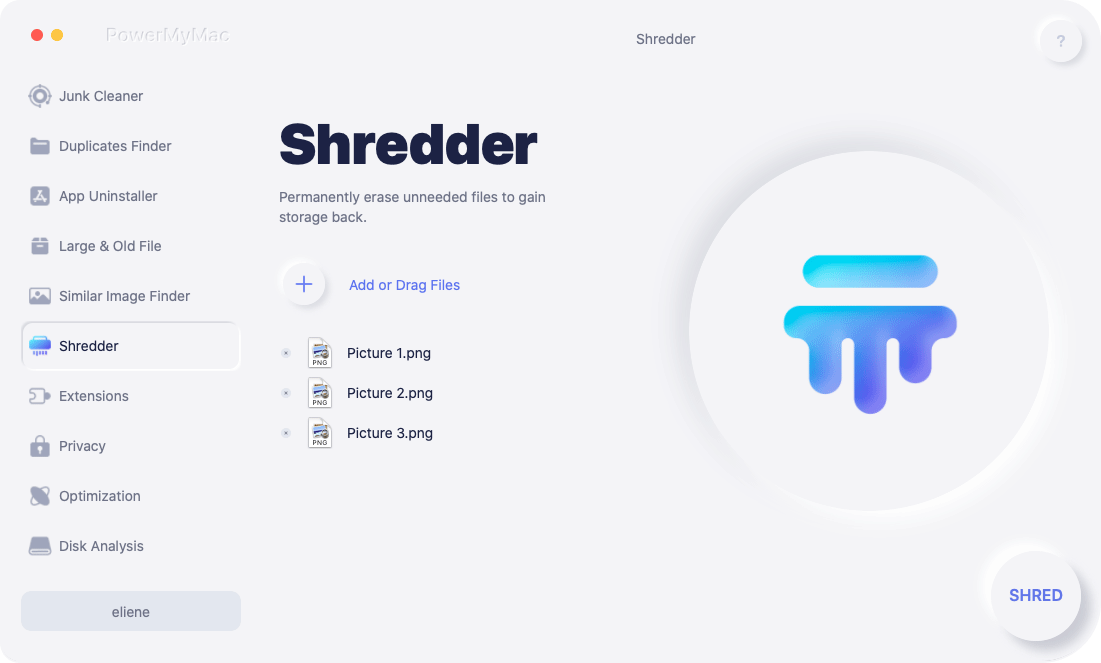
Du kan göra detta steg när du har sparat och använt konfidentiell information som behövde tas bort direkt efteråt.
Del 3. Slutsats
I dagens generation, där prylar och information är mycket praktiska, är det mycket viktigt att hålla sina personliga filer konfidentiella och säkra. Men det kan vi naturligtvis inte göra eftersom systemet inte tillåter oss att göra det om inte koden skrivs över. Vi kan manuellt ta bort filerna själva från vilken macOS som helst, men de kan fortfarande återställas.
PowerMyMac är ett pålitligt program med olika funktioner. Du kan använda det för att säkert radera filer på Mac på nolltid och utan stress!



Dailuja2018-11-12 05:17:20
Jag försökte radera hårddisken i min MacBook Air genom att följa stegen i "Säker radering av filer på El Capitan och senare" i din artikel. Men jag såg inga säkerhetsalternativ. Varför?
iMyMac2018-11-12 09:35:19
Apple har tagit bort funktionen för säker radering på SSD-baserade system som din MacBook från och med den version av Skivverktyg som ingår i El Capitan, så du missar ingenting – alternativet finns inte där.
lindra2019-03-06 16:34:45
Det här är toppen. Tack för att du publicerade lösningarna efter att Apple missat funktionen för säker borttagning.
iMyMac2019-03-06 18:05:14
Tack för ditt stöd!
Linavia2019-05-08 12:46:27
Jag skrev srm -v i terminalen men kunde inte ta bort filerna från mappen i papperskorgen, eftersom datorn säger att de används.
iMyMac2019-05-08 14:07:15
Hej, för att lösa det här problemet, försök att skriva detta: srm -rv /Användare/detta_kommer_att_vara_ditt_användarnamn_här/.Trash/*