


 PowerMyMac


Önskar spela The Sims 4 på Mac utan prestandaproblem eller komplicerade lösningar? Goda nyheter – The Sims 4 har officiellt stöd för macOS, vilket innebär att Mac-användare kan njuta av spelet utan att behöva installera Windows eller använda emulatorer från tredje part. Oavsett om du är ett Sims-fan sedan länge eller precis har börjat, är det mer tillgängligt än någonsin att spela på Mac.
I den här guiden går vi igenom hur du spelar The Sims 4 på din Mac och vilka inställningar du bör justera för ett smidigare spelande. Vi introducerar också ett kraftfullt Mac-optimeringsverktyg som kan hjälpa dig att få ut mer av din hårdvara före och efter varje spelsession. Från systemkrav till prestandatips täcker den här guiden allt du behöver veta för att njuta av den fullständiga Sims 4-upplevelsen på macOS.
Innehåll: Del 1. Hur man laddar ner och spelar The Sims 4 på en Mac?Del 2. Tips för att spela The Sims 4 på MacDel 3. Bonus: Optimera din Mac för smidig spelupplevelseDel 4. Slutsats
Del 1. Hur man laddar ner och spelar The Sims 4 på en Mac?
Om du vill spela The Sims 4 på Mac är processen uppfriskande enkel – tack vare att EA erbjuder en inbyggd macOS-version av spelet. Här är en fullständig genomgång för att komma igång:
Steg 1: Kontrollera din Macs kompatibilitet
Innan du laddar ner spelet, se till att din Mac uppfyller de lägsta systemkraven nedan:
- macOS 10.13 (High Sierra) eller senare
- Intel Core i5-processor eller Apple Silicon (M1, M2, etc.)
- 8GB RAM eller mer
- Minst 25 GB ledigt diskutrymme
- Metallstödd grafikkort
Steg 2: Ladda ner EA-appen (tidigare Origin för Mac)
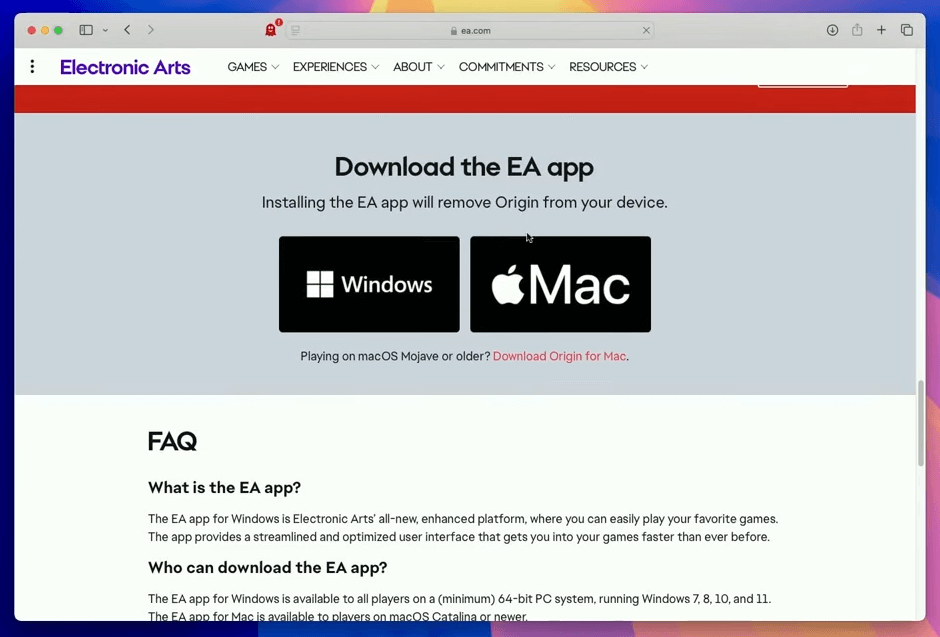
EA har gått över från Origin till den nya EA-appen för Mac. Så här får du den:
- Besök EA:s officiella hemsida.
- ladda ner EA-appen för macOS.
- Installera och starta appen.
- Logga in eller skapa ett EA-konto.
Steg 3: Ladda ner och installera The Sims 4
När du är inne i EA-appen:
- Sök efter The Sims 4.
- Klicka på “Ladda ner” (The Sims 4 är gratis att spela från och med 2022).
- Vänta tills installationen är klar och klicka sedan på "Spela upp".
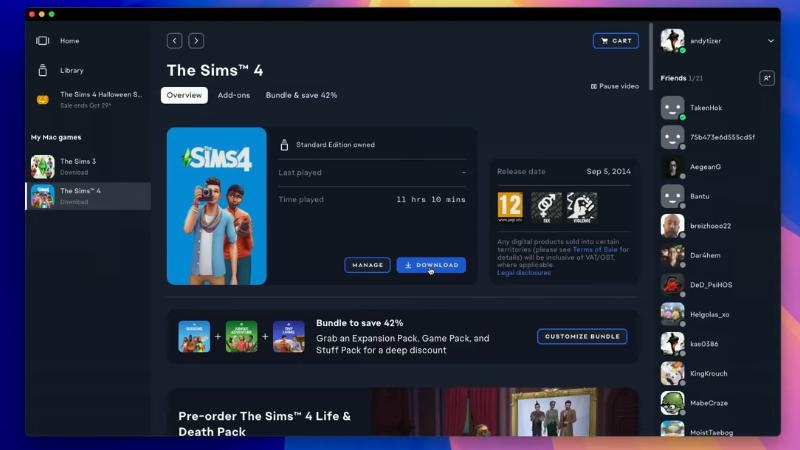
Den här inbyggda versionen gör det väldigt enkelt att spela The Sims 4 på Mac utan ytterligare programvara.

Valfritt: Överför befintliga sparade filer eller mods
Om du tidigare har spelat på Windows eller har moddar:
- Spara filer, gå in i:
Documents > Electronic Arts > The Sims 4 - Överför dem från en annan dator eller extern hårddisk
Nu är du redo att spela The Sims 4 på Mac med samma åtkomst och funktioner som PC-spelare.
Del 2. Tips för att spela The Sims 4 på Mac
För att säkerställa bästa prestanda när du spelar The Sims 4 på Mac, följ dessa optimeringstips:
Justera inställningarna i spelet
- Gå till Spelalternativ > Grafik
- Ställ in Grafik på Medium or Låg för äldre Mac-datorer
- stänga vertikal Sync för jämnare FPS
- Minska upplösningen till 1440x900 eller 1280x800 på äldre skärmar
Stäng bakgrundsapplikationer
Stäng av onödiga appar som Chrome, Zoom eller Spotify medan du spelar. Dessa förbrukar RAM- och CPU-resurser som The Sims 4 behöver för att fungera smidigt.
 Relaterade Artikel: Hur mycket RAM behöver jag på min Mac? [Tips för att frigöra RAM]
Hantera anpassat innehåll och modifieringar
För många moddar kan sakta ner spelet. Så här undviker du det:
- Rengör din Mods-mapp regelbundet
- Undvik föråldrade eller trasiga moddar
- Använd en Mod Manager för att hålla dig organiserad
Undvik att få slut på diskutrymme
Se till att ha minst 10–15 GB ledigt hela tiden. The Sims 4 skriver ständigt till disken (sparade filer, cache, mods), så låg lagringskapacitet kan leda till krascher eller långsamma laddningstider.
Relaterade Artikel: Hur hanterar man lagring på en Mac?
Håll macOS och Sims 4 uppdaterade
Spelpatchar och macOS-uppdateringar förbättrar ofta prestanda och kompatibilitet. Håll alltid båda uppdaterade.
Genom att följa dessa tips får du bästa möjliga spelupplevelse när du spelar The Sims 4 på Mac.
Del 3. Bonus: Optimera din Mac för smidig spelupplevelse
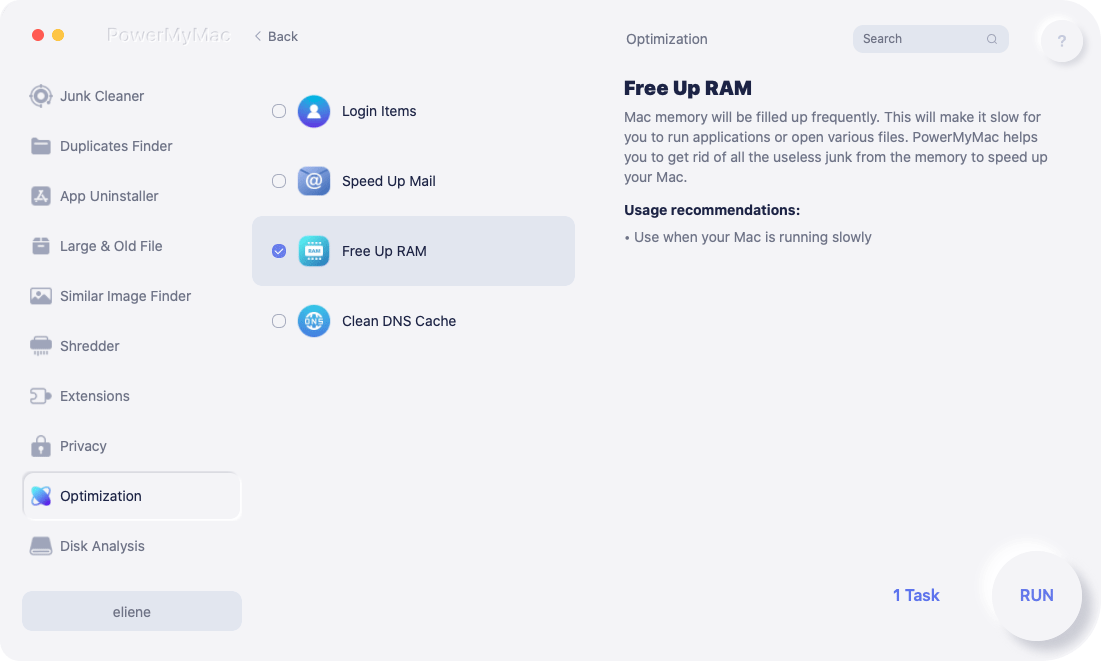
För att få ut ännu mer av din Mac när du spelar kan du överväga att använda iMyMac PowerMyMac, ett robust optimeringsverktyg speciellt utformat för macOS. Det hjälper till att förbättra prestandan genom att ta bort onödiga filer, hantera systemminne och övervaka resursanvändningen i realtid.
Viktiga funktioner i PowerMyMac:
- Smart städare: Tar snabbt bort systemskräp, cachefiler och tillfällig data för att frigöra värdefullt diskutrymme.
- App-avinstallerare: Tar bort oönskade appar och deras kvarvarande filer helt.
- Duplicate Finder: Lokaliserar och tar bort dubbletter av filer som tar upp ditt lagringsutrymme.
- Pappers strimlare: Tar säkert bort känsliga filer som inte kan återställas.
- Privat skydd: Raderar webbhistorik, cookies och appspår för att skydda dina data.
- Performance Monitor: Håller koll på din CPU-, minnes- och lagringsanvändning i realtid.
När du spelar The Sims 4 på Mac hanterar ditt system komplexa simuleringar, realtidsrendering och stora sparade filer. PowerMyMac hjälper till att säkerställa att din Mac inte fastnar i gamla filer eller oanvända appar. Kör PowerMyMac innan du startar The Sims 4 för att rensa RAM-minne och diskutrymme. Använd det igen efter din session för att kyla ner ditt system och ta bort överblivna cachefiler.
Del 4. Slutsats
Om du har undrat hur man spelar The Sims 4 på Mac är den goda nyheten att det inte bara är möjligt – det stöds officiellt. Du kan installera spelet direkt med EA-appen för macOS och börja spela på några minuter, utan att behöva Boot Camp eller virtuella maskiner.
För bästa möjliga upplevelse, optimera dina grafikinställningar, hantera bakgrundsuppgifter och använd systemverktyg för att hålla din Mac igång med maximal prestanda. Ett verktyg som PowerMyMac gör detta enkelt genom att hjälpa dig att frigöra utrymme, RAM-minne och övervaka systemets hälsa.


