


 PowerMyMac


Om du någonsin har stött på "Din anslutning är inte privat på Mac”-felet när du surfar, vet du hur frustrerande och alarmerande det kan vara. Det här meddelandet betyder att din webbläsare misstänker att anslutningen inte är säker, ofta på grund av problem med en webbplats SSL-certifikat eller din Macs egna inställningar. I den här guiden ska vi utforska varför det här felet visas, ge dig tydliga felsökningssteg för Safari och kromoch dela tips för att förhindra det i framtiden.
Innehåll: Del 1: Vad betyder "Din anslutning är inte privat" på Mac?Del 2: Varför säger min anslutning att den inte är privat på Mac?Del 3: Hur man åtgärdar felet "Anslutningen är inte privat" på Mac?Del 4. Extra tips – Förbättra din Mac-upplevelseDel 5: Sammanfattning
Del 1: Vad betyder "Din anslutning är inte privat" på Mac?
När du besöker en webbplats kontrollerar din webbläsare om det finns ett giltigt SSL-certifikat för att säkerställa att din anslutning är krypterad och säker. Om något är fel med certifikatet eller om din webbläsare inte kan bekräfta dess äkthet visas varningen "din anslutning är inte privat på Mac".
I Safari, visas det som: ”Den här anslutningen är inte privat” med ett alternativ för att visa detaljer.
I Chrome, kommer du att se: ”Din anslutning är inte privat” med en röd varningstriangel.
Varför är det viktigt SSL/TLS-certifikat hindrar angripare från att stjäla känslig information som lösenord och kreditkortsnummer. Om du ignorerar denna varning kan dina data exponeras.
Del 2: Varför säger min anslutning att den inte är privat på Mac?
Låt oss förklara varför din anslutning inte är privat på Mac kan visas:
- Ogiltigt eller utgånget SSL-certifikat – Webbplatser måste förnya sina SSL-certifikat regelbundet; utgångna certifikat utlöser detta fel.
- Felaktigt datum och tid – SSL-validering är beroende av korrekt systemtid; även ett litet fel kan störa verifieringen.
- Väntar på webbläsar- eller macOS-uppdateringar – Föråldrade säkerhetsbibliotek kan inte känna igen nyare certifikat.
- Risker med offentligt Wi-Fi – Avlyssnade eller modifierade certifikat från osäkra nätverk kan orsaka varningar.
- Antivirus- eller brandväggsöverbelastning – Vissa verktyg skannar HTTPS-trafik och stör säkra anslutningar.
- Skadad webbläsarcache eller cookies – Lagrade webbplatsdata kan komma i konflikt med uppdaterad certifikatinformation.
Del 3: Hur man åtgärdar felet "Anslutningen är inte privat" på Mac?
Så här felsöker och löser du problemet effektivt:
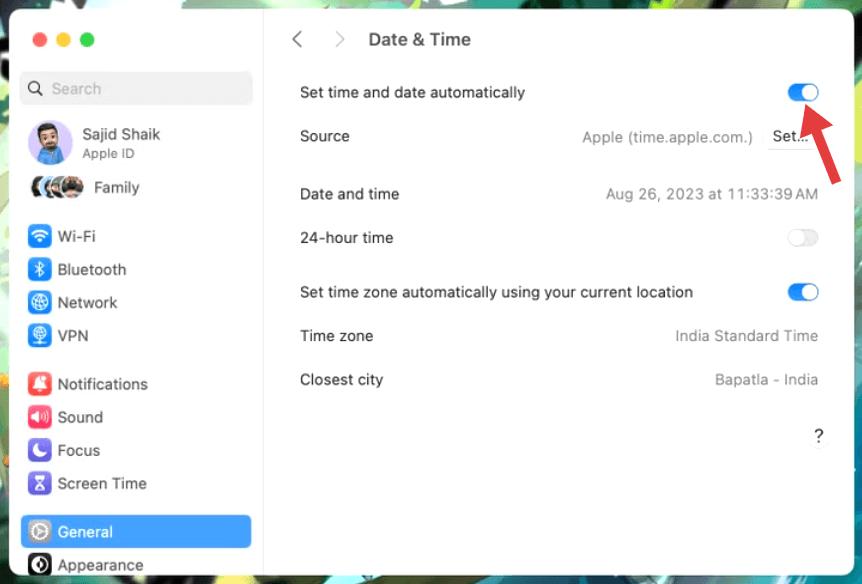
1. Kontrollera din Macs datum och tid
- Öppet Systeminställningar → Allmänt → Datum och tid.
- Aktivera "Ställ in datum och tid automatiskt".
- Välj rätt tidszon.
2. Uppdatera eller starta om din webbläsare
Ibland går certifikatkontrollen helt enkelt ut på tiden. Så här åtgärdar du felet "din anslutning är inte privat på Mac".
- Stäng Safari eller Chrome helt.
- Öppna igen och försök ladda webbplatsen igen.
3. Uppdatera macOS och webbläsare
Uppdateringar inkluderar ofta nya rotcertifikat och säkerhetsuppdateringar.
- För macOS: Gå till Systeminställningar > Allmänt > Programuppdatering.
- För Chrome: Öppna Inställningar > Om Chrome och uppdatera till den senaste versionen.
4. Byt nätverk
Offentliga Wi-Fi-nätverk på kaféer, flygplatser eller hotell omdirigerar ofta trafik till inloggningssidor, vilket kan förvirra webbläsare.
- Koppla bort från offentligt Wi-Fi.
- Testa webbplatsen med ditt hem-Wi-Fi eller din mobila hotspot.
5. Rensa webbläsarens cache och cookies
Safari:
- Gå till Safari > Inställningar > Sekretess > Hantera webbplatsdata.
- Klicka Ta bort alla.
Krom:
- Gå till Inställningar > Sekretess och säkerhet > Rensa webbinformation.
- Välja Cachade bilder och filer och Cookies och annan webbplatsinformation.
Del 4. Extra tips – Förbättra din Mac-upplevelse
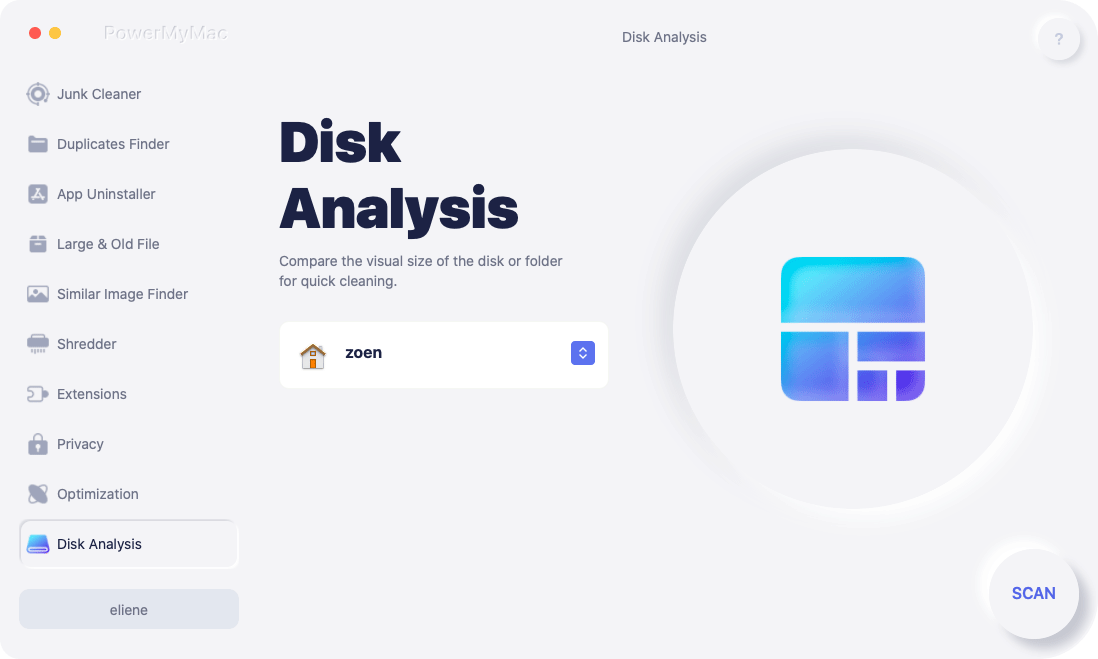
Även om din anslutning inte är privat på din Mac främst är det ett säkerhetsproblem, kan en långsam eller rörig Mac göra felsökning svårare. Det är där iMyMac PowerMyMac kommer in
Med det här verktyget kan du:
- Rensa webbläsarcacher som kan störa SSL-certifikatkontroller.
- Frigör RAM för att förbättra webbläsarens prestanda under säkra anslutningar.
- Hantera inloggningsobjekt så att din Mac startar snabbare och fungerar smidigt.
- Ta bort skräpfiler som orsakar systemavmattningar.
En välskött Mac har mindre risk att ha surfproblem, vilket gör det enklare att åtgärda fel snabbt.
Del 5: Sammanfattning
Varningen ”din anslutning är inte privat på Mac” är din webbläsares sätt att skydda dig. Även om det ibland kan bero på ofarliga orsaker som felaktig systemtid, bör det aldrig ignoreras utan undersökning. Följ stegen i den här guiden för att felsöka problemet och håll din Mac optimerad med verktyg som iMyMac PowerMyMac för att säkerställa smidigare och säkrare surfning i längden.


