


 PowerMyMac


Varje gång du använder din webbläsare – besöker webbplatser och klickar på länkar – sparar den en logg över vad du gjorde. Om du använder Chrome kan du faktiskt ladda ner den med din kompletta historik över olika enheter. Detta kan vara ett utmärkt verktyg för de flesta. Integritet är dock en stor fråga, det är därför du kanske vill... rensa sökhistorik i alla webbläsare du använder.

I den här artikeln visar vi hur du gör rensa din webb- eller sökhistorik på din MacHandledningar kommer att ges för Chrome, Firefox och Safari, och de mest populära webbläsarna som finns. Vi börjar med det bästa och enklaste sättet att göra det.
Innehåll: Del 1. Vad är webbläsarhistorik?Del 2. Snabbt sätt att rensa sökhistoriken på din MacDel 3. Hur tar man bort sökhistoriken i alla webbläsare på Mac?Bonustips: Undvik att bli inloggad av din Mac-webbläsareDel 4. Slutsats
Del 1. Vad är webbläsarhistorik?
A webbläsare registrerar varje webbplats eller sida du besöker för att optimera och anpassa din webbupplevelse. Varje webbplats du besöker, inklusive alla aktiviteter du gjorde på den specifika sidan, lagras lokalt på din Mac. Detta sparar tid och gör det snabbare att ladda samma webbplats i samma ögonblick som du besöker webbplatsen igen.
Det kallas webbhistorik eftersom det registrerar tidsstämpeln och den specifika sidan du besökte. Det kan vara bra men lite alarmerande eftersom det kan inkräkta på din integritet plus naturligtvis det faktum att det sparar den enorma mängd data som kommer att påverka enhetens hastighet enormt.
Du har dock alla rättigheter att rensa webbhistoriken på din Mac. Om du använder flera webbläsare måste du rensa varje webbläsare, till exempel Safari, Chrome, Firefox, IE och Opera.
Vad raderas när man rensar historiken?
- Webbadress
- Webbplatsinformation såsom ikoner, ögonblicksbilder, bilder
- Plats
- Nedladdat innehåll
- Webbplatsens plugin-program
- Webbsökningar
Och många fler.
Obs: Om du väljer privat surfning eller inkognitoläge (beroende på vilken webbläsare du använder) kommer din historik inte att sparas eller kopplas till ditt webbläsarkonto.
Del 2. Snabbt sätt att rensa sökhistoriken på din Mac
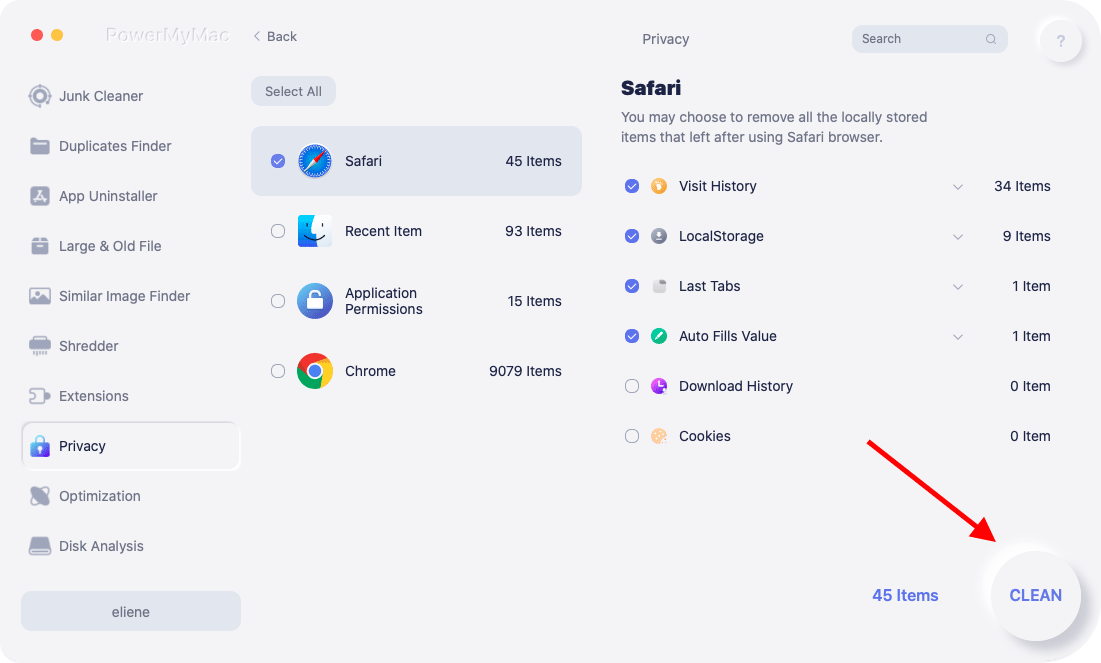
iMyMac PowerMyMac är ett utmärkt verktyg för att rensa webbläsarens sökhistorik. Hur gör den detta? Nämnda programvara har Integritetspolicy funktion som upptäcker all din webbläsare och låter dig välja vilken typ av data som cookies som du vill ta bortSekretessverktyget är ett av de bästa på marknaden. Så om du vill rensa sökhistoriken i vilken webbläsare som helst är det här programmet du ska skaffa.
 Få en gratis provperiod nu!
Följ stegen nedan för att helt ta bort sökhistoriken från din Mac och frigöra lagringsutrymme:
- Ladda ner PowerMyMac gratis och starta det på din Mac.
- Välja Integritetspolicy modul.
- Klicka på SCAN knappen för att hitta all data från dina webbläsare.
- Förhandsgranska webbhistoriken efter skanning.
- Välj oönskad sökhistorik att ta bort.
- Klicka på REN knappen för att rensa sökhistoriken.
Del 3. Hur tar man bort sökhistoriken i alla webbläsare på Mac?
I den här delen kommer vi att lära dig metoderna för att radera sökhistoriken i alla webbläsare, inklusive Safari, Google Chrome, Firefox, IE och så vidare. Du kan följa stegen nedan för att radera din sökhistorik beroende på vilken webbläsare du använde.
Rensa Safari-sökhistoriken på Mac
I Safari kan du rensa sökhistoriken på två olika sätt. Nedan följer två metoder för att göra det:
Metod 01. Rensa historik
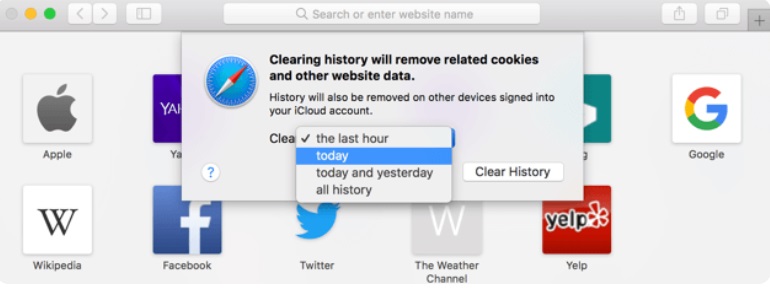
- Starta Safari. I menyraden väljer du Historik. Välj sedan Rensa historik.
- Ett annat fönster kommer att visas. Välj tidsperiod du vill radera i din historik. Du kan välja mellan All historik, Idag och igår, Idag och Senaste timmen.
- Klicka Rensa historik.
Metod 02. Visa all historikmetod
- Starta Safari. I menyraden väljer du Historik.
- Välja Visa alla HistoryHistoriken visas i form av en lista. Tryck eller klicka på en enskild post för att välja den. Du kan också använda kommandotangenten för att välja flera poster.
- Tryck på tangentbordets Radera nyckel. Framgång!
Radera Chrome-sökhistoriken på Mac
I likhet med Safari kan du i Google Chrome rensa sökhistoriken på flera sätt. Nedan följer olika sätt att göra det:
Metod 01. Rensa webbläsardata
- Starta Google Chrome och klicka Historik.
- Klicka Visa fullständig historik.
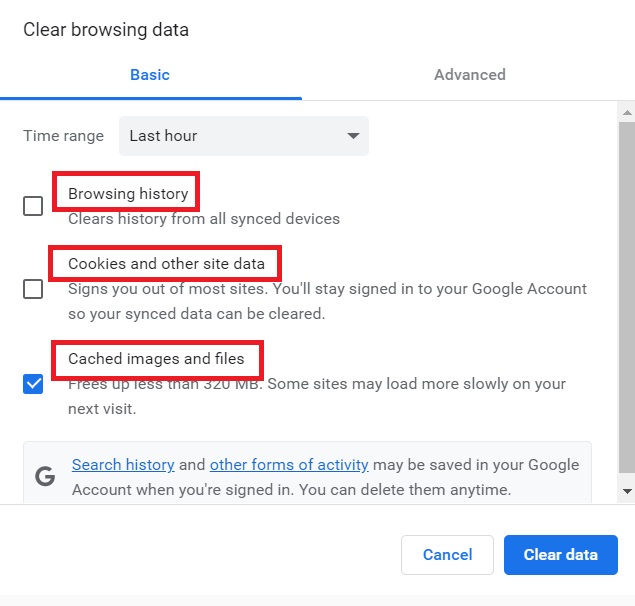
- I den vänstra sidofältet väljer du Rensa surfhistoriken.
- Ett fönster visas. Välj hur länge du vill att informationen ska tas bort. Välj även vilken datatyp du vill ta bort. Alternativen är webbhistorik, cachade bilder och filer, cookies och annan webbplatsdata.
- Klicka Radera data.
Metod 02. Lista över besökta sidor
- Starta Google Chrome och klicka Historik.
- Klicka Visa fullständig historik.
- En lista över webbplatser du besökt visas. Markera rutorna för de webbplatser du vill ta bort.
- För att rensa sökhistoriken, tryck på RaderaDetta finns högst upp på skärmen och visas som en blå stapel.

Ta bort Firefox sökhistorik från Mac
Det är smärtfritt att rensa sökhistoriken i Mozilla Firefox. Så här gör du:
Metod 01. Välja tidsintervall och datatyper
- Starta Firefox. Gå till menyraden och välj Historik.
- Klicka Rensa ut tidigare historik.
- Välj tidsintervall du föredrar. Du kan också välja vilka datatyper som ska raderas.
- Klicka Rensa nu.
Metod 02. Markera historik en efter en
- Starta Firefox. Gå till menyraden och välj Historik.
- Klicka Visa alla History.
- Markera de webbplatser du vill ta bort. Eller så kan du använda Kommando tangenten för att välja flera poster.
- Högerklicka och välj sedan Glöm bort den här webbplatsenEller så kan du helt enkelt trycka på knappen för Radera.
Det var allt! Så här rensar du sökhistoriken i Firefox, Chrome och Safari. Nedan ger vi dig ett tips om hur du undviker att bli inspelad av din webbläsare.
Dricks: Din Firefox kan krascha hela tiden när du är aktiv, då borde du vara så förvirrad. Som tur är, här är några lösningar som kan hjälpa dig.
Rensa historik i IE:
Inställningarna på IE är ganska förvirrande, men när du väl vet var saker och ting är, kan du säkert hantera det när som helst. Här är stegen nedan:
- Starta Internet Explorer
- Klicka på Gear Icon or Inställningar
- Gå till Verktyg och klicka Säkerhet
- Klicka på Ta bort webbhistorik
- Ta bort kryssrutan för "Spara data från favoritwebbplatser" och markera rutan för "Tillfälliga internetfiler".
- Klicka Radera
Rensa historik i Opera:
Här är stegen för hur du rensar sökhistoriken Opera:
- Opera-inställningarna är också enkla att hantera.
- Starta Opera-webbläsaren på Mac
- Gå till Opera-menyn och klicka på Företräde
- Klicka Bläddringsdata under Sekretess och säkerhet
- Välj tidsintervall
- Klicka Radera
Bonustips: Undvik att bli inloggad av din Mac-webbläsare
Om du vill undvika att bli inloggad av din webbläsare kan du använda Inkognito läge eller Privat surfning. Detta sparar ingen cache, historik eller annan information om hur du använder din webbläsare. Så här aktiverar du dem via Chrome, Firefox och Safari.
#1. Safari
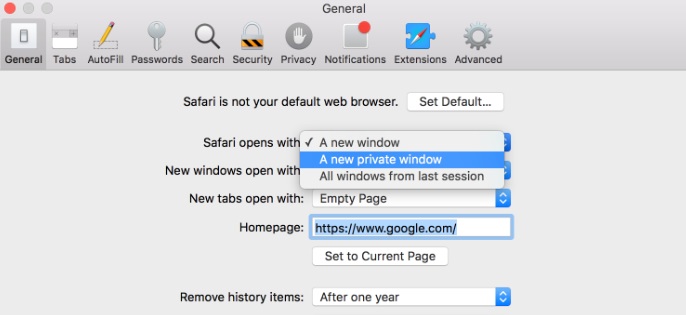
För att aktivera privat surfning i Safari, gå till skärmens överkant. Välj Fil och välj sedan Nytt privat fönsterDu kan också välja att surfa privat hela tiden. Ändra bara Safari-inställningarna med hjälp av stegen nedan:
- Besök Safari och gå sedan till preferenser.
- Välja Allmänt.
- Välja Safari öppnar med och välj sedan Nytt privat fönster.
#2. Krom
I menyraden högst upp på skärmen väljer du Arkiv. Sedan välj Nytt inkognitofönsterEller så kan du välja de tre punkterna som finns i den övre högra delen av gränssnittet. Sedan kan du helt enkelt välja Nytt inkognitofönster. Nu behöver du inte längre rensa sökhistoriken eftersom din webbhistorik inte kommer att sparas i inkognitofönstret.
#3. Firefox
Webbläsaren kommer att förhindra att webbplatser faktiskt spårar dig direkt. Detta är vanligtvis tillgängligt i andra typer av webbläsare också. Det måste dock aktiveras manuellt. Så här aktiverar du det välbehövliga privata läget i Firefox:
- Välj ikonen som ser ut som tre horisontella linjer. Den finns längst upp till höger på skärmen.
- Välja Nytt privat fönster.
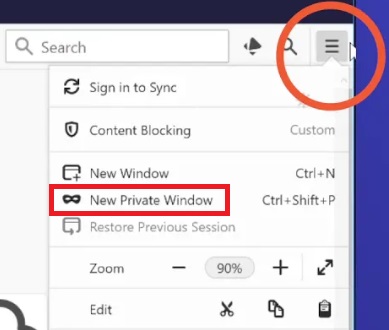
Eller så kan du gå till Arkiv och sedan välja Nytt privat fönster. Nämnda privata fönster visas som en ikon med en lila mask.
Del 4. Slutsats
Den här guiden borde ha gett dig olika sätt att rensa sökhistoriken på Mac – med Chrome, Firefox och Safari. Om du vill skydda din integritet kan du göra det genom att följa både manuella och automatiska metoder för att rensa dina webbläsardata. Därför rekommenderar vi starkt att du använder PoweryMacs integritetsverktyg. Denna programvara skapad av iMyMac är ett utmärkt sätt att snabba upp vår webbläsare och skydda känslig information.


