


 PowerMyMac


En drive-by-nedladdning installerar vanligtvis Conduit, en webbläsarkapare, utan användarens vetskap. Viruset utger sig för att vara ett webbläsarverktygsfält och en sökmotor och paketeras vanligtvis med shareware och freeware. Som sådan är det mycket skadligt för din dator, så du kanske vill... ta bort Conduit Search och dess verktygsfält men vet inte metoderna för att ta bort dessa omdirigeringsvirus.
Som tur är har du kommit rätt. Här kommer vi att diskutera hur man tar bort verktygsfältet i Conduit Search och själva skadliga programvaran. Du kan göra detta automatiskt med hjälp av ett verktyg. Vi kommer också att prata om manuella sätt att göra det.
Innehåll: Del 1. Vad är Conduit Malware?Del 2. Snabba sätt att ta bort Conduit Search från din MacDel 3. Så här tar du bort Conduit Search och verktygsfältet manuellt från MacDel 4. Slutsats
Del 1. Vad är Conduit Malware?
Kanal, även kallad Rörsökning, är egentligen ett program som utger sig för att vara ett plugin för webbläsare och tros vara utvecklat av ClientConnect Ltd. Det påstår sig vara benäget att ge bättre resultat på sökmotorer, samtidigt som det påstår sig förbättra surfupplevelsen online.
Men i verkligheten är allt den avser att göra att samla in användarinformation och ge den till tjuvar. Lösenord, tangenttryckningar, geolokaliseringsdata, webbläsaraktivitet och IP-adresser kan alla samlas in av Conduit.
En annan skadlig programvariant klassificerad som en specifik webbläsarkapare är den så kallade ledningen, ibland kallad VSökning or TroviDen tar kontroll över din webbläsare och ställer in search.conduit.com som sökmotor som standard. Den kan sedan användas för att stjäla data och låta annan skadlig kod online infektera din Mac efter att ha installerat sig själv som ett plugin i din webbläsare, vilket också är den främsta anledningen till att du vill ta bort Conduit Search.

Eftersom Conduit har funnits ett tag kan det ta kontroll över Chrome, Safari och till och med Firefox utan att vara särskilt noga med webbläsaren. När du klickar på ofta besökta webbplatser, särskilt de som är sparade i dina bokmärken, skickar det oönskade annonser och popup-fönster och omdirigerar dig till oväntade webbsidor.
Del 2. Snabba sätt att ta bort Conduit Search från din Mac
En städfokuserad applikation som heter iMyMac PowerMyMac syftar till att hjälpa användare att frigöra utrymme på sin Mac genom att hjälpa dem att ta bort onödiga filer och program.
Du kan avsevärt förbättra mängden tillgängligt diskutrymme genom att radera överflödiga filer, leta efter dubbletter eller liknande filer, avinstallera onödig programvara och dess rester etc.
Med PowerMyMac kan du ta kontroll över din dator genom att identifiera och radera onödiga filer som gör den långsammare. Duplicerade filer kan tas bort, tillägg kan ändras och program kan avinstalleras.
Följande tekniker kan användas för att ta bort Conduit Search och misstänkta appar från Mac:
- Välja App Uninstaller från PowerMyMacs meny till vänster.
- Klicka på SCAN knappen för att få en lista över alla installerade appar och verktyg på din bärbara eller stationära Mac.
- När du har gjort det, välj misstänkta appar relaterade till VSearch, Trovi eller Conduit Search från listan över tillgängliga appar.
- Klicka REN för att se till att inga filer finns kvar på din Mac när programvaran har raderats helt.
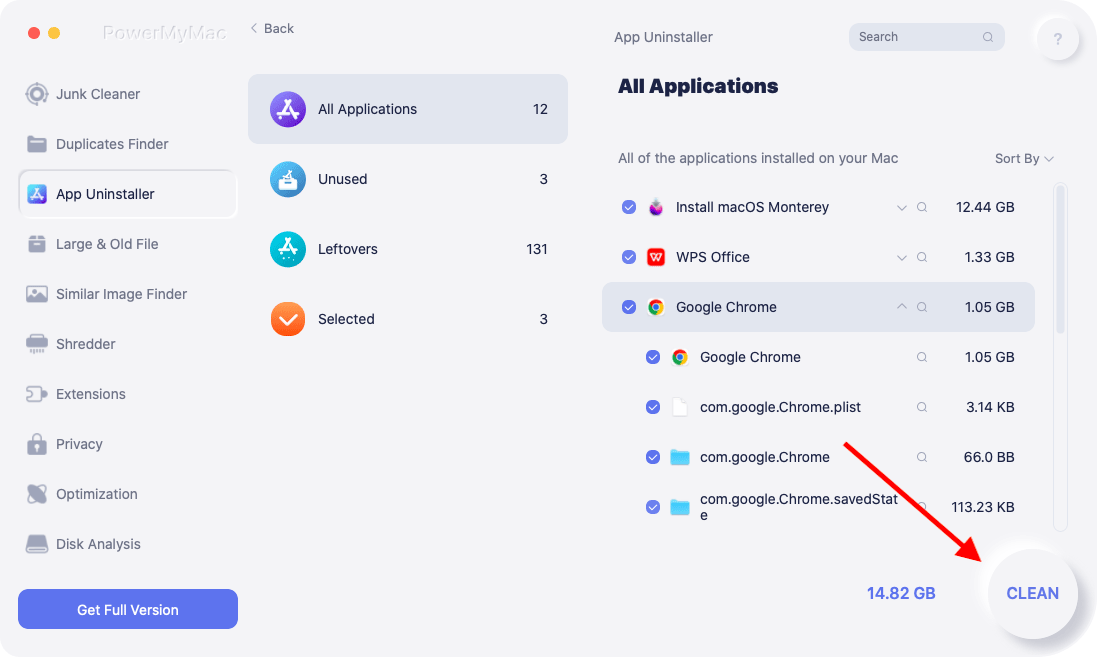
Med verktyget vi tidigare tillhandahöll för att ta bort omdirigeringen av Conduit Search kan du omedelbart ta bort skadliga tillägg. PowerMyMac och dess verktyg Extensions kan hjälpa dig. Du kan också ta bort Genieo-annonsprogrammet snabbt eller ta bort andra skadliga programtillägg från din Mac medan du avinstallerar Conduit Search med hjälp av PowerMyMac.
Procedurerna för att använda den för att ta bort Conduit Search-tillägget och verktygsfältet är följande:
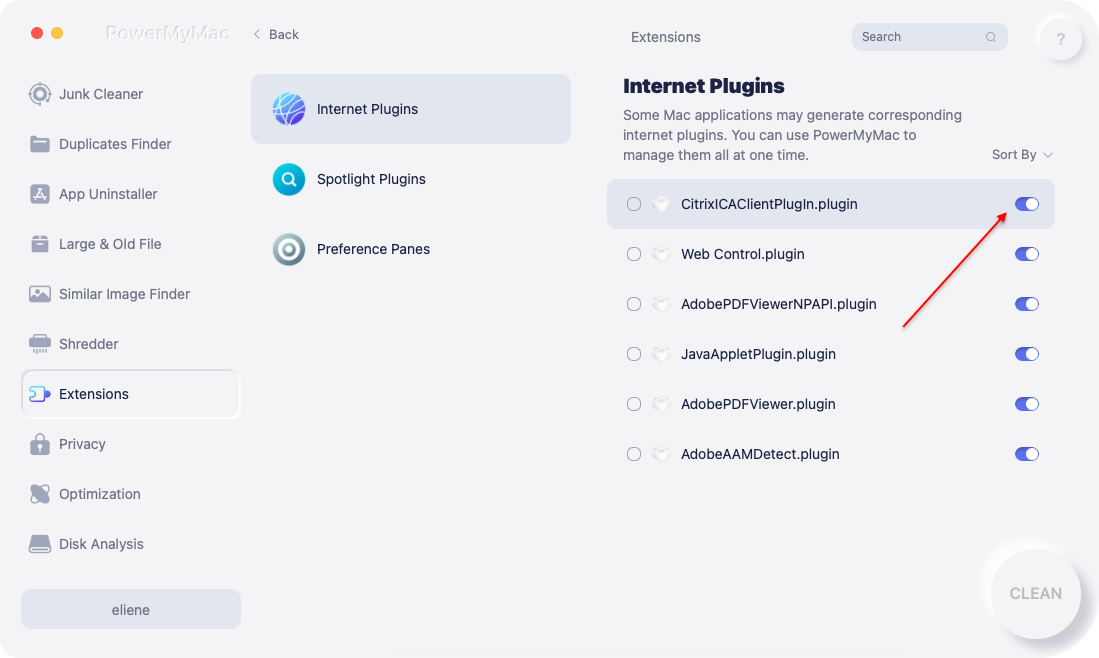
- Starta PowerMyMac på din dator.
- Klicka Förlängning.
- Klicka på SCAN knappen för att söka efter och visa alla Mac-tillägg. Som du kan se finns det tre typer av tillägg: Internet-tillägg, Spotlight-tillägg och inställningspaneler.
- Till inaktivera det misstänkta tillägget, vrid helt enkelt knappen under den från på till av.
Del 3. Så här tar du bort Conduit Search och verktygsfältet manuellt från Mac
Det finns olika steg du kan följa för att ta bort Conduit-verktygsfältet från din dator helt och hållet.
Ta bort den misstänkta tillägget från Safari
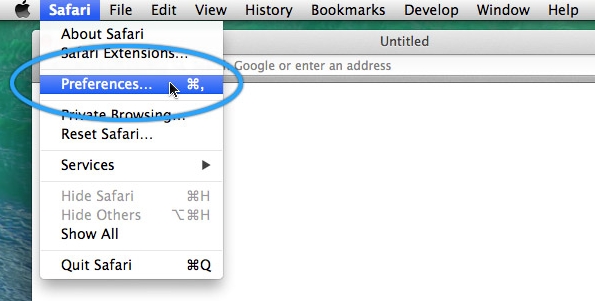
- Besök webbläsaren Safari på din dator.
- Därefter väljer du preferenser.
- Tryck sedan på förlängningar.
- Välj Conduit Search och alla andra tillägg som du inte känner igen på din enhet.
- För att ta bort Conduit Search, tryck på Avinstallera
- Se till att tilläggen har tagits bort genom att bekräfta avinstallationsprocessen.
Ta bort Conduit Search-tillägget i Chrome
- Besök webbläsaren Chrome på din dator.
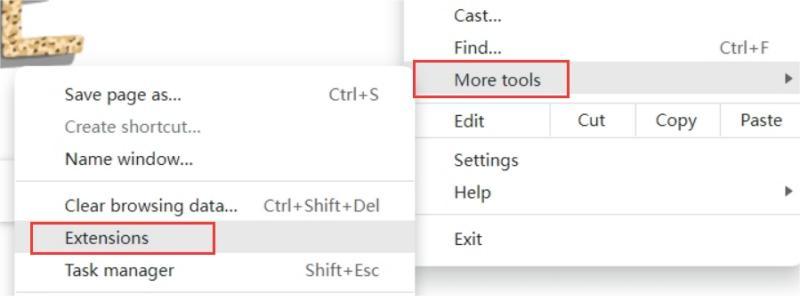
- Därefter klickar du på Meny i webbläsaren.
- Välja Fler verktyg och välj sedan förlängningar.
- Välj de specifika tillägg som du inte känner igen, inklusive Conduit.
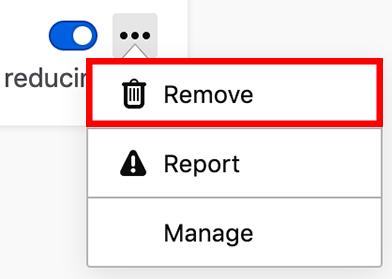
- Därefter trycker du på ta bort.
- Se till att tillägget är borttaget genom att bekräfta processen.
Ta bort Conduit Search-tillägget från Firefox
- Gå till Firefox och gå sedan till menyn i webbläsaren.
- Tryck på fliken för Add-Ons
- Välj de tillägg du inte känner till, inklusive Conduit Search.
- Klicka ta bort.
- Bekräfta att du verkligen vill ta bort tilläggen.
Ta bort länkade filer från Conduit Search manuellt från Mac
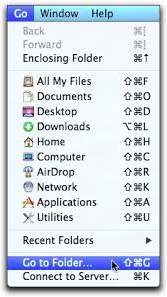
Manuell borttagning av ytterligare länkade filer krävs. Välj "Gå till mapp" från Gå-menyn i Finder. Skriv sedan in "Library" i sökrutan och klicka på Gå. Hitta och radera alla filer relaterade till din programvara i undermapparna nedan.
/Library/ScriptingAdditions//Library/Internet Plug-Ins//Library/Cookies//Library/Caches//Library/Logs//Library/Preferences//Library/Application Support//Library/Containers//Library/LaunchAgents//Library/LaunchDaemons/
Gå till papperskorgen i Dock för att tömma papperskorgen på din Mac. Starta om din Mac-dator för att slutföra processen att ta bort Conduit Search.
Del 4. Slutsats
Du har lärt dig de bästa metoderna för att ta bort Conduit Search från den här handledningen (Mac). Vi diskuterade även farorna med det och varför du bör avinstallera det.
Slutligen diskuterade vi både manuella och automatiska metoder för att ta bort Conduit. Det finns instruktioner om hur man avinstallerar det och andra tvivelaktiga webbläsartillägg. Att använda PowerMyMac är det bästa sättet att bli av med Conduit-sökfunktionen och verktygsfältet från din Mac-dator och webbläsare. Prova det nu!


