


 PowerMyMac


Det populära macOS-programmet "Bartender" från tredje part låter användare kontrollera och anpassa menyradsikoner på sin Mac. Genom att dölja sällan använda symboler eller gruppera liknande ikoner kan det hjälpa användare att förbättra sin produktivitet och städa upp menyraden. Men precis som all programvara kan det ibland ha problem, vilket leder till att användare vill... Avinstallera Bartender på Mac.
Det enklaste sättet att lösa problem med en app är att ta bort appen och dess relaterade innehållTesta några av felsökningsförslagen för Bartenders om du har problem, eller läs det här inlägget för att lära dig hur du avinstallerar Bartenders från din Mac.
Innehåll: Del 1. Vad gör en bartender? Del 2. Avinstallera Bartender från Mac med hjälp av ett professionellt avinstallationsprogramDel 3. Konventionellt sätt att helt avinstallera Bartender på MacDel 4. Slutsats
Del 1. Vad gör en bartender?
Användare får ordna deras menyradsikoner på ett ännu mer effektivt och unikt sätt med Bartender. I macOS verkar menyraden vara den ikonrad som sträcker sig överst på skärmen och innehåller en mängd olika ikoner som representerar olika systemfunktioner eller öppna appar.
Härnäst diskuterar vi vad som är affärskritiskt med Bartender och varför användare vill avinstallera Bartender på Mac. Följande representerar några av de kritiska uppgifter som en bartender kan utföra:
- Dölj menyfältsikoner som används mindre ofta: Användare kan dölja menyfältsikoner för att rensa upp menyfältet och minska visuella distraktioner.
- Kombinera relaterade menyradsikoner: Användare kan kombinera liknande menyradsikoner för att göra dem enklare att identifiera och använda.
- Ordna om menyfältets ikoner så att de viktigaste visas högst upp i listan.
- Åtkomst till dolda ikoner: Genom att välja bartendersymbolen i menyraden, som utökas för att visa alla dolda ikoner, kan användare öppna dolda menyradsikoner.
- Anpassning av bartenderikon: Användare har möjlighet att ändra färg och opacitet för bartenderikonen.
Generellt sett är Bartender ett användbart verktyg för anpassning av macOS-menyraden som ökar produktiviteten genom att rensa visuell röra och effektivisera uppgifter.
Användare rapporterar ofta att Bartender Mac inte fungerar som avsett, att dolda ikoner är oåtkomliga, att det fungerar långsamt, att det inte passar med andra program och att det finns vissa licensproblem. Dessa klagomål kan få konsumenter att avinstallera Bartender på Mac.
Del 2. Avinstallera Bartender från Mac med hjälp av ett professionellt avinstallationsprogram
Vill du utföra en snabb och fullständig borttagning? Varför inte avinstallera Bartender på Mac med hjälp av ett specialiserat avinstallationsprogram? Med Mac är det väldigt enkelt att avinstallera programvara, men det producerar också en mängd tillfälliga filer och skräpfiler. Du kan ta bort detta avfall med hjälp av iMyMac PowerMyMac så att din Mac inte blir överbelastad med onödiga saker.
Det är enkelt att förstå och otroligt enkelt att använda. Med bara några få klick kan PowerMyMac Uninstaller snabbt ta bort alla delar av målprogramvaran eftersom det är ett litet verktyg som är anpassat för de senaste versionerna av macOS.
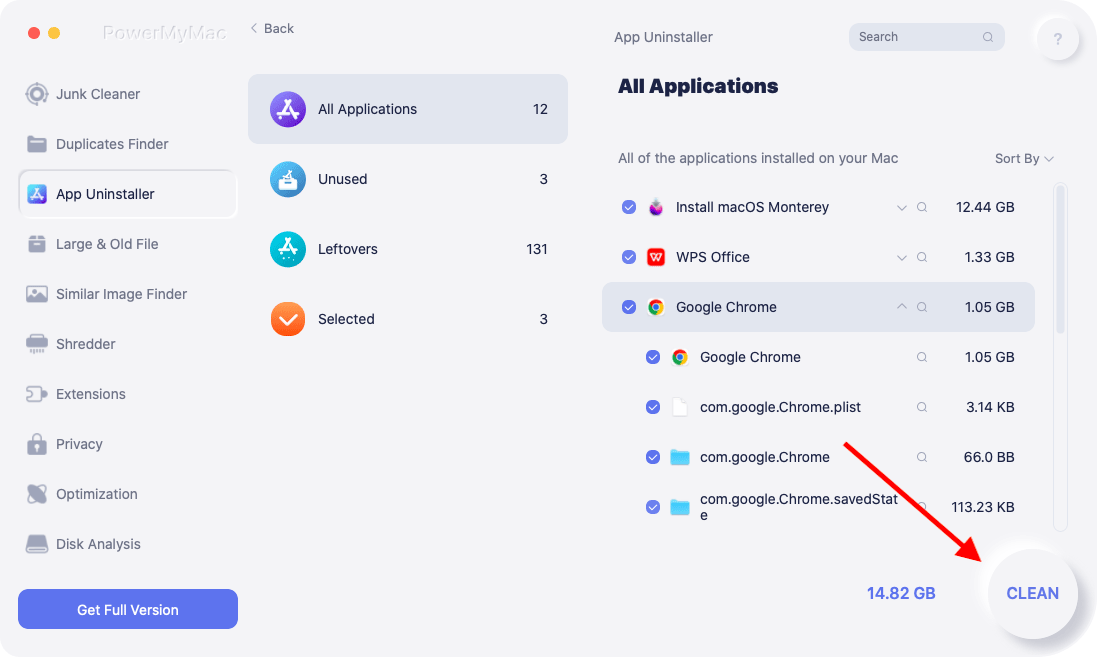
- Klicka SCAN för att söka efter tidigare nedladdade appar på din dator. Välj App Uninstaller nästa.
- Kategorierna Valda, Oanvända, Rester och Alla appar finns på vänster sida av skärmen. Varje app kan ses på höger sida av Alla appar Leta reda på ditt oönskade program med hjälp av listan eller genom att skriva dess namn i sökfältet i det övre högra hörnet.
- Välja programmet du vill ta bort, välj "Bartender" för att avinstallera Bartender på Mac, klicka sedan på ikonen Utvik för att söka igenom relaterade filer och på knappen Sök för att få ytterligare information. Välj REN för att ta bort programmen och deras tillhörande filer.
- I ett popup-fönster märkt "Rengörs klar", kan du se hur mycket diskutrymme som nu är ledigt och antalet filer som har rensats. Välj bara alternativet Granska för att avinstallera fler appar och återgå sedan till skanningsskärmens resultat.
Del 3. Konventionellt sätt att helt avinstallera Bartender på Mac
Vissa Mac-nybörjare kanske inte är medvetna om att ett program måste inaktiveras helt för att det ska kunna tas bort effektivt. Bartendern kan fortfarande vara igång om du inte tar bort den. I en sådan situation måste du först sluta arbeta som bartender.
I macOS/Mac OS X finns det många metoder för att (tvinga) avsluta en öppen eller fryst app:
- Högerklicka programikonen som visas i den Dock och välj Avsluta.
- Gå till menyraden, klicka på Bartender och välj sedan Sluta bartender.
- Välja Bartender från listan i rutan Avsluta program med hjälp av alternativ-, kommando- och esc-tangenterna och klicka sedan på Tvinga avsluta knapp.
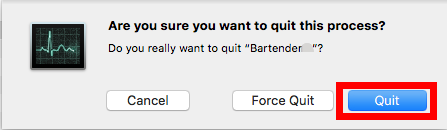
- Öppet Aktivitetskontroll, ange målappens namn i sökrutan, välj eventuella relaterade processer, klicka på X i det övre vänstra hörnet och välj Avsluta knapp.
Avinstallera Bartender från mappen /Program
Vanliga sätt att avinstallera Bartender på Mac (eller andra program) från macOS/Mac OS X är följande:
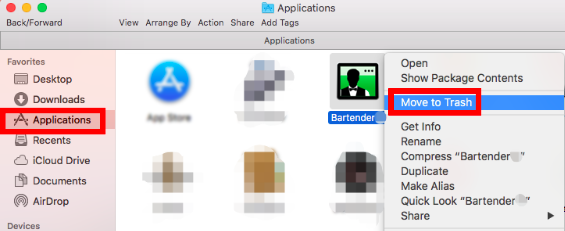
- Starta Finder och välja sidofältsikonen för Appar-mappen.
- Hitta Bartender i den mappen och välj Flytta till papperskorgen från snabbmenyn.
- Välja Töm papperskorgen från Finder-menyn och klicka sedan på Töm papperskorgen en gång till. Du kan också högerklicka på papperskorgsikonen i dockan, välja Töm papperskorgen och sedan klicka på Töm papperskorgen en gång till.
Ta bort rester från bartenderns system
Bartender lagrar ofta flera relaterade filer i den hemliga systemkatalogen. Även om resterna kanske inte påverkar systemet eller tar upp mycket diskutrymme, måste du söka efter dem överallt om du vill avinstallera Bartender helt på Mac.
- Välja Go från menyraden i ett Finder-fönster och välj Gå till mapp.
- För att komma åt användarbiblioteket i hemmappen, ange
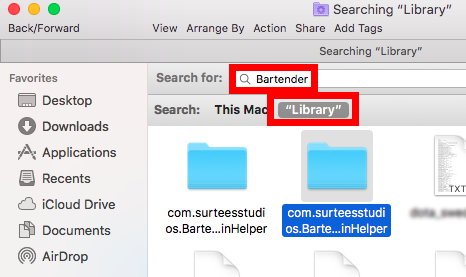
/Libraryoch tryck på Enter. - I sökfältet skriver du "Bartender", och välj sedan "Bibliotek" bredvid "Den här Mac".
- Gör ett urval av sakerna och släng dem i papperskorgen om deras namn innehåller nyckelordet.
- Fortsätt att hitta bartenderrester i biblioteket (
/Library) katalog på toppnivå. - För att helt ta bort alla Bartender-komponenter, tömma papperskorgen.
- Dessa kataloger kommer sannolikt att innehålla saker relaterade till bartenders:
/Library/ScriptingAdditions/BartenderHelper.osax~/Library/Preferences/com.surteesstudios.bartender.plist/System/Library/ScriptingAdditions/BartenderSystemHelper.osax
Del 4. Slutsats
Den här artikeln har i slutändan gett två sätt att avinstallera Bartender på Mac. Vet du hur man gör? ta bort oönskade appar som BetterTouchToolVilket alternativ anser du vara mer effektivt och tidsbesparande? En manuell borttagning tar mer tid och expertis än ett iMyMac-avinstallationsprogram. Du kan enkelt göra en ren borttagning med PowerMyMac Uninstaller.


