


 PowerMyMac


Hur kan jag avinstallera iBackup Viewer på Mac datorer? Om du har problem med att ta bort iBackup Viewer och dess relaterade komponenter kan du läsa vår borttagningsguide för att få reda på hur du gör det helt avinstallera alla oönskade program från din Mac.
Processen för att avinstallera program i macOS skiljer sig avsevärt från den i Windows-operativsystemet. För en konventionell borttagning behöver Mac-användare ofta bara flytta appen till papperskorgen. Därefter bör de tömma papperskorgen. Eftersom majoriteten av Mac-appar är oberoende paket som innehåller det körbara programmet och andra nödvändiga resurser, kan användare vanligtvis snabbt ta bort oönskad programvara från sina Mac-datorer.
Innehåll: Del 1. Om iBackup Viewer-programvaranDel 2. Två sätt att manuellt ta bort iBackup Viewer från MacDel 3. Det snabbaste sättet att avinstallera iBackup Viewer på MacDel 4. Slutsats
Del 1. Om iBackup Viewer-programvaran
Från säkerhetskopior av iPhone och iPad, iBackup Viewer kan hämta data som kontakter, SMS-meddelanden, webbbesök, telefonhistorik, webbbesök, webbplatsfotografier, bokmärken och iPhone-applikationer.
iTunes lagrar innehållet på iPhone och iPad i oläsliga databaser och filer. Detta gör det svårt att hämta de data som krävs för de säkerhetskopierade filerna. iPhone-säkerhetskopiorna laddas och analyseras av iBackup Viewer, som sedan extraherar den värdefulla informationen och omvandlar den till ett visningsbart format. Data från krypterade säkerhetskopior kan också extraheras med iBackup Viewer.

Det du kan göra med iBackup Viewer innan du bestämmer dig för att avinstallera iBackup Viewer på Mac inkluderar följande:
- Ange kontaktorganisationer och individer i Apples adressbok.
- Visa samtalshistorik och exportera till en textfil med korrekt formatering
- Konversation mellan visade SMS-meddelanden och sparade i en textfil
- Skapa en PDF-fil av dina SMS-meddelanden i konversationens format.
- Visa WhatsApp-meddelanden på samma sätt som SMS-meddelanden.
- skapa HTML-meddelandefiler
- Ta kontroll över röstmeddelanden och inspelningar
- Hantera eller kontrollera anteckningar
- Synkronisera bokmärken med skrivbordet och Safari
- Visa fotografier i miniatyrvy och exportera dem till önskad destination.
- Lista appar och data som är tillgängliga för iPhone och iPad.
- Förhandsgranska appdata och exportera till en specifik fil
- Överföra data mellan en iOS-enhet och en dator
- Kopiera och klistra in låter dig flytta filer från en iOS-enhet till en annan.
- Överför iPhones iPod-bibliotek till en dator.
Del 2. Två sätt att manuellt ta bort iBackup Viewer från Mac
#1. Avinstallera iBackup Viewer på Mac med dess inbyggda avinstallationsprogram
Här är stegen för att ta bort iBackup Viewer med dess inbyggda avinstallationsprogram:
- Öppna ett Finder-fönster genom att välja Arkiv. Leta sedan reda på IBackup.app genom att gå till Program.
- Välj Visa paketinnehåll från snabbmenyn när du högerklickar på IBackup.app.
- Gå till "MacOS" under Innehåll efter att du har valt det. Dubbelklicka IBackupAvinstallerareDu kommer att bli ombedd att godkänna avinstallationsproceduren.
- För att starta avinstallationen, klicka på Avinstallera.
- En skärm visas där du kan bekräfta. Klicka på OK efter att du har angett rätt systemlösenord.
#2. Ta bort iBackup Viewer-appen manuellt till Mac-papperskorgen
En annan manual hjälper dig att avinstallera iBackup Viewer på Mac genom följande steg:
- Om iBackup Viewer redan är igång bör du stoppa det innan du tar bort det genom att logga in på din Mac med ditt administratörskonto. Högerklicka på en apps dockningsikon och välj alternativet Avsluta alternativ för att inaktivera det. Ett alternativ vore att välja iBackup Viewer och sedan välja Avsluta iBackup Viewer från dess menyrad.
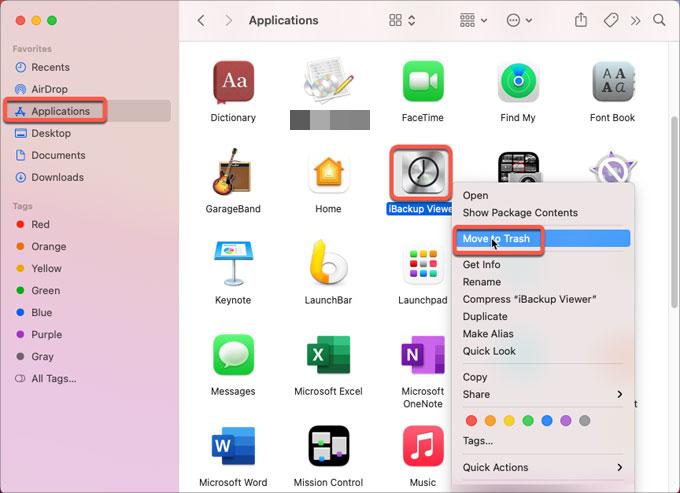
- Starta Finder och välj iBackup Viewer från listan över program till vänster.
- Överför iBackup Viewer till macOS-datorns papperskorg. Ett alternativ är att högerklicka på ikonen och sedan välja Flytta till papperskorgen från menyn.
- För att starta avinstallationen, högerklicka på papperskorgen och välj Töm papperskorgen.
- Öppna Finder och välj Gå i menyraden. Välj sedan Gå till mapp och klicka sedan på OK.
- Skriv ner sökvägen till hårddiskens översta bibliotek. Ange nyckelordet "
/Library" för att fortsätta. Tryck sedan på Retur eller Enter. - På följande platser, leta efter saker med namnet "iBackup Viewer"eller något som har med det att göra:"
/Library/Library/Preferences/Library/Caches/Library/LaunchAgents/Library/Application Support/Library/PreferencePanes/Library/LaunchDaemons/Library/StartupItems
- Flytta till papperskorgen genom att högerklicka på motsvarande filer eller kataloger.
- Starta Finder och välj Gå från menyraden. Välj Gå till mapp härnäst och klicka sedan på OK.
- Anteckna sökvägen till det översta biblioteket på hårddisken. Ange nyckelordet "
~/Library" för att fortsätta. Tryck på Enter eller Retur efter det. - Radera alla tillhörande filer och mappar i mappen ~/Library.
- Töm papperskorgen och starta om datorn så har du slutfört processen för att helt avinstallera iBackup Viewer på Mac.
Del 3. Det snabbaste sättet att avinstallera iBackup Viewer på Mac
Ocuco-landskapet iMyMac PowerMyMac programvara gör det enkelt att avinstallera appar från din dator. Den används för att optimera Mac-datorer genom att erbjuda ett antal praktiska verktyg.
Ocuco-landskapet App Uninstaller är ett av dess verktyg, och det har möjlighet att helt ta bort oönskad programvara från din Mac. Det säkerställer att det inte finns några rester eller filer relaterade till det oönskade programmet. Till exempel kan PowerMyMac ta bort CleanMyMac helt från din Mac.
PowerMyMac låter dig rensa din dator genom att hitta och ta bort oanvända filer som blockerar systemet. Det kan användas för att strimla data, hantera tillägg, avinstallera program och ta bort dubbletter av filer.
Du kan följa stegen nedan för att enkelt avinstallera iBackup Viewer på Mac:
- Ladda ner verktyget och installera det på din dator. Starta sedan PowerMyMac på din macOS-maskin.
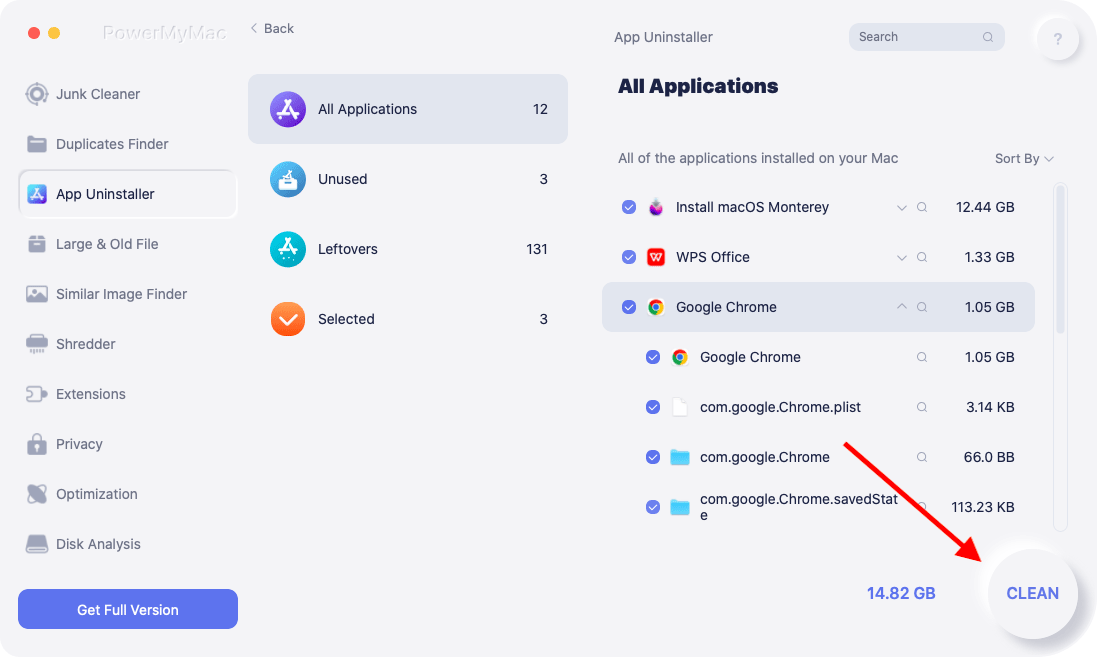
- Därefter klickar du på App Uninstaller på gränssnittets vänstra sida.
- Klicka på SCAN knappen för att hitta all installerad programvara och verktyg på din bärbara eller stationära Mac.
- Välj den app du vill avinstallera helt från listan som visas.
- Klicka CELAN för att helt ta bort programmet från din Mac och se till att inga filer finns kvar.
Del 4. Slutsats
Den här guiden är den mest omfattande avinstallera iBackup Viewer på Mac-datorerVi gav en kort förklaring av appens funktion i tidigare delar av det här inlägget.
Efter det förklarades hur man tar bort iBackup Viewer manuellt från din Mac. Den här metoden rekommenderas inte eftersom du av misstag kan radera viktiga systemfiler när du söker efter verktygets kvarvarande data. Av denna anledning rekommenderar vi att du tar bort programvaran från din dator med PowerMyMac. Använd verktyget för en bättre och snabbare Mac!


