


 PowerMyMac


Virtuella privata nätverk (VPN) fungerar normalt sett inte bra tillsammans. Det är därför du bara måste ha ett verktyg installerat på din dator om du vill använda ett VPN. Om du har två tjänster på din dator kanske du vill... avinstallera Mullvad VPN på MacMen det är ett tidskrävande jobb att avinstallera dubbletter av program på egen hand.
Som tur är har du kommit rätt. Vi har skrivit den bästa guiden du kan få för att använda olika verktyg och steg för att ta bort Mullvad VPN-appen från macOS-datorer.
Innehåll: Del 1. Vad är Mullvad VPN?Del 2. Avinstallera enkelt Mullvad VPN på Mac och ta bort resterDel 3. Hur blir jag av med Mullvad VPN på Mac manuelltDel 4. Slutsats
Del 1. Vad är Mullvad VPN?
Innan vi vet hur man avinstallerar Mullvad VPN på Mac, låt oss få mer information om detta VPN. En snabb, pålitlig och användarvänlig VPN är ett utmärkt utgångssteg mot att återställa den rättigheten i en kultur som är mer fast besluten att undergräva den. Mullvad VPN är en av bästa VPN och det säkerställer att kommunikationen mellan enheter är krypterad enligt högsta standard. Detta gäller särskilt när du ansluter din enhet till World Wide Web med vår tjänst.
Här är några av anledningar till varför du vill använda Mullvad VPN:
- Företaget lagrar inte aktivitetsloggar och de ber inte om din personliga information. Dessutom förespråkar de kontanter eller krypto som anonyma betalningsmedel.
- Din enhets aktiviteter och till och med platsinformation hålls separerad från dig genom att din riktiga IP-adress ersätts med en av företagets.
- Att installera appen och sedan använda Mullvad är både enkelt och okomplicerat. Inga långa registreringsprocedurer eller konfigurationsinställningar krävs. Mullvad designades med enkelhet i åtanke.
- Eftersom det möjliggör säker diskussion och ifrågasättande av regler och lagar är integritet avgörande för ett hälsosamt samhälle. Ett fritt och öppet samhälle kan inte leva eller blomstra utan integritet. Mullvad säkerställer din integritet online.

Del 2. Avinstallera enkelt Mullvad VPN på Mac och ta bort rester
Du kan avinstallera appar från din Mac-dator med iMyMac PowerMyMacDet här verktyget är faktiskt utformat för att förbättra macOS-datorer. Det erbjuder ett antal rengöringsverktyg för din Mac.
Dessutom innehåller den ett avinstallationsprogram för appar som låter dig ta bort valfria appar från din macOS-enhet. Du kan till exempel ta bort ProtonVPN helt från Mac med hjälp av PowerMyMac så att det bara finns ett VPN-verktyg installerat på din dator. Avinstalleraren kommer automatiskt att slutföra en fullständig installation utan att du behöver göra något.
Ett av dess verktyg kan hjälpa dig att hitta varenda liten bit av onödig data och information på din macOS-dator så att du kan ta bort den. Genom att ta bort dessa onödiga filer kan du förbättra datorns hastighet direkt.
Så här avinstallerar du Mullvad VPN på Mac med hjälp av verktyget:
- Ladda ner och installera programmet på din Mac.
- Starta programvaran på datorn
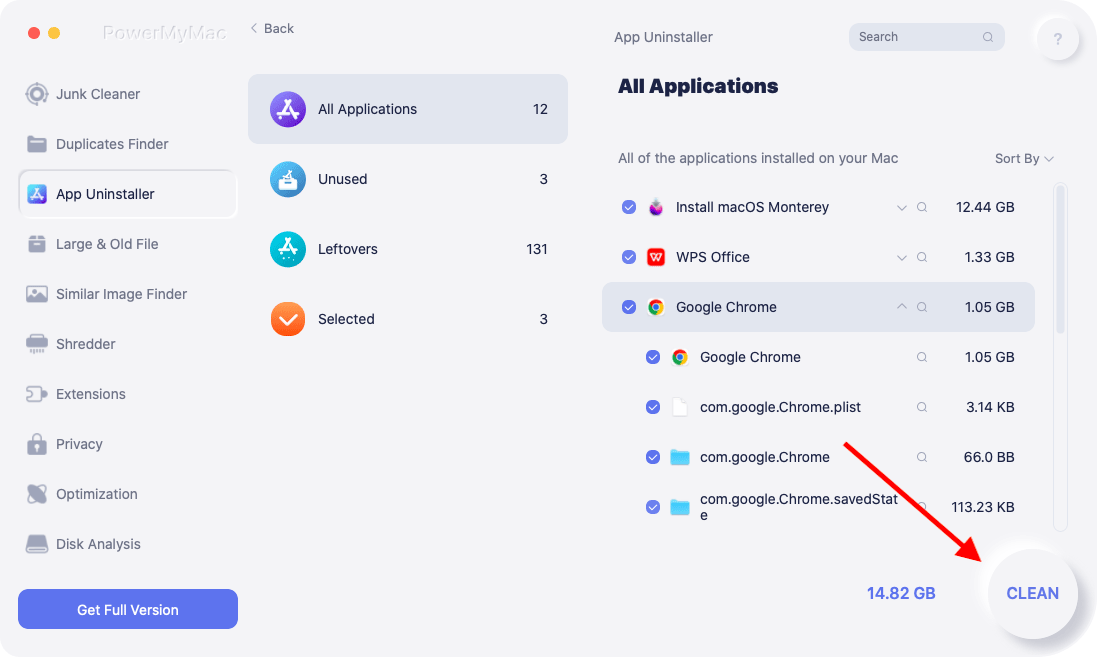
- På vänster sida av huvudskärmen väljer du App Uninstaller.
- Klicka på SCAN ikonen i mitten för att göra en sökning i alla appar på din smartphone.
- Välj därefter Mullvad VPN för Mac från listan över appar på din dator.
- Välj REN alternativet för att starta borttagningsprocessen. Programmet och eventuella tillhörande filer kommer inte längre att finnas på din macOS-enhet.
Del 3. Hur blir jag av med Mullvad VPN på Mac manuellt
Metod 01. Ta bort Mullvad VPN med hjälp av terminalen
Du kan också använda terminalen på din Mac-dator för att ta bort programmet från systemet. Följande steg kan vidtas för att avinstallera Mullvad VPN på Mac samt den lokala cachen, inställningarna och loggfilerna:
- Kontrollera att du har registrerat Mullvad-kontonummer på papper.
- Kör kommandot efter att du har startat Terminal-appen:
/Applications/Mullvad\ VPN.app/Contents/Resources/uninstall.sh
- Ange Mac-administratörslösenordet om ett specifikt lösenord efterfrågas.
- Omstart din dator efter att avinstallationsprocessen är klar.

Metod 02. Ta bort Mullvad VPN och överblivna filer manuellt
Här är stegen för att manuellt avinstallera Mullvad VPN på Mac:
- Du måste först stoppa Mullvad VPN-programvaran från att starta och köras. Om appen är aktiv visas en symbol i skärmens övre högra hörn. Du bör använda högerklicksmenyn för att välja Avsluta på appens ikon.
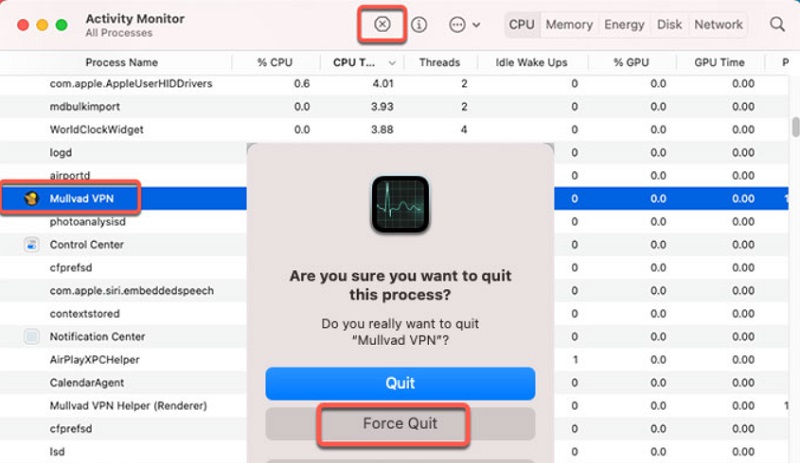
- Navigera till Aktivitetskontroll på din Mac. Bekräfta därefter att alla bakgrundsprocesser eller aktiviteter som är kopplade till programmet har stoppats. Du måste gå till Tillämpningar mapp och Bekvämligheter mapp i den för att åstadkomma det. Välj Aktivitetsmonitor härnäst.
- Du tittar nu på Macens aktivitetsmonitor. Du måste välja CPUVälj sedan Mullvad VPN-applikationen. Tryck på X Delete-symbolen som finns i hörnet. Välj sedan, om det behövs, Avsluta eller Avsluta och Tvinga avslutaDen här åtgärden hjälper till att stoppa alla processer relaterade till nämnda program.
- Det är dags att ta bort ditt programs Mac-utgåva. Navigera till mappen Program genom att klicka på Finder. Högerklicka sedan på ikonen för din Mullvad VPN-programvara.Flytta till papperskorgen" är alternativet att välja. Det är väldigt enkelt att slutföra och tar inte lång tid.
- Vi måste också manuellt radera de återstående filerna när vi avinstallerar Mullvad VPN på Mac. Gå till Finder och välj "Gå till mapp" från Gå-menyn. Nästa steg är att ange "
Library" i sökrutan och klicka sedan på Gå. - Navigera till undermapparna nedan för att hitta och ta bort filer som är kopplade till din app:
/Application Support//Caches//Preferences//StartupItems//LaunchDaemons//LaunchAgents/
- Gå till papperskorgen i Dock för att tömma din Macs papperskorgen. För att slutföra processen för att avinstallera Mullvad VPN på Mac, starta om din Mac-dator. När allt detta är klart har Mullvad VPN-appen avinstallerats från din dator.
Del 4. Slutsats
De bästa sätten att avinstallera Mullvad VPN på Mac-enheter har diskuterats i den här artikeln, inklusive att ta bort appens primära mapp från din dator.
Att använda PowerMyMac är det mest effektiva sättet att ta bort det ovannämnda programmet från din macOS-maskin. Detta beror på att det tar bort appen från din dator utan att lämna kvarvarande data, inklusive filer och mappar. Du kan helt ta bort program från din Mac för att se till att du kan njuta av att använda din föredragna VPN-tjänst.


