


 PowerMyMac


Hur bra det än kan vara, kan ProtonVPN fortfarande stöta på många problem som kan skada inte bara din dator utan även din integritet som person eller som användare. Om du är en av de personer som vill lära sig hur man... avinstallera ProtonVPN Mac, allt du behöver göra är att läsa den här guiden och lära dig hur du kan ta bort en app snabbt med hjälp av ett kraftfullt verktyg.
Hur man avinstallerar ProtonVPN
- På Mac: Tvinga fram avslutning av ProtonVPN under Aktivitetsmonitorn, öppna Finder och gå sedan till Program för att dra ProtonVPN.app till papperskorgen. Radera sedan relaterade filer under mappen ~/Library.
- På Android: Tryck bara länge på appikonen för ProtonVPN och tryck på Avinstallera.
Innehåll: Del 1. Hur tar man bort ProtonVPN helt på Mac?Del 2. Hur tar jag bort ProtonVPN manuellt från min Mac?Del 3. Varför fortsätter Proton VPN att säga att anslutningen misslyckades?Del 4. Slutsats
Del 1. Hur tar man bort ProtonVPN helt på Mac?
Det är dags att avinstallera ProtonVPN-appen på din Mac eftersom den skadar hela datorns system. Vi rekommenderar starkt att du avinstallerar den med ett kraftfullt verktyg som iMyMac PowerMyMacDet här verktyget kan hjälpa påskynda avinstallationsprocessen på din Mac samt frigöra mer utrymme på din enhet för nya filer.
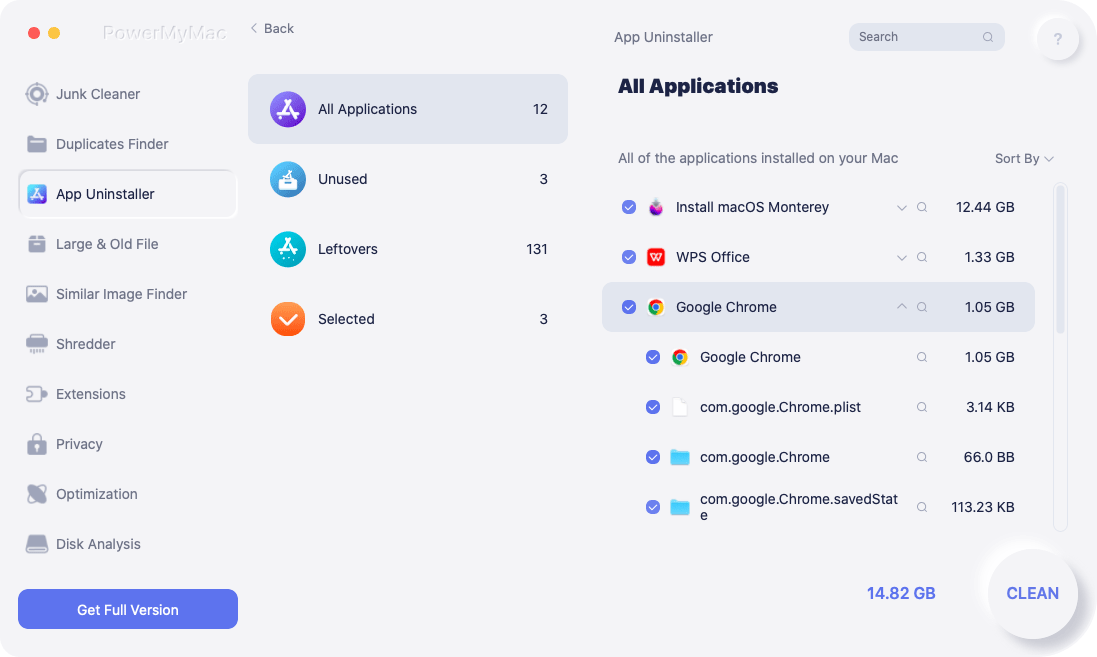
Du kan prova det App Uninstaller för att snabbt avinstallera ProtonVPN på Mac. Det är också ett bra val för dig att ta bort GlobalProtect, Cisco AnyConnect eller annan VPN-programvara.
Så nu kan du lära dig hur du tar bort ProtonVPN på Mac med hjälp av PowerMyMac-verktyget genom att läsa instruktionerna nedan:
- Öppna appen när du har installerat den på din dator
- Klicka på App Uninstaller funktionen och tryck på ordet SCAN
- När skanningsprocessen är klar visas alla appar som är installerade på din enhet.
- Hitta nu ProtonVPN.app och klicka på den
- Tryck sedan på REN knappen så att du kan starta raderingsprocessen
Den här appen är också mycket bra för att hitta skräpfiler på Mac och bli av med dem: dubbletter av filer, liknande bilder, stora filer och till och med gamla filer som är föråldrade. Den har en funktion där du permanent kan radera filer på din enhet med bara ett enkelt klick. Den kan också rensa din webbhistorik för att skydda din integritet från skadliga hot.
Del 2. Hur tar jag bort ProtonVPN manuellt från min Mac?
Låt oss nu påminna dig om att den manuella metoden kommer att ta mer tid och ansträngning för att ta bort ProtonVPN från din Mac. Men för de som vill veta, här är en steg-för-steg-guide som du kan följa för att helt avinstallera ProtonVPN på Mac:
- Hur tar man bort ProtonVPN-kontot?
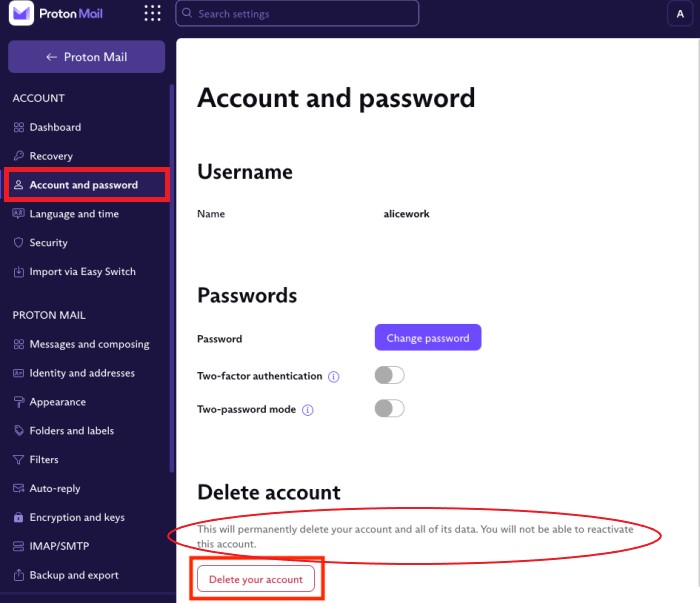
Faktiskt, ProtonVPN inte har kontot bör du radera ProtonMail-kontot och då förlorar du åtkomst till alla Proton-appar, som ProtonVPN, Proton Drive och Proton Calendar.
- Klicka Inställningar på din kontosida
- Klicka Radera konto
- Om du fortfarande har problem behöver du kontakta ProtonVPNs supportteam (support@protonvpn.com)
- Hur avinstallerar man ProtonVPN manuellt på en Mac?
- Öppna Dock och högerklicka på ProtonVPN-ikonen och välj sedan Avsluta
- Du kan också gå till din Apple-menyn Välj sedan kraft Avsluta, klicka sedan på ProtonVPN och bekräfta åtgärden
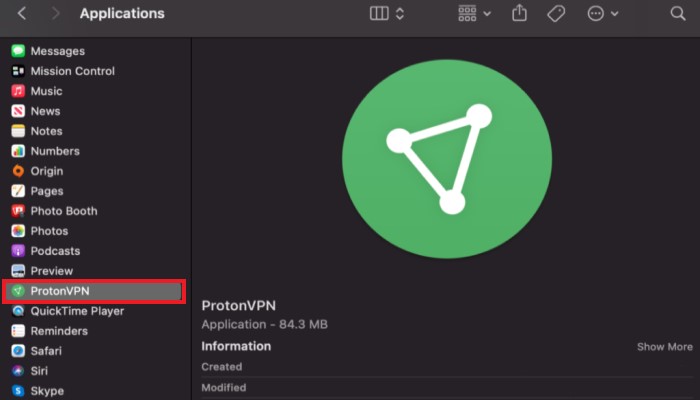
- Klicka Finder sedan gå till Tillämpningar
- Hitta ProtonVPN.app och dra den till trash
- För att radera resterna, öppna Finder, gå till mapparna
~/Library/Application Support, ~/Library/Caches , ~/Library/Cookies, ~/Library/Preferences , ~/Library/Logs , ~/Library/Saved Application StateEtc. - Välj och markera all överbliven data som är kopplad till ProtonVPN
- Dra dem till trash högerklicka sedan på trash ikonen, välj Tom trash
- Öppet Systeminställningar på Mac
- Välja nätverks och ta bort alla VPN-profiler som skapats av Proton genom att klicka på “-" knapp
- Starta om Mac-datorn och bekräfta om du kan avinstallera ProtonVPN på Mac-datorn.
Nu har ProtonVPN-appen äntligen tagits bort från din enhet. Men om du vill ha det enklare sättet är det förstås fortfarande bäst att använda PowerMyMac-programvaran.
Del 3. Varför fortsätter Proton VPN att säga att anslutningen misslyckades?
ProtonVPN visar ibland problem som är skadliga för din enhet eller orsakar att din dator hänger sig. den ansluter inte ens längreDetta kan bero på ett tekniskt fel eller dagligt serverunderhåll. Det är därför många användare älskar att hitta ett sätt att avinstallera ProtonVPN på Mac.

Del 4. Slutsats
Nu när du äntligen har nått den här delen är vi säkra på att du har lärt dig hur man avinstallerar ProtonVPN på Mac med hjälp av olika metoder som vi har gett dig. Återigen kan du använda det manuella sättet, men det kommer att kräva mycket tålamod, tid och ansträngning. Å andra sidan, med hjälp av funktionen "App Uninstaller” av verktyget PowerMyMac kan spara dig mycket tid och ansträngning för att framgångsrikt ta bort ProtonVPN.


