


 PowerMyMac


En läs- och skrivbar NTFS-drivrutin som heter NTFS-3G skapades av Tuxera Inc. för gratis och öppen källkod. Den senaste uppgraderingen för Mac gjordes dock tillgänglig 2012, och den nuvarande versionen är inkompatibel med den senaste versionen av macOS-operativsystemet. Om du funderar på att uppgradera till High Sierra på din Mac kommer NTFS-3G inte längre att fungera.
Får du en ofullständig avinstallation när du försöker ta bort alla NTFS-3G-komponenter? Är du osäker på hur du gör det effektivt avinstallera NTFS-3G från en Mac? På den här sidan guidar vi dig genom de tre steg som krävs för att helt eliminera program innan man rekommenderar en snabbare och enklare metod för att göra det.
Innehåll: Del 1. Vad är NTFS för Mac och behöver jag det? Del 2. Steg-för-steg-guide för att avinstallera NTFS-3G på MacDel 3. Hur man avinstallerar NTFS-3G och rester på MacDel 4. Slutsats
Del 1. Vad är NTFS för Mac och behöver jag det?
Nytt filsystem för teknik är vad NTFS står för. Ett filsystem skapat av Microsoft är standardfilsystemet för Windows-baserade enheter. Filsystemet är dock inte tillgängligt på Mac och är inkompatibelt med Mac-enheter.
NTFS-filsystemet stöds inte av Apple Mac-enheter, vilket gör det nästan svårt att använda en NTFS-disk på en Mac-dator. Förutom att formatera disken kommer du inte att kunna läsa, skriva eller utföra några andra åtgärder på en NTFS-disk på en Mac. Det kan vara därför vi behövde NTFS-3G. och du kan aktivera det för att hjälpa dig. Men när du inte längre använder verktyget kan du leta efter sätt att avinstallera det.
Del 2. Steg-för-steg-guide för att avinstallera NTFS-3G på Mac
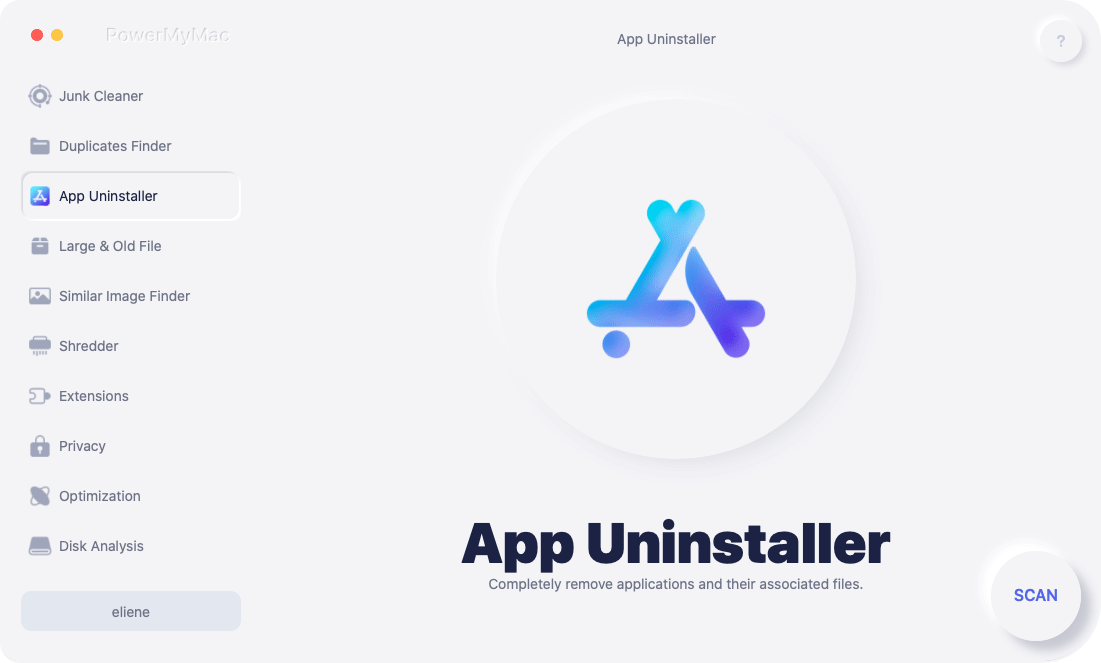
Med det enkla men effektiva verktyget iMyMac PowerMyMac, kan användare snabbt ta bort alla komponenter i målprogramvaran. Om du har problem med att ta bort besvärlig, svår eller skadlig programvara, se om PowerMyMac kan hjälpa till. Det eliminerar ett antal Mac-program och fungerar med Windows och Mac.
För att helt avinstallera NTFS-3G med hjälp av det här programmet, följ dessa fyra enkla steg:
- Välja App Uninstaller, Klicka sedan SCAN för att skanna din Mac efter alla tidigare nedladdade program.
- Kategorierna Valda, Oanvända, Rester och Alla program finns på vänster sida av skärmen. På din Alla appar På sidans högra sida visas varje program. Använd listan för att hitta oönskad programvara, eller skriv bara in dess namn i sökfältet i det övre högra hörnet för att hitta den direkt.
- Klicka på Veckla ut ikonen för att se alla länkade filer och Sök knappen för att läsa mer efter att du har valt den programvara du vill ta bort. Välj REN för att ta bort programmen tillsammans med alla relaterade filer.
- Du kan se hur mycket utrymme som finns tillgängligt på hårddisken och hur många filer som har rensats i ett popup-fönster med titeln "Rengörs klar".Välj bara översyn alternativet att ta bort alla andra appar och gå tillbaka till sidan med skanningsresultat.
Del 3. Hur man avinstallerar NTFS-3G och rester på Mac
Steg 1. Avsluta NTFS-3G
Här är ett litet råd du inte bör ignorera: inaktivera programmet och alla dess bakgrundsprocesser innan du tar bort ett aktivt program. Om NTFS-3G visas i Dock, välj först Avsluta från snabbmenyn genom att högerklicka på ikonen. Följ dessa steg för att söka efter och avsluta alla NTFS-3G-relaterade processer som körs för närvarande:
- Starta Aktivitetskontroll i Finder, Launchpad eller från Dock.
- ange NTFS-3G i sökfältet och välj sedan den process som använder termen.
- I popup-rutan som visas klickar du på (Tvinga) Avsluta efter att ha klickat på X symbolen i det övre vänstra hörnet för att avinstallera NTFS-3G enklare.
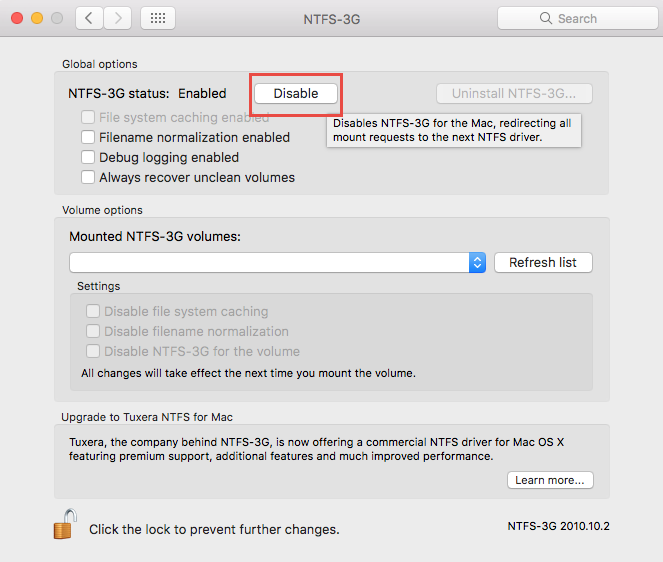
Istället kan du göra följande genom att klicka på inaktivera alternativ i NTFS-3G-alternativfönstret:
Steg 2. Ta bort NTFS-3G
Borttagning av NTFS-3G skiljer sig något från borttagning av andra tredjepartsprogram. Det är inte direkt lämpligt att ta bort den här programvaran med den konventionella metoden från /Applications mapp. Här är två metoder du kan använda för att ta bort NTFS-3G.
- Kör den integrerade avinstallationsprogrammet
- Välja Systeminställningar genom att gå till Apple symbol i Meny
- När fönstret Systeminställningar har öppnats väljer du NTFS-3G från listan med alternativ.
- Enligt Globala inställningar området, klicka på Avinstallera NTFS-3G För att aktivera ändringen om knappen är grå, klicka på Lås symbolen och ange ditt administratörslösenord.
- Omstart din dator efter att avinstallationen är klar genom att följa stegen.
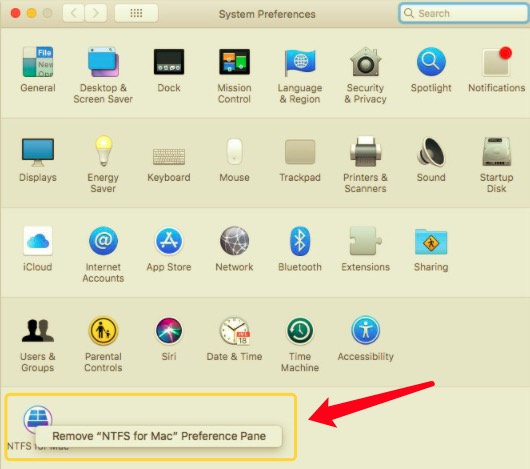
När du väljer Avinstallera NTFS-3G, välj knappen Inaktivera om NTFS-3G är aktiverat. Om NTFS-3G-ikonen finns kvar i Systeminställningar-fönstret efter borttagningen, högerklicka på den och välj Ta bort NTFS-3G-inställningspanelen.
- Kör avinstallationsprogrammet
Om den ovannämnda metoden inte fungerar av någon anledning, prova ersättningsmetoden nedan.
- Starta Finder och välj sedan Go > Gå till mapp via menyraden.
- Se följande platser:
/System/Library/Filesystems/ntfs-3g.fs/Support/ - Dubbelklicka på
uninstall-ntfs-3g.shskript för att starta det.
Tänk på att olika operativsystem kan ha olika platser där skriptfilen lagras.
Steg 3. Ta bort resterna
Även om NTFS-3G inte längre finns på din dator, finns vissa av dess delar fortfarande kvar. Hur kan man då ta bort inställningsfilerna, katalogfilen och andra återstående filer? För att avinstallera NTFS-3G, samt hitta och ta bort alla NTFS-3G-associerade objekt, följ stegen nedan:
- Starta Finder och välj Gå till mapp från Go alternativet i Meny
- För att öppna mappen, skriv
~/Libraryi rutan som visas och tryck på Enter.
Leta efter objekt på följande platser vars namn inkluderar NTFS-3G: ~/Library/Caches/, ~/Library/Preferences/, ~/Library/PreferencePanes/, ~/Library/ApplicationSupport/, ~/Library/LaunchAgents/, ~/Library/LaunchDaemons/, ~/Library/StartupItems/
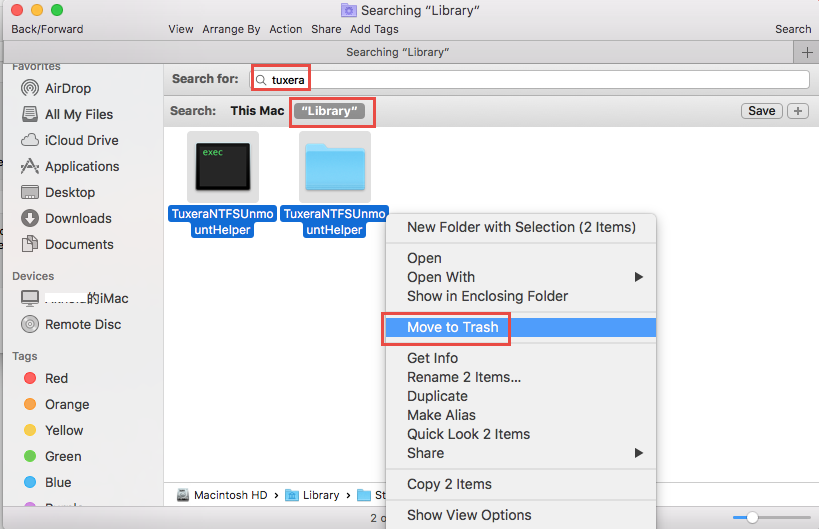
- Klicka på Sök i det övre högra hörnet av
~/Libraryoch skriv in NTFS-3G (eller Tux). - För att se resultaten i en viss mapp, klicka på "Bibliotek"under ribban."
- Välj de saker på resultatsidan som passar dina kriterier och släng dem sedan.
- Använd sedan samma procedurer för att avinstallera NTFS-3G-rester som finns i biblioteksmappen.
- Ta sedan bort eventuella NTFS-3G-rester genom att tömma trash.
Del 4. Slutsats
Sammanfattningsvis kan du använda de utförliga instruktionerna i det här dokumentet för att avinstallera NTFS-3G. Vilken avinstallationsmetod föredrar du att använda? Ett bekvämt avinstallationsprogram som PowerMyMac Uninstaller kan ge dig grundligt stöd om du har problem med avinstallationen. Istället kan du ta bort NTFS-3G helt, bli av med dess rester och till och med... ta bort Microsoft Office från din Mac.
Den manuella borttagningsprocessen kan verka lite komplicerad för en Mac-nybörjare. Den föreslagna kompletta lösningen kan vara mer lämplig för dig om du föredrar att undvika det tråkiga, svåra jobbet.


