


 PowerMyMac


Precis som andra operativsystem erbjuder macOS några sätt att välja batchfiler samtidigt. Att markera massobjekt gör det enkelt att ta bort, flytta, kopiera eller utföra andra åtgärder. Flera filer kan snabbt väljas i macOS med Klicka + Dra.
Det här innehållet hjälper dig att bemästra grundläggande färdigheter inom hur man väljer flera filer på Mac över olika applikationer. Om du törstar efter knep för att välja flera filer har vi sammanställt beprövade lösningar för förbättrad effektivitet och produktivitet. Om du vill välj flera duplicerade filer för att radera, kommer vi också att berätta hur du gör det i följande avsnitt. Oavsett om du vill markera massor av filer som är hopklumpade eller uppsättningar av sammanhängande filer, är det enkelt och smidigt.
Innehåll: Del 1. Hur man väljer flera filer på MacDel 2. Hur man rensar upp grupper av filer med flera objekt Del 3. Åtgärda flervalsbatchfiler som inte fungerarDel 4. Sammanfattning
Människor Läs också:Hur avinstallerar man flera program på en Mac?Så här tar du bort filer på Mac
Del 1. Hur man väljer flera filer på Mac
Batch-markera sammanhängande filer
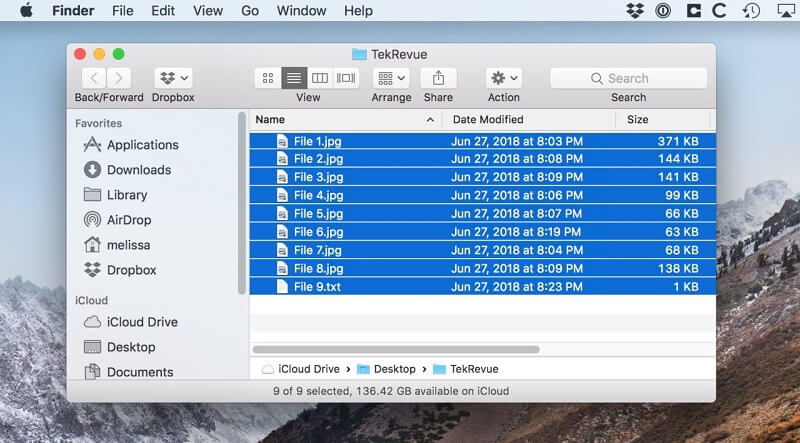
Så här markerar du flera närliggande filer eller mappar i Finder:
Metod nr 1
- 'Klicka på och
Drag' låter dig markera batchobjekt på ett ögonblick. - Du klickar på en fil och håller fast musen medan du drar i ett fönster för att skapa ett markeringsfält och markera fler filer.
Metod nr 2
- Du kan också åberopa
Shift + Clickför att markera grupper av sammanhängande objekt i Finder. Markera det främsta objektet; fäst det påShiftoch klicka sedan på den sista filen.
Allt innehåll i området mellan de två kommer att markeras. Den här tekniken fungerar dock inte för Finders ikonvy, som ger dig möjlighet att organisera ikoner i det lediga rummet eftersom de saknar specifik klassificering. Du kanske vill markera i listvyn och växla till ikonvyn, i vetskap om att dina filer kommer att förbli markerade.
Välj icke-sammanhängande objekt
Om du vill markera diskontinuerliga objekt i Finder:
Command + Clickpå objekten vill du lägga till markeringen ett i taget.- Bläddra över ett Finder-fönster och markera filer medan du sätter fast låset på
Commandtangenten medan du väljer en ny fil. Detta är praktiskt för att markera batchobjekt som omger varandra i Finder-fönstret.
Använda Command + Klicka för att ta bort eller avmarkera onödiga filer. Du kan också använda Command + A det för att markera allt ellerShift + Click för att gruppvälja en stor grupp objekt och håll sedan nedtryckt Command + Click för att avmarkera onödigt innehåll. Alternativt kan du klicka på Redigera på Finder-menyn och klicka på Markera allt.
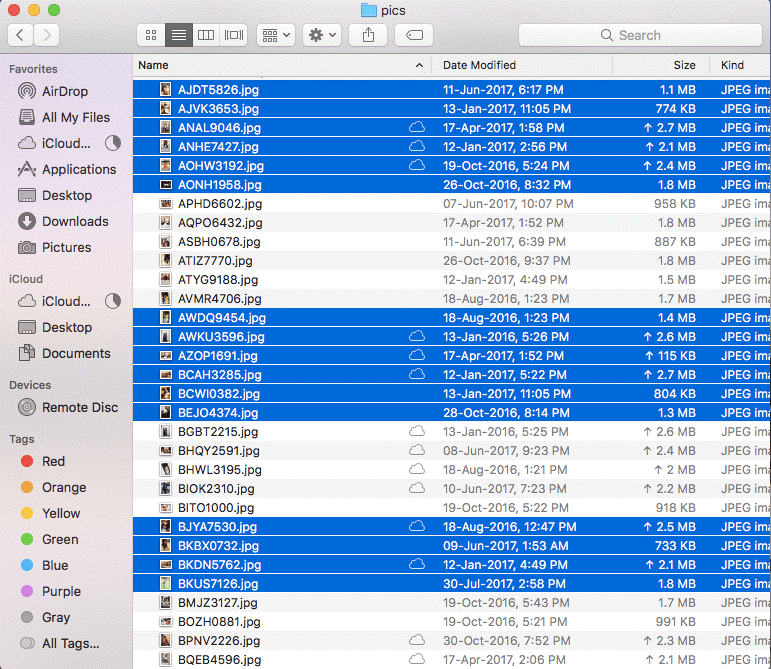
TipsNär du har markerat antingen intilliggande eller diskontinuerliga uppsättningar objekt, släpp taget Command or Shift Nyckel. Klicka på något av de markerade objekten och dra dem. Alla markerade objekt flyttas samtidigt.
Del 2. Hur man rensar upp grupper av filer med flera objekt
Kedja ihop metoder för val av flera filer
Det föregående filvalstekniker ger en vinnande kombination som gör komplicerade handlingar enkla. De låter dig också snabbt förvisa en enskild medlem från markeringen, avmarkera en grupp objekt med några få klick och så vidare. Hur markerar man flera filer på Mac?
1. För att justera ett kluster av sammanhängande objekt, klicka på valfri fil medan du trycker på Shift nyckeln till att avsluta ditt val direkt.
2. Markera likaså några sammanhängande objekt med Shift-klicka, mata sedan in ett visst antal icke-sammanhängande objekt i markeringen med Command-klickar när du hakar fast den Shift nyckel.
Organisera objekt
Du kan snabbt ordna gruppfiler, till exempel när du skapar en ny mapp. Markera alla komponenter du vill samla ihop, Control-klick ett av innehållet och välj sedan ny mapp med hjälp av markering. Låsta filer kan inte rensas.
Använd staplar för äppelpajbeställning
Staplar hjälper dig att hålla föremål ordnade i prydliga kluster på skrivbordet. Du kan samla staplar efter typ, datum eller taggar. När du ordnar efter typ lastas allt innehåll ner i en stapel. Alla nya filer du lägger till hamnar direkt i rätt stapel – vilket hjälper dig att hålla allt snyggt automatiskt.

Del 3. Åtgärda flervalsbatchfiler som inte fungerar
Skift-tangenten svarar inte vid val
Hur väljer man flera filer på en Mac? När man försöker välja en grupp objekt visas Shift nyckeln kanske inte fungerar. Eftersom command tangentfunktioner som ett icke-sammanhängande urval, kanske det inte löser problemet.
1. Klicka på en fil och sedan Command + Shift på den sista. Detta markerar alla filer däremellan.
2. Växla till listvy för att använda tangentbordskommandona, klicka på det första objektet och håll sedan fast Shift medan du väljer den sista filen.
3. Klicka på en oanvänd plats i fönstret och håll markören tills du markerar alla filer.
Förbättra distinktionen
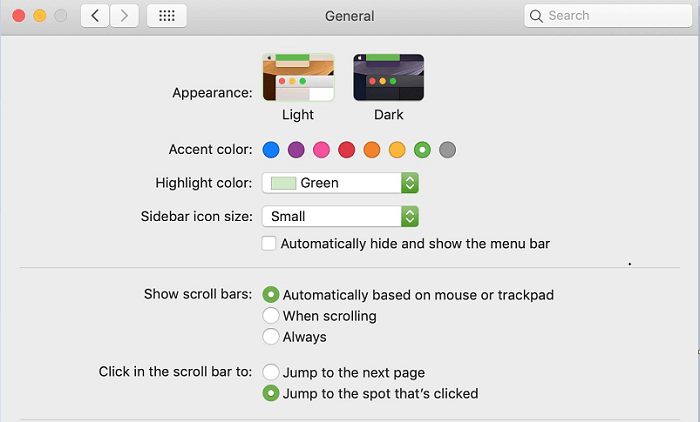
Vi föreslår att du ändrar Finders standardfärg för att skilja innehåll eller markeringar från andra komponenter. Använd Systeminställningar för att anpassa bakgrundsfärgen.
Starta Systemkrav preferenser, Tryck på Allmänt området och klicka sedan på menyn bredvid Framhäva Färg för att välja mellan en av de förutbestämda tonerna eller definiera ditt tema genom att klicka på Övrigt.
Läs mer om vanliga problem på Mac-forum om vi inte har tagit upp ditt problem. Mac-användare har proaktiva forum där du kan posta ditt problem och snabbt få feedback från första hand. Apple Support kan också få dig ur skogen.
Gyllene tipset: Duplikatsökaren ritar en pärla på upprepade filer
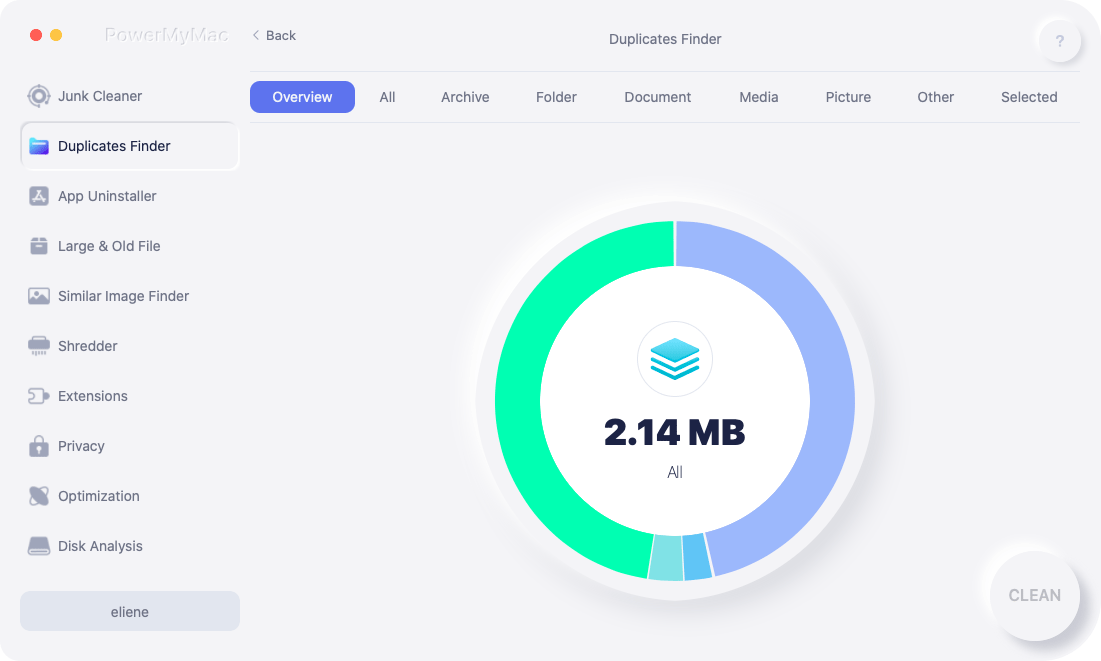
Ocuco-landskapet Dubbletter Finder by iMyMac PowerMyMac kan göra det enkelt att fastställa imitationer för att korrekt rensa ut dem till frigör värdefullt diskutrymmeFlera filer som videor, foton, dokument och annat innehåll tar upp gigabyte diskutrymme. Använd en högprecisionsduplikatsökare för att förbättra din Macs prestanda och återställa minnet.
 Få en gratis provperiod nu!
Det här kraftfulla verktyget söker igenom mappar och nollställer objekt av samma storlek. Det använder en byte-för-byte-analysmetod för exakt precision. Duplicate Finder letar upp replikatmaterial oavsett namn eller filtyp.
Del 4. Sammanfattning
Med de ovannämnda hacksen på hur man väljer flera filer på Mac, du har finessen att enkelt utföra många knep. Varje Mac-användare behöver vässa sin expertis i hur man markerar batchfiler med tangentbordet. Det betyder att du kan markera flera filer i följd eller inte i följd i Finder på ett ögonblick. Bekanta dig med Shift- och Command-tangenterna för att ta ditt spel till nästa nivå.
Vi hoppas att du har lärt dig allt om hur man väljer batchfiler på en gång. Glöm inte att rekommendera den här artikeln till dina nätverk eller vänner som äger en Mac och letar efter genvägar för att välja flera filer.



Rimee2022-05-14 06:44:09
看了这篇文章才终于弄明白为什么shift不能选连续项目了,官网上都没有写不能适用于大图标视图