


 Mac Uninstaller


Din Mac levereras med standardappar, till exempel Mail-appen. Du kanske inte behöver den, särskilt om du redan använder en webbaserad e-postapp. Istället för att låta appen ta upp så mycket plats på din Mac kanske du vill radera det.
Om du undrar hur man tar bort Mail-appen på Mac, det finns 5 sätt att göra det. Tänk på att du måste gå igenom varje metod först innan du börjar ta bort en standardapp på din Mac.
Innehåll: Del 1. Kan jag inaktivera Mail-appen på min Mac?Del 2. Hur tar man bort lagringsutrymmet för e-postappen på en Mac?Tips för e-postappen: Så här synkroniserar du e-postkontonAtt avsluta det hela
Del 1. Kan jag inaktivera Mail-appen på min Mac?
Ja, du kan inaktivera Mail-appen på din Mac. Om du vill behålla Mail-appen men helt enkelt inte vill använda den kan du dölja den från Dock och ta bort den från automatisk start.
-
Ta bort från dockan:
- Högerklicka (eller Ctrl-klicka) på Mail-appen i Dock.
- Välja Montering > Ta bort från Dock.
-
Inaktivera start:
- Gå till Systeminställningar > Användare & grupper.
- Välj ditt användarkonto och klicka på Startobjekt.
- Hitta E-post i listan och markera den.
- Klicka på - knappen för att ta bort den från startobjekten.
- Föräldrakontroll:
Om du vill inaktivera Mail-appen för vissa användare:
- Gå till Systeminställningar > Skärmtid (eller Föräldrakontroll på äldre macOS-versioner).
- Välj användarkontot du vill begränsa.
- Gå till avsnittet Appar och avmarkera Mail-appen.
Del 2. Hur tar man bort lagringsutrymmet för e-postappen på en Mac?
Du kan först prova dessa 5 enkla sätt här för att lösa lagringsproblemet på Mac eller ta bort Mail-appen.
Metod #1. Ta bort konto och e-postmeddelanden i Mail-appen på Mac
Även om du tycker att Mail-appen på din Mac-dator tar upp mycket lagringsutrymme och du aldrig använder den, vi rekommenderar inte dig att ta bort den förinstallerade e-postappen som är en del av ditt operativsystem.
Du kan inaktivera den för att hindra Mail-appen från att automatiskt ladda ner e-postmeddelanden, eller rensa Mail-appens cache, ta bort e-postmeddelanden eller deras bilagor.
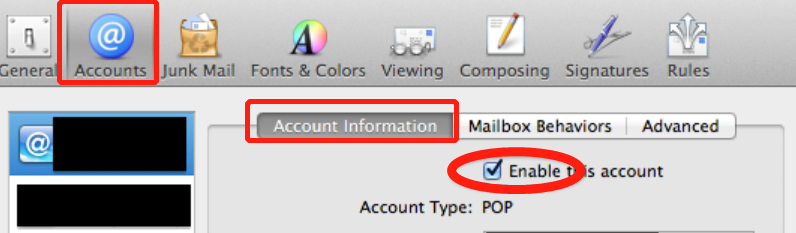
Om du inte längre vill ta emot nya e-postmeddelanden i Mail, när det gäller Gmail-e-post, kan användare öppna e-postappen Mail, klicka på preferenser > konton > hitta ditt Gmail-konto > Klicka på minustecknet-"-knappen för att avaktivera den så att Mail inte kan ladda ner nya Gmail-e-postmeddelanden.
Om användare behöver ta bort gamla e-postmeddelanden i Mail-appen på Mac, vänligen leta efter kontoikon på Mails startsida > klicka Bibliotek (eller tryck på "Alternativ"-knappen samtidigt som du klickar på "Gå"-knappen i menyraden) > välj "Post" och sedan kan du öppna mappen som innehåller alla e-postmeddelanden. Observera att istället för att radera hela mappen behöver du bara radera de e-postmeddelanden som vanligtvis slutar på ".emlx".
Om du vill rensa enkelt e-postprogrammets cache och e-postbilagor på din Mac, då rekommenderar vi att du använder PowerMyMac verktyg.
Metod #2. Sök efter Mail-appen på Mac och flytta den till papperskorgen
Den här metoden kan användas för att ta bort all programvara som är installerad på din macOS. Här är stegen.
- Öppna Finder.
- Sök efter mappen Program och klicka på den. Du hittar alla program som du installerat i den mappen.
- Gå till sökfältet och skriv in "E-post". Du får upp filerna som är relaterade till din e-postapp.
- Klicka på plusknappen längst upp till höger på skärmen. Den här knappen finns bredvid Spara-knappen. Genom att klicka på plusknappen kan du hitta alla filer relaterade till din e-postapp.
- Klicka på Typ längst upp till vänster på skärmen. Detta är det översta alternativet du får i listan.
- Klicka på Annat, som du ser i knappdelen av rullgardinsmenyn.
- Gör en sökning igen och skriv in system. Du hittar Systemfiler under Attribut.
- Markera rutan under I-menyn till höger.
- Klicka på OK för att hämta alla relaterade filer från din e-postapp.
- Välj "ingår" i rullgardinsmenyn bredvid Systemfiler. "Ingår" är ditt andra och sista alternativ i rullgardinsmenyn. När du klickar på det ser du fler filer relaterade till din e-postapp. Genom att ta bort alla filer kan du äntligen avinstallera programvaran.
- Markera alla filer
- Dra alla filer till papperskorgen för att radera dem.
Se till att programmet du vill ta bort är stängt. Annars kan du inte flytta det till papperskorgen. Det kan fortfarande finnas filer kopplade till Mail-appen. Du kan kontrollera dessa filer i biblioteket. Men du kanske inte kan se biblioteket eftersom det vanligtvis är dolt så att du inte råkar ta bort någon app av misstag.
Du kan gå till biblioteket genom att hålla ner alternativtangenten. Klicka sedan på GÅ i menyn ovan. När GÅ-menyn är öppen trycker du på och släpper alternativtangenten. Då visas biblioteket i menyn. Välj bibliotek för att visa andra associerade filer. Du kan ta bort dessa filer eller dra dem till papperskorgen.
Metod #3. Ta bort e-postappen på Mac via Terminal
Du måste vara mycket försiktig om du använder den här metoden för att ta bort Mail-appen på Mac. Det är inte lika enkelt som de två första metoderna. Som en påminnelse kräver den här metoden teknisk kunskap. Du skulle behöva skriva in några kommandon och om du inte är bekväm med det är den här metoden inte för dig.
Det första du behöver göra är att inaktivera SIP eller Apples systemintegritetsskyddHär är stegen för att göra det.
- Starta om Mac i återställningsläge genom att hålla in
Command + Rnycklar. - Vänta tills du ser Apple-logotypen.
- Starta om Mac-datorn igen om macOS Utilities-fönstret inte visas.
- Välj terminal under Verktyg-menyn.
- Skriv in kommandot
csrutil disable. - Starta om Mac-datorn.
Nu kan du ta bort Mail-appen på Mac via Terminal. Här är stegen att följa.
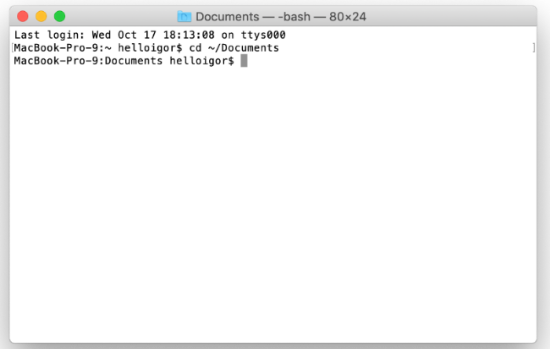
- Öppna terminalfönstret.
- Gå till mappen Program genom att skriva in lämpligt kommando. Kommandot är
cd /Applications/. - Skriv in nästa kommando, vilket är
sudo rm -rf Mail.app/. Det här kommandot tar bort Mail-appen. - Tryck på Enter.
- Skriv in ditt lösenord. Din e-postapp kommer att raderas.
Metod #4. Försök att låsa upp e-postappen
Med den här metoden kan du dra appen till papperskorgen utan fel. Den här metoden kräver bara att du låser upp appen. Kolla in stegen nedan.
- Högerklicka på Mail-appen.
- Välj Hämta information.
- Klicka på låsknappen. Du ser den längst ner till höger i popup-fönstret.
- Skriv in ditt lösenord i popup-fönstret. Det ger dig fullständig systemåtkomst till Mail-appen.
- Klicka på låsikonen igen.
- Dra Mail-appen till papperskorgen. Chansen är stor att du inte kommer att se något fel när du flyttar Mail-appen till papperskorgen.
Metod #5. Använd Mac-avinstallationsprogrammet
Att använda Mac Uninstaller är den enklaste metoden, det vill säga om du verkligen vill veta hur man... Ta bort Mail-appen på Mac enkelt.
Funktionen "App-avinstallation" från iMyMac PowerMyMac kan verkligen hjälpa dig. Det kan ta bort appar du inte behöver och rensa upp de återstående filerna åt dig. Här är stegen du ska följa för att ta bort Mail-appen på din Mac för att frigöra lagringsutrymme.
 Få en gratis provperiod nu!
- Ladda ner PowerMyMac gratis.
- Installera programvaran.
- Klicka på funktionen App-avinstallerare
- Starta skanningsprocessen för att söka efter Mail-appen.
- Välj E-postappen och radera den genom att klicka på RENSA.
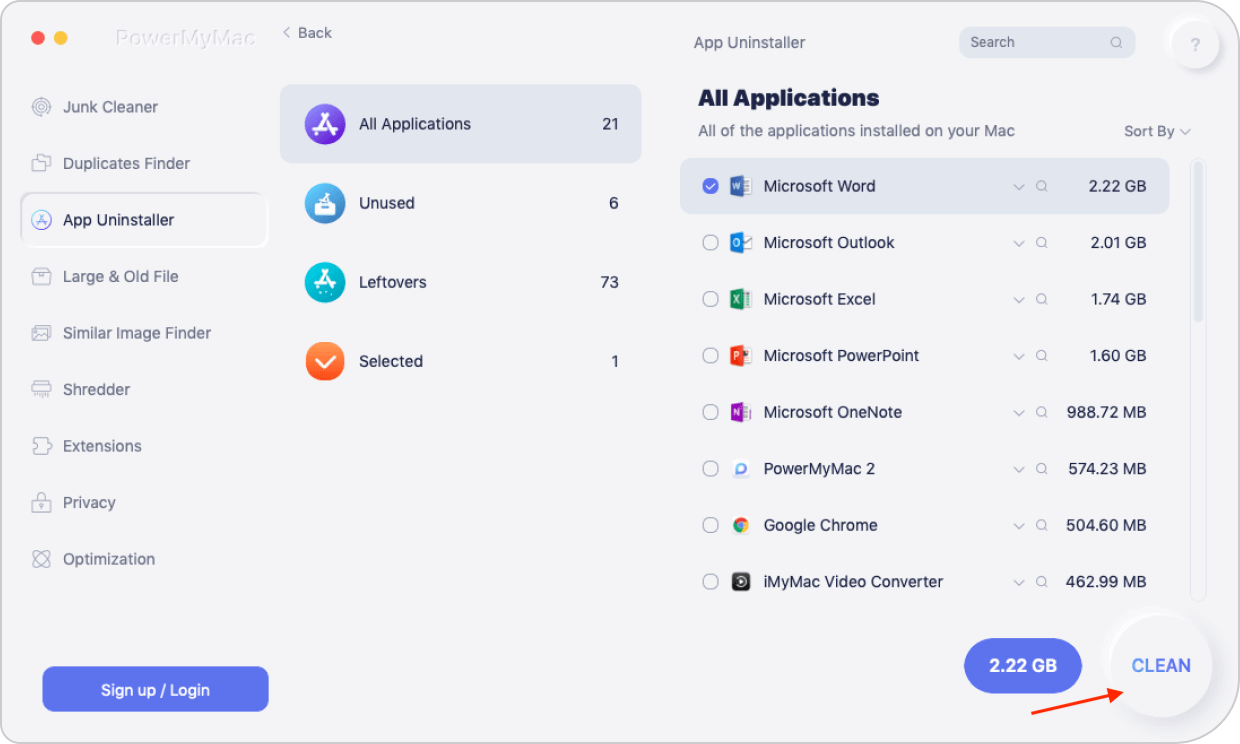
Så enkelt är det med PowerMyMac. Det bästa är att du kan vara säker på att alla filer som är kopplade till appen raderas ocksåDet tog bara några få klick att rensa din Mac. Du får mer utrymme utan att behöva besväret med att radera varje app.
PowerMyMac är fullpackad med funktioner som kan hjälpa dig att rensa och optimera din Mac. Så om du väljer att synkronisera din webbaserade e-postapp med din Mac Mail kan den... hitta och ta bort bilagor som du inte längre behöver. Du kan använda PowerMyMacs "Skräpstädare"modul till rensa cacheminnen i Mail-appen på Mac eller ta bort e-postbilagor snabbt.
Tips för e-postappen: Så här synkroniserar du e-postkonton
Om du har vissa tvivel om att ta bort Mail-appen, varför inte bara synkronisera den med den webbaserade e-postappen du redan använder? Istället för att ta bort Mail-appen på din Mac, konfigurera den med en webbaserad e-postapp. På så sätt är du säker på att få alla meddelanden utan att behöva gå online. Du kommer också att få alla dina meddelanden på bara en plats. Här är stegen du ska följa.
- Öppna post.
- Klicka på E-post i menyn.
- Välj Lägg till konto. Du får upp ett popup-fönster med en lista över alternativ för e-postappen.
- Välj din föredragna e-postapp.
- Klicka på Fortsätt nedan.
- Skriv in den e-postadress du vill lägga till.
- Klicka på knappen Nästa nedan.
- Skriv in ditt lösenord.
- Klicka på knappen Nästa nedan.
- Välj E-post. Detta är det första alternativet i listan.
- Klicka på knappen Klar nedan.
- Klicka på Brevlåda i menyn ovan.
- Klicka på Synkronisera konto. Du kommer att kunna se din föredragna e-postapp till vänster på skärmen. Du kommer att kunna se alla dina inkommande e-postmeddelanden i din föredragna e-postapp i din Mac Mail. Om du vill lägga till ett annat konto går du tillbaka till menyraden ovan och klickar på E-post. Välj sedan Lägg till konto igen.
- Klicka på inställningsikonen nedan för att konfigurera din brevlåda så som du vill att den ska fungera.
Så om du känner dig obekväm med hur du tar bort Mail-appen på Mac, få den att fungera med din webbaserade e-post istället.
Att avsluta det hela
Även om de fem metoderna definitivt kan visa dig hur du tar bort Mail-appen på Mac, måste du vara mycket försiktig när du utför själva uppgiften. Mail-appen är trots allt en av Apples vanliga appar. Det kan vara bättre att bara lämna den ifred, särskilt om du inte är tekniskt kunnig.




M1 Mac Mini2022-02-21 18:09:13
Fungerar inte för M1 Mac Mini. Jag har till och med aktiverat root-användare och kan fortfarande inte få Mail att raderas. Dessutom gäller återställningsstegen som visas endast för Intel-baserade Mac-datorer.
hum2021-08-13 18:18:14
Hej Pamela. Du kan inte ta bort filer från e-post genom att markera innehållet som du förklarat ovan. När du högerklickar visas INTE alternativet att flytta till papperskorgen.