


 PowerMyMac


Apple-användare kan skicka snabbare snabbmeddelanden via iMessage på alla iOS-enheter. Om du vill veta hur man lägger till telefonnummer till iMessage på Mac, då är det här inlägget något för dig.
Innehåll: Del 1. Hur man lägger till telefonnummer till iMessage på MacDel 2. Felsökning av iMessage som inte fungerar på MacDel 3. Vad ska man göra när din Mac blir långsammare?
Människor Läs också:Hur man fixar iMessage som inte fungerar på MacHur stänger man av iMessage på en Mac?Synkronisera din iMessage till Mac – det snabba och enkla sättet
Del 1. Hur man lägger till telefonnummer till iMessage på Mac
Den exklusivitet som iMessage ger Apple-ägare gör det bara speciellt att alla verkar bli fast vid det.
Till skillnad från andra meddelandeappar som använder mobilnätskrediter för att du ska kunna skicka och ta emot meddelanden, använder iMessage däremot data eller internet för att låsa upp dess funktioner. Det är mycket snabbare än att skicka vanliga SMS/MMS och det gör mycket mer.
iMessage är ganska enkelt att installera på alla dina iOS-enheter, inklusive Mac. Den här appen är förinstallerad på Mac-enheter, så det finns ingen anledning att ladda ner den från AppStore.
Om du älskar att använda iMessage kommer du att älska det ännu mer när du fortsätter att använda appen på Mac.
- Först måste du aktivera iMessage på din iPhone. Gå till Inställningar och sedan till Meddelanden. Slå på den.
- Tryck på Skicka och ta emot och ange ditt Apple-ID. Se till att det är samma konto som du använde på din Mac.
- Verifiera att ditt telefonnummer och Apple-ID är markerade eller markerade under avsnittet "Du kan nås".
- Just nu, öppna iMessage på din Mac, och fortsätt sedan till Meddelanden och öppna sedan Inställningar.
- Gå till Konton och Till New Earth ditt iMessage-ID.
- Nästa är att välj ditt Apple-ID och markera rutan för ditt telefonnummer.
- Det var allt! Du har precis lagt till ett telefonnummer i iMessage på Mac.
Du kan valfritt lägga till ditt telefonnummer till "Starta nya samtal från" popup-menyn som ditt huvudattribut.
Nu när du har lärt dig hur man lägger till ett telefonnummer i iMessage på en Mac, kommer alla dina meddelanden att synkroniseras mellan alla iOS-enheter.
Del 2. Felsökning av iMessage som inte fungerar på Mac
Med iMessage kan du skicka och ta emot mycket mer än vanliga SMS eller MMS. Det har fler roliga och engagerande funktioner som du säkert kommer att älska.

Du kan skicka:
- Fotogalleri
- Video
- Audio
- Filer
- Plats
- Games
- GIF
- Dekaler
- Och många fler…
Det finns sällsynta tillfällen då iOS-appar upplever driftstopp och när de gör det uppdaterar Apple i realtid om deras Status sidaApples utvecklare arbetar hårt för att säkerställa att alla appar och funktioner de släpper fungerar korrekt. De är också snabba med att åtgärda eventuella problem som rapporterats i fallet.
Ett av de vanligaste problemen som iMessage-användare upplever är synkronisering av meddelanden till MacDu kanske undrar varför jag inte kan lägga till mitt telefonnummer i iMessage på Mac? Vanligtvis beror det bara på din internetanslutning eftersom det är den huvudsakliga vägen dina meddelanden använder.
Kontrollera Internetanslutning
Hur lägger man till ett telefonnummer i iMessage på en Mac när meddelandena inte synkroniseras? Försök att kontrollera din internetanslutning. Den kan ha avbrutits eller vara nere. Vanligtvis kan dina data avbrytas, vilket kan orsaka vissa besvär när du använder iMessage.

Du kan prova dessa steg:
- Slå bara på och av Wi-Fi på din Mac och försök att ansluta igen.
- Omstart din Wi-Fi-router.
- Slå på iMessage på och av.
När du har utfört dessa steg, kontrollera om dina meddelanden börjar synkroniseras. Det tar vanligtvis några minuter innan alla meddelanden har synkroniserats.
Verifiera Apple-ID och konfigurera inställningar
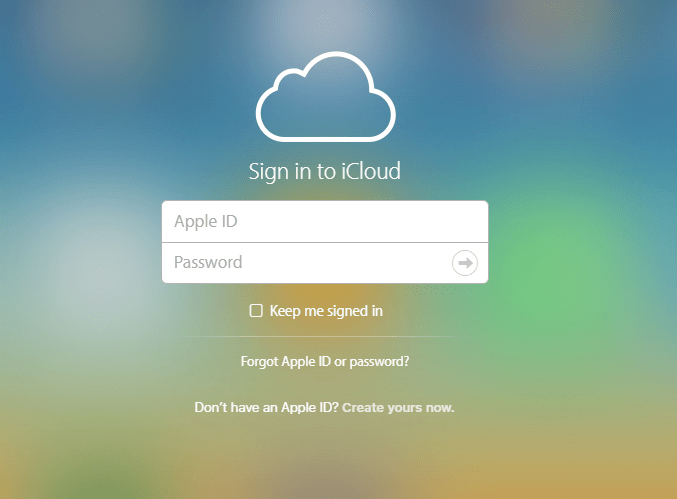
Ett annat viktigt steg att överväga är Apple-IDDu kommer inte att kunna använda iMessage när du har aktiverat ett annat Apple-ID.
Här är vad du kan göra:
- Se till att ditt Apple-ID på Mac matchar det du registrerade på din iPhone.
- När du har bekräftat att du har samma konto, se till att dessa tre alternativ är aktiverade i inställningarna: iMessage, Skicka som SMS och MMS-meddelanden.
Direkt efter att du har verifierat dessa inställningar aktiverar du vidarebefordran av textmeddelanden på din Mac, som också finns i appen Inställningar.
Vänta några minuter tills meddelandena synkroniseras. Genom att följa dessa steg kommer din iMessage garanterat att fungera smidigt.
Del 3. Vad ska man göra när din Mac blir långsammare?
Om du märker att systemet saktar ner efter att du har vetat hur man lägger till ett telefonnummer i iMessage på Mac och börjat använda iMessage på Mac, ska du inte skylla allt på iMessage-appen.
Det kan finnas olika situationer och faktorer att beakta innan man pekar den specifikt mot en app. Ett av de vanliga problemen vi stöter på med Mac är långsamhet. Vanligtvis uppstår långsamhet eller latens vid start, vid åtkomst till en app och även när man bara skrollar igenom den.
Jag hittade en lösning som kan kontrollera ditt system med bara några få klick. Du behöver inte köra igenom en massa tester. Bara installera och kör. iMyMac PowerMyMacDet här programmet skannar igenom enhetens processor, minne och hårddisk. Det kan också enkelt radera ett stort antal skräpfiler, gamla och stora filer och annat skräp för att frigöra utrymme som kan tas bort.
Den erbjuder några extra funktioner som Minnesåterhämtare och Application Uninstaller som kan bidra till att förbättra användarupplevelserna, till exempel avinstallera oönskade appar, underhåll av några viktiga Mac-verktyg och mycket mer.
Det jag gillar bäst med den här programvaran är att den erbjuder en gratis nedladdning så att du kan prova och uppleva dess kraftfulla prestanda.
 Få en gratis provperiod nu!
Sammanfattning
Äntligen har vi lärt oss hur man lägger till ett telefonnummer i iMessage på en MacDet är ganska enkelt att göra när du följer stegen på ett praktiskt sätt.
Om du i något fall upplever vissa problem, som sen synkronisering eller att synkroniseringen inte synkroniserar alls, finns det också felsökningsåtgärder du kan vidta för att bli av med problemet. För det mesta är det bara internetanslutningen som orsakar problemet.
När du tror att det är mer än bara internetproblemet och redan påverkar hela din Macs prestanda kan du installera iMyMac PowerMyMac för att skanna och åtgärda större problem.
Har du redan provat att använda iMessage på din Mac? Dela det här inlägget så att dina vänner också kan prova!


