


 Duplicate Finder


Jag har många filer med mig. De flesta är arbetsrelaterade filer och de måste organiseras och förvaras ordentligt. Det är därför jag använder Dropbox för att spara mina filer och se till att de har en kopia.
Om jag av misstag raderar mina filer kan jag fortfarande få tag på det jag behöver. Men jag har för närvarande slut på utrymme i min Dropbox. Om jag har dubbletter av filer i den måste jag radera demHur hittar jag dessa Dropbox-duplikatfiler på Mac och radera dem?
~Dropbox-användare
 Att säkerhetskopiera dina filer är ett bra sätt att skydda dem. Om du någonsin raderar dessa filer av misstag kan du helt enkelt få tillbaka dem med hjälp av säkerhetskopian. Ett sätt att säkerhetskopiera filer är via Dropbox.
dropbox skapar dubbletter av filer. Du kanske undrar varför ditt Dropbox-konto börjar få slut på utrymme. Innehåller det de filer du faktiskt behöver lagra? Eller innehåller det filer som du inte behöver lagra? Du kanske tvivlar på om ditt Dropbox-konto faktiskt har de filer du behöver. Så, finns det ett sätt att ta bort dubbletter av foton i Dropbox?
Oroa dig inte, vi hjälper dig med processen att avaktivera ditt Dropbox-konto. Detta kommer att frigöra mer utrymme på kontot och ge det mer plats för viktigare saker.
ArtikelguideDel 1: Hur man hittar och tar bort dubbletter av Dropbox-filerDel 2: Så här synkroniserar du filer med DropboxDel 3: Avslutningsvis
Människor Läs också:Hur uppgraderar man till OS X Yosemite?Hur man snabbar upp El Capitan?
Del 1: Hur man hittar och tar bort dubbletter av Dropbox-filer
Hur tar jag bort dubbletter av foton i Dropbox? Dubblettfiler är filer som är likartade eller identiska till sin natur. Du kan frigöra mer utrymme i din Dropbox genom att ta bort dubblettfiler:
 Få en gratis provperiod nu!
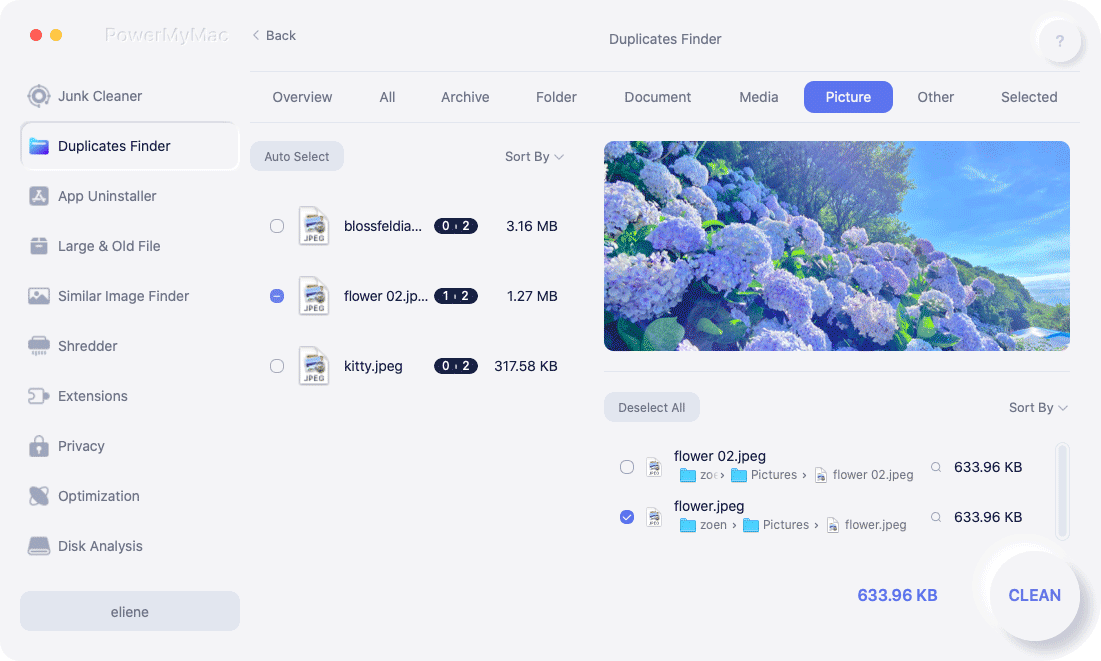
- Starta iMyMac PowerMyMac på din Mac och välj Duplicate Finder.
- Tryck scan knappen för att heltäckande skanna enheten efter dubbletter.
- Välj Dropbox-dubbla filer att radera.
- Tryck Rena klicka sedan på Bekräfta knappen och duplicerade filer på Dropbox kommer att tas bort helt.
Varför duplicerar Dropbox mina filer? Det kan vara väldigt olika varianter. Det kan till exempel vara samma dokument som laddas upp till två olika mappar i ditt Dropbox-konto. Ett annat exempel kan vara en fil som två olika personer arbetar med.
Kan Dropbox identifiera dubbletter av filer? Dropbox kan få två olika kopior av samma filnamn. Två olika versioner av en viss fil som laddats upp av två olika personer kan också vara dubbletter av filer.
Två liknande foton som nästan ser likadana ut (men där den ena versionen är bättre än den andra) kan också vara dubbletter. Dessa två liknande foton kan laddas upp i Dropbox och ett av de två kan ta upp onödigt mycket plats.
Ska jag ta bort dubbletter av Dropbox-filer? Det stora utrymmet kan användas till bättre ändamål, särskilt för viktigare filer. Därför bör vi sök ett bra sätt att hitta dubbletter av foton och ta bort dem.
Så, hur hittar man automatiskt dubbletter av filer? Du kan kolla upp dem en efter en. Men det här är en väldigt mödosam process. Du kan välja ett alternativ istället-- iMyMac PowerMyMacs Duplicate Finder-verktyg. Det här verktyget kan hjälpa dig att hitta och ta bort dubbletter av filer direkt.
Här är fördelarna och funktionerna med det här verktyget:
01 – Det hjälper dig att frigöra utrymme på din Mac-enhet. Det kan finnas för många applikationer som tar upp en stor del av utrymmet och saktar ner din Mac. Genom att göra det kan större lagringsutrymme sparas för viktigare dokument. Dessutom hjälper det till att snabba upp din enhet eftersom den har mer andrum för viktiga processer.
02 - Det hjälper till att hitta dubbletter av dokument, mediefiler och bilder. Den gör en omfattande skanning av hela din enhet för att hjälpa dig hitta dubbletter av filer. Den används för flera filtyper (inte bara för bilder). Den kan hjälpa dig att enkelt ta bort dubbletter av Dropbox-filer.
03 – Den har en kraftfull sökfunktion som skannar hela din enhet grundligt. Den kan upptäcka dubbletter av filer även om de har ett annat filnamn.
04 – Den låter dig vara väldigt selektiv. Den visar skannade resultat efter olika klassificeringar som storlek, typ och datum.
05 – Den låter dig förhandsgranska all data innan du faktiskt raderar den. Du kan välja vilka filer du vill radera och vilka du vill behålla. Allt är under din kontroll.
06 - Det ger dig en gratis provperiodDu kan kolla in funktionerna och fördelarna med verktyget för de första 500 MB data innan du faktiskt köper det. Nu kan du uppleva fördelarna med iMyMacs Duplicate Finder utan att behöva lägga ut pengar ur fickan.
07- Det är det 100% säkertDen innehåller ingen skadlig programvara eller virus som kan skada din enhet. Den är mycket säker att använda.
08 - Det ger dig en-mot-en-stödDu kan också få support via e-post om du är osäker på hur du använder produkten.
Del 2: Så här synkroniserar du filer med Dropbox
Om du synkroniserar dina filer korrekt mellan flera enheter kan det vara riktigt hjälpsamt. Det vill säga, som tidigare nämnts om du gör det korrekt. Om Dropbox-kontot du använder för närvarande synkroniserar filer felaktigt (och okontrollerat), och du har många dubbletter av Dropbox-filer, måste du se till att du organiserar det väl.
Du kan faktiskt automatiskt synkronisera mappar på din Mac som finns utanför din Dropbox-mapps gränser. Det är möjligt att automatiskt synkronisera mappar som du ofta använder på din Mac-enhet. Detta minskar behovet av att duplicera olika filer på olika platser.
När du automatiskt synkroniserar mappar som du använder ofta i din Dropbox-mapp hjälper det dig frigör mer lagringsutrymme över olika enheter och plattformar. Detta beror på att onödiga filer och dubbletter elimineras.
Så här synkroniserar du din Mac-enhet med Dropbox automatiskt steg för steg
Steg 01 - Starta Terminalen. Du kan göra detta genom att skriva in “terminal” på rampljuset och trycker på Enter knapp.
Steg 02 - Skriv följande: “ln –s"
Steg 03 - Tryck på plats knappen, inte enter-knappen.
Steg 04 - Starta Finder.
Steg 05 - Leta reda på mappen du vill synkronisera med Dropbox mapp.
Steg 06 - Dra mappen och släpp den i terminalfönstret.
Steg 07 - Starta Finder en gång till.
Steg 08 - Lokalisera Dropbox mapp.
Steg 09 - Dra Dropbox mappen mot terminalfönstret
Steg 10 - Tryck på Enter knapp.
Nu kommer filerna som har sparats i den mapp du valt att synkroniseras med ditt Dropbox-konto.
Så här synkroniserar du selektivt med Dropbox
Om du vill att Dropbox ska installeras på en ny enhet kan du prova selektiv synkronisering. Detta hjälper dig att spara utrymme i din Dropbox-mapp.
Standardsynkronisering synkroniserar alla filer och mappar du har. Selektiv synkronisering ger dig dock möjligheten att välja vilka filer och mappar som ska synkroniseras på Dropbox.
Så här ställer du in det:
Steg 01 - Gå till Dropbox-ikonen och högerklicka det.
Steg 02 - Tryck Inställningar.
Steg 03 - Välj preferenser.
Steg 04 - Gå till fliken Konto.
Steg 05 - Gå till Selektiv SynkroniseraTryck på Ändra inställningar under den.
Steg 06 - Välj de mappar du vill synkronisera.
Steg 07 - Tryck Uppdatering.
Del 3: Avslutningsvis
Dropbox kan vara ett bra sätt att säkerhetskopiera dina data. Men om du behöver mer lagringsutrymme på ditt Dropbox-konto och dina enheter är det bäst att hitta dubbletter av Dropbox-filer och radera dem.
Ett sätt att göra detta är att manuellt hitta varje fil och radera dem en efter en. Men det kan vara en mödosam process.
Det bästa sättet att hitta dubbletter av filer är via iMyMac PowerMyMacs duplikatsökare verktyg. Det hjälper dig att hitta dubbletter av filer och radera dem direkt.


