


 PowerMyMac


Många Mac-användare som förlitar sig på Apples iCloud-kalender också använda Microsoft Outlook för e-post och schemaläggning. Om du tillhör den här kategorin kanske du undrar hur du synkronisera iCloud-kalender med Outlook effektivt. Lyckligtvis finns det flera sätt att åstadkomma detta. I det här inlägget går vi igenom varför synkronisering är viktigt och hur du synkroniserar din iCloud-kalender med Outlook på Mac med tre olika metoder. Vi delar också med oss av ett bonustips för att optimera din Mac för att säkerställa smidig prestanda. Nu kör vi.
Innehåll: Del 1: Varför behöver du synkronisera din iCloud-kalender med Outlook?Del 2: Hur synkroniserar du din iCloud-kalender med Outlook på Mac?Del 3: Bonustips – Rensa och optimera din Mac
Del 1: Varför behöver du synkronisera din iCloud-kalender med Outlook?
Om du är någon som hanterar både personliga och professionella scheman kan det vara revolutionerande att synkronisera din iCloud-kalender med Outlook. Många yrkesverksamma använder Outlook på jobbet samtidigt som de förlitar sig på iCloud för personlig planering. Utan synkronisering riskerar du att dubbelboka, missa möten eller förlora värdefull produktivitet när du växlar mellan plattformar.
Synkronisering hjälper dig att hantera din tid mer effektivt genom att integrera både personliga och professionella händelser i en centraliserad kalender. När du synkroniserar iCloud-kalendern med Outlook skapar du en sömlös schemaläggningsupplevelse. Detta är särskilt användbart för distansarbetare, studenter, frilansare eller alla som jonglerar med flera kalendrar.
Dessutom möjliggör synkronisering bättre åtkomst över flera plattformar. Tänk dig att kolla din kalender på din iPhone och få den direkt synlig i Outlook-skrivbordsappen på Mac. Oavsett om du schemalägger ett Zoom-samtal eller planerar ett familjeevenemang, säkerställer en synkroniserad kalender att alla dina åtaganden är synliga i realtid.
Kort sagt, för att hålla dig organiserad, effektiv och punktlig är det viktigt att synkronisera din iCloud-kalender med Outlook – din tidshanteringsstrategi kommer att tacka dig.
Del 2: Hur synkroniserar du din iCloud-kalender med Outlook på Mac?
Alternativ 1: Skrivskyddad synkronisering
Om du letar efter en enkel, enkelriktad metod för att synkronisera iCloud-kalendern med Outlook är det här alternativet för användare som bara behöver en passiv vy över sina scheman på olika plattformar. Det låter dig se dina iCloud-händelser i Outlook, men ändringar måste göras i iCloud. Så här fungerar det:
- Logga in på iCloud.com med ditt Apple-ID.
- Gå till Kalender app.
- Klicka på Dela ikon bredvid den kalender du vill synkronisera.
- Möjliggöra Offentlig kalender och kopiera den genererade URL:en.
- Öppna Outlook på din Mac.
- Gå till Verktyg > Kontonoch välj sedan ditt Outlook-konto.
- I Internet kalendrar klistrar du in iCloud-kalenderns URL.
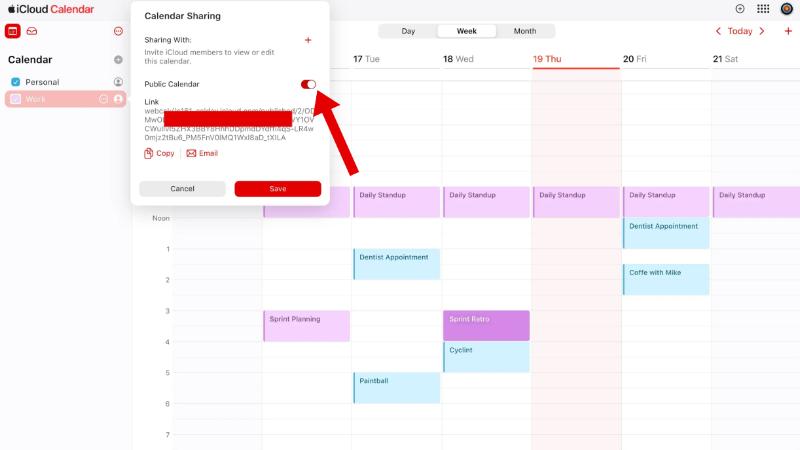
Outlook visar nu dina iCloud-händelser. Kom ihåg att detta är en skrivskyddad inställning. Om du lägger till händelser i Outlook visas de inte i iCloud.
Alternativ 2: Använd iCloud Web + Outlook Web
Den här metoden utnyttjar kraften i molnplattformar och kan nås från vilken webbläsare som helst. Du kommer att använda både iCloud Web- och Outlook Web-apparna för att hantera och visa dina kalendrar. Så här synkroniserar du iCloud-kalendern med Outlook:
- Öppna båda Outlook Web och iCloud.com i din webbläsare.
- Från iCloud, öppna din kalender och kopiera offentlig delningslänk som förklarats ovan.
- Gå till Outlook Web > Kalender > Lägg till kalender > Prenumerera från webben.
- Klistra in iCloud-kalenderns URL.
- Namnge kalendern och spara den.
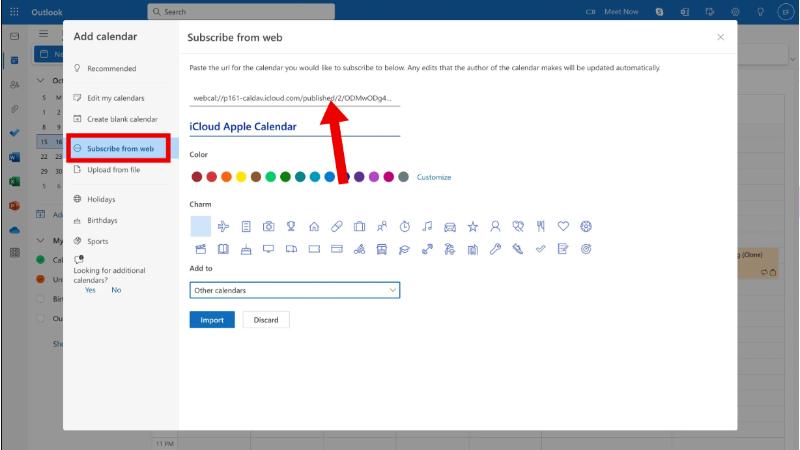
Du kommer nu att se dina iCloud-händelser i ditt Outlook-webbgränssnitt. Begränsningen här är återigen enkelriktad synkronisering. Den här konfigurationen fungerar dock utmärkt om du främst använder webbversionerna och behöver en lätt lösning för att synkronisera din iCloud-kalender med Outlook.
Alternativ 3: Tvåvägssynkronisering
Om du behöver en fullständig tvåvägssynkronisering på Mac, inklusive möjligheten att redigera händelser i antingen iCloud eller Outlook, överväg tredjepartsappar som CalendarBridge. CalendarBridge är ett molnbaserat kalendersynkroniseringsverktyg som möjliggör sömlös tvåvägssynkronisering mellan flera kalenderplattformar, inklusive iCloud, Outlook, Microsoft 365 och Google Kalender. Det kräver ingen programvaruinstallation och fungerar helt online och erbjuder anpassningsbara synkroniseringsinställningar, sekretesskontroller och realtidsuppdateringar.
Genom att följa den här steg-för-steg-guiden kan du synkronisera iCloud-kalendern med Outlook med hjälp av CalendarBridge.
- Gå till CalendarBridge.com och skapa ett konto.
- Anslut båda dina icloud och utsikterna kalendrar.
- Välja tvåvägs synkronisering inställningar så att ändringar som görs i en kalender återspeglas i den andra.
- Anpassa synkroniseringsalternativ: Välj vilka kalendrar som ska inkluderas, synkroniseringsfrekvens och sekretessfilter.
När du väl har konfigurerat det behöver du inte längre oroa dig för avvikelser mellan dina kalendrar.
Del 3: Bonustips – Rensa och optimera din Mac
När du funderar på hur du synkroniserar iCloud-kalendern med Outlook, glöm inte din Macs prestanda. Synkroniseringsproblem och fördröjning kan ofta spåras tillbaka till systemstörningar, överbelastat lagringsutrymme eller överbelastning av minne. Det är där... iMyMac PowerMyMac kommer in
PowerMyMac är ett allt-i-ett-Mac-verktyg utformat för att optimera prestanda. Så här hjälper det:
- Smart rengöring: Rensar skräpfiler, cacheminnor, loggar och oanvända appar som kan störa kalendersynkroniseringen.
- MinnesövervakningVisar CPU- och minnesanvändning i realtid för att diagnostisera prestandaproblem.
- Duplicate FinderTar bort överflödiga filer till frigöra lagring, vilket skapar plats för appuppdateringar och smidigare synkroniseringsprocesser.
- Uninstaller: Hjälper dig att helt ta bort oönskade program, inklusive dolda filer.
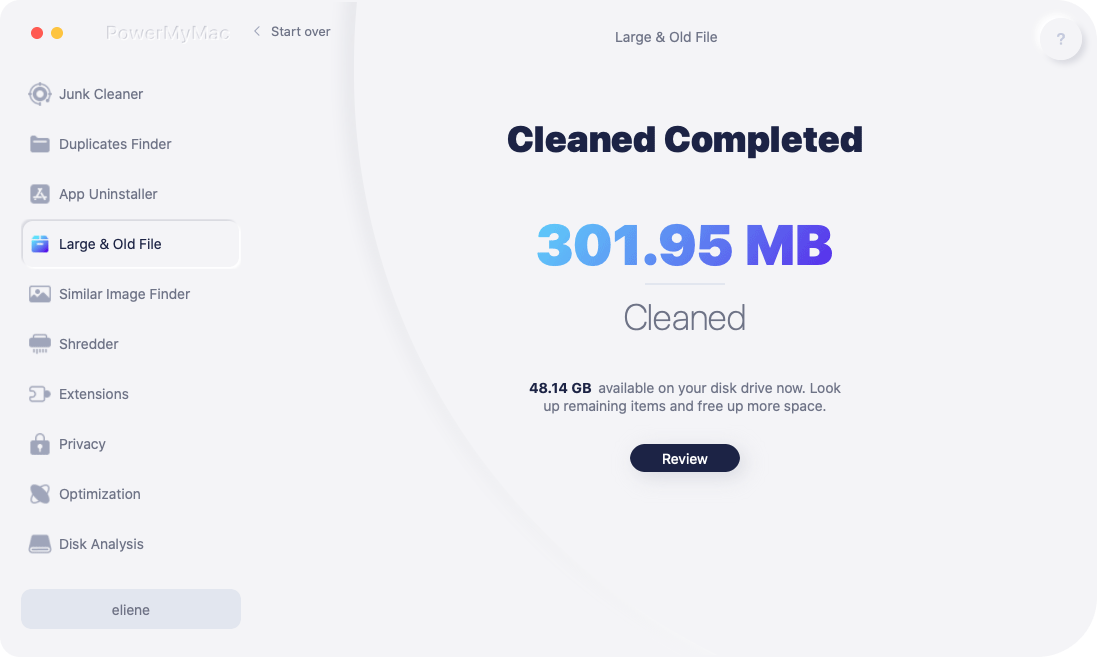
Efter att ha använt PowerMyMac rapporterar användare ofta snabbare starttider, bättre apprespons och smidigare synkroniseringsfunktioner mellan tjänster. Om din Mac känns trög när den försöker synkronisera iCloud-kalendern med Outlook är det värt att prova PowerMyMac. Att upprätthålla ett rent och optimerat system förbättrar inte bara din övergripande användarupplevelse utan säkerställer också att din kalendersynkronisering förblir tillförlitlig.


