


 PowerMyMac


En annan applikation som utvecklats och släppts av Adobe Inc. är Adobe InDesign. Denna programvara har många fantastiska funktioner men den kan fortfarande stöta på problem då och då. Det bästa sättet att åtgärda det är att lära sig hur man gör det. avinstallera InDesign på Mac.
Nu finns det två olika metoder för att avinstallera appar från din Mac, den manuella metoden och den speciella metoden med ett automatiskt verktyg. Om du vill lära dig hur man enkelt tar bort programvaran från Mac med båda metoderna kan du fortsätta läsa resten av den här artikeln gratis.
Innehåll: Del 1. Hur avinstallerar jag InDesign från min Mac?Del 2. Hur avinstallerar jag Adobe helt?Del 3. Varför avinstallera Adobe InDesign?Del 4. Slutsats
Del 1. Hur avinstallerar jag InDesign från min Mac?
Om du nu tror att du vill veta de manuella sätten att ta bort appen Adobe InDesign, kanske du bara kollar in det här avsnittet. Här kan du lära dig varför många väljer att använda professionella rengöringsverktyg när de avinstallerar appar från sina enheter. Du kan se skillnaden mellan både det manuella och det speciella sättet att avinstallera appar.
Utan vidare, kolla dessa steg och se hur du manuellt tar bort Adobe InDesign från din Mac:
Avinstallera InDesign på Mac genom att dra appen till papperskorgen
- Tvinga avsluta appen Adobe InDesign
- Öppet Finder och klicka Tillämpningar, Sök Adobe InDesign, dra den till trash vid Dock eller så kan du bara högerklicka på Adobe InDesign-ikonen och välja Flytta till papperskorgen
- För att helt ta bort Adobe InDesign bör du också radera alla filer/cacher som är relaterade till detIbland finns dessa filer i mapparna:
~/Library/Caches/, ~/Library/Application Support/, /Library/StartupItems/, /Library/LaunchAgents/, /Library/Preferences/,och så vidare - Högerklicka på trash ikonen och välj Töm papperskorgen
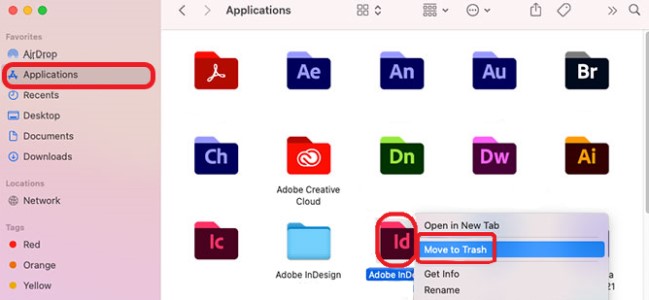
Avinstallera InDesign på Mac med hjälp av dess avinstallationsprogram
- Öppna appen Adobe Creative Cloud-skrivbord för Mac.
- Välj "Alla appar", hitta Adobe InDesign och klicka sedan på knappen Fler åtgärder bredvid appen.
- Från rullgardinsmenyn väljer du Avinstallera.
Om du sedan vill radera all data från appaviseringar, inställningar eller plugin-program väljer du Annullera or ta bort.
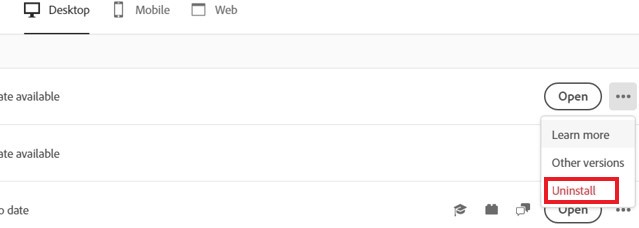
Efter det kommer du inte längre att se Adobe InDesign-appen på din dator igen. Eftersom den manuella vägen är så lång och kan ta mycket tid och ansträngning rekommenderar vi starkt att användare använder det professionella rensningsverktyget för att avinstallera sådana appar från sina enheter.
Del 2. Hur avinstallerar jag Adobe helt?
Att avinstallera appar på Mac är enkelt så länge du ser till att läsa den här guiden till slutet. Glöm dessutom inte att följa instruktionerna noggrant för att utföra uppgifterna fullständigt. Om du nu behöver ett verktyg som kan hjälpa dig. snabbt och fullständigt avinstallera Adobe InDesign, allt du behöver är iMyMac PowerMyMac.
PowerMyMac kan hjälpa dig att få en renare och snabbare enhet med bara några få enkla klick och dess olika funktioner. Om du till exempel vill bli av med onödiga data och filer som du inte längre behöver kan du använda dess skräprengöring.
Men den mest användbara funktionen vi pratar om här är att dess App Uninstaller hjälper dig avinstallera flera appar samtidigtSå att du enkelt och automatiskt kan avinstallera InDesign på Mac utan några rester.
Naturligtvis inte bara Adobe-programvaran men andra appar som Microsoft Office eller Avast kan också tas bort helt från Mac, beroende på vad du väljer, med hjälp av detta kraftfulla avinstallations- och rengöringsverktyg!

PowerMyMac är utvecklad av ett mycket pålitligt och välkänt företag, så många användare över hela världen tycker att den är mycket pålitlig. Så om du vill avinstallera Adobe InDesign automatiskt på Mac, se bara till att följa dessa steg:
- Installera PowerMyMac-programvaran på din dator, öppna appen
- Klicka App Uninstaller
- Tryck på SCAN knappen så visas en lista över alla dina installerade program och deras cache- och inställningsfiler
- Hitta Adobe InDesign-appen och välj det
- Klicka sedan på REN knappen för att starta borttagningsprocessen, då kommer Adobe InDesign och alla dess loggfiler att raderas.
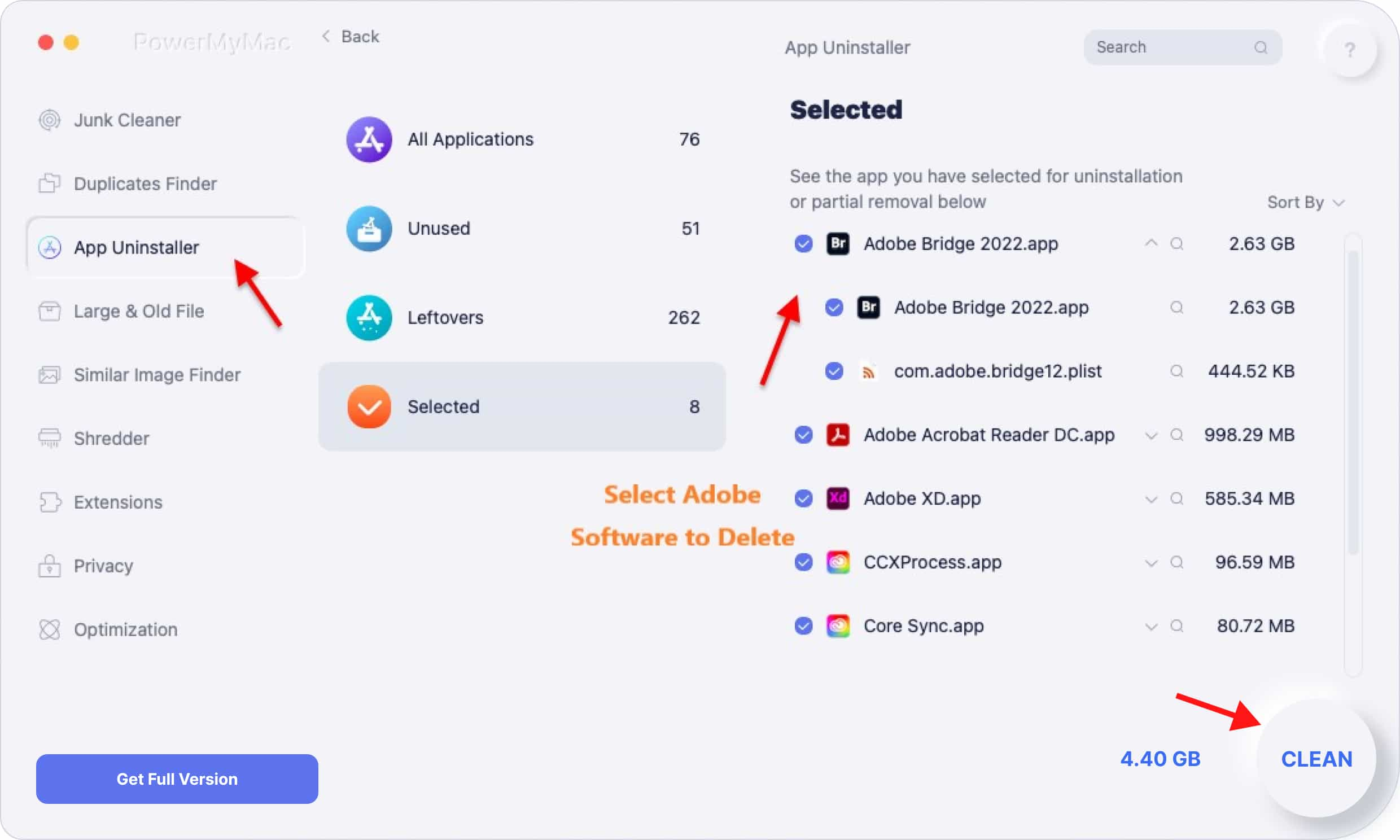
Du förstår, att använda PowerMyMac för att avinstallera InDesign på Mac såväl som andra program är väldigt enkelt så länge du har det installerat på din enhet och du vet hur man gör det.
Den kan också ta bort filer som ser liknande ut, duplicerade filer som är föråldrade eller till och med stora filer. Och den kan hålla din webbhistorik privat eller hjälpa dig att permanent radera filer på Mac. Testa det nu!
Del 3. Varför avinstallera Adobe InDesign?
Om du älskar att arbeta med förlag eller webbplatser som säljer böcker, så är jag säker på att du känner till Adobe InDesign. Denna programvara utvecklades och släpptes först av Adobe Inc. år 1999. Många förlag och webbplatser använder det här verktyget för att skapa affischer, omslag, broschyrer, tidskrifter etc. på grund av de många designer och funktioner som erbjuds i den här appen.
Men även om Adobe InDesign är perfekt för att designa dina omslag, kan det fortfarande ha många problem, vilket är anledningen till att tusentals användare skulle hitta sätt att... åtgärda sådana problem.
Genom att lära dig hur man avinstallerar InDesign på Mac och installerar om det kanske du kan lösa några av problemen. Naturligtvis kan du också ändra till andra alternativ till Adobe InDesign för att spara mer pengar.

Del 4. Slutsats
Efter att ha läst den här artikeln är vi säkra på att allt nu är klart för dig, särskilt för avinstallera InDesign på MacVi har tillhandahållit både manuella och specialmetoder för att ta bort den här appen från din Mac.
Vi rekommenderar starkt att du använder App Uninstaller av PowerMyMac eftersom det är ett enklare sätt att göra det. Faktum är att många användare skulle använda den här programvaran när de avinstallerar appar från sina enheter eller helt enkelt rengör vissa delar av datorn.


