


 PowerMyMac


Har problem med hur man avinstallera FileZilla på MacVissa nya användare kanske inte har någon aning om hur man tar bort FileZilla Client korrekt. Även erfarna användare kan gå vilse när de försöker avinstallera ett program. Avinstallera program på Mac skiljer sig avsevärt från den i Windows.
I de flesta fall drar och släpper Mac-användare bara målprogrammet till papperskorgen och tömmer det sedan. Vissa av dem är dock inte medvetna om att Mac-program är separata paket som innehåller den körbara filen och alla relaterade resurser för appen, vilka fortfarande finns kvar även om du avinstallerar en app.
Innehåll: Del 1. Är FileZilla en bloatware?Del 2. Hur avinstallerar jag FileZilla manuellt på Mac? Del 2. Hur tar jag bort FileZilla helt från min Mac?Del 3. Slutsats
Del 1. Är FileZilla en bloatware?
FileZilla anses vanligtvis inte vara bloatware. Det är en populär och allmänt använd FTP-klient som underlättar filöverföringar mellan datorer och servrar. Det är dock värt att notera att vissa versioner av FileZilla-installationsprogrammet har inkluderats med valfri programvara från tredje part, vilket kan ses som en form av adware. Så låt oss börja med de användbara sätten att avinstallera FileZilla på Mac från nästa del.
Del 2. Hur avinstallerar jag FileZilla manuellt på Mac?
För att börja, logga in på din Mac med administratörsbehörighet. Nästa steg är att inaktivera filezilla om det körs innan du avinstallerar det. För att inaktivera ett program högerklickar du på dess ikon i dockan och väljer Avsluta (eller i menyraden, välj FileZilla > Avsluta FileZilla).

Metod 1. Dra FileZilla till papperskorgen.
Den här dra-för-att-radera-tekniken är ett sätt att avinstallera FileZilla på Mac.
- Öppna Finder app, klicka Tillämpningar på vänstra menyn.
- Välj FileZilla-ikonen och dra den till papperskorgen.
- För att påbörja avinstallationen, högerklicka på papperskorgen och välj Töm papperskorgen.
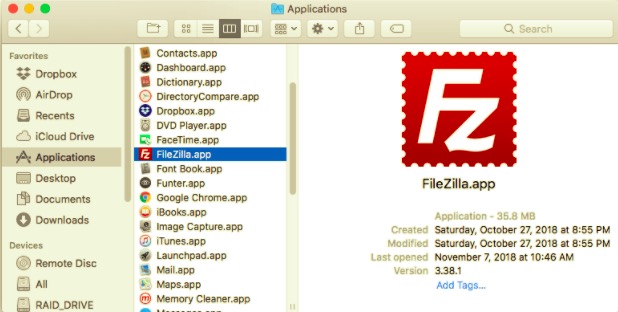
Observera att om du tömmer papperskorgen raderas FileZilla på Mac samt alla andra filer som den innehåller. Om du inte vill radera filen permanent markerar du den, högerklickar och väljer Ställ tillbaka alternativet innan du tömmer papperskorgen, eftersom det här steget är ångerbart.
Metod 2. Ta bort med Launchpad
Launchpad-metoden för att avinstallera FileZilla på Mac med alla dess komponenter, följ stegen nedan.
Detta är endast tillgängligt för App Store-appar och kräver OS X Lion eller senare. FileZilla raderas omedelbart när du klickar på X-symbolen, utan att du behöver tömma papperskorgen.
- Öppna Launchpad och sök efter FileZilla.
- Fortsätt att hålla ner musknappen på FileZilla-ikonen tills den börjar skaka. Välj sedan "X"-knappen som visas bredvid FileZilla-ikonen för att starta avinstallationen.
Metod 3. Använda dess egen avinstallationsprogram
Vissa Mac-program, inklusive FileZilla, har sina egna avinstallationsprogram som hjälper dig att avinstallera FileZilla på Mac. Det är att föredra att använda ett specialiserat avinstallationsprogram för att helt ta bort programmet samt all medföljande programvara eller tillhörande föremål.
- Leta reda på och dubbelklicka på installationsfilen för att starta FileZilla.
- Dubbelklicka på [avinstallerare] i paketet.
Hur tar jag bort filer från FileZilla på Mac?
Även om du avinstallerar FileZilla kommer dess kvarvarande cacheminnor, loggar, filer och annat att finnas kvar. Dessa data är inte farliga för ditt system men tar upp en del minnesutrymme. Om du inte längre vill använda FileZilla igen kan du därför säkert ta bort dessa komponenter på din Mac-dator.
Appar sparar sina data och stödjande filer i två områden, ett i det översta biblioteket på hårddisken: /Library och den andra finns i användarbiblioteket inuti hemmappen (~/LibraryFörutom dessa filer kan FileZilla också distribuera sina komponenter i hela systemet, såsom inloggningsobjekt, start av daemoner/agenter eller kärntillägg.
För att avinstallera FileZilla på Mac med alla dess komponenter, följ stegen nedan.
Hårddiskens bibliotek på högsta nivå:/Library
- Öppna Finder, gå till menyraden och klicka på Gå till mapp.
- Gå in i det översta biblioteket på hårddisken:
/Library. - Leta efter FileZilla-filer eller mappar på:
/Library/Library/Caches/Library/Preferences/Library/Application Support/Library/LaunchAgents/Library/LaunchDaemons/Library/PreferencePanes/Library/StartupItems
- Högerklicka på motsvarande filer eller mappar och välj Flytta till papperskorgen.
Användarbiblioteket i hemmappen (~/Library)
- Navigera till mappen, skriv
~Libraryi sökrutan och tryck sedan på ange nyckel. - Ta bort alla FileZilla-filer eller mappar på:
~/Library~/Library/Caches~/Library/Preferences~/Library/Application Support~/Library/LaunchAgents~/Library/LaunchDaemons~/Library/PreferencePanes~/Library/StartupItems
- Töm papperskorgen för att permanent avinstallera FileZilla och alla tillhörande filer på Mac.
Dessutom kan det finnas kärntillägg eller dolda filer som inte är omedelbart uppenbara.
I den här situationen kan du söka efter FileZilla-komponenter på Google. Kärntillägg kan vanligtvis hittas på /System/Library/Extensions och ha en .kext tillägg. Du kan använda Terminal (från Program / mapp) för att se innehållet och ta bort skadliga objekt.
Del 2. Hur tar jag bort FileZilla helt från min Mac?
Letar du efter en allt-i-ett-lösning för att avinstallera FileZilla från Mac? PowerMyMac är ett utmärkt avinstallationsprogram som håller allt enkelt, enkelt och okomplicerat. Dess App Uninstaller-modul är ett kraftfullt verktyg som kan hjälpa dig att avinstallera FileZilla på en Mac samt dess tillhörande filer med bara några få klick.
 Få en gratis provperiod nu!
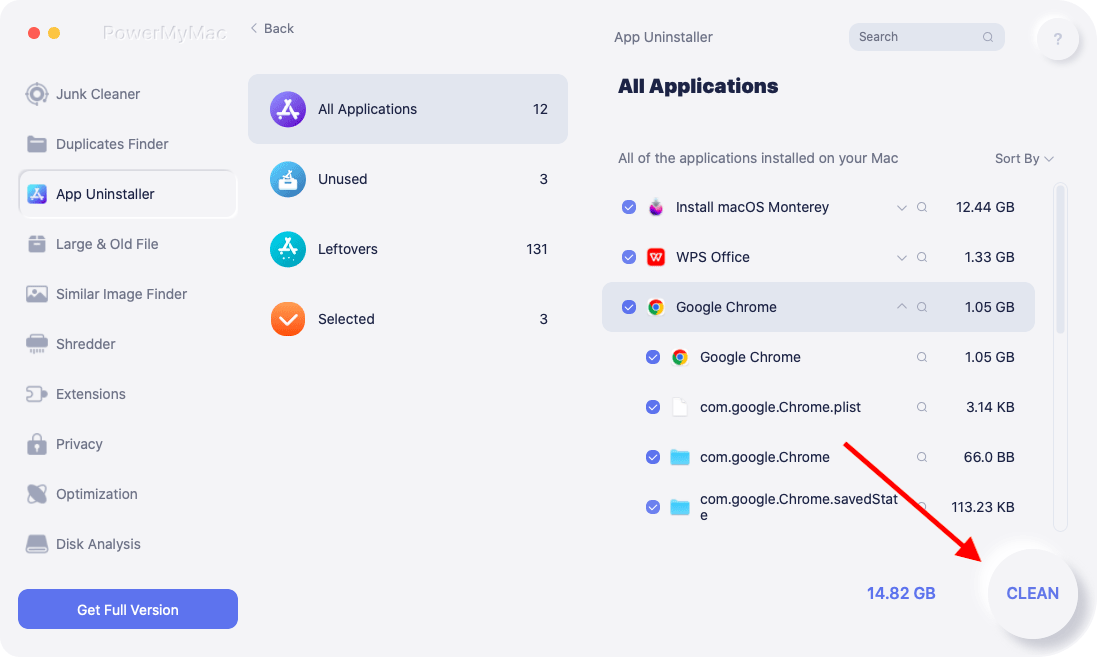
- Klicka App Uninstaller och tryck SCAN för att låta den skanna alla appar som redan är installerade på din Mac.
- När skanningsprocessen är klar visas en lista över alla program på höger sida. Leta reda på FileZilla-appen i den listan.
- Efter att du har valt FileZilla och alla tillhörande filer, tryck helt enkelt på REN knapp.
- Efter detta, en "Rengöring slutfördEtt popup-fönster visas som informerar dig om antalet raderade filer och hur mycket utrymme som nu finns tillgängligt på din disk.
Del 3. Slutsats
Som du kan se har du möjlighet att avinstallera FileZilla manuellt på Mac. Det finns dock en risk att vissa relaterade filer förbises, vilket gör att din programuppdatering misslyckas. Det är inte längre kostnadseffektivt att ta bort appar på egen hand nu när det finns en app för nästan allt.
PowerMyMac är ett utmärkt avinstallationsprogram. Det gör det möjligt för användare att avinstallera program och paketprogram så att det inte finns något behov av att granska biblioteket eller manuellt radera dess extra filer samtidigt som du optimerar och rensar din Mac, vilket garanterar en hälsosam, snabbare och säker MacBook eller iMac.


