


 PowerMyMac


Här kommer vi att diskutera hur man avinstallerar Paint 2 på en MacMen först, här är en snabb introduktion. Paint 2 för Mac är ett av de bästa nybörjarvänliga verktygen som finns och är avsett för nybörjare eller entusiaster som behöver en grundläggande fotoredigeringsapp. Genom sitt effektiva gränssnitt och breda verktygssats låter det dig skapa och redigera alla typer av bilder snabbt och enkelt.
Även om det inte ersätter professionell grafikprogramvara, erbjuder det utmärkta funktioner i ett lättanvänt paket. Med allt detta i åtanke kan Paint 2 bara tillgodose dina redigeringsbehov till viss del. Om du någonsin behöver ge plats åt en ny eller bättre fotoredigeringsapp för att höja dina redigeringskunskaper, är vi här för att visa dig hur du avinstallerar Paint 2 på en Mac. Paint 2 är inte för dig om du behöver genomföra omfattande fotoredigering eftersom bristen på verktyg skulle vara begränsande för proffs eller de som vill bli det.
När du inte behöver ett program på din Mac-dator kanske du vill avinstallera det från enheten. På så sätt kan du göra din dator snabbare. Dessutom kan du få mer lagringsutrymme på din dator.
ArtikelguideDel 1. Avsluta Paint 2 innan du avinstallerar detDel 2. Avinstallera Paint 2 manuellt på en MacDel 3. Ta bort komponenterna som tillhör Paint 2Del 4. Hur avinstallerar man Paint 2 perfekt på en Mac?Del 5. Slutsats
Del 1. Avsluta Paint 2 innan du avinstallerar det
Vissa oerfarna användare kan vara förvirrade över hur man avinstallerar Måla 2 på en Mac. Även de mest erfarna användarna kan bli förbryllade när de försöker avinstallera appar. Till att börja med måste du logga in på din Mac med ett administratörskonto. Med administratörsbehörighet är nästa steg att inaktivera Paint 2 om det körs innan du tar bort det. För att inaktivera en app, högerklicka på dess ikon i dockan och välj Avsluta (eller välj Måla 2 > Avsluta Paint 2 i menyraden).
Du kan också använda Aktivitetskontroll (finns i/Applications/Utilities/mapp) för att avgöra om appen körs i bakgrunden. Om du inte kan få Paint 2 att avslutas korrekt öppnar du Aktivitetsmonitorn, väljer appen och klickar på "Avsluta processen"-ikonen i det nedre vänstra hörnet och klicka sedan på Tvinga avsluta när dialogrutan dyker upp.
Del 2. Avinstallera Paint 2 manuellt på en Mac
Det finns flera sätt att avinstallera Paint 2 på en Mac. Dra det till papperskorgen, ta bort det med Launchpad och kör Paint 2:s egna avinstallationsprogram. Observera att när du tar bort Paint 2 manuellt på din Mac kan dess support- eller inställningsfiler finnas kvar på hårddisken..
Metod 1: Dra Paint 2 till papperskorgen.
Den här dra-för-att-ta-bort-tekniken är ett sätt att avinstallera Paint 2 på en Mac. De flesta tredjepartsprogram kan tas bort på det här sättet, men de inbyggda programmen kan inte.
- Öppna Finder app, klicka Tillämpningar på vänstra menyn.
- Välj Paint 2-ikonen och dra den till papperskorgenDu kan bli ombedd att ange ett lösenord när du försöker flytta programvaran till papperskorgen efter att du har installerat den med Mac-paketets installationsprogram. Om du inte kan flytta Paint 2 till papperskorgen eller tömma den, håll ner alternativtangenten medan du väljer Töm papperskorgen från Finder-menyn, eller starta om din Mac och försök igen senare.
- För att påbörja avinstallationen, högerklicka på papperskorgen och välj Töm papperskorgen.
Tänk på att om du tömmer papperskorgen raderas Paint 2 och de andra filerna. Se till att återställa om du inte vill radera den permanent genom att markera filen, högerklicka och välja Ställ tillbaka alternativet innan du tömmer papperskorgen eftersom den här åtgärden är oåterkallelig.
Metod 2: Ta bort med Launchpad
Den här tryck-och-håll-metoden för att avinstallera Paint 2 på en Mac är endast tillgängligt för App Store-appar och kräver OS X Lion eller senarePaint 2 raderas omedelbart när du klickar på X-symbolen, utan att du behöver tömma papperskorgen. Den här metoden fungerar inte heller för att avinstallera inbyggda program.
- Öppna Launchpad och sök efter Paint 2.
- Fortsätt att håll ner musknappen på Paint 2-ikonen tills den börjar skaka. Välj sedan "X"-knappen som visas bredvid Paint 2-ikonen för att starta avinstallationen.
Metod 3: Avinstallera Paint 2 med hjälp av avinstallationsprogrammet
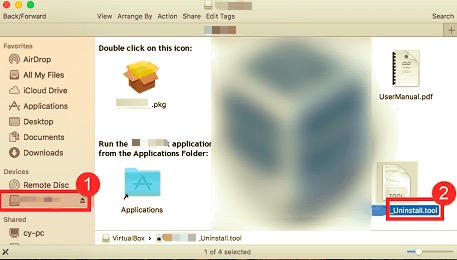
Det är värt att notera att vissa Mac-program, inklusive Paint 2, har sina egna avinstallationsprogram som hjälper dig att avinstallera Paint 2 på en Mac. Det är att föredra att använda ett specialiserat avinstallationsprogram för att helt ta bort programmet samt all medföljande programvara eller tillhörande föremål.
Om det inte medföljer ett avinstallationsprogram, besök deras officiella webbplatser för att leta efter nedladdningsbara avinstallationsprogram eller avinstallationsinstruktioner.
- Leta reda på och dubbelklicka på installationsfilen för att starta Paint 2.
- Dubbelklicka på [avinstallerare] i paketet.
- Följ instruktionerna på skärmen för att börja avinstallera.
Del 3. Ta bort komponenterna som tillhör Paint 2
Även om Paint 2 har avinstallerats är dess kvarvarande filer, loggar, cacheminnor och annat inte farligt för ditt system, men de tar upp en del minnesutrymme. Om du inte längre vill använda Paint 2 kan du därför ta bort dessa komponenter.
Appar sparar sina data och stödjande filer i två områden, ett på hårddiskens översta bibliotek: /Library och den andra finns i användarbiblioteket inuti hemmappen (~/LibraryFörutom dessa filer kan Paint 2 också distribuera sina komponenter i hela systemet, såsom inloggningsobjekt, start av daemoner/agenter eller kärntillägg.
Så här avinstallerar du Paint 2 på en Mac med alla spår av den, följ stegen nedan.
- Hårddiskens bibliotek på högsta nivå:
/Library
Öppna Finder, gå till menyraden och klicka på Gå till mapp.
Ange sökvägen till det översta biblioteket på hårddisken:/Library
Leta efter filer eller mappar med Paint 2-namnet på:
/Library
/Library/Application Support
/Library/Caches
/Library/LaunchAgents
/Library/LaunchDaemons
/Library/PreferencePanes
/Library/Preferences
/Library/StartupItems
Högerklicka på motsvarande filer eller mappar och välj Flytta till papperskorgen.
- Användarbiblioteket i hemmappen (
~/Library)
Navigera till mappen, skriv ~Library i sökrutan och tryck sedan på ange nyckel.
Ta bort alla filer eller mappar med Paint 2-namnet aktiverat:
~/Library
~/Library/Caches
~/Library/Preferences
~/Library/Application Support
~/Library/LaunchAgents
~/Library/LaunchDaemons
~/Library/PreferencePanes
~/Library/StartupItems
För att permanent radera rester från Paint 2, töm papperskorgen.
Dessutom kan det finnas vissa kärntillägg eller dolda filer som inte är omedelbart uppenbara.
I ett sådant fall kan du göra en Google-sökning efter Paint 2-komponenter.
Kärntillägg finns vanligtvis i/System/Library/Extensions och med en .kextförlängning.
Du kan använda Terminal (från Applications/Utilities) för att visa innehållet i den aktuella katalogen och ta bort det problematiska objektet.
Del 4. Hur avinstallerar man Paint 2 perfekt på en Mac?
Att installera Paint 2 är enkelt, men det är inte alltid så att avinstallera Paint 2 på en Mac och all data det skapar. Att manuellt ta bort och rensa upp alla spår verkar vara en mödosam och tidskrävande uppgift för nya användare. Om du har problem med att tömma det till papperskorgen och är osäker på vilka filer eller mappar som hör till det, kan du behöva hjälp av ett professionellt avinstallationsprogram från tredje part.
PowerMyMac är ett ganska enkelt program som håller allt enkelt, enkelt och okomplicerat. Dess Mac Uninstaller-modul är ett kraftfullt verktyg som kan hjälpa dig att avinstallera Paint 2 på en Mac samt tillhörande filer med bara några få klick.
 Få en gratis provperiod nu!
Läs nedan för att enkelt avinstallera Paint 2 på Mac med PowerMyMac:
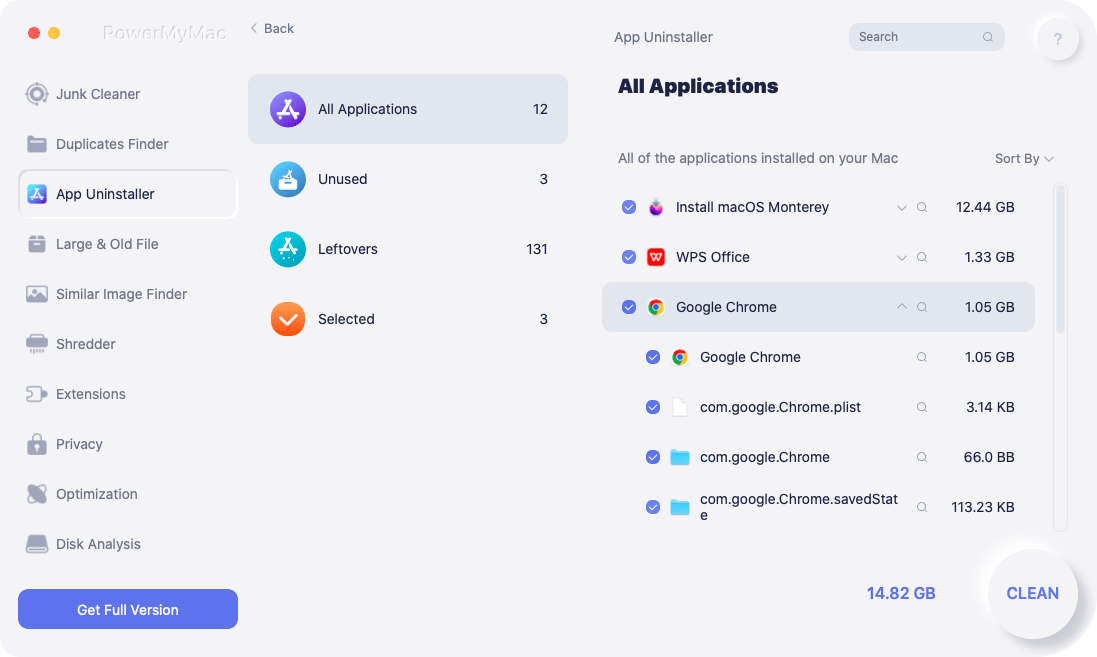
- Klicka Uninstaller och tryck scan för att låta den skanna alla appar som redan är installerade på din Mac.
- När skanningsprocessen är klar visas en lista över alla program till vänster på avinstallationsskärmen. Leta reda på din oönskade app, i det här fallet Paint 2, i den listan, eller använd bara Sök låda i det övre högra hörnet för att hitta den snabbt.
- Efter att du valt Paint 2 visas alla tillhörande filer på höger sida. Välj bara appen och tryck på Rena knappen; Paint 2 och alla tillhörande filer kommer att raderas.
En "Rengöring slutfördEtt popup-fönster visas som informerar dig om hur många filer som har tagits bort och hur mycket utrymme som nu finns tillgängligt på din hårddisk.
Del 5. Slutsats
I den här artikeln har vi berättat hur du avinstallerar Paint 2 på en Mac-dator. Vår guide är väldigt lätt att förstå. Dessutom kan du använda den för andra program också. Paint 2 på en Mac kan ta upp mycket plats ibland, det är därför du kanske vill ta bort och avinstallera Paint 2 på en Mac. Dessutom är det inte det bästa fotoredigeringsverktyget som finns om du vill bli ett proffs.
För det har vi rekommenderat att du använder PowerMyMac och dess avinstallationsmodul för att göra detta. Det är ett fantastiskt verktyg som hjälper dig att avinstallera många appar på din Mac-dator för att spara mer utrymme på din enhet. Skaffa det idag!


