


 PowerMyMac


Att förstå hur man tar bort program från Mac-datorn är viktigt om du redan börjar få slut på datalagring på datorn eller helt enkelt vill rensa bort program som du inte längre använder. Den här artikeln kommer att guida dig genom processen för att Avinstallera Tumult Whisk på Mac på lämpligt sätt.
Den här guiden hjälper dig att gå från att vara en total nybörjare till att bli expert på nolltid. Om du är nyfiken på att lära dig mer om avinstallation av Mac-appar är det allra första steget att studera operativsystemets grunder (det är verkligen inte valfritt; varje Mac-användare börjar med att veta...) hur man tar bort appar från sina datorer.).
Innehåll: Del 1. Hur avinstallerar man Tumult Whisk manuellt på Mac? Del 2. Avinstallera Tumult Whisk på Mac enkelt och snabbtDel 3. Vad är en Tumult Whisk?Del 4. Slutsats
Del 1. Hur avinstallerar man Tumult Whisk manuellt på Mac?
När du når slutet av den första teknikhandledningen har du lärt dig alla eller de flesta grunderna du behöver veta om att flytta en applikation till papperskorgen och ta bort rester på egen hand.
- För att börja ta bort Tumult Whisk måste du först stänga programmet helt. Kontrollera att alla länkade objekt är korrekt stängda.
- Det första alternativet, högerklicka Tumult Whisk-ikonen i Dock och välj Avsluta från popup-menyn.
- Det andra alternativet, om Tumult Whisk-applikationen har varit inaktiv under en längre tid, kan du stänga den med tvång via Aktivitetsmonitorn. Verktygen kan nås genom att gå till Finder > Program > VerktygsprogramVälj Tumult Whisk i CPU-sektionen och tryck sedan på X-symbolen följt av Tvinga avsluta
- Det andra steget är att avinstallera Tumult Whisk på Mac från mappen Program.
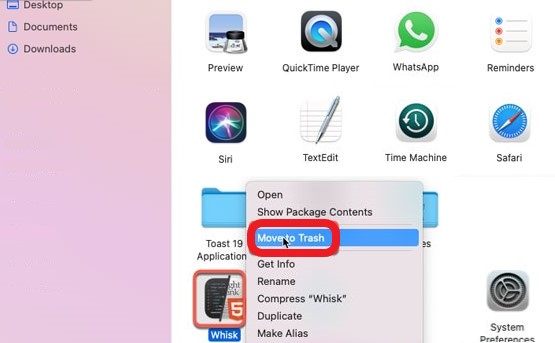
Välj på Finder > Program > Högerklicka på Tumult Whisk-appikonen och välj Flytta till papperskorgen från snabbmenyn. Alternativt kan du bara dra Tumult Whisk-programvaran från programkatalogen till papperskorgen.
- Med Tumult Whisk, ta bort eventuella rester som kan ha bildats.
- Öppet Finder > Gå > Gå till mapp > typbibliotek med i fält > välj Gå > Inmatning Tumult Whisk-sökvägarna individuellt och ta sedan bort alla filer och kataloger som är relaterade till varje sökväg från de underkataloger du har skapat.
- Navigera till underkatalogerna som listas nedan och ta bort alla filer eller mappar som är kopplade till Tumult Whisk-applikation du letar efter.
~/Library/Caches/~/Library/Preferences/~/Library/Application Support/~/Library/Application
- Tänk på att eventuella borttagningar av kvarvarande filer är slutgiltiga och kan inte vändasSe därför till att Tumult Whisk-data raderas korrekt.
- Tömma papperskorgen.
- Gå till papperskorgen i Dock, markera något som är kopplat till Tumult Whisk och välj sedan Töm papperskorgen på menyraden. Du måste bekräfta att du måste permanent radera Ta bort Tumult Whisk-innehållet från papperskorgen genom att klicka på det en gång till.
Del 2. Avinstallera Tumult Whisk på Mac enkelt och snabbt
När den andra metodhandledningen är klar kan du ta bort Tumult Whisk med hjälp av det specialiserade avinstallationsprogrammet. iMyMac PowerMyMac - App-avinstallationsprogram, som är tillgängligt för Mac-användare. Du kommer att förstå hur man avinstallerar Tumult Whisk helt på Mac på ett snabbt och enkelt sätt.
Jämfört med att ta bort appen manuellt är processen mycket snabbare och effektivare eftersom den skannar hela systemet för att hitta appens rester.
Att manuellt hitta alla relaterade filer kommer att ta mycket tid och ansträngning, och det kan vara tröttsamt och komplicerat.
Bortsett från det PowerMyMac låter dig också optimera systemets prestanda genom att ta bort dubbletter och stora filer som inte längre kommer att vara till nytta.
Den har många funktioner, fler än du kan föreställa dig, så tveka inte att ladda ner den nu. Följande steg kommer att vara hur man avinstallerar Tumult Whisk på Mac:
- När PowerMyMac-applikationen har installerats korrekt bör den vara lanserades.
- Logga in ditt eget ID och lösenord för att komma åt webbplatsen.
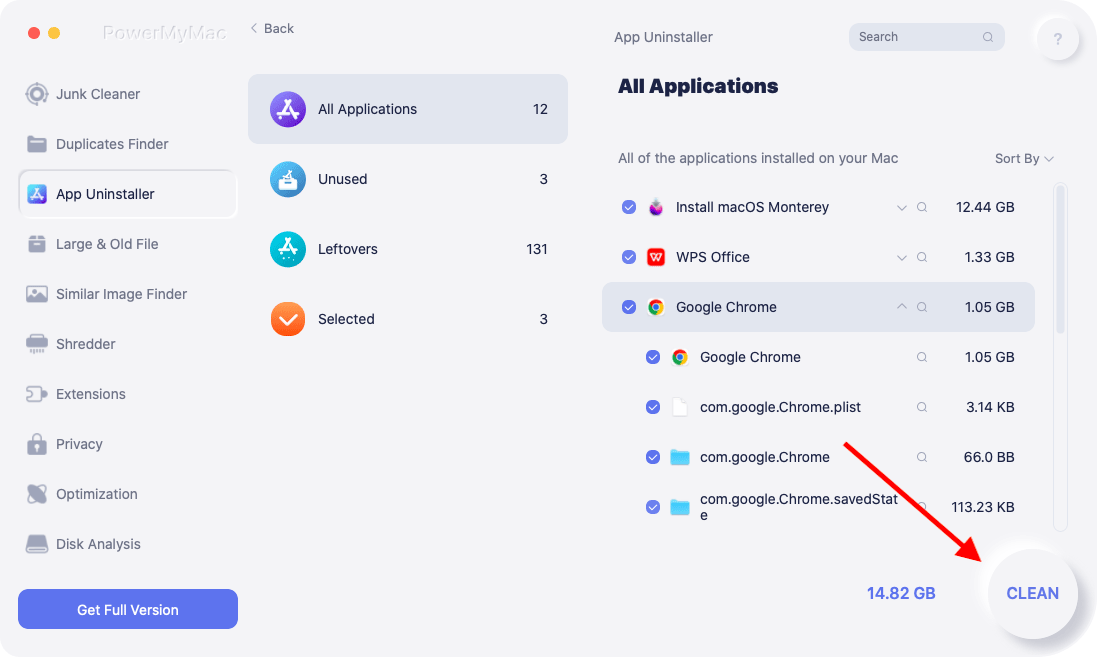
- Sedan Välj Applikation Uninstaller från menyraden och välj SCAN för att låta programvaran kontrollera systemet för alla dessa program som redan har installerats.
- Först när skanningen är klar bör du titta igenom alla installerade program på systemet. Markera sedan all relaterad data och filer som är kopplade till programmet du vill ta bort, inklusive Tumult Whisk.
- För att fortsätta rensning process, välj REN från rullgardinsmenyn.
- När processen är klar visas ett meddelande på skärmen som säger "Rengörs klar."
Del 3. Vad är en Tumult Whisk?
Tumultvisp är ett lätt PHP- och HTML-redigeringsverktyg som erbjuds i macOS 10.11+ och inkluderar en 14-dagars provversion. Tumultvisp har en funktion för förhandsvisning i realtid som gör det möjligt för programutvecklare att se hur den uppdaterade sidan kommer att se ut.
Förhandsgranskningssidan för Tumult Whisk, som använder samma motor som Safari, kan göra det enklare att visa PHP- och HTMP-datorspråk med hög hastighet. Du kan hålla koll på informationen och identifiera när den ändras, samt uppdatera en förhandsgranskning av webbplatsen.
(Obs: Din Safari körs alltid långsamt eller fungerar den inte helt? Du kan försöka avinstallera och installera om den. Safari kan också avinstalleras via PowerMyMac-verktyget.)
Tumult Whisk-applikationen har även W3C-baserad verifiering, vilket är utmärkt för visa fel, öka produktiviteten, rödmarkera feloch markera taggar.
Tumult Whisk kan också undersöka HTML-källkoden kod skriven med hjälp av PHP-motorer, såväl som rullande synkroniseringsfunktioner kan hjälpa dig att redigera och förhandsgranska på samma sätt.
Så om du har problem med appen som inte enkelt kan lösas genom felsökning rekommenderas det att Avinstallera Tumult Whisk på Mac.

Del 4. Slutsats
Du måste ha lärt dig vad du behöver lära dig om att avinstallera Tumult Whisk och andra oönskade Mac-program i macOS efter att ha läst den här artikeln. Även om du är en skicklig Mac-användare kommer den här handledningen att visa dig hur du använder ett professionellt och mycket effektivt sätt att snabbt och enkelt bli av med onödiga saker. Så om du vill Avinstallera Tumult Whisk på Mac snabbt och enkelt, tveka inte att ladda ner programvaran nu.


