


 PowerMyMac


Du har redan insett att det fanns många andra appar på din Mac som behöver elimineras, som Facebook Messenger. Varje oönskat program kan snabbt dras till papperskorgen av Mac-användare, och avinstallationsprocessen kommer att påbörjas. Men du måste vara medveten om att om du överför ett integrerat program till papperskorgen lämnas det mesta av dess innehåll kvar på din Mac.
För att sedan helt radera Facebook på din Mac bör du följa vår guide i följande avsnitt om hur man avinstallera Facebook Messenger på Mac lätt.
Innehåll: Del 1. Hur stänger jag av Facebook Messenger på min Mac?Del 2. Hur avinstallerar jag Facebook manuellt på Mac?Del 3. Hur avinstallerar jag Facebook Messenger helt på Mac?Slutsats
Del 1. Hur stänger jag av Facebook Messenger på min Mac?
För att stänga av eller inaktivera Facebook Messenger på din Mac kan du logga ut eller inaktivera dess aviseringar:
Logga ut från Facebook Messenger
Om du vill förbli utloggad men behålla Messenger installerat:
-
För Facebook på webben:
- Öppna din webbläsare och gå till Facebooks webbplats.
- Klicka på Messenger-ikonen längst upp till höger.
- Välj tre prickar (meny) bredvid "Chattar".
- Klicka Logga ut.
-
För Facebook Messenger-skrivbordsappen:
- Öppna Messenger app på din Mac.
- Klicka på din profilbild i det övre vänstra hörnet.
- Bläddra ner och klicka preferenser.
- Välja Logga ut.
Stäng av Messenger-aviseringar
Om du inte vill bli störd men vill hålla appen inloggad kan du stänga av aviseringar:
-
Inaktivera aviseringar i Messenger-appen:
- Öppet Messenger på din Mac.
- Klicka på din profilbild i det övre vänstra hörnet.
- Gå till preferenser.
- I Meddelanden avsnittet, slå av aviseringar eller ställa in en specifik "Stör ej"-tid.
-
Inaktivera aviseringar från systeminställningar:
- Gå till Systeminställningar > Meddelanden.
- Bläddra ner och välj Messenger.
- Växla Tillåt meddelanden till av för att helt inaktivera Messenger-aviseringar.
Facebook erbjuder ett konfigurerbart utbud av säkerhetsinställningar som gör det möjligt för användare att begränsa åtkomst till deras data från tredje part. Detta kan göra att du vill tvinga bort Facebook:
- Tryck bara på Kommando + Alternativ + Esc för att öppna fönstret "Tvinga avsluta programmet".
- Välj Facebook och tryck sedan på "Tvinga avslutning".
När du tror att du borde ha en semester utan Facebook eller om din smartphone faktiskt hade ont om lagringsutrymme, kan Facebook avinstalleras under nästan alla omständigheter. I den här delen kommer du att lära dig hur du avinstallerar Facebook Messenger på Mac.

Del 2. Hur avinstallerar jag Facebook manuellt på Mac?
Precis som vi tidigare nämnde verkar det finnas ett lämpligt sätt att avinstallera Facebook, främst på Mac. Även om du har installerat vissa program på din Mac och fortfarande vill ta bort eller avinstallera dem på din enhet och vill installera några andra program på din Mac, använd dessa metoder för att avinstallera Facebook Messenger på Mac:
Använda Finder
- Du måste först leta upp Facebook-appen. När appen väl var i din Dock men du kunde hitta den måste du högerklicka på Dock och sedan välja "Montering”, därefter till Visa i Finder.
- När du sedan hittar Facebook-ikonen kan du välja mellan två av följande sätt:
- Först högerklickade du på Facebook-ikonen och sedan valde du alternativet " från menyn".Flytta till papperskorgen".
- Dra sedan Facebook-ikonen mot papperskorgen på Mac.
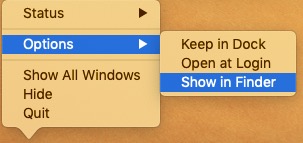
I båda fallen skulle Facebook-ikonen, såväl som allt och en del av dess information, försvinna från antingen Finder eller skrivbordet. Om inte Facebook-ikonen finns kvar i Dock, tryck bara på den, så bör ett felmeddelande visas innan den försvinner.
- För att nu genomföra denna procedur, du måste radera nästan all information helt, sedan går du till papperskorgen och trycker på alternativet "Tom” från den övre högra sektionen.
Använda Launchpad
När du har laddat ner Facebook-appen som du avinstallerat till Mac App Store, kan du verkligen veta hur man avinstallerar Facebook Messenger på Mac med hjälp av Launchpad.
- För att komma igång måste du först öppna Launchpad, sedan skrolla bara vidare för att hitta den Facebook-fil som ska avinstalleras.
- Tryck sedan på och håll ner musknappen över Facebook-appen. Vänta tills alla appar börjar skaka.
- Slutligen, för att slutföra proceduren, måste Facebook-appen ha en X-symbol från det övre högra hörnet. Tryck sedan på X-symbolen samt på “Radera” alternativet. Därifrån skulle även Facebook-ikonen, såväl som dess innehåll, försvinna.
Hur man tar bort Facebook-rester på Mac
För att avinstallera Facebook Messenger på Mac måste du ta bort rester eller spårfiler. Generellt sett var Mac-program också fristående paket som kunde tas bort genom att helt enkelt dra och släppa dem i papperskorgen. det fanns vissa undantag.
Facebook-rester kanske inte var skadliga för din maskin, men de gör det använda lagringsutrymmeSom ett resultat, när du inte längre planerade att använda Facebook, kan alla rester faktiskt tas bort helt.
För att bli av med alla rester av Facebook på din Mac, prova dessa steg:
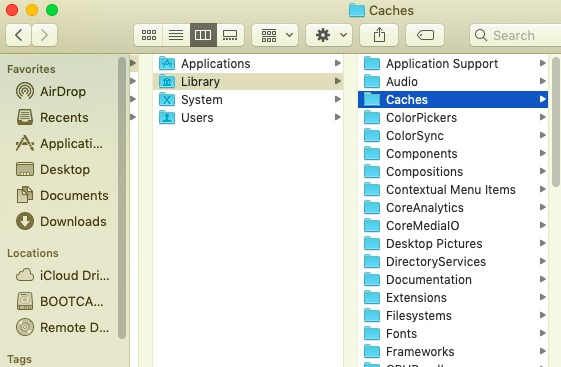
Filsystem Högsta bibliotek: /Bibliotek
- Starta Finder igen, välj sedan "Gå" på Start-menyn och gå sedan till "Gå in i mappen".
- Mata sedan in katalogen för det bibliotek på högsta nivå från din hårddisk: / Bibliotek.
- Leta efter produkter med titeln Facebook Desktop på föregående platser:
Från bibliotek till cacher
Från bibliotek till inställningar
Från bibliotek till applikationssupport
Från bibliotek till LaunchAgents
Från bibliotek till LaunchDaemons
Från bibliotek till PreferencePanes
Från bibliotek till StartupItems
- Högerklicka på motsvarande mappar och filer och välj sedan Flytta till papperskorgen.
Inuti användarbiblioteket /Bibliotek/Hemmappen
- Navigera till "Gå". Navigera sedan till mappen och skriv sedan in Bibliotek i rutan och tryck sedan på ange.
- Identifiera och ta bort alla mappar eller filer med identiska namn i nästan det angivna katalogintervallet:
Från bibliotek till cacher
Från bibliotek till inställningar
Från bibliotek till applikationssupport
Från bibliotek till LaunchAgents
Från bibliotek till LaunchDaemons
Från bibliotek till PreferencePanes
Från bibliotek till StartupItems
- För att helt radera Facebook-rester, rensa papperskorgen.
Programvaruapplikationer kan förekomma på en mängd olika platser men är inte begränsade av de lagringsvägar som anges ovan. Vissa säkerhets- och försvarsprogram kan till exempel installera extra kärnmodifieringar. Om det finns några kvarvarande element som är svåra att upptäcka kan du köra en snabbsökning för sådana programelement och sedan rengöra dem noggrant. Nu har du implementerat hur du avinstallerar Facebook Messenger på Mac manuellt.
Del 3. Hur avinstallerar jag Facebook Messenger helt på Mac?
Om du fortfarande är osäker på hur du tar bort programrester helt, särskilt om du vill slippa ta bort Facebook Standalone trots alla dess rester, kan ett kompetent borttagningsprogram vara ett bättre alternativ än manuell avinstallation.
PowerMyMac var ett sådant verktyg för avinstallation av programvara som användes för att ta bort program från en Mac. Det låter dig fullständigt ta bort all programvara samt tillhörande filer för bara ett par nästa tryck. Du kan fortfarande spara tid genom att söka igenom apprelaterade mappar samtidigt.
 Få en gratis provperiod nu!
Så här avinstallerar du Facebook Messenger på Mac med PowerMyMac:
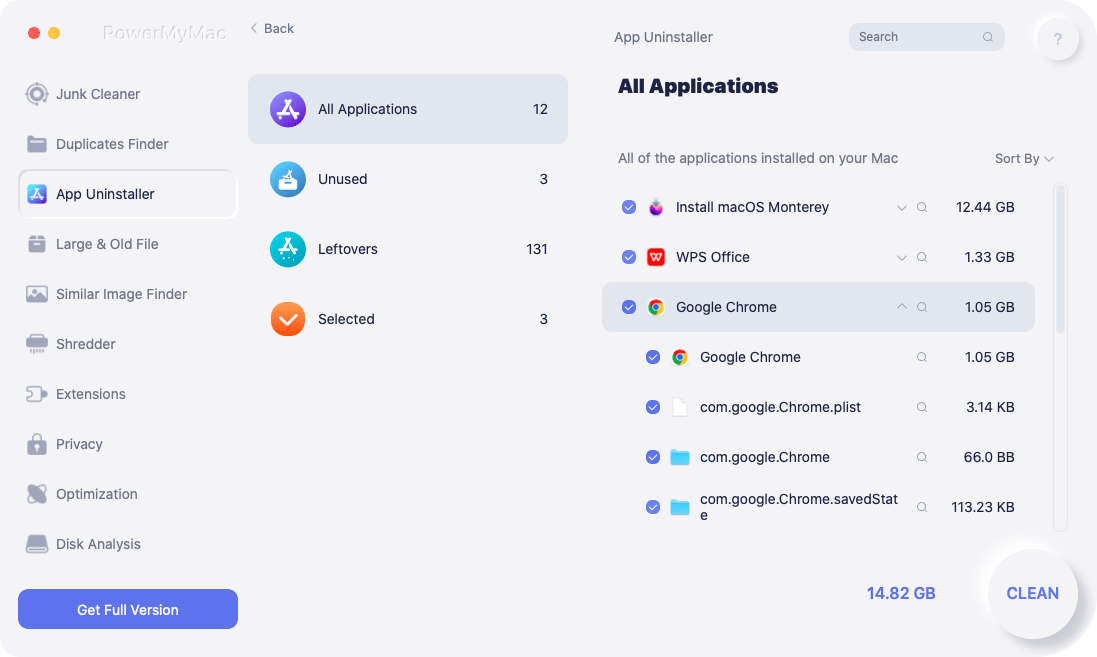
- Starta PowerMyMac omedelbart, välj vilket program du vill ta bort och tryck sedan på “SCAN"-Knappen.
- Bläddra efter facebook.app i menyn eller i sökfältet och skriv Facebook direkt.
- Välj vidare facebook.app, så visas plattformens kapacitet inklusive dess cachedata. Välj sedan rensa för att börja avinstallera den.
- Eftersom den här programvaran knappt innehåller Facebook-filer kommer det att finnas kvarvarande filer efter att programvaran avinstallerats, men oroa dig inte, skriv automatiskt vidare i sökfrågan så visas lämpliga filer. För att avinstallera Facebook helt, markera alternativen och tryck sedan på REN.
Slutsats
Så som du kan se i den här artikeln ger vi dig en manuell och automatiserad guide om hur du avinstallerar Facebook Messenger på Mac.
Dessutom, om du vill spara tid och energi på att avinstallera Facebook, kan du använda dig av PowerMyMac där den byggdes för att hjälpa användare att enkelt avinstallera och ta bort applikationen och till och med dess kvarvarande filer i bara en process, vilket är mer bekvämt än manualen eftersom du aldrig vet om du avinstallerar allt helt inklusive resterna.


