


 PowerMyMac


ExpressVPN kan vara mycket användbart för de som älskar att prioritera sin integritet. Det här verktyget kan hjälpa till att säkra all data som lagras på din dator, inklusive din IP-adress och liknande. Men även om många användare älskar att använda det här verktyget kan det fortfarande stöta på problem då och då.
Det är därför de väljer att stoppa problemet genom att lära sig ett sätt att avinstallera ExpressVPN Mac. Men när du manuellt avinstallera en app på Mac, men det kan fortfarande lämna kvar mycket data. Så för att framgångsrikt och fullständigt ta bort dessa filer, se till att använda det bästa och mest effektiva rensningsverktyget. För att lära dig mer om det här verktyget, läs resten av den här artikeln.
Innehåll: Del 1. Är det okej att ta bort ExpressVPN?Del 2. Hur tar jag bort ExpressVPN från min Mac?Del 3. Hur avinstallerar jag ExpressVPN helt på Mac?Del 4. Slutsats
Del 1. Är det okej att ta bort ExpressVPN?
Ja, det är generellt sett okej att ta bort ExpressVPN, men det finns några saker att tänka på:
1. Förlust av VPN-skydd:
När du tar bort ExpressVPN kommer din enhet inte längre att vara skyddad av dess VPN-tjänst. Det betyder att dina onlineaktiviteter inte längre kommer att krypteras, din IP-adress kommer att exponeras och dina webbläsardata kan vara mer sårbara för spårning, särskilt på offentliga nätverk.
2. Prenumerationen fortsätter:
Att ta bort ExpressVPN-appen avslutar inte din prenumeration. Om du vill sluta betala för tjänsten måste du avsluta din prenumeration via deras webbplats eller ditt appbutikskonto (beroende på var du registrerade dig). Annars debiteras du fortfarande för tjänsten.
3. Möjliga aviseringar:
ExpressVPN skickar inga aviseringar till andra användare, men du förlorar alla anpassade inställningar eller konfigurationer om du tar bort appen. Dessa kan dock enkelt konfigureras om om du installerar om den.
Om du inte längre behöver VPN:t pga. den upplever också problem, inklusive att inte starta, kan du hitta ett sätt att avinstallera ExpressVPN på MacSe bara till att du även hanterar din prenumeration om du tänker sluta använda tjänsten helt och hållet.

Del 2. Hur tar jag bort ExpressVPN från min Mac?
Innan vi går vidare till det manuella sättet att avinstallera ExpressVPN på Mac, ska vi först visa dig hur du inaktiverar ExpressVPN:
Hur inaktiverar jag ExpressVPN på min Mac?
- Koppla från tillfälligt: Öppna ExpressVPN och klicka på "Koppla från".
- Inaktivera vid start: Öppna ExpressVPN, gå till Inställningar > Allmänt och avmarkera "Starta vid start".
Följ de manuella metoderna vi har listat nedan för att ta bort ExpressVPN:
Så här avinstallerar du ExpressVPN på Mac via Finder:
- Klicka Finder och klicka sedan på Tillämpningar
- Klicka på ExpressVPN-appen och dra den till trash
- Ange ditt administratörslösenord för att bekräfta
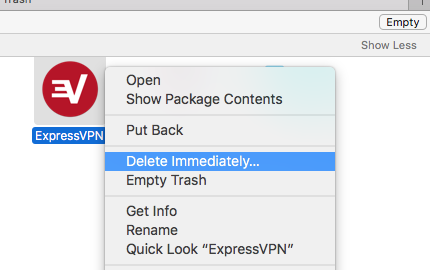
- Öppet trash, högerklicka på ExpressVPN och tryck på Radera omedelbart
Så här avinstallerar du ExpressVPN på Windows 10:
- Öppna Start knappen på din Windows-dator
- Skriv "Lägg till" och klicka sedan Lägga till eller ta bort programHitta ExpressVPN och klicka på Avinstallera Knappen
- Glöm inte att ta bort överflödig data som är kopplad till den, till exempel nätverksanslutningar, nätverkskort, VPN-anslutningar och andra registerfiler.
Hur man tar bort ExpressVPN från Mac via Aktivitetskontroll:
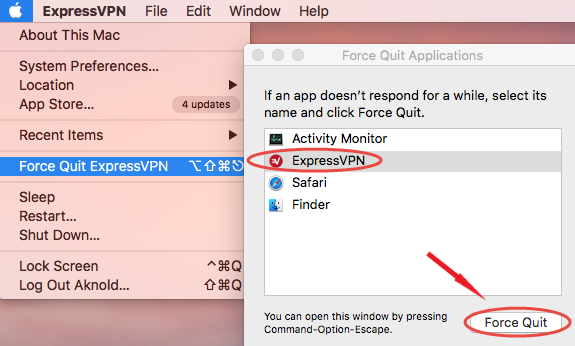
- Öppna Aktivitetskontroll
- Klicka på ExpressVPN och tryck sedan på X och klicka på Tvinga avsluta Knappen
- Öppet Finder igen och hitta ExpressVPN under Tillämpningar kategori
- Högerklicka på ExpressVPN och klicka på Flytta till papperskorgen
- Gå till Finder och klicka Töm papperskorgen
Nu måste du radera alla filer och annan data som finns kvar av din ExpressVPN-app för att helt avinstallera ExpressVPN på Mac.
- Du kan gå till Finder och skriva
~/Libraryoch skriv ExpressVPN, detta visar alla filer som är kopplade till ExpressVPN, flytta dem till trash - Högerklicka trash och klicka Töm papperskorgen igen
Efter det har du nu framgångsrikt och manuellt tagit bort ExpressVPN från din Mac.
Del 3. Hur avinstallerar jag ExpressVPN helt på Mac?
Om du tycker att det är ett stort besvär att manuellt avinstallera appar på din dator, så vet vi det bästa sättet som kan hjälpa dig att avinstallera och ta bort appar med bara några enkla klick. Och det är med hjälp av det bästa rengöringsverktyget, iMyMac PowerMyMac.
Du kan använda den App Uninstaller till avinstallera ExpressVPN på Mac enkelt och snabbt eller ta bort annan programvara som Steam, Kaspersky eller Adobe CC. Det kan också ta bort skräp, radera dubbletter av filer, avinstallera appar och till och med bli av med stora och gamla filer åt dig med bara ett musklick!
Så om du vill avinstallera ExpressVPN på Mac och lära dig hur du använder PowerMyMac-verktyget läs instruktionerna nedan:
- Ladda ner det gratis och installera det på din dator
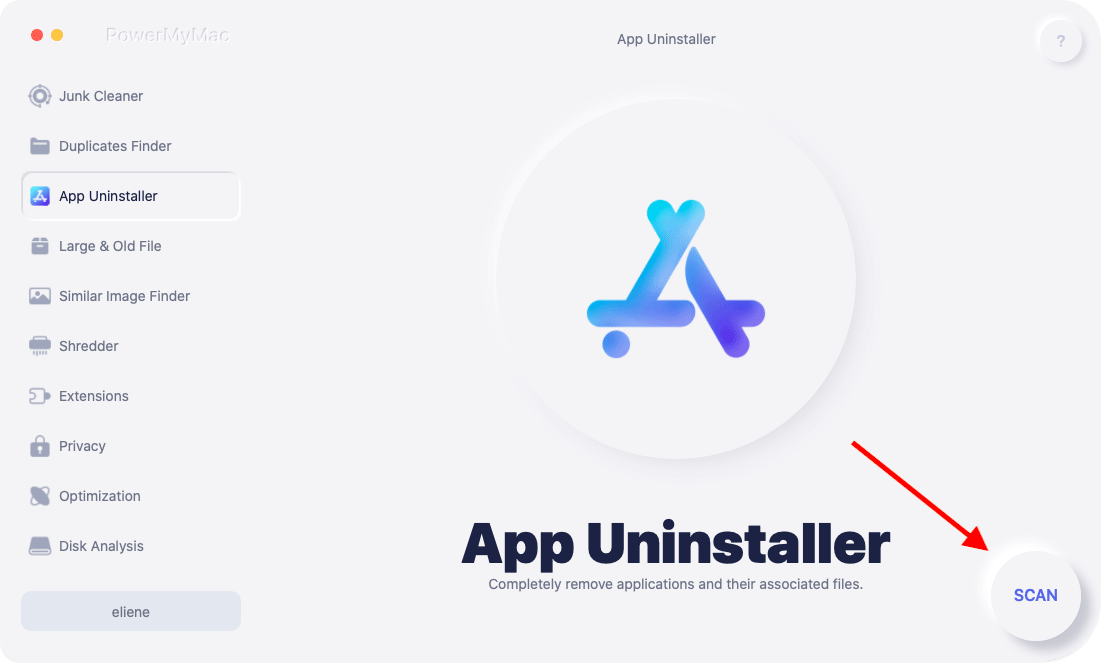
- Klicka App Uninstaller och tryck på SCANPowerMyMac kommer att söka igenom alla appar som är installerade på din Mac.
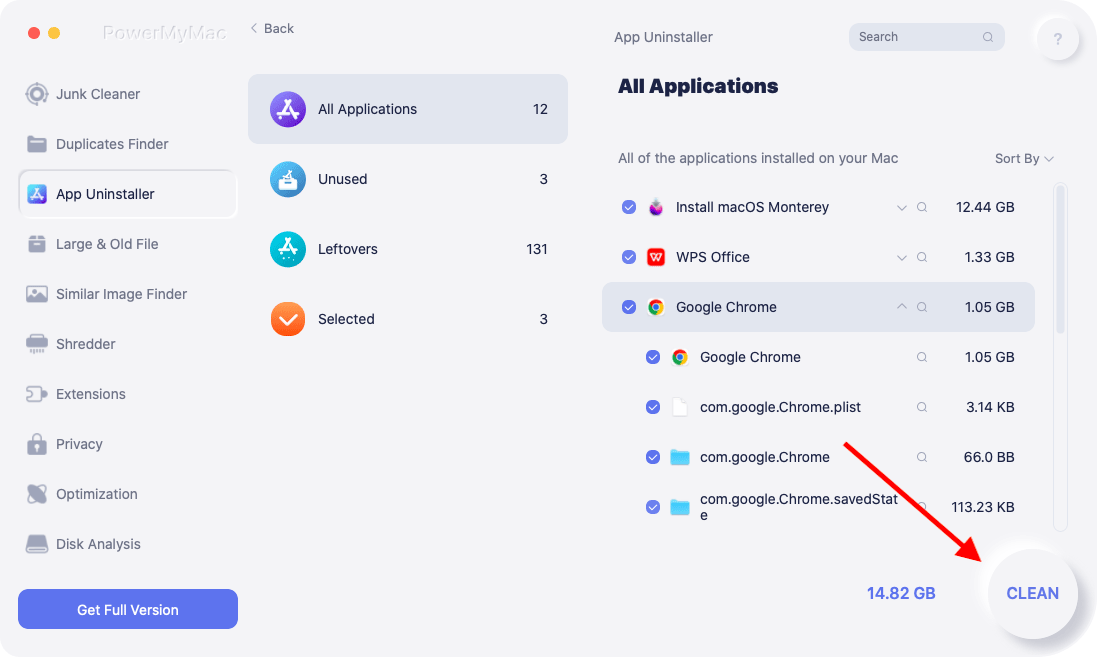
- När skanningen är klar klickar du på den app du vill avinstallera. Du kan också klicka på alla tillhörande filer som följer med den här appen, klicka nu bara på REN Knappen
- Efter det dyker ett popup-fönster upp med ordet Rengöring avklarad kommer att visas
ExpressVPN kan nu tas bort från din Mac, liksom alla filer som följer med den. Det är väldigt snabbt och enkelt att avinstallera ExpressVPN på Mac.
Del 4. Slutsats
Med andra ord, med hjälp av den här artikeln vet vi att du nu har hittat många olika sätt att avinstallera ExpressVPN på MacOch om du vill använda den snabbaste och mest pålitliga metoden kan du alltid ladda ner och installera gratis. PowerMyMac.
Med det här verktyget rengör du din Mac och ta bort oönskade filer och program är nu enklare med bara några få klick. Det är också en pålitlig applikation som har gjort många användare nöjda och glada. Så vad väntar du på? Ladda ner den nu!


