


 PowerMyMac


Människor föredrar nuförtiden att skriva snarare än att skriva i traditionell bemärkelse, vilket gör uppgifter som grammatik- och stavningskontroller enklare att automatisera. Det stämmer, och det finns tjänster som erbjuder denna funktion. En av dem är Grammarly. Även om du inte använder det just nu har du utan tvekan sett några av dess annonser på webben. Men av någon anledning överväger andra användare att... avinstallera Grammarly Mac.
Den påstod sig använda artificiell intelligens (AI) för att upptäcka många former av textfel. Grammarly är helt kompatibel med Mac OS X. Användare kan ladda ner ett separat Mac-program, installera Grammarly-tillägget i sin favoritwebbläsare och använda ett Microsoft Word-tillägg, som startade i slutet av mars 2020. Men om du fortfarande vill avinstallera Grammarly på din Mac, kommer den här guiden att ge dig olika sätt att avinstallera appen och ta bort tilläggen från din favoritwebbläsare.
Innehåll: Del 1. Avinstallera Grammarly-appen manuellt på MacDel 2. Avinstallera Grammarly-tillägget från webbläsarenDel 3. Avinstallera Grammarly på Mac via PowerMyMacDel 4. Slutsats
Del 1. Avinstallera Grammarly-appen manuellt på Mac
Om du använder skrivbordsversionen av Grammarly, så här avinstallerar du Grammarly på Mac manuellt noggrant och säkert.
- Först och främst, sluta Grammarly-appen.
- Navigera sedan till Tillämpningar mappen och avinstallera programmet.
- Grammarly-tjänstfilerna måste hittas och tas bort i det tredje steget. Gå till Bibliotek mappen och leta efter dem i följande undermappar:
~/Library/Application Support/Grammarly~/Library/Caches/com.grammarly…~/Library/Saved Application State/com.grammarly…
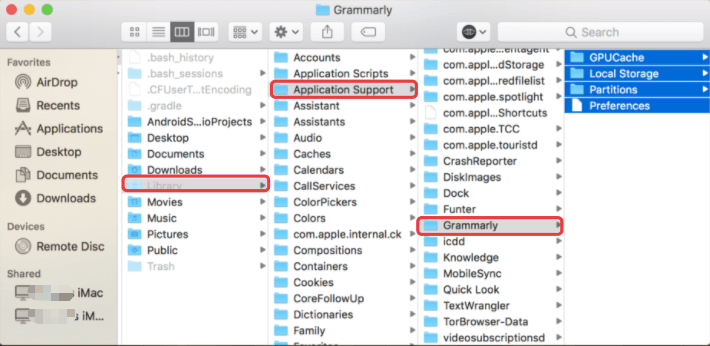
Gå till papperskorgen och rensa den så snart du har hittat och tagit bort alla Grammarly-relaterade filer.
Del 2. Avinstallera Grammarly-tillägget från webbläsaren
Först och främst, ta bort Grammarly-pluginet från din valda webbläsare. Om detta inte fungerar av någon anledning kan du behöva återställ till standardinställningarna i din webbläsareÄven om detta kommer att ta bort majoriteten av dina inställningar, din webbhistorik och all tillfällig data som lagras av webbplatser, bör även den skadliga störningen tas bort. Fortsätt läsa nedan för att se hur du avinstallerar Grammarly på Mac från olika webbläsare.

Avinstallera Grammarly från Mac Safari
Följ dessa procedurer för att avinstallera Grammarly-tillägget från Safari-webbläsaren:
- Starta Safari. Välj i menyraden preferenser i Safari.
- Från listan över installerade tillägg väljer du Grammarly i området Tillägg och sedan klicka på alternativet Avinstallera.
Avinstallera Grammarly från Mac Firefox
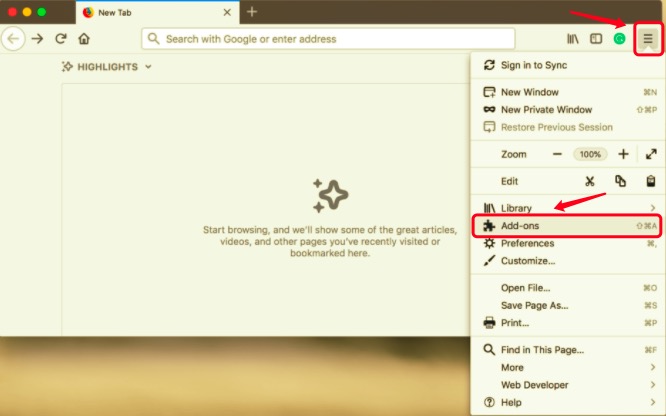
Om du använder webbläsaren Firefox följer du dessa instruktioner för att ta bort Grammarly-tillägget:
- Starta webbläsaren Firefox.
- Välja Add-ons från inställningsikonen i det övre högra hörnet.
- Leta reda på Grammarly för Firefox i avsnittet Tillägg och klicka på alternativet Ta bort.
Avinstallera Grammarly på Mac från Chrome
Så här tar du bort Grammarly-tillägget från Google Chrome-webbläsaren:
- Öppna Chrome-webbläsaren, välj ikonen för Grammarly i verktygsfältet och välj sedan Hantera tillägg.
- Ta bort tillägget genom att scrolla ner till botten av sidan och klicka på knappen Ta bort tilläggBekräfta sedan borttagningen av appen.
Avinstallera Grammarly från Mac Edge
För att kunna ta bort Grammarly-tillägget i din Microsoft Edge-webbläsare, följ dessa steg nedan:
- Öppna webbläsaren Microsoft Edge, navigera till webbläsarens meny och klicka på panelen Tillägg.
- Välj Grammarly för Microsoft Edge.
- Därefter, klicka på Avinstallera.
Del 3. Avinstallera Grammarly på Mac via PowerMyMac
Den sista metoden för borttagning av appen gör att du kan ta bort Grammarly-tillägg från vilken webbläsare som helst samt avinstallera Grammarly på Mac. PowerMyMac appen gör detta möjligt. Manuellt avinstallera en app från Mac kan vara tröttsamt, särskilt för nybörjare och personer som inte känner till hur Mac OS X fungerar. Men genom appen ersätter den användaren och gör uppgiften själv, vilket bara kräver några få klick och några minuter.
 Få en gratis provperiod nu!
PowerMyMac är en unik applikation som låter dig avinstallera program helt och hållet, hitta och ta bort apprester och ta bort användartillägg.
För att avinstallera Grammarly-appen för Mac, följ stegen nedan:
- Ladda ner PowerMyMac-appen, installera och starta den. När du öppnar appen visar den systemets aktuella tillstånd.
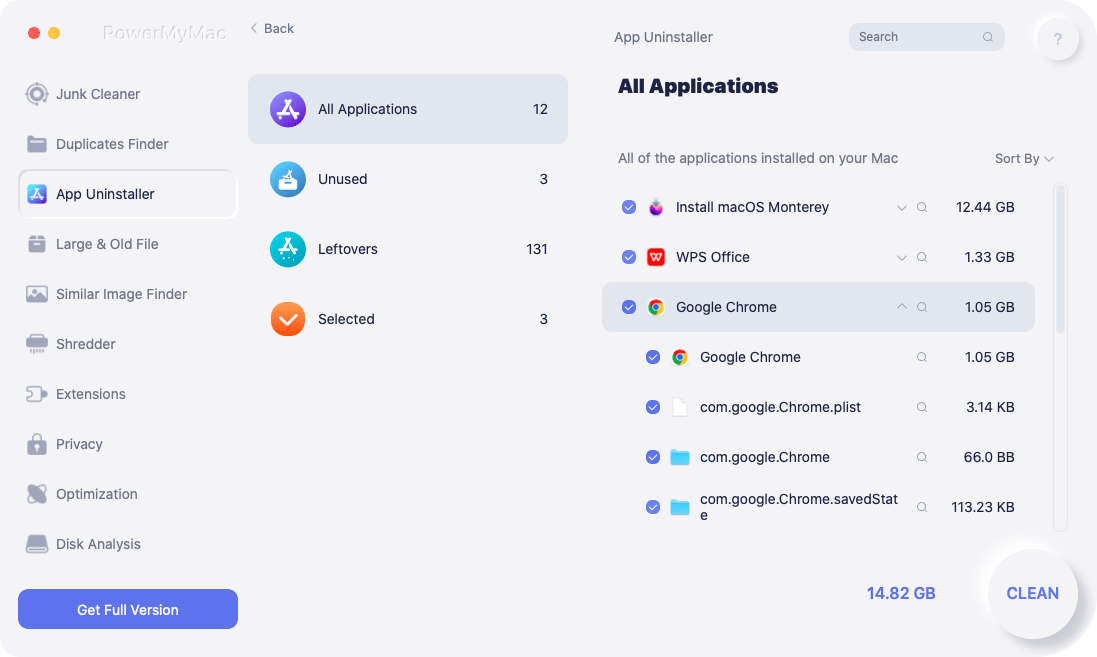
- Efter att ha valt App Uninstaller, klicka på scanVänta tills skanningen är klar. Omskanning bör endast göras om det behövs.
- När alla applikationer har skannats visas en lista över dem till vänster. Välj Grammarly eller andra oönskade appar från listan över program. Du kan också använda sökrutan för att söka efter programvaran genom att skriva dess namn. Grammarly-relaterade filer och mappar visas då på höger sida.
- Alla appens länkade filer bör då vara markerade. Dubbelkolla de filer du har valt och klicka sedan på Rena knappen för att slutföra proceduren och vänta tills den är klar.
- Den "Rengöring slutförd" visas, vilket indikerar att avinstallationsproceduren är klar.
För att ta bort Grammarly-tillägg från webbläsare kan du också använda appen genom att följa stegen nedan:
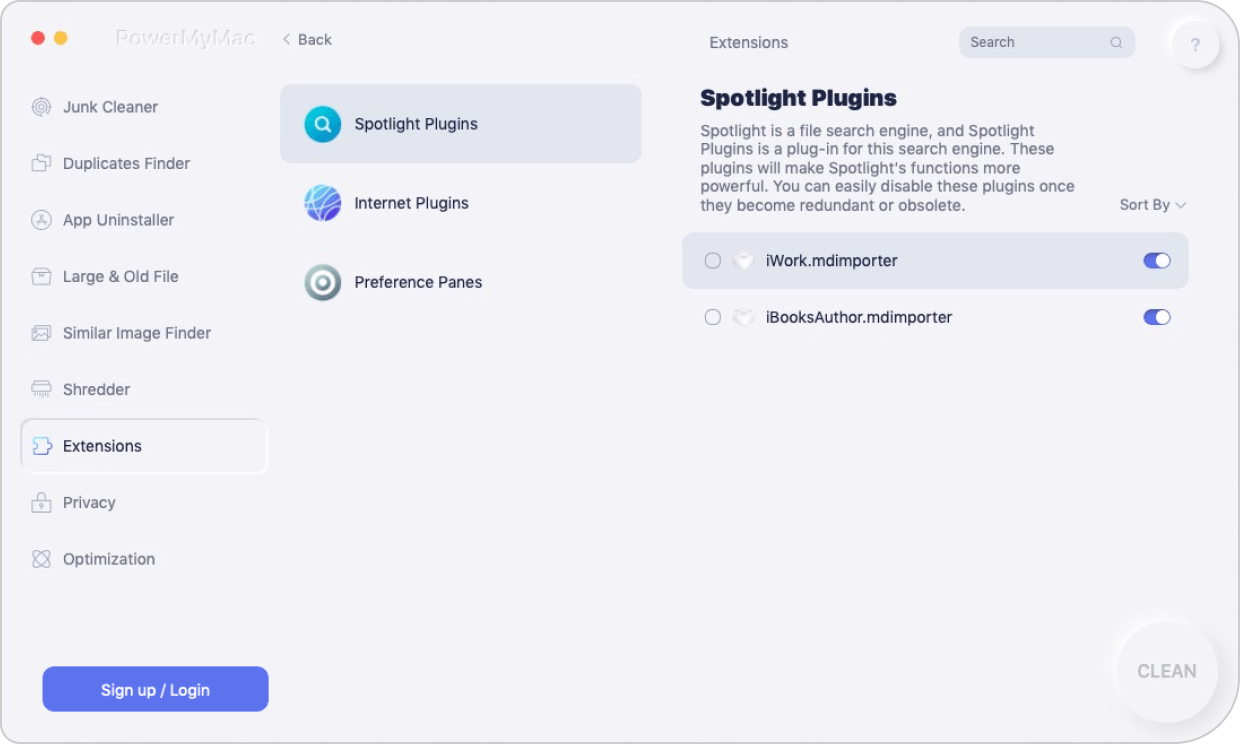
- Starta PowerMyMac-appen och välj sedan förlängningar modul.
- För att söka efter tillägg, klicka på scan knappen för att få en förhandsgranskning. När du är klar kommer du att märka att plugin-program är klassificerade i olika kategorier.
- Aktivera eller inaktivera tilläggen genom att växla knapparna från på till av.
Del 4. Slutsats
Efter att ha läst den här omfattande handledningen för avinstallation av Grammarly kommer du inte ha några problem med att slutföra processen. Det är helt upp till dig att välja vilken metod du ska använda för att försöka avinstallera Grammarly på Mac.
Vare sig det är manuellt eller via appen PowerMyMac, förklarades steg för steg hur man tar bort skrivbordsappen eller tillägget från olika webbläsare. En sak att tänka på är att du också bör leta efter och ta bort appens rester. Annars kan servicefiler relaterade till Grammarly täppa till din hårddisk och sakta ner din Macs prestanda.



Nicole2022-11-07 11:13:15
Tack