


 PowerMyMac


Om du har använt Little Snitch och insett att det inte är något för dig, eller om du får många aviseringar och inte vill använda det längre, är det dags att Avinstallera Little Snitch Mac.
För macOS är Little Snitch en värdbaserad app-brandvägg. Det är ett program som låter dig hålla koll på din Macs utgående nätverksanslutningar. När Little Snitch hittar en utgående anslutning meddelar den dig och börjar fråga om du samtycker till att acceptera den. Du kan utforma regler som gör att vissa anslutningar alltid tillåts och andra alltid nekas.
Du kan också välja att ignorera aviseringar och låta Little Snitch spara dem så att du kan hantera alla samtidigt när du inte är upptagen. Det är ett utmärkt sätt att säkra din Mac mot attacker, men de flesta användare kommer att tycka att det är för svårt att använda.
Men när du väl har bestämt dig för att du inte längre vill använda en applikation, ta bort den från din Mac för att frigöra lite utrymme på din Mac. Det finns tre alternativ för att göra det: att använda avinstallationsprogrammet, en helt manuell metod eller en relativt enkel automatiserad metod som vi kommer att förklara senare i artikeln.
Innehåll: Del 1. Avinstallera Little Snitch manuellt på MacDel 2. Hur man tar bort alla rester av Little Snitch på MacDel 3. Avinstallera Little Snitch automatiskt från MacDel 4. Slutsats
Del 1. Avinstallera Little Snitch manuellt på Mac
Borttagningsprocedurerna varierar avsevärt beroende på vilken version av Lilla Snitch du använder. Du måste dock kontrollera din Mac för de temporära filerna från Little Snitch i båda versionerna. Läs hela riktlinjerna för att avinstallera Little Snitch helt på Mac.

För Lilla Snitch v.4:
- Öppna filen "LittleSnitch-4.0.5.dmg".
- Dubbelklicka och välj Little Snitch Uninstaller. Alternativt kan avinstallationsfilen hittas i
/Library/Little Snitch/Little Snitch Uninstaller.app. - Välj "Ta också bort regler och inställningar" i fönstret som visas och välj knappen Fortsätt.
- För att slutföra avinstallationen av appen från din Mac klickar du på starta nu alternativ.
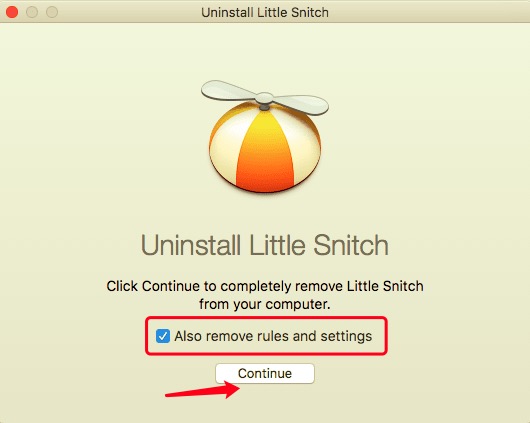
För Lilla Snitch v.5:
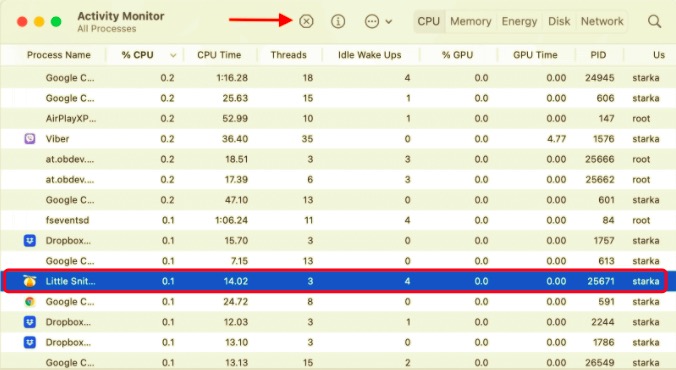
- Sluta, lilla Snitch.
- Alla Little Snitch-processer som körs i bakgrunden bör stoppas. Öppna Aktivitetskontroll, välj Lille Snitch och välj sedan för att stänga dem.
- Dra Lilla Snitch till papperskorgen från Tillämpningar mapp.
- Starta om din Mac efter att du har tömt papperskorgen.
Del 2. Hur man tar bort alla rester av Little Snitch på Mac
Avinstallationsfilen för version 4.0, enligt instruktionerna för borttagning av Little Snitch, tar bort programmet helt. Ändå, om du tittar i din Bibliotek mappen på din Mac hittar du de återstående filerna. Little Snitchs installation inkluderar programmets binärfil i din Tillämpningar mappen, såväl som en mängd andra filer spridda över din Mac. För att avinstallera Little Snitch helt på Mac måste du ta bort dem alla. För att hitta Little Snitch-supportfiler för valfri version, följ instruktionerna nedan:
- Starta Finder.
- Träffa
Command+Shift+G. - Typ
/Libraryi sökfönstret som öppnas och klickar på Gå. - Hitta och radera alla filer och mappar relaterade till Little Snitch här. Titta i följande mappar:
~/Library/Application Support~/Library/Preferences~/Library/Launch Agents~/Library/Launch Daemons~/Library/Caches~/Library/Logs~/Library/Logs/Diagnostic Reports~/Library/Application Scripts
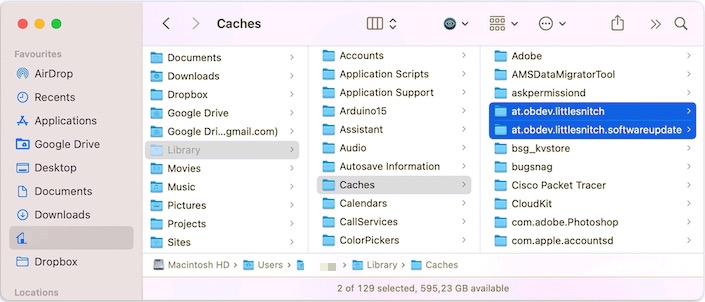
- Slutligen, glöm inte att rensa papperskorgen när du har raderat alla supportfiler för att helt eliminera Lilla Snitch.
Del 3. Avinstallera Little Snitch automatiskt från Mac
Som du har sett tar det mellan 10 och 20 minuter eller ännu längre att avinstallera Little Snitch 4 själv, särskilt för nybörjare. Värre är att vissa felaktiga procedurer på din Mac kan leda till en oavsiktlig katastrof. Därför bör du använda ett professionellt avinstallationsverktyg för Mac Apps för att avinstallera Little Snitch på Mac noggrant och säkert.
PowerMyMac's Uninstaller hjälper dig att avinstallera program och drivrutiner helt och hållet. Den tar bort alla filer, inklusive Launch Daemons och cacheminnen, så att du inte behöver leta efter dem själv. Den är enkel att använda och erbjuder ett trevligt användargränssnitt. Det tar bara några få klick att slutföra proceduren.
 Få en gratis provperiod nu!
- Ladda ner, installera och öppna PowerMyMac appen. Systemets status visas efter att den har öppnats.
- Välj App Uninstaller alternativ och då SCANVänta tills skanningen är klar innan du klickar på Skanna igen om det behövs.
- En lista visas till vänster när alla applikationer har skannats. Hitta och välj Lilla Snitchen eller någon annan app som du vill avinstallera. Du kan också skriva namnet i sökfältet för att snabbt hitta det. Filerna och mapparna som är kopplade till den valda programvaran visas då på höger sida.
- Gör en lista över alla filer som behöver raderas. För att slutföra proceduren, dubbelkolla allt och klicka sedan på REN alternativ.
- När proceduren är klar visas ett popup-fönster som säger "Rengöring slutförd". Det här betyder att Little Snitch eller något annat oönskat program har tagits bort helt från din Mac.
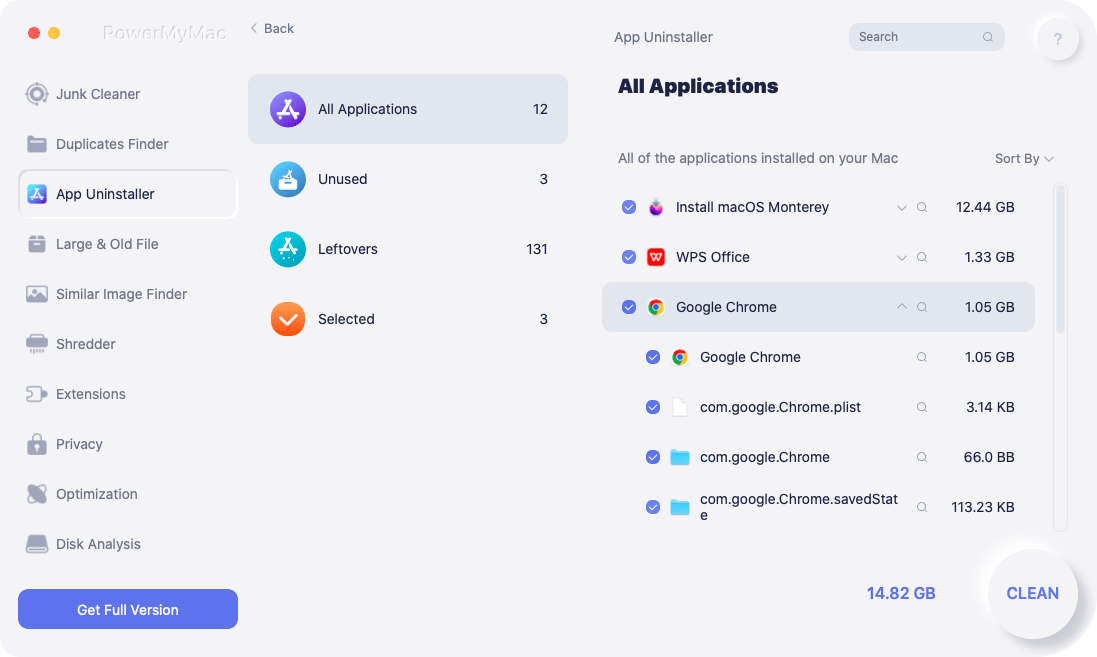
Äntligen har Little Snitch tagits bort helt. Du kan avinstallera ytterligare program på din Mac med samma metod, och du kan ta bort många appar samtidigt genom att markera dem alla och välja Rensa en gång.
Del 4. Slutsats
Little Snitch är en brandvägg som garanterar en säker anslutning för din Mac och låter dig hantera inkommande och utgående trafik. Du bör dock avinstallera Little Snitch på Mac om du inte längre behöver det. Det finns tre alternativ som presenteras i artikeln och det beror helt på om du fortfarande har den ursprungliga diskavbildningen och om du är skicklig på att gräva ner filer manuellt. Om inte, PowerMyMac kan hjälpa dig och avinstallera det med bara några få klick.


