


 PowerMyMac


Varför startar inte XQuartz? Varför är det svårt att lösa dessa buggproblem med appen? Vi tycker att det är bättre att avinstallera XQuartz på Mac i situationer som denna. Men vet du det korrekta sättet att avinstallera en app som XQuartz? Vet du hur man effektivt tar bort alla rester?
När du går igenom den här guiden kommer den att hjälpa dig att ta bort det manuellt eller avinstallera det automatiskt med hjälp av ett kraftfullt avinstallationsprogramoch lär dig hur du hanterar alla rester av appen.
 Få en gratis provperiod nu!
Innehåll: Del 1. Varför finns XQuartz på min Mac?Del 2. Hur tar jag bort XQuartz från OSX?Del 3. Hur man avinstallerar XQuartz på Mac helt (Auto Way)Del 4. Slutsats
Del 1. Varför finns XQuartz på min Mac?
XQuartz finns på din Mac för att möjliggöra användning av X11-baserade program, vilka är vanliga i Unix- och Linux-miljöer. Det låter dig köra programvara som är beroende av X Window-systemet, till exempel vissa vetenskapliga, tekniska och akademiska program. Dessutom kan XQuartz ha installerats som ett beroende för annan programvara du använder, eller för att köra grafiska program på fjärrservrar inom Unix/Linux via SSH. Om du inte explicit installerade det, ingick det troligen i ett annat program som kräver X11-stöd.
Hur kontrollerar man om XQuartz är installerat på en Mac?
För att kontrollera om XQuartz är installerat på din Mac kan du använda flera metoder:
Metod 1: Kontrollera programmappen
- Öppna Finder.
- Navigera till Tillämpningar mapp.
- Leta efter en mapp som heter Bekvämligheter och öppna den.
- Kontrollera om det finns en applikation som heter Xquartz.
Metod 2: Använd terminalen
- Öppna terminal Du hittar den i mappen Program > Verktygsprogram eller genom att söka efter "Terminal" med Spotlight.
- Skriv in följande kommando och tryck på Enter:
xquartz --version - Om XQuartz är installerat kommer du att se versionsinformationen. Om det inte är installerat får du ett meddelande om att kommandot inte hittades.
Metod 3: Kontrollera systeminformation
- Öppna Systeminformation Du hittar den i mappen Program > Verktygsprogram eller genom att söka efter "Systeminformation" med Spotlight.
- I fönstret Systeminformation väljer du Mjukvara i sidofältet.
- Leta efter XQuartz eller X11 i listan över installerad programvara.
Metod 4: Kontrollera installationskatalogen
- Öppna terminal ansökan.
- Skriv in följande kommando och tryck på Enter:
ls /Applications/Utilities/ - Leta efter XQuartz.app i listan över filer och kataloger.
Metod 5: Använd systeminställningar
- Öppet Systeminställningar.
- Leta efter en ikon som heter Xquartz.
Om XQuartz är installerat kommer en av dessa metoder att bekräfta dess närvaro på ditt system. Om inte kan du ladda ner och installera XQuartz från officiell XQuartz-webbplats.
I många fall, när användare väl har använt X11-komponenter, behöver de inte längre behålla XQuartz på sin Mac. I den här enkla guiden lär vi dig hur du tar bort XQuartz från din macOS helt och hållet.
Del 2. Hur tar jag bort XQuartz från OSX?
XQuartz är för närvarande en DDX-version (Device Dependent X). Du kan snabbt avinstallera XQuartz på Mac genom att dra det till papperskorgen i macOS. Att använda standardmetoden för att avinstallera XQuartz på Mac kan dock lämna en hel del skräp på Mac.
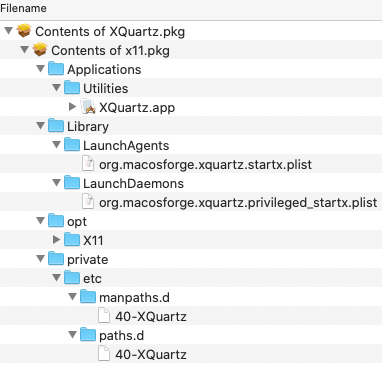
Dessa "skräp" är resterna som genereras i varje app du installerar på din enhet. För att lära dig hur du avinstallera XQuartz manuellt på Mac och ta bort resterna, läs instruktionerna nedan.
- Avsluta XQuartz samt alla XQuartz-relaterade program > Starta Finder-appen på din Mac > Program > XQuartz > Ta bort XQuartz genom att flytta det till papperskorgen.
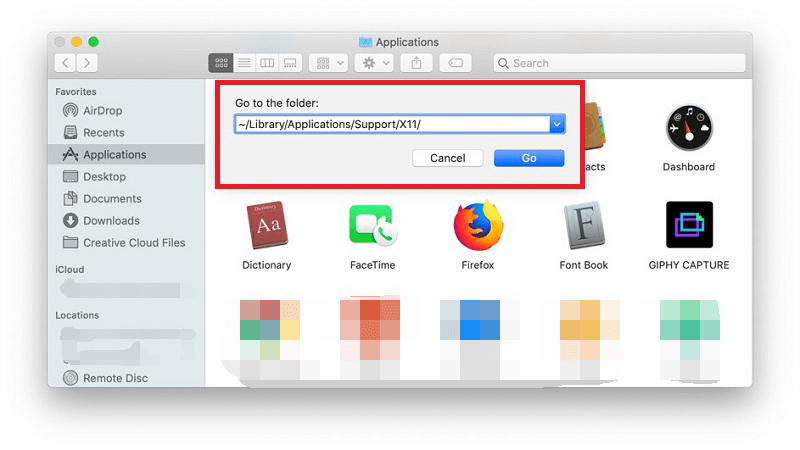
- Starta Finder > Gå > Gå till mapp > Enter
/Library/Application Support/XQuartz/för att radera XQuartz-data, användarinställningar samt annan föräldralös data. - Bläddra igenom varje undermapp för att hitta alla överblivna XQuartz-filer. Majoriteten av dem finns i:
~/Library/Application Support~/Library/Caches~/Library/Containers~/Library/Frameworks~/Library/Logs~/Library/Preferences~/Library/Saved Application State~/Library/WebKit
- För att helt avinstallera XQuartz på Mac, flytta filerna relaterade till detta till papperskorgen > Töm papperskorgenoch starta sedan om Mac-datorn.
Del 3. Hur man avinstallerar XQuartz på Mac helt (Auto Way)
PowerMyMacs avinstallationsprogram är en professionell XQuartz-avinstallationstjänst som kan hjälpa dig att avinstallera XQuartz enkelt och helt på Mac eller ta bort andra program som är svåra att ta bort från Mac-datorn. Du kan ladda ner det gratis och prova dess avinstallationsprogram nu.
Nedan följer de utförliga instruktionerna för användning PowerMyMac för att avinstallera XQuartz-klienten.
- Ladda ner PowerMyMac-programvaran och installera den och kör den sedan.
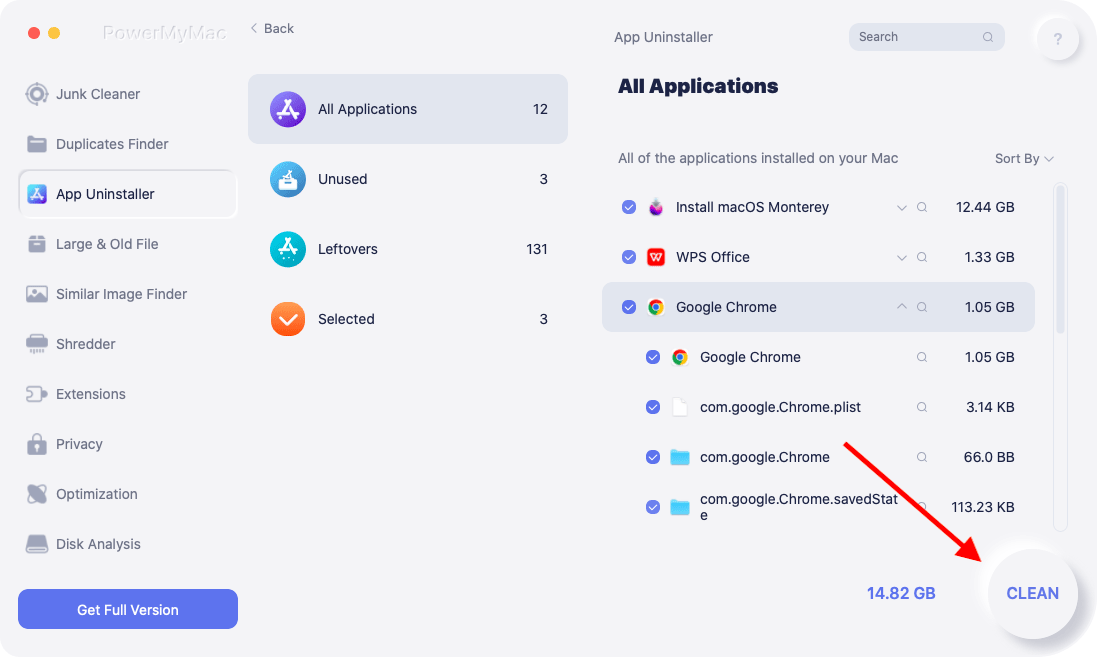
- För att automatiskt avinstallera XQuartz på Mac, klicka på SCAN efter att ha valt App UninstallerVänta tills skanningen är klar.
- På höger sida visas en lista med appar. Välj XQuartz-appen eller annan oönskad programvara från listan över appar. Filerna och mapparna som är kopplade till XQuartz visas nedan.
- Välj sedan alla appens viktiga filer. Kontrollera dina filer igen och klicka sedan på REN för att avsluta proceduren.
- När meddelandet "Rensning klar" visas är borttagningen klar.
Ta bort onödig programvara som Adobe eller XQuartz på ditt system är fortfarande ett av de bästa enkla sätten att snabba upp enheten. Förutom att avinstallera programvara kan PowerMyMac ta bort många skräpfiler, skanna dubbletter av filer såväl som stora eller gamla filer och hantera plugin-program för att frigöra mer diskutrymme och få din Mac att köra snabbare.
Del 4. Slutsats
Med den manuella metoden kommer XQuartz att tas bort av användaren utan hjälp, vilket också innebär att man bläddrar i varje mapp och tar bort resterna individuellt.
PowerMyMac kan hjälpa dig med en enklare och snabbare borttagning av appar automatiskt eftersom det kan avinstallera XQuartz på Mac helt och effektivt.


