


 PowerMyMac


Att säkerhetskopiera filer internt har varit normen på grund av hur folk tenderar att glömma var de har lagt sina USB-minnen eller externa hårddiskar. Otaliga appar presenteras för dig men för nu ska vi prata om Carbonite.
Som många vet är Carbonite en ganska populär onlinetjänst som fungerar som en säkerhetskopia av datorer. Den är bra på att säkerhetskopiera filtyper som dokument, kalkylblad, bilder etc. Men någon som stöter på den här appen har alltid en fråga i åtanke efter att ha använt den: "Hur avinstallerar jag Carbonite från min Mac?"
Om du störs av borttagningssätt om och om igen, luta dig sedan tillbaka och fortsätt läsa för att lära dig de enkla stegen för att avinstallera Carbonite på Mac.
Innehåll: Del 1. Vad är karbonit?Del 2. Hur avinstallerar jag Carbonite från min Mac helt och enkelt?Del 3. Hur avinstallerar jag Carbonite manuellt från min Mac?Del 4. Slutsats
Del 1. Vad är karbonit?
Innan vi får svaret på frågan "Hur avinstallerar jag Carbonite från min Mac"som plågade våra sinnen efter att ha använt det, först måste du veta exakt vad karbonit är.
Som nämnts ovan, carbonite är en online-datorsäkerhetskopiering som erbjuder en årlig prenumerationsavgift för obegränsad lagring. Precis som andra moln fungerar den som ett säkert utrymme för vanliga filtyper men bara de som lagras i vanliga mappar.

Vad många inte heller vet är att det har en lagringsgräns eftersom Carbonite inte tillåter filer som är över 4 GB. Bortsett från det verkar det som den kommer inte att göra sin säkerhetskopiering korrekt om du inte granskar varje datafil och mapp som säkerhetskopieras. Det är därför många vill avinstallera Carbonite på Mac.
På grund av många begränsningar har användare inget annat val än att välja och ta bort Carbonite från sin Mac och välja en mer pålitlig online-säkerhetskopiering av datorn.
Del 2. Hur avinstallerar jag Carbonite från min Mac helt och enkelt?
Vi kommer att presentera en enkel lösning för dig, och det är iMyMac PowerMyMac.
PowerMyMac inte bara avinstallera en app helt från din Mac men det kan också bli av med dubbletter, optimera din Mac, rensa bort skräp från din dator och mycket mer.
Det är ett utmärkt verktyg att ha om du fortfarande upplever problem med lagg på din Mac. PowerMyMacs App Uninstaller gör det enkelt att avinstallera Carbonite på Mac och dess relaterade filerDet krävs bara några få klick för att radera en app som Adobe CC helt och för att slutföra processen utan några rester.
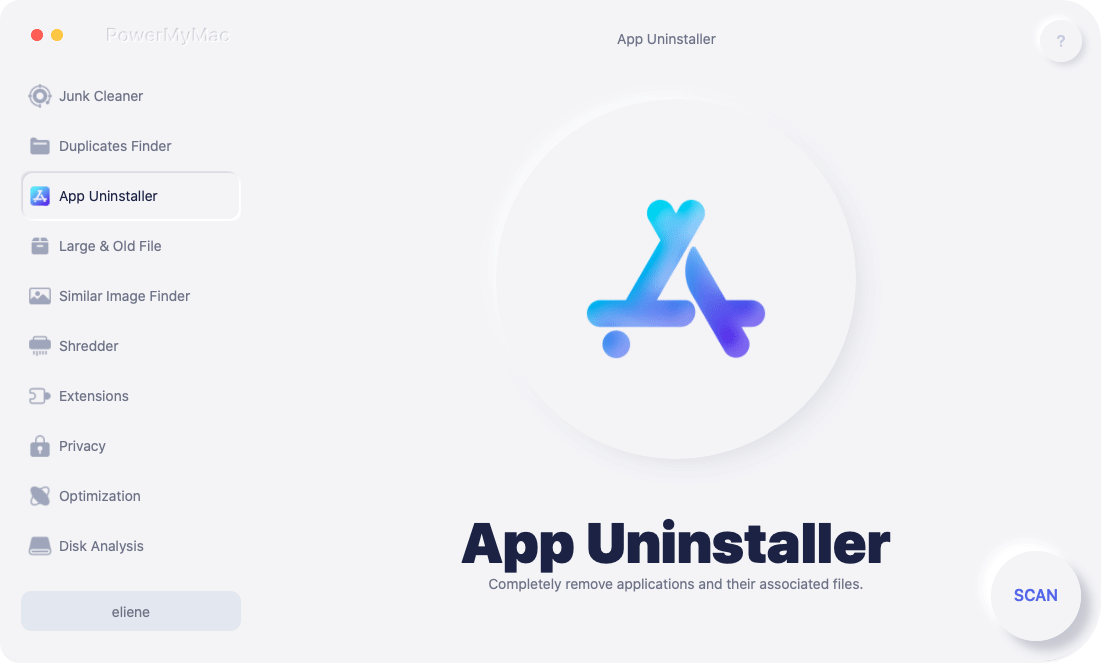
Om du är en av de personer som vill ha en fråga om "hur avinstallerar jag Carbonite från min Mac" svarade, här är en snabb och enkel handledning för dig.
- Leta reda på App Uninstaller på vänster sida och tryck sedan på SCAN.
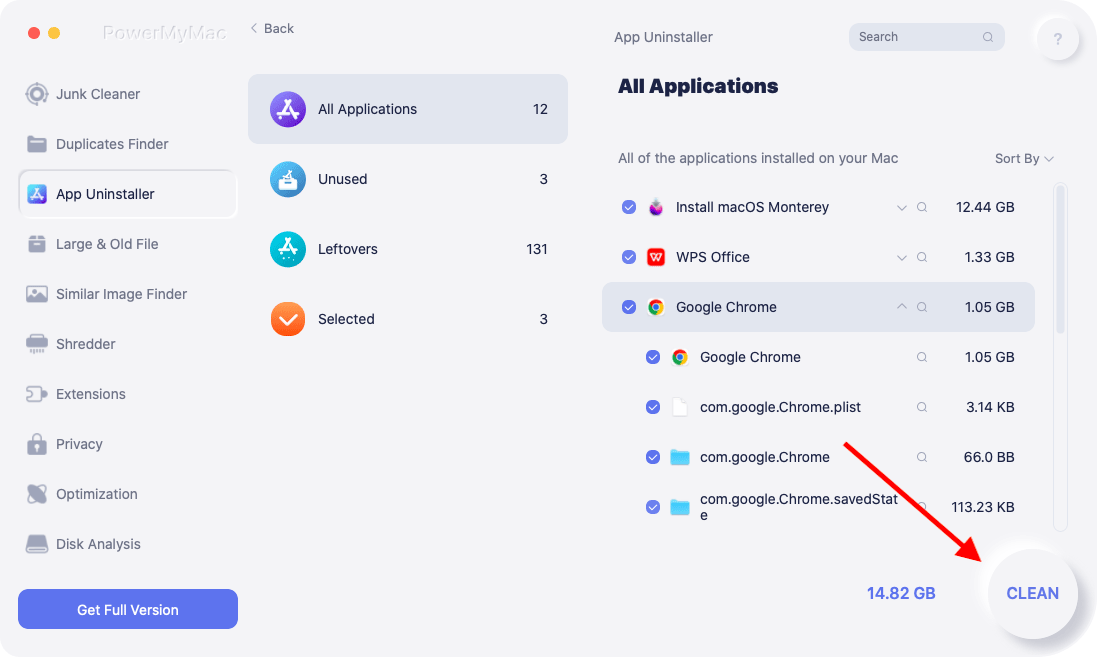
- Skanningen görs för alla appar som för närvarande är installerade på din Mac. När det är klart, leta efter alla program och hitta appen du vill gå till. Om det tar tid skriver du bara namnet i det övre högra hörnet med hjälp av sökrutan.
- När du väl hittat den kan du se dess relaterade filer genom att klicka på symbolen för att utvika. Markera bara appen och tryck sedan på REN
- "Rengöring Avslutad” kommer då att visas, inklusive hur många filer som rensades nedan och ett annat nummer som anger hur mycket utrymme som finns tillgängligt.
Nu kan du avinstallerade CarboniteMed hjälp av App Uninstaller behöver du inte oroa dig för "hur avinstallerar jag Carbonite från min Mac".
Det är den bästa vännen du någonsin haft tack vare dess allt-i-ett-funktion. Den är till och med användarvänlig eftersom gränssnittet är väldigt tilltalande att titta på. lätt att använda, och dessutom kan den göra fantastiska saker.
Del 3. Hur avinstallerar jag Carbonite manuellt från min Mac?
Du kan även avinstallera Carbonite manuelltÄven om det kan vara tröttsamt eftersom du måste leta efter återstående data, är det lättillgängligt och enkelt att göra.
För att veta mer, se stegen nedan:
- Starta om din Mac innan du avinstallerar appen.
- När du är klar klickar du på hittar ligger på Dock och tryck Gå till mapp.
- Använd fönstret och skriv
/Library/Application Support/och klicka därefter Go. - Ocuco-landskapet Mapp för programsupport är nu i sikte. Dra sedan bara Carbonite-mappen mot trash.
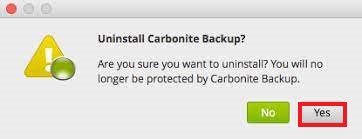
Om frågan "hur avinstallerar jag Carbonite från min Mac"Om det fortfarande stör dig men har bestämt dig för att inte använda ett annat verktyg för att ta bort det, prova metoden ovan för att manuellt avinstallera Carbonite på Mac. Det är dock inte klart än eftersom det fortfarande finns relaterade mappar. För att leta efter dem, se instruktionerna nedan:"
- Tillbaka på
Librarymapp, öppnaLaunchDaemons Inside, dragcom.carbonite.installhelper.plistföljd avcom.carbonite.launchd.daemon.plist,com.carbonite.launchd.monitor.plistoch sist,com.carbonite.launchd.watcher.plisttill papperskorgen. - Efteråt, gå tillbaka till
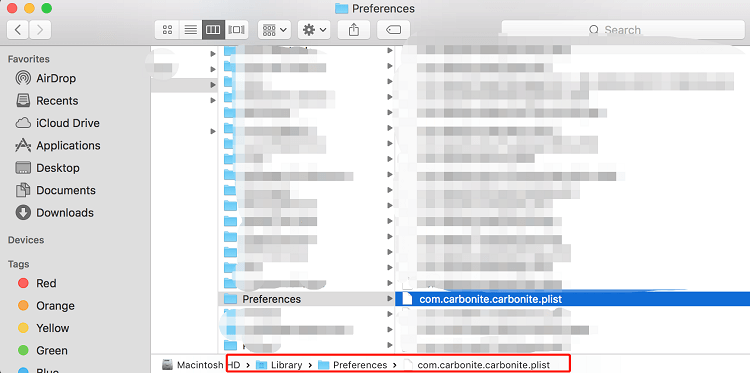
Librarymappen som ska öppnasPreferencesFlytta inuti mappencarbonite.carbonite.listtill papperskorgen. - För sista gången, gå tillbaka till
Librarymappen och öppna mappen med namnetAfterwards, inuti mappen, dracom.carbonite.install helpertill papperskorgen. - När allt är klart, flytta Carbonite som finns på
Applicationsmappen i papperskorgen. - Och slutligen, starta om datorn igen.
Att avinstallera Carbonite är jobbigt på grund av hur många relaterade mappar det finns i olika mappar. Men när det är klart kan du känna att din Mac avlastar extra vikt. Och oavsett om du väljer att avinstallera Carbonite på Mac manuellt eller med hjälp av ett appavinstallationsprogram, beror det helt på vilket alternativ du föredrar eller vilket som ser enklare ut.
Del 4. Slutsats
Som frågan "hur avinstallerar jag Carbonite från min Mac"Det fortsätter att störa oss, vissa funderar redan på ett alternativ att använda. Carbonite är en bra app, men den saknar vissa saker på grund av sina problem och begränsningar.
Med hjälp av iMyMac PowerMyMac, kan du ta bort den säkert. Och det här verktyget kan också hjälpa din dator att arbeta snabbare och smidigare.


