


 Video Converter


Not all video players are able to play MPG files. Converting MPG to OGG is the best option if you have any MPG files that won't open on your PC. Are you trying to find a way that can convert MPG files to OGG format? In this guide, we'll explore some effective methods for converting MPG files to OGG. Let’s dive in and find the best method that suits your workflow and requirements.
Contents: Part 1: What Are MPG and OGG Files?Part 2: Convert MPG Files to OGG on Windows/MacPart 3: Convert MPG Files to OGG Free OnlinePart 4: Conclusion
Part 1: What Are MPG and OGG Files?
What is MPG?
MPG, also known as MPEG, is a multimedia file format used primarily for video playback. It uses either MPEG-1 or MPEG-2 compression, enabling relatively high video quality at reduced file sizes. MPG files are widely supported across media players and editing software, making them a common choice for video content distribution. The format supports both audio and video streams in one file, and it's often used for movies, digital TV broadcasts, and video CDs.
What is OGG?
OGG is an open-source multimedia container format developed by the Xiph.Org Foundation. It is best known for holding audio data, particularly the Ogg Vorbis audio codec, which provides high-quality sound at lower bitrates compared to MP3. OGG files are used for streaming and compressing high-quality audio content. Being patent-free and royalty-free makes OGG a popular choice among developers and audio enthusiasts.
 Related Articles: MP3 VS OGG: Which is the Better Format?
What Is the Difference Between MPG and OGG?
The primary difference lies in their purpose and content: MPG is a video format that may include both video and audio, while OGG is an audio-only format. MPG is more complex due to video encoding, whereas OGG is optimized for sound quality and efficiency. Converting MPG to OGG essentially means extracting the audio track from a video file and saving it in a high-quality, compressed audio format.
Part 2: Convert MPG Files to OGG on Windows/Mac
If you're looking for a reliable and high-quality solution to convert MPG to OGG on your desktop, iMyMac Video Converter is an excellent option. This software is compatible with both Windows and Mac and offers a user-friendly interface, advanced editing options, and support for a wide range of formats. Not only OGG, this powerful software also allows you to easily convert your MPG files to MP4, WMV, MPG, AVI, and more, with just a few clicks.
Why Choose iMyMac Video Converter?
- High-Speed Conversion: Supports hardware acceleration for faster results.
- Batch Conversion: Convert multiple MPG files at once.
- Customization: Offers full control over output settings.
- High Quality: Maintains excellent audio quality after conversion.
Step-by-Step Guide to Using iMyMac Video Converter:
Let’s see how to convert MPG to OGG with iMyMac Video Converter:
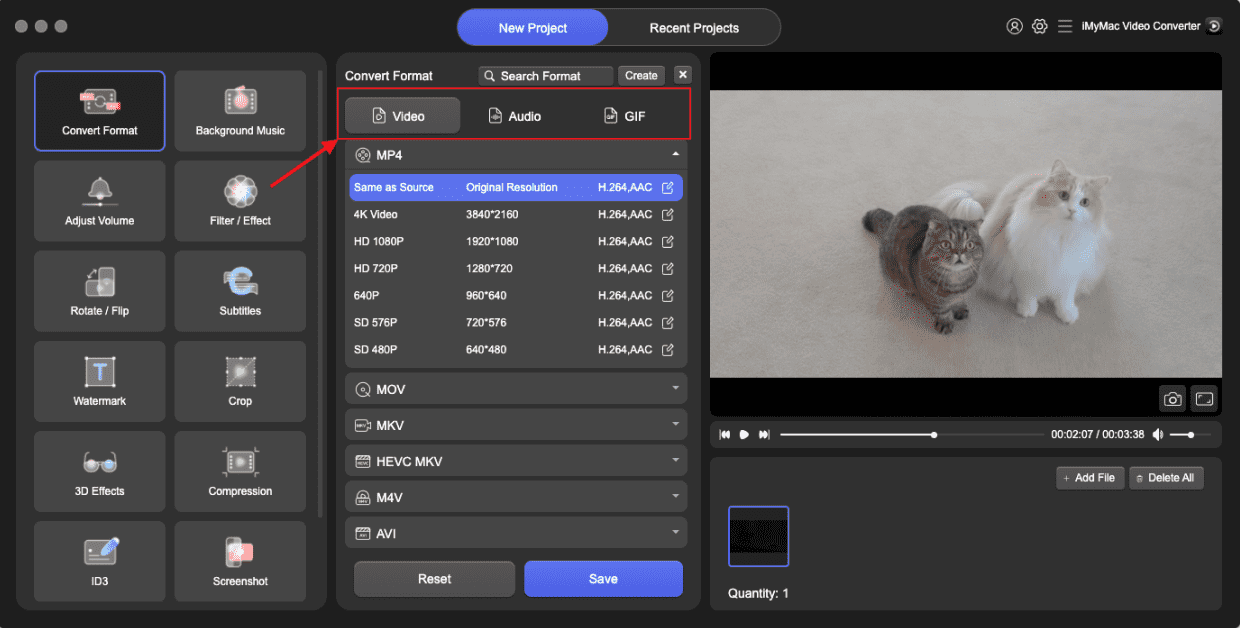
- Launch the iMyMac Video Converter software on your computer, either the Mac or Windows version. Once you're done, log into your account.
- Dropping or dragging the MPG file onto the system's display always works.
- After choosing "Convert Format," a drop-down option letting you pick the sort of file the original should be converted into, such as OGG, appears.
- Finding file modifications is now a lot easier, thanks to the user interface. The files may be edited in any way you choose.
- You may save all of your changes by selecting Save.
- To start the converting process, choose a conversion option from the toolbar.
Part 3: Convert MPG Files to OGG Free Online
For users who prefer not to download any software, FreeConvert is a powerful and accessible online tool that allows you to convert MPG to OGG effortlessly. It’s free to use and supports a wide variety of input and output formats. FreeConvert works directly in your browser. Basic conversions are free. It supports Dropbox and Google Drive uploads/downloads.
Steps to Convert MPG Files to OGG Using FreeConvert:
- Open your browser and go to FreeConvert MPG to OGG Converter.
- Click on “Choose Files” and select your MPG file from your computer. FreeConvert also supports files from Dropbox, Google Drive, and URLs.
- The site will automatically detect that you want to convert to OGG. If needed, you can click the settings icon to adjust output quality, audio codec, and volume.
- Click the “Convert” button. The tool will process your file online. Conversion time may vary depending on file size and internet speed.
- Once the conversion is complete, click “Download” to save the OGG file to your device.
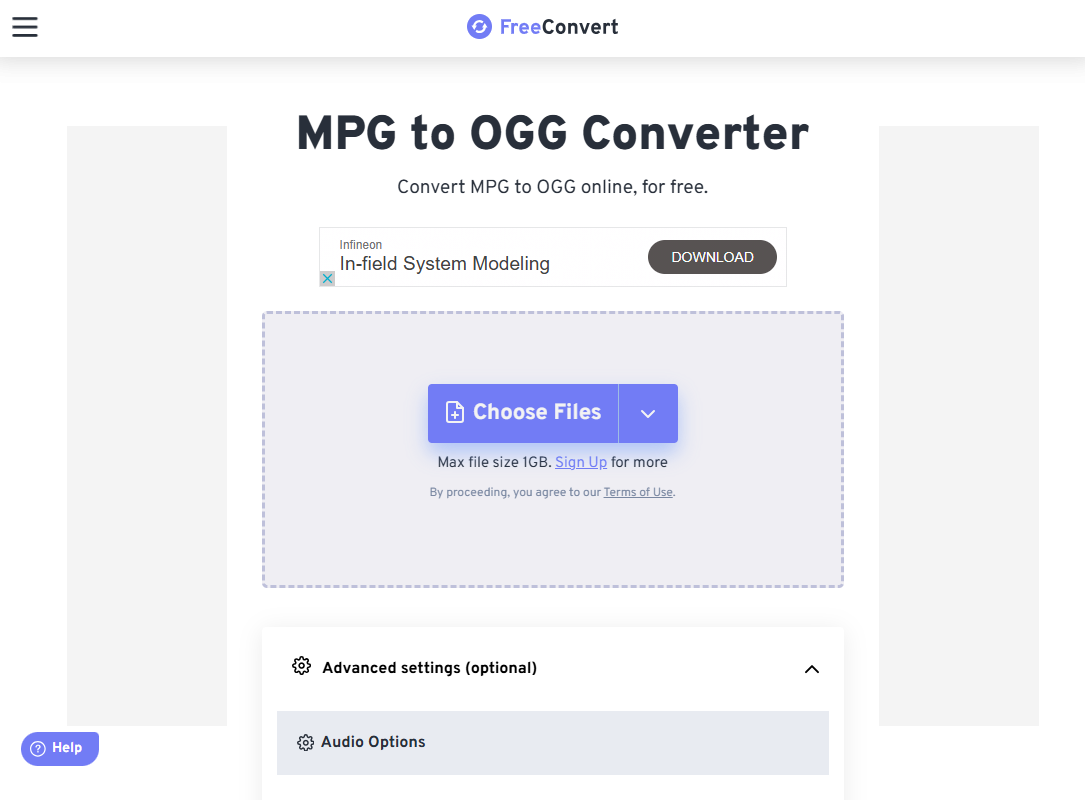
FreeConvert is ideal for users looking for a fast, no-fuss solution for occasional conversions without installing software. But free accounts have a maximum file size limit. Also, you need a stable connection.
Part 4: Conclusion
Converting MPG to OGG is a simple process, whether you choose to use a desktop tool like iMyMac Video Converter or an online platform like FreeConvert. Desktop software is better suited for users who need advanced features and frequent conversions, while online tools offer quick, convenient access for one-time or occasional use.
By understanding the differences between MPG and OGG formats, you can choose the best tool for your needs and ensure high-quality audio output every time. No matter your preference, both options make it easy to extract and convert audio from your video files effectively.


