


 Video Converter


FLV files, short for Flash Video, are commonly used for online video streaming. However, many Apple users find themselves stuck when trying to play FLV on iPhone. That’s because iOS doesn’t natively support FLV format, making it challenging to access these files directly. But don’t worry—this guide will show you two effective solutions to play FLV video files on iPhone without frustration. Let’s dive into the most reliable methods to handle FLV files on your Apple device.
Contents: Can iPhone Play FLV Files on iPhone?Solution 1. Convert FLV Files to iPhone-Supported FormatSolution 2. Play FLV Files on iPhone via FLV PlayersConclusion
Can iPhone Play FLV Files on iPhone?
Technically, no—Apple’s iOS system doesn’t support FLV files by default. If you try to open one using the built-in Files or Photos app, it simply won’t work. This limitation makes it difficult to play FLV on iPhone unless you convert the file or use a special video player. The lack of native support is due to FLV being an older format mainly associated with Adobe Flash, which Apple phased out years ago. However, with the right approach, you can still play FLV video on iPhone.
Solution 1. Convert FLV Files to iPhone-Supported Format
One of the most effective solutions to play FLV on iPhone is to convert the FLV file into an iOS-friendly format such as MP4, M4V, or MOV. Using a tool like iMyMac Video Converter, you can easily perform this task. iMyMac Video Converter is a versatile software that allows you to can convert various video/audio formats such as OGG, MP4, MP3, 3GP, AVI, and many more, with just a few simple step.
In addition to format conversion, iMyMac Video Converter also offers built-in editing features such as trimming, cropping, adding subtitles, and adjusting video effects. Whether you're preparing videos for playback, editing, or sharing, this tool provides a user-friendly interface.
Here's how to use the tool:
- Download and then install iMyMac Video Converter within your computer.
- Open the tool or software and click on the "Add Files" button to import the FLV files that you want to convert.
- Choose "MP4" as the output format from the list of supported formats.
- Select the output folder where you want to save the converted MP4 files.
- Click on the "Convert" button to start the conversion process.
- iMyMac Video Converter will automatically convert the FLV files to MP4 format, and you can then transfer the converted files to your iPhone using iTunes or any other file transfer method.
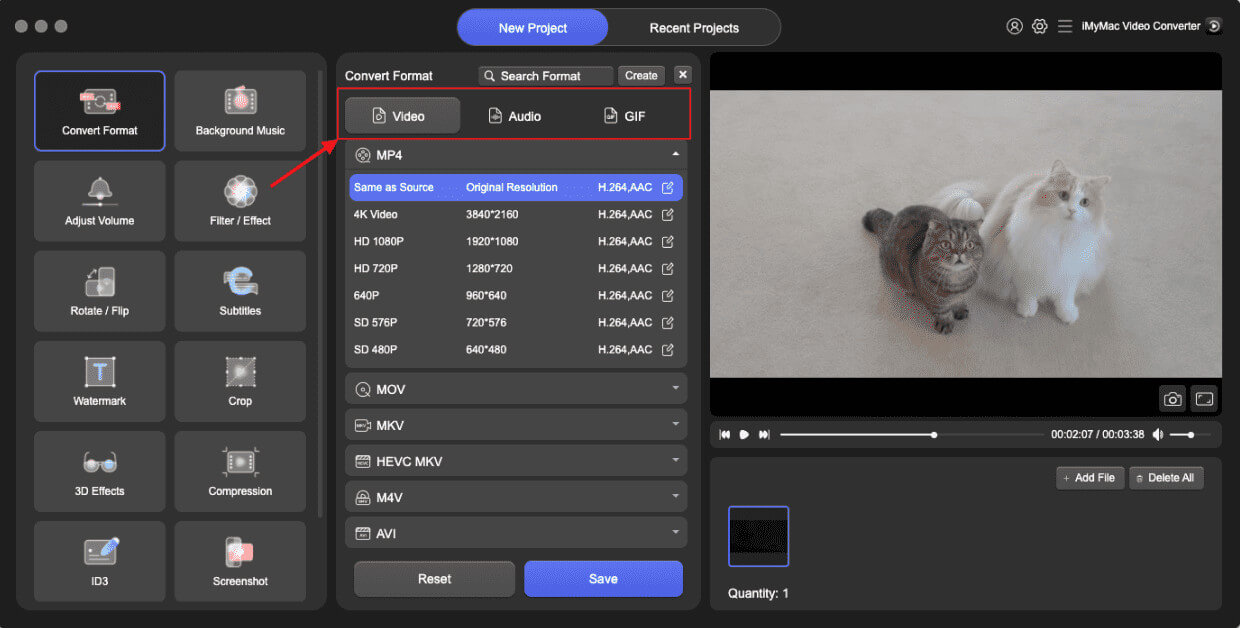
This method guarantees that you’ll be able to play FLV on iPhone without needing additional apps. It’s perfect for users who prefer to use Apple’s native video player and want consistent playback quality. After conversion, you can play FLV video on iPhone like any standard video file.
Solution 2. Play FLV Files on iPhone via FLV Players
If you prefer not to convert your files, you can still play FLV on iPhone by using a third-party FLV player app. Several apps available on the App Store support FLV format directly and offer rich playback features. Here are some reliable choices:
PlayerXtreme
PlayXtreme is a popular media player app that can play FLV on iPhone. It was developed by Belight Software, a software development company based in the USA. PlayXtreme was first released in 2011, and since then, it has gained a reputation as a reliable and user-friendly media player.
PlayXtreme supports a wide range of video formats, including FLV, MP4, AVI, and more. The app has an intuitive and easy-to-use interface, with playback controls that are simple to understand and use. PlayXtreme is ad-supported, which means you will see advertisements while using the program. You may, however, eliminate the advertising with an in-app payment. In comparison to the commercial version, the free edition of PlayXtreme contains less features.
OPlayer Lite
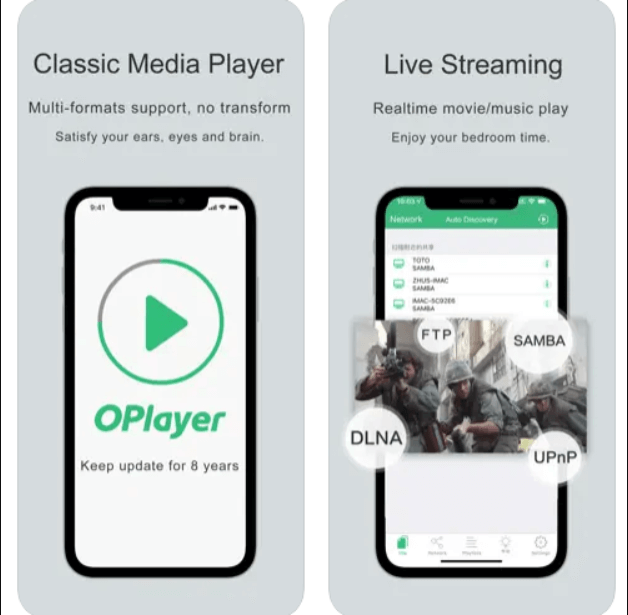
OPlayer Lite is another popular media player for iPhone that supports FLV files. It was developed by OLIMSOFT CO. LTD, a software development company based in Hong Kong. OPlayer Lite was first released in 2010, and since then, it has gained a loyal following thanks to its powerful features and ease of use.
OPlayer Lite supports a wide range of video formats, including FLV, MP4, AVI, and more. The player has an intuitive interface that makes it easy to use even for beginners. It supports hardware decoding, which means that it can handle high-quality videos with ease, without any lag or buffering.
OPlayer Lite is ad-supported, which means that you'll see ads while using the app. The free version of OPlayer Lite has limited features compared to the paid version. The player doesn't have the ability to create playlists, which may be a drawback for some users.
Conclusion
Although iPhones don’t support FLV files natively, there are still reliable ways to play FLV on iPhone. You can convert the files into a compatible format using iMyMac Video Converter or install a third-party app like PlayerXtreme to handle FLV playback directly. Both methods allow you to play FLV on your iPhone without compromising quality or performance. Choose the option that fits your workflow best, and you’ll be able to play FLV on iPhone anytime, anywhere.


