


 PowerMyMac


You could have stumbled across 0xED if you're seeking a trustworthy and effective hexadecimal editor on your macOS. While 0xED may be a helpful tool for altering binary files, you could discover that your requirements have changed or that you would rather use another approach. You may use this as a guide if you want to uninstall 0xED from Mac. Remember that not all of an application's related files are necessarily deleted when it is uninstalled, so you may think about using a program like iMyMac PowerMyMac to guarantee complete removal.
Contents: Part 1. Do I Need 0xED?Part 2. Remove 0xED on Mac with A Safe UninstallerPart 3. How Do I Manually Uninstall 0xED on My Mac?Part 4. Conclusion
Part 1. Do I Need 0xED?
Depending on your unique requirements and use situation, you may or may not need 0xED.
0xED might be a useful tool if you often deal with binary files and want a program to edit and evaluate them in hexadecimal format. It is a simple and lightweight hexadecimal editor on macOS that enables you to read and alter binary files as well as carry out search and replace operations.
You may not require 0xED, however, when you don't deal with binary files or find another program that better meets your needs. Hex Fiend and HexEd.it are two more hexadecimal editors for macOS that provide comparable or extra capabilities.
In the end, everything depends on your particular circumstance and personal preferences. You can uninstall 0xED from Mac if you discover that you don't often use it or would rather use another program.
Part 2. Remove 0xED on Mac with A Safe Uninstaller
Are you in need of a swift and thorough removal? Why not use a dedicated uninstaller to uninstall 0xED from Mac? Despite how easy it is to remove apps from a Mac, many tiny, useless files continue to be created. Your computer won't get cluttered with unnecessary stuff if you clear this junk with iMyMac PowerMyMac.
PowerMyMac is a Mac optimization and cleaning tool that does more than just delete apps. It offers a suite of utilities bundled into one sleek interface, including memory monitoring, app management, file shredder, system junk cleaner, and privacy protection. It's essentially the Swiss Army knife for your Mac.
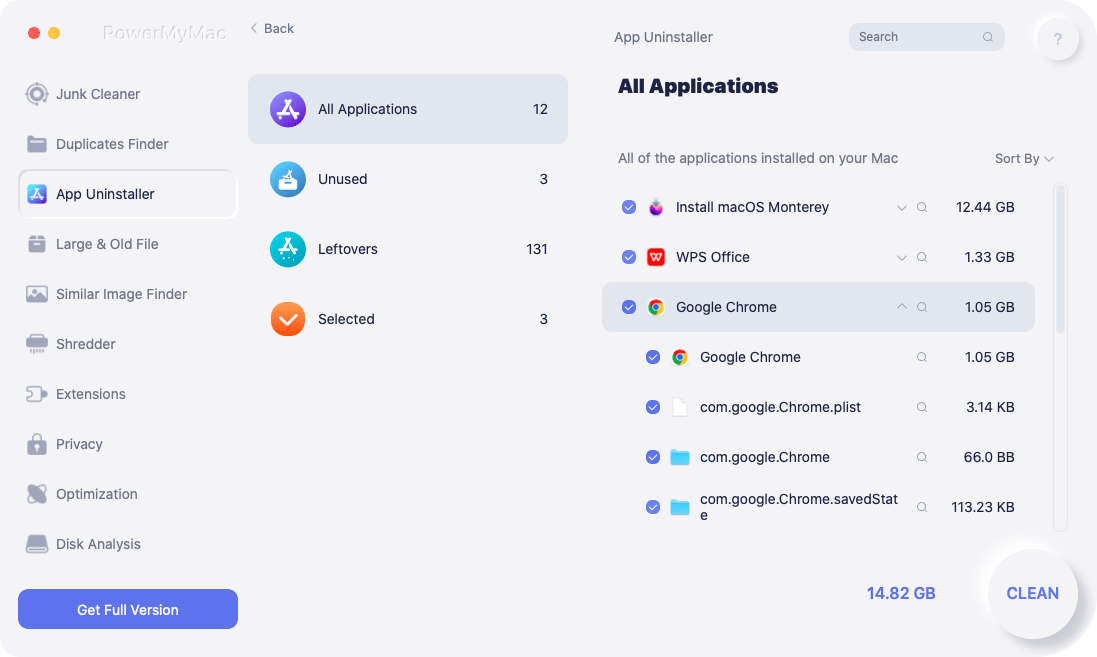
Here's how you can use PowerMyMac to uninstall 0xED from Mac and remove files left after uninstalling automatically:
- To find any previously downloaded programs on your computer, click SCAN. Next, choose App Uninstaller.
- The categories Selected, Unused, Leftovers, and All Apps are on the left side of the screen. The All Apps menu's right side will display every app. Use the list or the search box in the top right corner to find the software you don't want.
- After selecting the application you want to uninstall, click the Unfold icon to go through any pertinent files and the Search button to learn more. To get rid of the programs and their related files, choose CLEAN.
- You can see how much disk space is now free, as well as how many files have been cleaned up in a pop-up window titled "Cleaned Completed." If you want to remove any additional applications, just choose Review. After then, take another look at the results page.
Part 3. How Do I Manually Uninstall 0xED on My Mac?
To fully uninstall 0xED from Mac from your computer, manually do the following actions:
- Stop the 0xED activities or processes using Activity Monitor.
Before removing the 0xED, you ought to quit this software and every one of its processes. By hitting Cmd + Opt + Esc, selecting it via the display menu, and selecting Force Quit if it is 0xED, you're able to force-quit the program.
Open Activity Monitor within Launchpad's Utilities directory by choosing All Processes from the menu that displays at the top of the screen of the window. Click the Quit Process icon in the window's left corner after choosing the 0xED-related process(es) from the list.
- Take the 0xED software out of the Trash.
In order to delete anything, you must first ensure that you are signed onto your Mac with an administrator user; otherwise, a password prompt will appear.
Open the Applications folder in the Finder, put the name of the 0xED application into the search field, then click and drag it to the Trash to begin the uninstalling procedure. Choose the 0xED symbol or folder, press Cmd + Del, or pick File and Move to Trash in the menu as alternatives.
Go to the Launchpad, search for the app there, and then press and hold it with the mouse button til the icon shakes and displays an "X" in the upper left-hand corner for apps that you downloaded through the App Store. When the confirmation dialog appears, click Delete after selecting "X."
- Eliminate from the Finder all files connected to 0xED.
The hard disk may still include any leftover files, caches, logs, or any stray data even after the 0xED has been deleted from the Trash. For complete removal, you may manually find and remove every component linked to the 0xED. The titles that matter may be looked up using Spotlight. The preference files for 0xEd can be found in the Preferences folder within your user's library folder (~/Library/Preferences) or the across the system Library at the base of the system volume (/Library/Preferences/), whereas support files can be found in "/Library/Application Support/" or "~/Library/Application Support/."
Select the entry:| by clicking the "Go" options in the options box as soon as the Finder is open. After selecting Folder, enter the path of the Application Support directory:~/Library
Search for any folders or files containing the application's name or the developer's name in the ~/Library/Preferences, ~/Library/Application Support, and ~/Library/Caches directories. Right-click on certain items and select Move to Trash to delete them.
Find the following locations to delete relevant things while you wait:
- /Library/Preferences/
- /Library/Application Support/
- /Library/Caches/
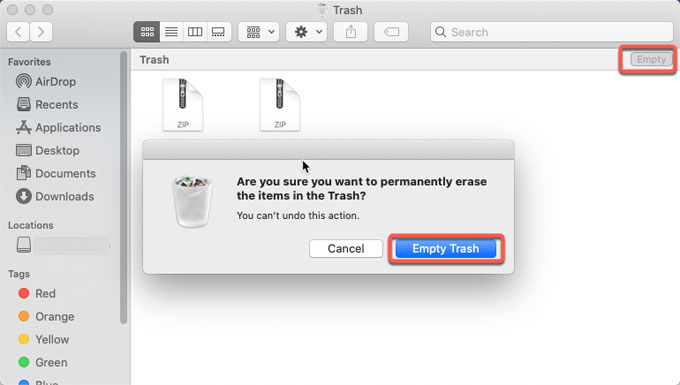
- Empty the Trash to remove the 0xED entirely.
If you want to completely uninstall 0xED from Mac, empty the Trash. Empty Trash may be selected by making a right-click on a trash can in the dock or by choosing it from the Finder menu. If you are not able to empty the Trash, restart your Mac.
Part 4. Conclusion
While 0xED may be a helpful hexadecimal editor, not everyone may need it. In conclusion, removing 0xED on a Mac is a simple operation that may be carried out using either manual or automated removal. If you want to uninstall 0xED from Mac, ensure that the Trash is empty to guarantee a thorough removal.


