


 Video Converter


The process to convert ISO to WMV format can be a valuable solution when you want to enjoy high-quality videos from DVD backups or virtual discs on your preferred media player or device. In this article, we will explore effective methods and tools that enable you to convert ISO files to WMV effortlessly. Whether you're a novice or an experienced user, we'll guide you through the process, providing you with the necessary information to successfully convert ISO to WMV and enhance your multimedia experience. Let's dive in and explore the options available to convert ISO files to WMV format quickly and efficiently.
Contents: Part 1. What is an ISO File?Part 2. How to Convert ISO to WMV Online for Free?Part 3. How to Convert ISO to WMV with a Professional Converter?Part 4. Conclusion
Part 1. What is an ISO File?
What are ISO Files?
Before delving into the conversion process, it's essential to understand what an ISO file is. An ISO file, also known as an ISO image, is an exact copy of a CD, DVD, or Blu-ray disc that contains all the data and structure of the original disc. It preserves the file system, bootable information, and even the metadata.
ISO files have become a popular way to store and distribute disc images because they can be easily mounted as virtual drives, eliminating the need for physical discs. Moreover, ISO files can be burned back onto a disc when needed.
These files are typically used for various purposes, including software installation, creating backup copies of discs, or distributing large amounts of data. However, ISO files are not compatible with most media players or devices, including those that support WMV (Windows Media Video) format.
What are WMV Files?
The WMV (Windows Media Video) format is a popular video compression format developed by Microsoft. It is widely used for streaming, downloading, and playing videos on Windows-based devices and media players. WMV files offer a good balance between video quality and file size, making them suitable for various applications.
One of the significant advantages of the WMV format is its compatibility with Windows Media Player, which is pre-installed on most Windows operating systems. Additionally, WMV files can be played on other platforms, including macOS and Linux, using compatible media players such as VLC Media Player.
WMV supports both standard-definition (SD) and high-definition (HD) video resolutions, allowing you to enjoy your videos in optimal quality. By converting ISO files to WMV format, you can ensure smooth playback of your favorite videos on a wide range of devices, including computers, smartphones, tablets, and smart TVs.
Why Convert ISO to WMV?
ISO and WMV are two different file formats serving distinct purposes. Here's a brief comparison to highlight their differences:
ISO:
- An ISO file is an exact copy of a CD, DVD, or Blu-ray disc, preserving the entire file system and structure.
- It is commonly used for disc backup, software distribution, and virtual disc mounting.
- ISO files cannot be directly played by most media players or devices without prior conversion.
WMV (Windows Media Video):
- WMV is a video compression format developed by Microsoft.
- It offers good video quality and compression efficiency, making it suitable for streaming and downloading.
- WMV files can be played on Windows-based devices and media players, as well as some cross-platform players.
Converting ISO to WMV format offers several advantages, including:
- Enhanced Compatibility: WMV files are widely supported by various media players, devices, and online platforms, allowing for seamless playback and sharing.
- Compression Efficiency: WMV's video compression capabilities reduce file size without significantly compromising video quality, making it ideal for streaming and downloading.
- Simplified File Management: Converting ISO to WMV eliminates the need for physical discs, enabling easy storage, organization, and transfer of video files.
- Accessibility on Different Platforms: By converting ISO to WMV, you can ensure that your videos can be played on Windows-based devices as well as cross-platform media players.
Now that we understand the differences and benefits, let's explore the methods and tools to convert ISO files to WMV format effectively.
Part 2. How to Convert ISO to WMV Online for Free?
CloudConvert.com
Popular online file conversion tool CloudConvert.com handles a variety of file types, including conversion from ISO to WMV. It has an intuitive user interface and effective converting skills. Using CloudConvert.com to convert ISO to WMV is as follows:
- Launch your web browser and navigate to CloudConvert.com's official website.
- To upload an ISO file from your PC, select "Select File" or a comparable option. A cloud storage service like Google Drive or Dropbox can also be used to import the ISO file as an alternative.
- Select "WMV" as the preferred output format for your converted file by clicking on it. To find it quickly, you might need to scroll through the list of various formats or use the search bar.
- Customize Conversion Settings (Optional): CloudConvert.com gives you the option to change the audio quality, resolution, and numerous video conversion settings. You can change these options to suit your tastes or leave standard output set to its default configuration.
- Click the "Start Conversion" or comparable button to start the conversion process after choosing the output format and making any necessary customizations to the settings.
- com will offer a download link for your converted WMV file after the conversion is complete. The file can be downloaded to your computer by simply clicking the download button.
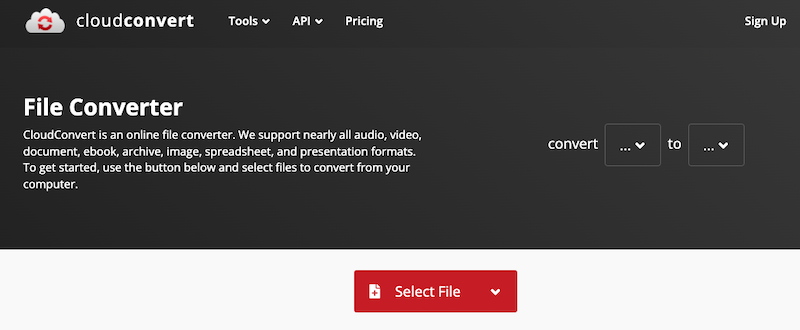
By offering an easy-to-use interface and effective converting features, CloudConvert.com makes the ISO to WMV conversion procedure simpler. Users who prefer online solutions will find it convenient as there is no need to install any software or plugins.
Convertio.co
Over 300 distinct file types are supported by Convertio.co, an online file converter. It can be used to convert files for presentations, audio, video, documents, ebooks, archives, images, and spreadsheets. There is no need to download any software because Convertio is a web-based program. Additionally, it is cost-free for up to 10 conversions per day.
You only need to upload the file you want to convert and choose the output format to utilize Convertio. The converting process will then be launched by Convertio. You can download the converted file after the conversion is finished.
All conversions are carried out on Convertio's servers because the service is cloud-based. Convertio can now provide quick and dependable conversion speeds, even for huge files. Your files are protected by Convertio using industry-standard security techniques. All files are encrypted both during storage and transmission. Although Convertio is a free service, a subscription plan is available that provides limitless conversions and other features.
Zamzar.com
Another well-known online file converting service that enables you to convert ISO files to WMV format is Zamzar.com. A simple and practical method for converting ISO files to WMV format is provided by Zamzar.com. You can convert your files using their internet platform without installing any additional software.
Users can convert files to and from more than 1,200 different file types with the online file converter Zamzar. Mike and Chris Whyley, brothers, created it in 2006; its main office is in Southampton, England.
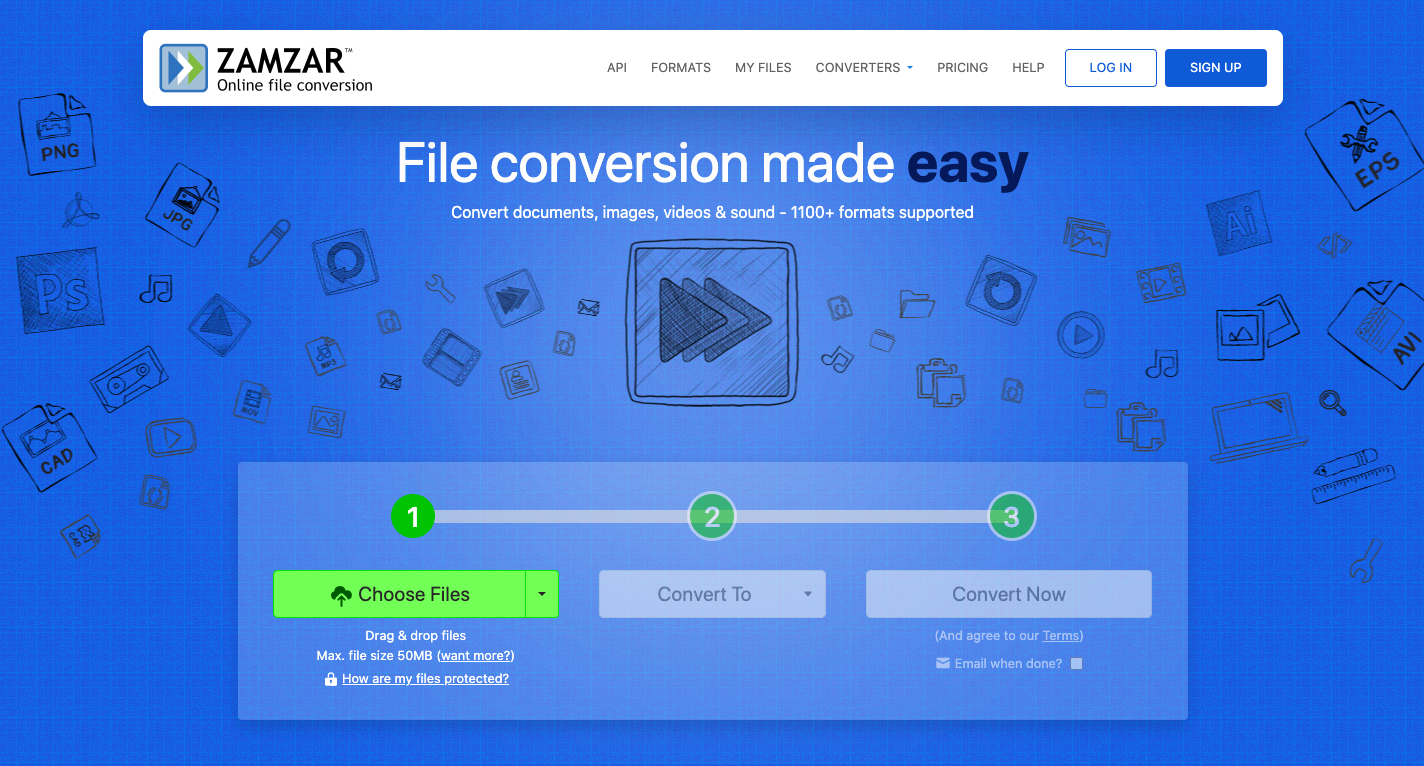
There is no need to download any software because Zamzar is a web-based program. Additionally, it is free to use for up to two conversions of files up to 50MB per day. Access to preferred services, including limitless file conversions, online file management, quicker response and queuing times, and other advantages, is available to those who pay a monthly subscription charge.
Part 3. How to Convert ISO to WMV with a Professional Converter?
When it comes to converting ISO to WMV format, iMyMac Video Converter is a reliable and efficient tool to consider. It is a professional video conversion software that offers a user-friendly interface and powerful features. Additionally, you can resize video on Mac and Windows, so that it plays well on other devices and platforms.
iMyMac Video Converter is a comprehensive video conversion tool designed to handle various video formats, including ISO to WMV. It provides high-quality conversions while maintaining the original video and audio quality. The software is available for both Windows and Mac operating systems.
Here's how you can use iMyMac Video Converter to convert ISO to WMV:
- Download and Install iMyMac Video Converter: Visit the official website of iMyMac Video Converter at https://www.imymac.com/video-converter and download the software. Follow the on-screen instructions to install it on your computer.
- Launch the Software: Once installed, launch iMyMac Video Converter on your computer to begin the conversion process.
- Add the ISO File: Click on the "Add File" or similar button within the software to import your ISO file.
- Select WMV as the Output Format: In the output format section, choose "WMV" as the desired format for your converted file. iMyMac Video Converter offers a wide range of output formats, and you can easily locate WMV by scrolling through the list or using the search function.
- Customize Conversion Settings (Optional): iMyMac Video Converter allows you to customize various conversion settings, such as video codec, resolution, bitrate, and more. You can modify these settings according to your preferences or keep the default settings for standard output.
- Start the Conversion Process: Click on the "Convert" or similar button within the software to start the ISO to WMV conversion process. iMyMac Video Converter will begin converting your ISO file to the WMV format based on the selected settings.
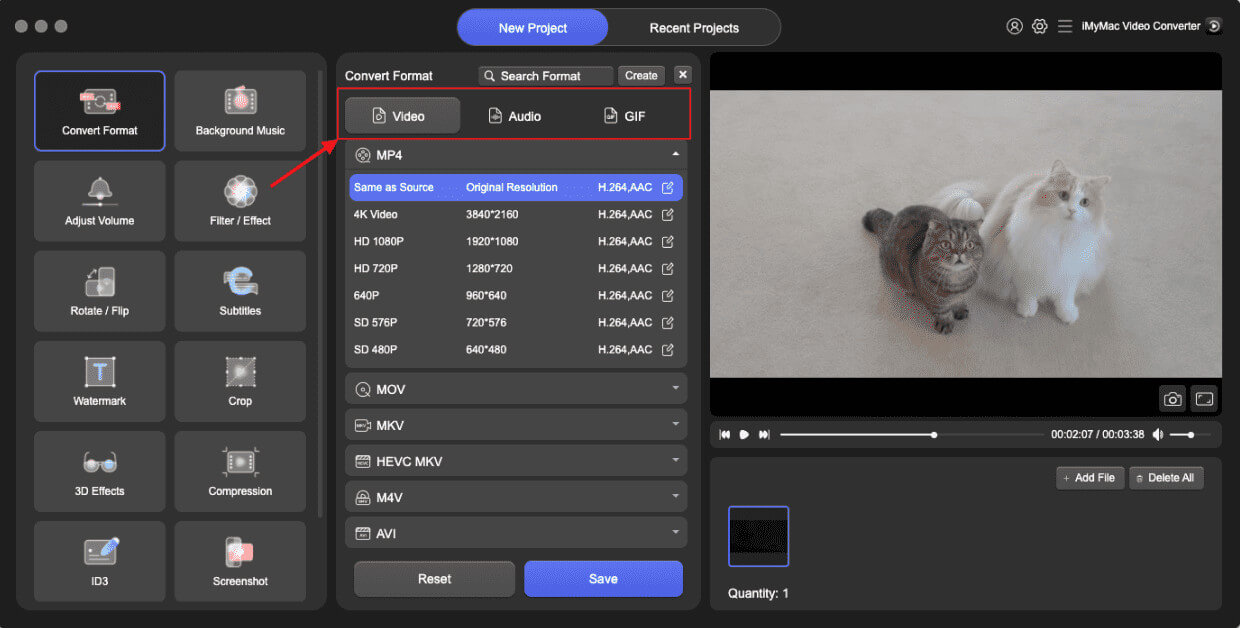
iMyMac Video Converter provides a seamless and efficient solution for converting ISO files to WMV format. With its user-friendly interface and robust features, it allows you to convert your ISO files while maintaining excellent video and audio quality.
Part 4. Conclusion
Converting ISO files to WMV format opens up a world of possibilities for seamless video playback on various devices and media players. In this article, we explored different methods to convert ISO to WMV, including online services like CloudConvert.com and Zamzar.com, as well as a professional software solution like iMyMac Video Converter.
In conclusion, by using iMyMac Video Converter, you can effortlessly convert ISO files to WMV format, ensuring smooth playback on Windows-based devices, media players, and online platforms. Unlock the full potential of your ISO files and enjoy your videos in the widely supported WMV format with iMyMac Video Converter.


