


 Video Converter


In today's digital world, videos have become an integral part of our lives, capturing precious moments and sharing experiences with others. However, not all video formats are created equal, and compatibility issues can often arise. If you've come across TOD files and need to convert them to MPEG format, you've come to the right place.
This article aims to provide you with a comprehensive guide TO convert TOD to MPEG, enabling you to enjoy seamless video transitions and enhanced compatibility across various devices and platforms. Whether you're a video enthusiast, a professional filmmaker, or simply someone seeking to watch or share TOD videos hassle-free, we've got you covered.
Join us as we delve into the step-by-step process, exploring the tools, techniques, and considerations necessary to convert TOD to MPEG efficiently. With our guidance, you'll soon be equipped with the knowledge and skills to convert your TOD files effortlessly, ensuring your videos are accessible and ready to be enjoyed by a wider audience. Let's embark on this conversion journey together and unlock the true potential of your video files.
Contents: Part 1. What Is TOD File?Part 2. Recommend Converter to Convert TOD to MPEG EasilyPart 3. Free Online Tools to Convert TOD to MPEG Part 4. Final Thoughts
Part 1. What Is TOD File?
TOD, short for Transport stream On Disk, is a video file format commonly used by digital camcorders, particularly those manufactured by JVC. TOD files are often found on devices such as Everio HDD and Everio Hybrid cameras, which record video footage in high definition.
The TOD format is based on MPEG-2 transport stream, making it an efficient container for storing audio, video, and other multimedia data. TOD files typically have the file extension ".tod" and contain both video data (encoded in MPEG-2 format) and associated audio streams.
One notable characteristic of TOD files is their file structure, which consists of multiple smaller files rather than a single continuous file. This structure allows for easier data management and recording segmentation. However, it also requires special handling when it comes to playback and conversion.
Understanding the nature of TOD files is crucial when it comes to converting them to other formats, such as MPEG, ensuring compatibility and optimal playback on a wide range of devices and media players.
Part 2. Recommend Converter to Convert TOD to MPEG Easily
When it comes to converting TOD files to MPEG format, having the right software at your disposal can make all the difference. One highly recommended converter is the iMyMac Video Converter. You can also convert WAV to MPEG format. The iMyMac Video Converter can convert and support thousands of file formats which is why this is your one-stop 1080p video converter.
This versatile and user-friendly tool provides a seamless solution for converting TOD files to MPEG with just a few simple steps. Here's a step-by-step guide on how to convert TOD to MPEG using the iMyMac Video Converter:
- Download and then Install iMyMac Video Converter. Start by downloading and then installing the iMyMac Video Converter from the official website. It’s compatible with both Windows and Mac operating systems.
- Add TOD Files to the Converter. Launch the iMyMac Video Converter and click on the “Add Files” button to import your TOD files. You can select multiple files for batch conversion to save time and effort.
- Select MPEG as the Output Format. Next, choose MPEG as the desired output format. You can do this by clicking on the “Profile” or “Output Format” dropdown menu and selecting MPEG from the available options. The iMyMac Video Converter supports various MPEG formats, such as MPEG-1, MPEG-2, and MPEG-4.
- Optional Editing and Customization. If desired, you can edit and customize your videos before conversion. The iMyMac Video Converter offers a range of editing tools, including trimming, cropping, adding subtitles, adjusting video settings, and more. Take advantage of these features to enhance your videos according to your preferences.
- Start the Conversion Process. Once you’ve selected the output format and made any necessary adjustments, it’s time to initiate the conversion process. Simply click on the “Convert” or “Start” button, and the iMyMac Video Converter will begin converting your TOD files to MPEG format.
- Locate the Converted Files. Once the conversion is complete, the converted MPEG files will be saved to your specified destination folder. You can now enjoy your videos in MPEG format, compatible with a wide range of devices and media players.
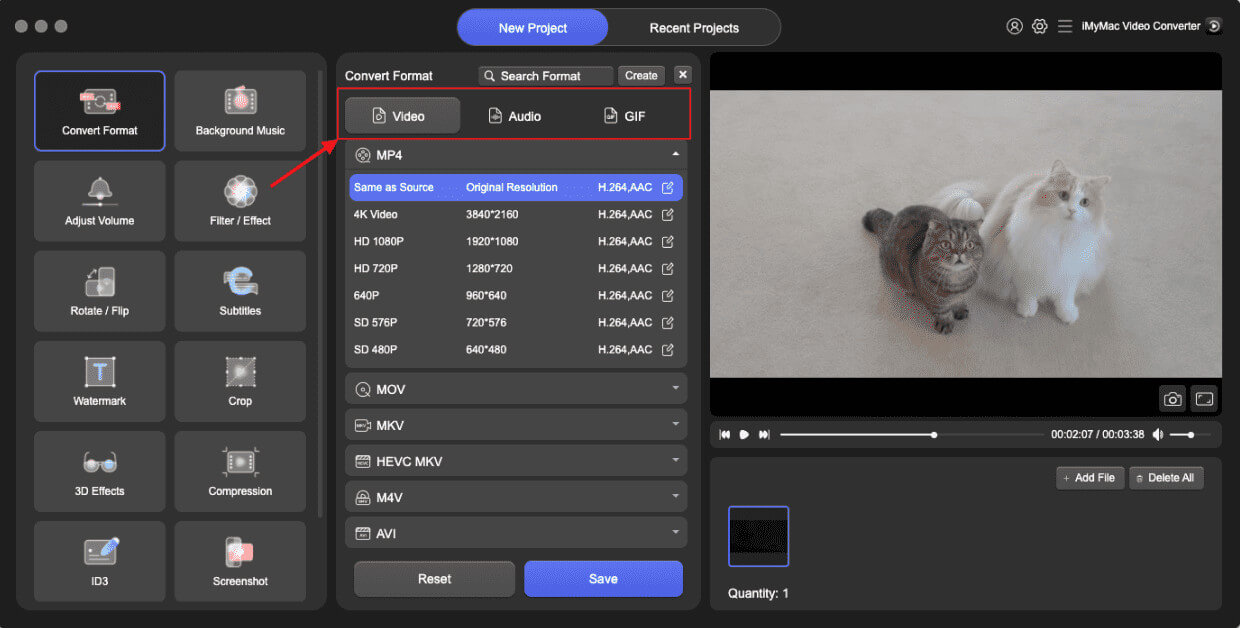
By using the iMyMac Video Converter, converting TOD files to MPEG becomes a hassle-free task. Its intuitive interface, powerful features, and efficient conversion algorithm ensure high-quality results while maintaining ease of use. Say goodbye to compatibility issues and embrace seamless video transitions with this reliable converter.
Part 3. Free Online Tools to Convert TOD to MPEG
If you prefer to convert your TOD files to MPEG format without installing any software, there are several reliable online tools available. Here are three popular options:
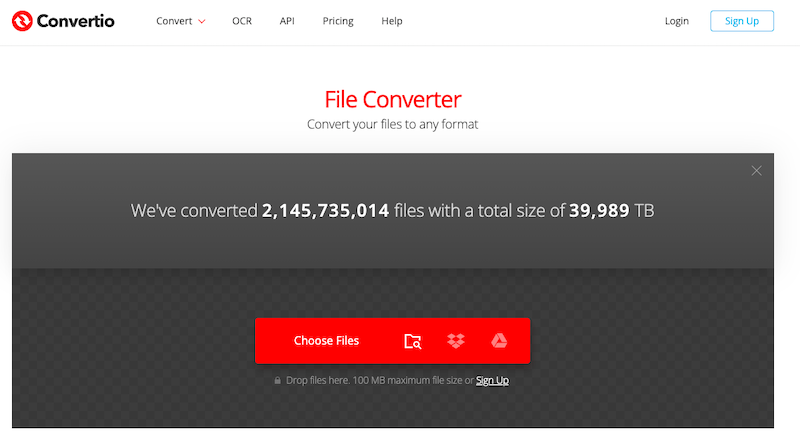
Convertio.co:
Convertio.co is a versatile online file converter that supports a wide range of formats, including TOD to MPEG. Simply upload your TOD file, select MPEG as the output format, and click on the "Convert" button. Once the conversion is complete, download the converted MPEG file to your device.
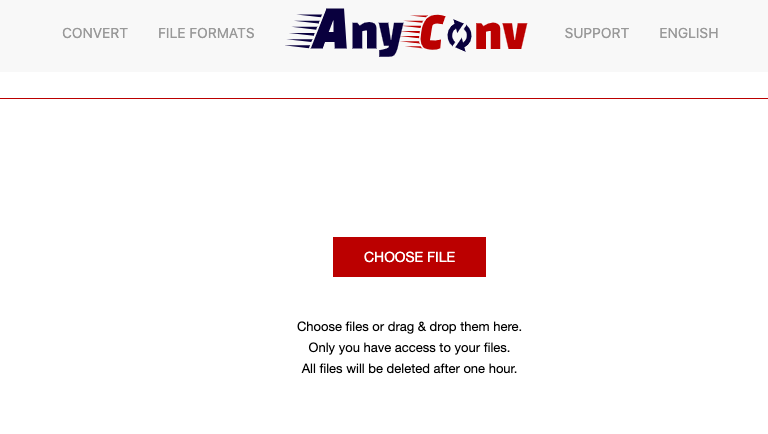
AnyConv.com:
AnyConv.com is a user-friendly online file conversion platform. To convert TOD to MPEG using AnyConv.com, upload your TOD file, select MPEG as the output format, and initiate the conversion process. Once the conversion is finished, you can download the converted MPEG file.
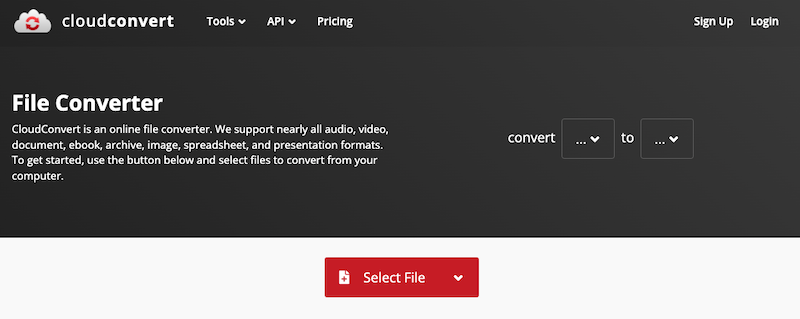
Cloudconvert.com:
Cloudconvert.com is a popular online file conversion service that offers a seamless TOD to MPEG conversion. Start by uploading your TOD file to the website, choose MPEG as the desired output format, and click on the "Start Conversion" button. After the conversion is done, download the resulting MPEG file to your computer.
Here are the general steps to convert TOD to MPEG using these online tools:
- Visit the website of the online converter, such as Convertio.co, AnyConv.com, or Cloudconvert.com.
- Locate the conversion section or file upload area on the website.
- Click on the “Upload” or “Choose File” button to select and upload your TOD file from your computer or cloud storage.
- Select MPEG as the output format. In some cases, you may need to specify the exact MPEG format, such as MPEG-1 or MPEG-2.
- Start the conversion process by clicking on the “Convert” or “Start Conversion” button.
- Wait for the conversion to complete. The time required may vary depending on the file size and the speed of your internet connection.
- Once the conversion is finished, the online tool will provide a download link or button for the converted MPEG file. Click on it to download the file to your device.
Note: It's important to remember that online tools have limitations, such as file size restrictions and dependence on internet connectivity. Also, exercise caution when using online tools and ensure the security and privacy of your files by using reputable services.
By utilizing these free online tools, you can conveniently convert your TOD files to MPEG format without the need for software installation. Whether you're on the go or prefer a quick conversion solution, these online converters offer a convenient way to transform your TOD videos into MPEG format with ease.
Part 4. Final Thoughts
In conclusion, while there are free online tools available for converting TOD to MPEG, the iMyMac Video Converter stands out as the best tool for the job. With its user-friendly interface, powerful features, and efficient conversion process, it provides a seamless and reliable solution. Whether you're a beginner or an experienced user, the iMyMac Video Converter offers a comprehensive and hassle-free experience, ensuring high-quality conversions and optimal compatibility. Trust iMyMac Video Converter to effortlessly convert your TOD files to MPEG format and unlock the true potential of your videos.


