


 Video Converter


An ISO file is a collection of files from an optical disk that contains a whole CD, DVD, or BD. The extension of an ISO file is typically .iso. Compared to DVD or similar Blu-ray files, ISO files are more unlikely to be damaged, and you may quickly transfer such data over the web as needed. Because of this, consumers who wish to save their priceless films for many years to come choose these file types.
A few people wish to convert ISO to Divx so they may play their desired files on portable devices simply, while others are seeking a means to store data in ISO format. After all, Divx is a DVD player rental format variant that enables users to effortlessly exchange hilarious films with their pals over the internet or compress video into tiny sizes while maintaining excellent video quality. So now the question is, how might you quickly convert ISO files to Divx?
Contents: Part 1. Convert ISO Files to DivX Effectively on Mac/WinPart 2. Convert ISO Files to DivX OnlinePart 3. What Is the Difference between ISO and DivX Format?Part 4. Conclusion
Part 1. Convert ISO Files to DivX Effectively on Mac/Win
Get a trustworthy program that can assist you in converting ISO files into video files in different formats if you want to convert ISO to Divx files. This iMyMac Video Converter is the finest ISO files to Divx converter, enabling users to convert ISO files to Divx with only a few mouse clicks. It enables you to convert ISO files to many other file types, including Divx, MP4, AVI, RMVB, MKV, MPEG, and FLV.
Additionally, you can resize video on Mac and Windows, so that it plays well on other devices and platforms. You may use iMyMac Video Converter to convert ISO to Divx files by following the instructions listed below. Downloading and installing iMyMac Video Converter is the first step.
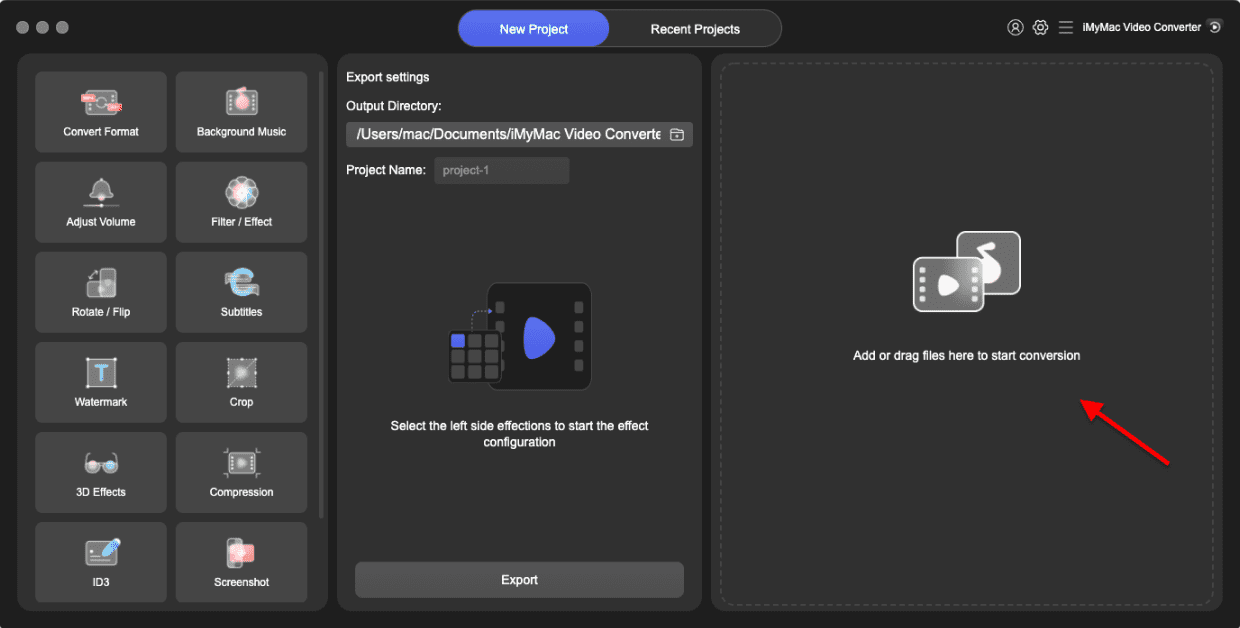
- Launch the iMyMac Video Converter software on your computer, either the Mac or Windows version. Once you're done, log into your account.
- Another choice is to drag and drop the ISO file onto the system's display.
- A drop-down menu would appear when you click "Convert Format," enabling you to choose the kind of file the original should be converted into, such as DivX.
- Finding file modifications is now easier as a result of the UI. You may alter the files, whatever you like.
- You may save all of your changes by selecting Save.
- To start the converting process, choose a conversion option from the toolbar.
Part 2. Convert ISO Files to DivX Online
Onlineconvertfree.com
This online program enables converting files between many different file kinds and formats, like ISO to DivX. Multiple sources, including URLs, Google Drive, PC, and Dropbox, may be used to upload files. There is no registration required for this ISO to DivX converter, which operates from your system's browser window. When the conversion is finished, you have the choice of downloading the file to your computer or saving it straight to your Dropbox and Google Drive profile.
- Select "Choose File" to go to the necessary ISO video files to upload them to your local computer.
- DivX should be chosen from the drop-down menu beside the final product format option.
- Click "Convert" to start the ISO to DivX conversion. An accessible URL for downloading can be provided once the conversion process is complete. After downloading, save the DivX audio file to your computer so you may play it.
Convertio.co
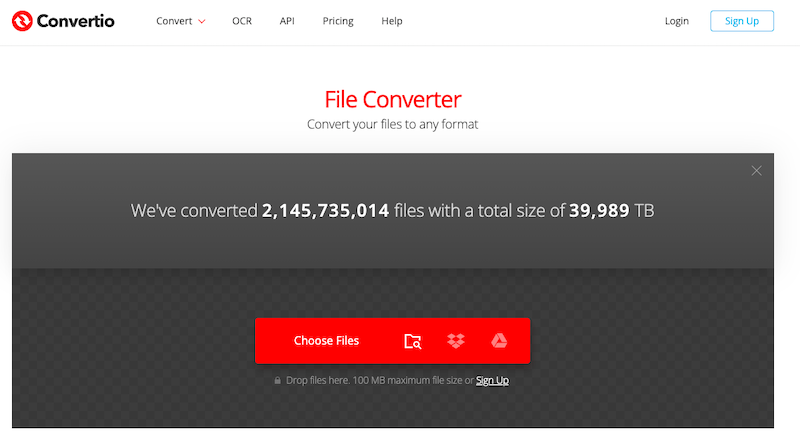
Convertio is an excellent online tool that facilitates conversion from ISO to DivX format. Using the online tool, you can convert to a number of other formats as well. Because the file processing is being done remotely, no online resources are utilized. Most audio and video conversions are completed in less than two minutes. Convertio is a fantastic online tool for converting video and audio files. Files up to 100 MB may be processed without cost. The premium version, which can convert larger files, is reasonably priced.
- Open a web browser and go to convertio.co. The app UI should support convertible ISO files.
- Decide on DivX as your preferred format. Click parameters to change a file's properties, rotate it, or crop it.
- When you press the Convert button, the process will finally start.
FreeConvert.com
Many individuals have converted ISO to DivX files at no cost using FreeConvert, a web-based video conversion tool. Additionally supported for conversion are other file kinds, including photographs, e-books, units, music, documents, and more. You may upload your ISO files from your personal device, Dropbox, Google Drive, or an online URL.
- Visit the Freeconvert website to get started.
- To pick the video you wish to convert to a DivX file, click Pick Files, and then click Open. A URL, a file straight from your computer, a Dropbox file, or a Google Drive file may also be uploaded. To choose an option, hit the right arrow beside the Choose Files button.
- To change your video and audio settings, choose the Cogwheel symbol. Click Apply Settings after that.
- Select "DivX Conversion." Click Download DivX after the conversion has been completed.
Part 3. What Is the Difference between ISO and DivX Format?
An industry standard for storage systems utilized on optical drives like DVDs and CDs is the ISO format, especially ISO/IEC 9660. It guarantees cross-platform interoperability and allows the storing and arrangement of data in a readable manner.
The DivX video compression technique, on the other hand, permits excellent video playback in a reduced file size. It is well-liked for streaming videos online and file sharing since it makes use of the MPEG-4 video codec and offers effective video compression in digital dissemination.
Part 4. Conclusion
Two free ways to convert ISO to DivX have been covered in this post. If the video file you wish to convert is tiny, you may use the online converter; however, it's strongly advised that you convert ISO files using the desktop application iMyMac Video Converter if the video is private or enormous in size.


