


 Video Converter


You may need to download video players like KMPlayer, DAPlayer, Free ISO Player, VLC, SMPlayer, MPlayer, etc., in order to play ISO and VOB files. However, there are still a lot of multimedia players and devices available today that do not allow the direct playing of ISO image files, so sometimes, we would wish to convert ISO to VOB files in order that we can play the DVD ISO files back on other VOB media players. The ideal answers are shown below. To learn the two approaches, continue reading.
Contents: Part 1. How to Convert ISO Files to VOB QuicklyPart 2. How to Convert ISO Files to VOB for FreePart 3. Is VOB Better Quality Than ISO?Part 4. Conclusion
Part 1. How to Convert ISO Files to VOB Quickly
You need an ISO to VOB converter to convert ISO files to VOB. You may use iMyMac Video Converter if you're having trouble navigating the large majority of ISO to VOB converters.
For several media players and portable devices, such as Apple iOS devices, Android mobile phones and tablets, Windows phones, Sony Walkman, PS4, Blackberry devices, etc., iMyMac Video Converter could convert data to video/audio files in different formats.
By modifying "Video size," "Video code," "Bite rate," and other parameters associated with output in accordance with your requirements, iMyMac Video Converter allows you to customize the output video and audio specifications. Additionally, it offers batch import and the choice of audio tracks and subtitles, among other things. Additionally, you can resize video on Mac and Windows, so that it plays well on other devices and platforms
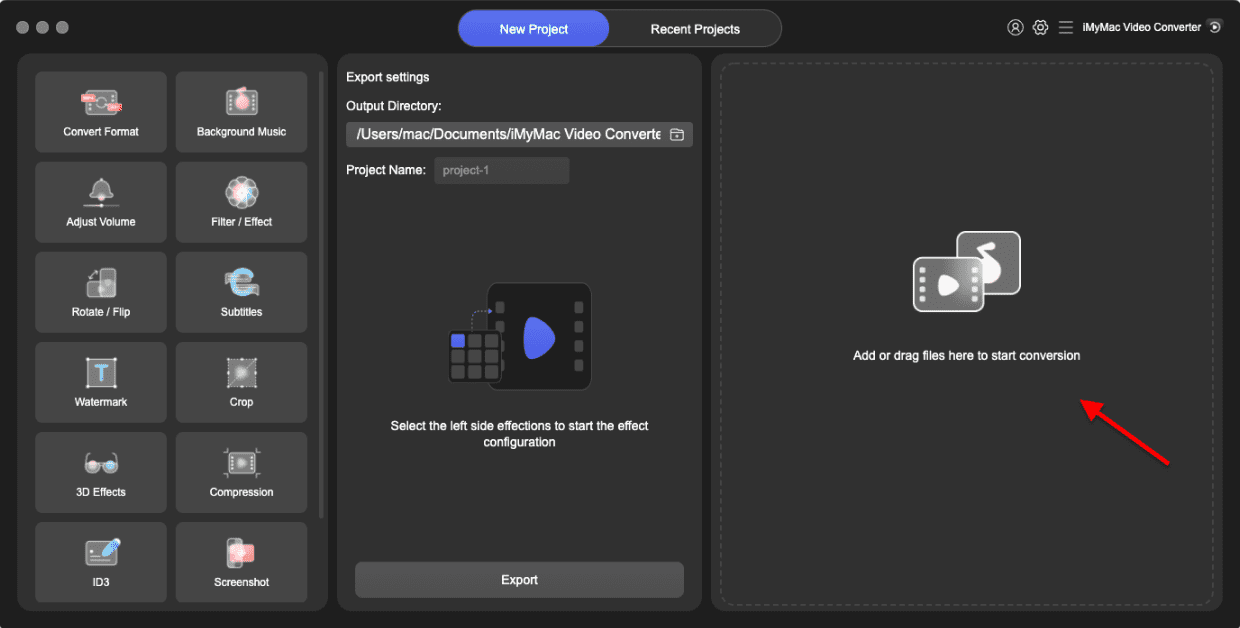
Even the user interface of iMyMac Video Converter is user-friendly, devoid of any options that are difficult to reach. It is simple to use. To understand how to use iMyMac Video Converter to convert ISO to VOB files, refer to the steps below. You must first download and set up iMyMac Video Converter on your PC, however. Prepare the original DVD ISO file for conversion in the meantime.
- Start the Mac or Windows version of the iMyMac Video Converter program on your computer. Log into your account after you're finished.
- Dragging and dropping the ISO file onto the system's display is an additional option.
- When you click "Convert Format," a drop-down option allowing you to choose the kind of file the original should be converted into, such as VOB, will display.
- Thanks to the UI, locating file alterations is now simpler. You are free to change the files, whatever you like.
- By choosing Save, you may save all of your modifications.
- Select a conversion option from the toolbar to begin the conversion process.
Part 2. How to Convert ISO Files to VOB for Free
Veed.io
With only three easy clicks, Veed.io's online free video converter makes the process of converting videos easier than using a cumbersome desktop converter. It can encode videos into a variety of file formats. Before the conversion, you have the option to alter the video quality, aspect ratio, frame rate, sampling rate, and audio channels. Without upgrading to its basic, pro, or business plan, which starts at $18 per month, you are unable to export VOB video at resolutions of 1080p or higher.
- Select ISO format by clicking Choose File Type. Next, select Upload Your File and choose an ISO file from the local hard drive that you wish to convert. Watch for the file to upload. The uploading procedure will be finished in a few minutes.
- Next, choose the VOB export format that you want from the Conversion choices. To adjust the video settings, click Advanced options here.
- Select File Convert. It will start the ISO to VOB format conversion process.
- After the conversion, click the Download option to store the ISO file as a VOB on your PC.
Converter365.com
Converter365 is a well-known web program for converting ISO to VOB. It keeps gaining popularity among its loyal customers because of the high caliber of its conversions. This tool can also convert a number of odd file types, including 3GP, WTV, AVI, VOB, M2TS, SWF, CAVS, etc. If you appreciate utilizing its online service, the Chrome plugin will be happy to help you convert files more rapidly.
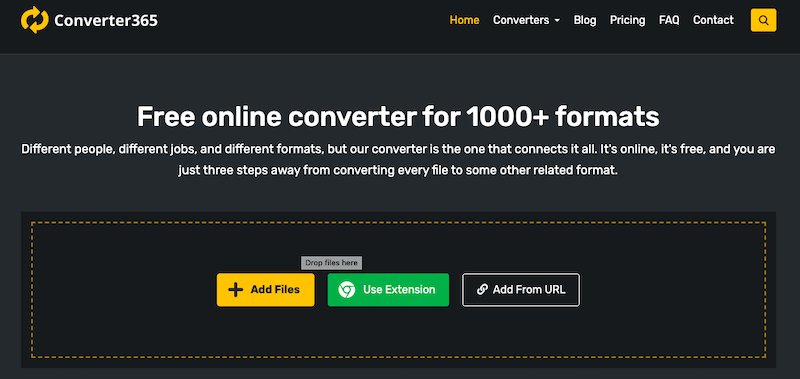
- To locate it, type the Converter365 into the address bar of your browser. By selecting Add Files, you may download the ISO file to your device. You may also put the URL of a file in the Add URL section.
- Select the Add More Files option to add more files for batch conversion. After the file is successfully uploaded, select the VOB format via the Convert To menu.
- To begin the process, press the Start Conversion option. Once the process is complete, you may download and store the output files on your device.
CloudConvert.com
When it comes to the sheer number of file types it can convert, 200 formats, including documents, photos, audio, CADs, videos, vectors, and spreadsheets, are supported by CloudConvert. You may effortlessly convert ISO to VOB with CloudConvert without downloading any software, just as with a number of online file converters. It is completely free with a daily cap of 25 file conversions, provided the files being converted are no larger than 1GB. The monthly subscription fee for bigger files and 1000 converting minutes is $9.
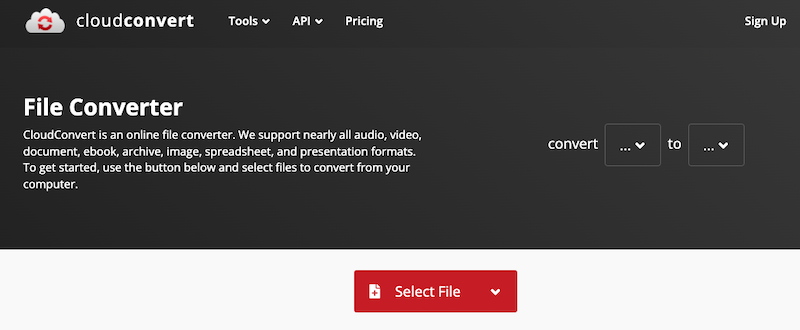
- When the ISO files you need to convert are available, you may just import them via Google Drive, One Drive, your local computer, or Dropbox.
- State your conversion goal, such as VOB, to CloudConvert.
- After the upload is complete, click the Convert button. A number of factors, including your internet connection, the conversion of ISO files into VOB will take a few minutes.
Part 3. Is VOB Better Quality Than ISO?
In the setting of DVDs, both VOB and ISO are employed as container formats. VOB (Video Object) is a kind of file that stores streams of audio, video, and subtitles, while ISO (International Organization for Standardization) is a type of disc image file that stores a disc image that comprises the whole content of a DVD. Since both formats are capable of holding the same visual and audio data, there is no intrinsic difference in the quality of the two.
Part 4. Conclusion
We have discussed some of the top ways to convert ISO to VOB in this post. You may extract the data from an ISO file in VOB format using these techniques. One of the finest converters for converting ISO to VOB with good quality and quick speed is iMyMac Video Converter.


