


 Video Converter


MOV files, known for high quality and large size, are commonly used in Apple’s ecosystem. Meanwhile, 3GP is designed for mobile devices, especially those with limited processing power and storage. Whether you're archiving video content for old devices, reducing file sizes for faster sharing, or ensuring broader compatibility, converting MOV to 3GP is a practical solution. This guide walks you through how to convert MOV files to 3GP format.
Contents: Part 1. What Are MOV and 3GP Files?Part 2. Convert MOV Files to 3GP on Windows/MacPart 3. Convert MOV Files to 3GP Free OnlinePart 4. Conclusion
Part 1. What Are MOV and 3GP Files?
What Is MOV?
MOV is a multimedia container format developed by Apple. It is commonly used in macOS and iOS environments for video playback and editing. MOV files use the QuickTime File Format (QTFF) and can contain video, audio, timecode, and text tracks in one file. Thanks to its support for high-definition video and lossless audio, MOV is favored by professional editors and content creators.
 Related Article: M4V vs MOV: Which One Is Better for You?
What Is 3GP?
3GP (3rd Generation Partnership Project) is a multimedia container format designed for 3G mobile phones. It is a simplified version of the MP4 format and is optimized for mobile bandwidth and storage constraints. 3GP files typically have lower resolution and smaller file sizes, making them ideal for devices with limited capacity or slow internet connections.
Comparison Between MOV and 3GP
MOV and 3GP serve different purposes, with each format having unique advantages. MOV, developed by Apple, is known for its high-quality video and audio capabilities. It’s widely used in professional editing environments and supports advanced features like multiple tracks and timecode. MOV files are typically larger in size and are best suited for desktop playback or high-definition media projects.
In contrast, 3GP was created by the 3rd Generation Partnership Project (3GPP) specifically for mobile devices. It compresses both video and audio more aggressively than MOV, resulting in significantly smaller file sizes. This makes 3GP ideal for older phones or devices with limited storage and processing power. However, the trade-off is lower video and audio quality compared to MOV.
In terms of compatibility, MOV files work best with Apple devices and QuickTime Player, whereas 3GP is more universally supported on a wide range of mobile phones and simpler media players. Ultimately, if quality is your priority, MOV is the better choice; if you need efficiency and mobility, 3GP is more practical.
Part 2. Convert MOV Files to 3GP on Windows/Mac
How to convert MOV to 3GP format for seamless playback on your mobile devices? iMyMac Video Converter is a versatile desktop application available for both Windows and macOS users. It supports a wide array of input and output formats and is well-suited for converting MOV to 3GP without significant loss in quality. Not only 3GP, this powerful software also allows you to easily convert your MOV files to MP4, WMV, MOV, AVI, and more, with just a few clicks.
In addition to format conversion, iMyMac Video Converter also offers built-in editing features such as trimming, cropping, adding subtitles, and adjusting video effects. Whether you're preparing videos for playback, editing, or sharing, this tool provides a user-friendly interface and excellent performance on both Windows and Mac platforms.
Let’s see how to convert MOV to 3GP with iMyMac Video Converter.
- The first step is to download and install iMyMac Video Converter from the official website. Once the installation is complete, open the program.
- Choose the MOV files you want to convert. You can also drag and drop the files directly into the program.
- In the "Output Format" dropdown menu, select 3GP as the desired format. You can also choose the resolution and quality of the output file. Then, choose a directory where the files will be saved.
- Finally, click on the "Convert" button to start the conversion process. The program will convert the MOV files to 3GP format quickly and efficiently. You can monitor the progress of the conversion in real-time.
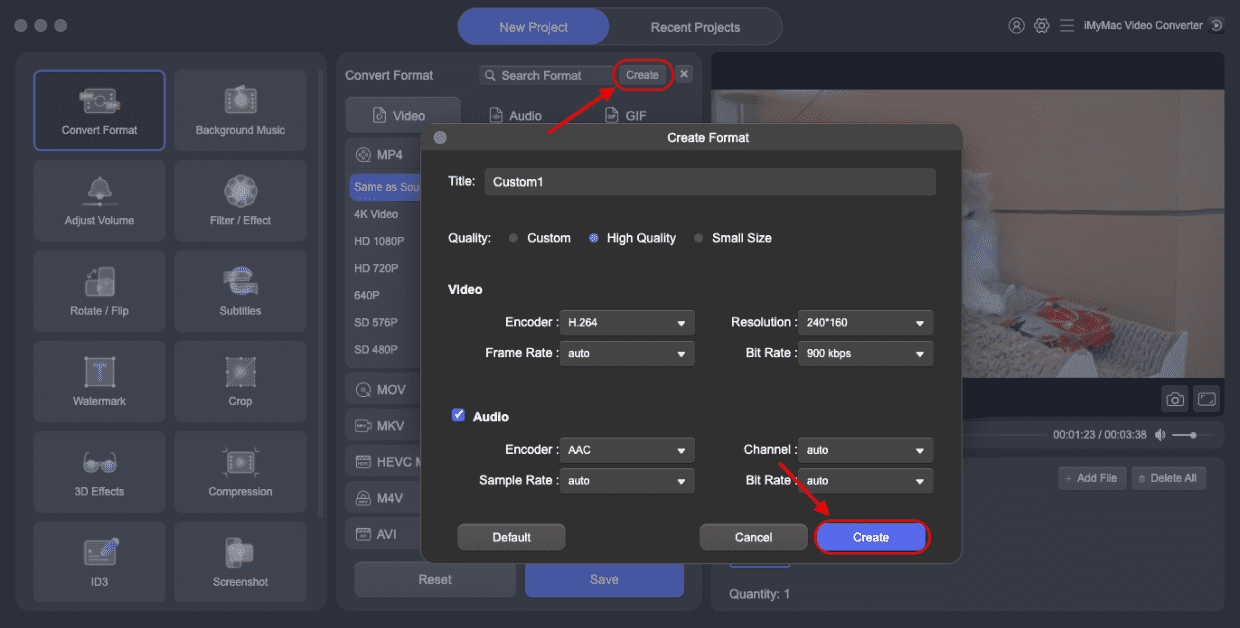
Once the conversion is complete, you can access the newly converted 3GP files by going to the folder you have chosen earlier. This method is ideal for users who regularly convert media and prefer the stability and speed of desktop applications.
Part 3. Convert MOV Files to 3GP Free Online
For users who prefer not to install software, FreeConvert is a reliable and easy-to-use online platform that supports MOV to 3GP conversion directly from your web browser. It offers features such as batch conversion, cloud imports (from Google Drive, Dropbox, or via URL), and customizable settings like resolution and codec adjustments.
While basic use is free, there are file size limits unless you upgrade to a premium plan. It’s ideal for quick, on-the-go conversions and is compatible with Windows, macOS, and mobile devices.
Follow the steps below to convert MOV to 3GP with FreeConvert.
- Go to FreeConvert’s website using any modern browser.
- Click “Choose Files” to upload your MOV files. You can upload files from your computer, Dropbox, Google Drive, or by entering a URL.
- Although it automatically sets to 3GP in the MOV-to-3GP converter, ensure the output format is correct.
- You can click on the gear icon to change video codec, resolution, aspect ratio, and other settings.
- Hit the “Convert to 3GP” button. The system will process your file and show a progress bar.
- Once converted, click “Download” to save the 3GP file to your device.
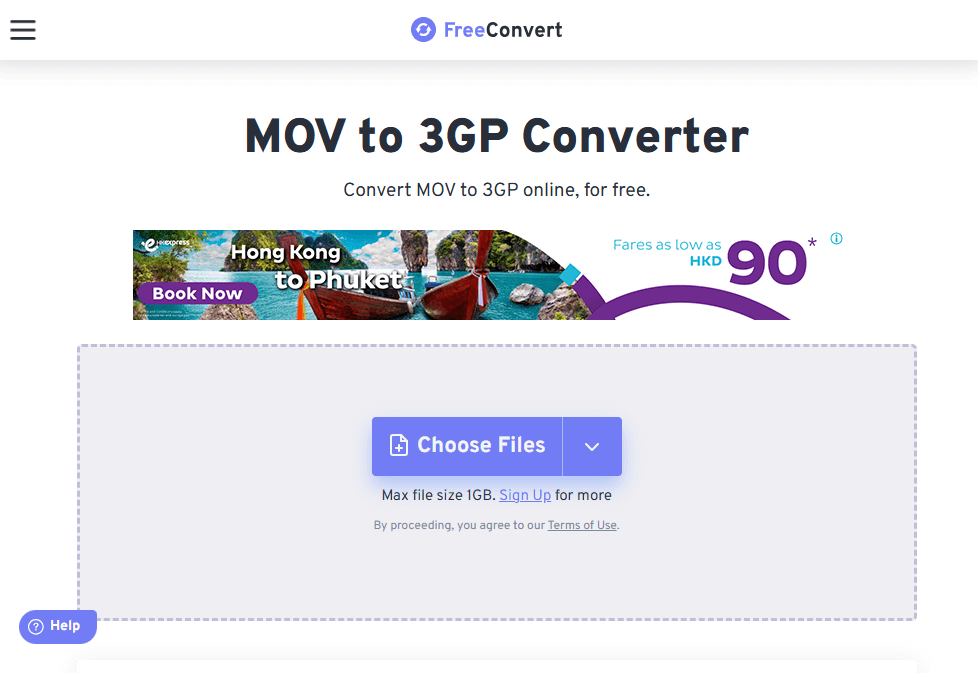
While FreeConvert is convenient, there are a few considerations to keep in mind. Free users face file size limitations, which can be restrictive for larger MOV files. The conversion process depends on your internet speed, as uploading and downloading large files may take time. Additionally, since files are processed in the cloud, there may be privacy concerns for sensitive content. Users seeking faster performance, larger uploads, or added security may prefer a desktop converter (like iMyMac Video Converter) or opt for FreeConvert’s premium plan.
Part 4. Conclusion
Converting MOV to 3GP is essential when optimizing videos for mobile playback or reducing file sizes. Whether you prefer a robust desktop solution like iMyMac Video Converter or a free, no-installation online tool like FreeConvert, both options are effective for different needs. By understanding the strengths of each format and following simple conversion steps, you can seamlessly transition your media files to suit a variety of devices and purposes. Choose the method that best fits your workflow and enjoy hassle-free video compatibility.


