


 Video Converter


MPEG and MPG are both video file extensions created by the Moving Picture Experts Group, and they often contain similar video content. In most cases, these two formats are interchangeable. However, there are instances where specific devices, players, or editing software may require one format over the other.
If you're trying to play or edit a video file and it's not working as expected, converting MPEG to MPG might solve the problem. Fortunately, this conversion is very easy and doesn’t require complex tools or advanced knowledge. In this article, we’ll walk you through the best ways to convert MPEG files to MPG, no matter your platform or skill level.
Contents: Why Convert MPEG Files to MPG?Method 1: Convert MPEG Files to MPG Using iMyMacMethod 2: Convert MPEG Files to MPG Using VLCMethod 3: Convert MPEG Files to MPG OnlineConclusion
Why Convert MPEG Files to MPG?
MPEG (Moving Picture Experts Group) and MPG are technically the same video format, but with different file extensions. The term "MPEG" is often used to refer to MPEG-1 or MPEG-2 encoded video files, while "MPG" is a more compact file extension mainly used on systems with file name limitations (like older versions of Windows).
Here are a few reasons why you might want to convert MPEG to MPG:
- File Extension Compatibility: Some programs, especially older video editors or players, may not recognize the ".mpeg" extension but will accept ".mpg" without issues.
- Playback Issues: On certain smart TVs, car media systems, or handheld devices, MPEG files may not play, while MPG files of the same content will. Converting from MPEG to MPG can resolve playback problems instantly.
- Editing and Importing: Some editing tools might have better support or compatibility with MPG files. If you experience glitches while editing MPEG files, converting them to MPG may help.
- Consistency Across Systems: If you’re sharing video files across different platforms or collaborating with others, using the MPG extension may ensure better compatibility and reduce confusion.
While the difference is mostly in name, converting ensures that your video files are fully usable across a broader range of environments.
Method 1: Convert MPEG Files to MPG Using iMyMac
One of the best and most reliable ways to convert MPEG to MPG is by using iMyMac Video Converter. This powerful and user-friendly tool is available on both Windows and Mac and supports a wide variety of file formats, including MPEG and MPG. Not only MPG, this powerful software also allows you to easily convert MPEG to WAV, MP4, WMV, MKV, AVI, and more, with just a few clicks.
In addition to format conversion, iMyMac Video Converter also offers built-in editing features such as trimming, cropping, adding subtitles, and adjusting video effects. Whether you're preparing videos for playback, editing, or sharing, this tool provides a user-friendly interface and excellent performance.
Now, grasp the way on how to convert MPEG to MPG via iMyMac Video Converter:
- Visit the official iMyMac website and download the Video Converter for your operating system (Windows or macOS). Install and launch the program.
- Click on “Add Files” to import your MPEG videos. You can also drag and drop multiple files at once.
- In the output format section, choose MPG from the available video formats. You can customize resolution, bitrate, and other settings if needed.
- If you want to trim, crop, or enhance the video, use the built-in editor before converting.
- Click the “Convert” or “Convert All” button. The program will quickly convert your MPEG files to MPG format.
- Once the conversion is complete, click the folder icon to find your newly created MPG files.
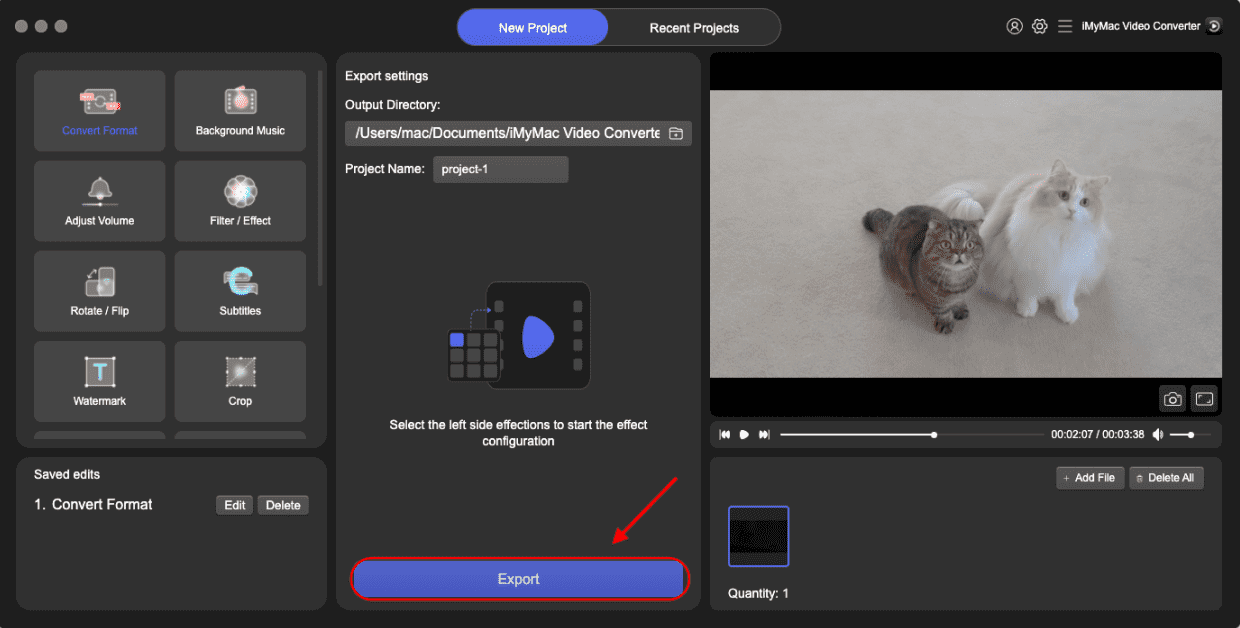
If you frequently convert video files or need high-quality results, iMyMac Video Converter is your best bet.
Method 2: Convert MPEG Files to MPG Using VLC
VLC Media Player is a free, open-source tool widely used for playing videos. But many users don’t know that it also includes a hidden gem: a powerful conversion feature that can help you convert MPEG to MPG.
To do this:
- Make sure you have VLC installed on your computer. If not, download it from videolan.org.
- Click on the “Media” tab at the top-left corner, then choose “Convert / Save.”
- In the File tab, click “Add” to select the MPEG file you want to convert. Then, click “Convert / Save” at the bottom.
- In the Convert window, under "Profile," select a profile that uses the MPG container. VLC doesn’t list MPG explicitly, but you can choose a compatible profile like Video - MPEG-2 + MPGA (TS) and then customize it.
- Click the wrench icon next to the profile. Under the “Encapsulation” tab, select MPEG-PS, which corresponds to .mpg format.
- Set the output file name and make sure it ends with .mpg.
- Click “Start” to begin the process. VLC will convert the file and save it in the destination folder.
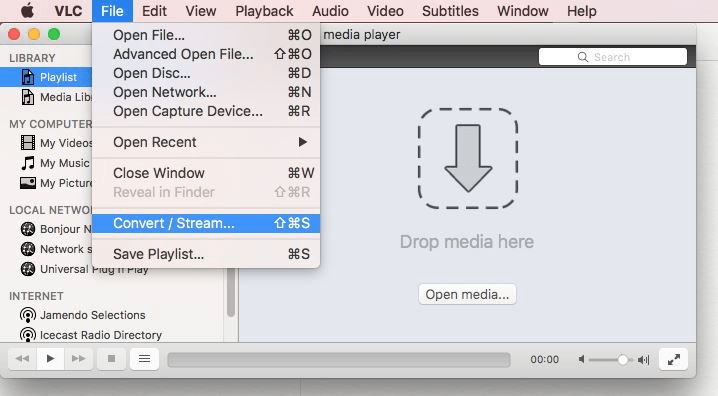
VLC Media Player is 100% free and open-source. No ads or watermarks. But it is not beginner-friendly for format selection. Still, VLC is a great free option if you're comfortable with its interface and only need occasional conversions.
Method 3: Convert MPEG Files to MPG Online
For those who don’t want to download software, the easiest solution is to use an online video converter. FreeConvert is a trusted and simple tool that allows you to convert MPEG to MPG directly in your browser.
How you can convert convert MPEG files to MPG online:
- Visit https://www.freeconvert.com/mpeg-to-mpg.
- Click on “Choose Files” to upload a video from your device. You can also import files from Google Drive, Dropbox, or a URL.
- Click the gear icon to adjust advanced settings like video codec, resolution, aspect ratio, and frame rate.
- Click the “Convert to MPG” button. The platform will process your file, which may take a few minutes depending on its size.
- Once the conversion is done, click “Download” to save your new MPG file.
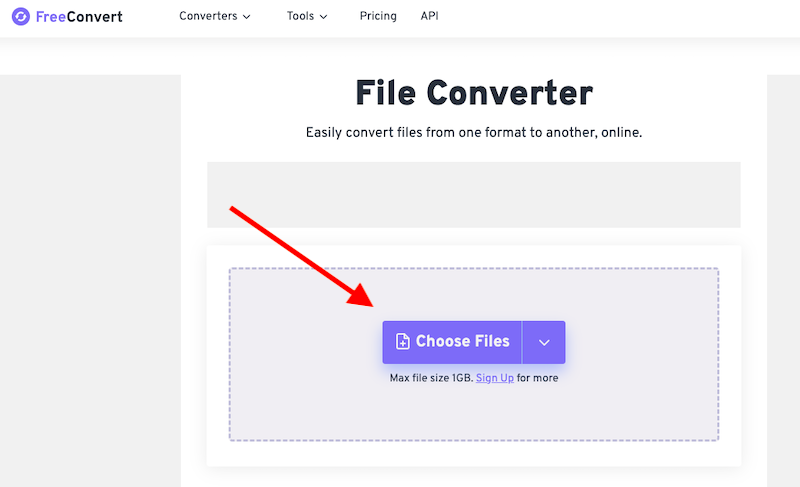
FreeConvert offers several benefits that make it an appealing choice for users seeking a quick and hassle-free way to convert MPEG to MPG. Another notable advantage is its ability to support cloud-based uploads, allowing users to convert files directly from services like Google Drive or Dropbox.
While FreeConvert is convenient, there are a few limitations to be aware of. Free users face a file size limit, typically around 1GB per file. The conversion speed can vary depending on your internet connection, especially when uploading or downloading large files. Also, as a free tool, the website may display advertisements during use.
Conclusion
Whether you're aiming for professional-level video conversion or just need a quick fix, there’s a perfect method to convert MPEG to MPG for you. Tools like iMyMac Video Converter offer speed, quality, and customization, while VLC provides a reliable free desktop alternative. For those who prefer not to install software, FreeConvert delivers quick and easy online conversions. Each method ensures better compatibility and improved usability of your video files. Choose the one that suits your needs best and start converting your MPEG files to MPG effortlessly today!


