


 Video Converter


MTS files are commonly used in digital camcorders, particularly those manufactured by Sony and Panasonic. While these files are great for capturing high-quality video, they may not be ideal for sharing or editing purposes, especially when it comes to the audio component.
One solution to this problem is to convert MTS to WAV format. WAV files are uncompressed, which means they retain all the audio data from the original recording. Additionally, WAV files are compatible with a wide range of audio editing software and media players.
In this article, we'll show you how to convert MTS files to WAV format using various methods. Whether you're a novice or an experienced user, you'll find our step-by-step guide easy to follow. So, let's get started!
Contents: Part 1. Overview: MTS and WAVPart 2. How to Convert MTS Files to WAV Without Losing Quality?Part 3. How to Convert MTS Files to WAV Using Online ToolsPart 4. Conclusion
Part 1. Overview: MTS and WAV
MTS stands for "MPEG Transport Stream," which is a file format used for storing video and audio data on Blu-ray discs and AVCHD camcorders. It is a highly compressed format that preserves high-quality video and audio while minimizing file size. MTS files are usually used for high-definition video recordings.
WAV stands for "Waveform Audio File Format," which is a file format used for storing high-quality audio on Windows-based systems. It is an uncompressed format that preserves the original audio data and quality. WAV files are typically used for audio editing, music production, and sound recording.
 Related Articles: WAV vs MP3: Which is the Superior&How to Choose
Here are some of the key differences between MTS and WAV files:
- Compression: MTS files are compressed, while WAV files are uncompressed. This means that MTS files are smaller in size than WAV files, but may sacrifice some quality due to compression.
- Quality: WAV files have higher audio quality than MTS files. This is because WAV files preserve all the original audio data, while MTS files compress the data to save space.
- Usage: MTS files are primarily used for video recordings, while WAV files are used for audio recordings and editing.
- Compatibility: MTS files are not widely compatible with media players and devices, while WAV files can be played on almost any device or media player.
In conclusion, both MTS and WAV files have their own unique features and characteristics that make them useful for specific purposes. If you're working with high-definition video recordings, MTS files may be the best choice. On the other hand, if you're working with audio recordings or editing, WAV files are the way to go.
Part 2. How to Convert MTS Files to WAV Without Losing Quality?
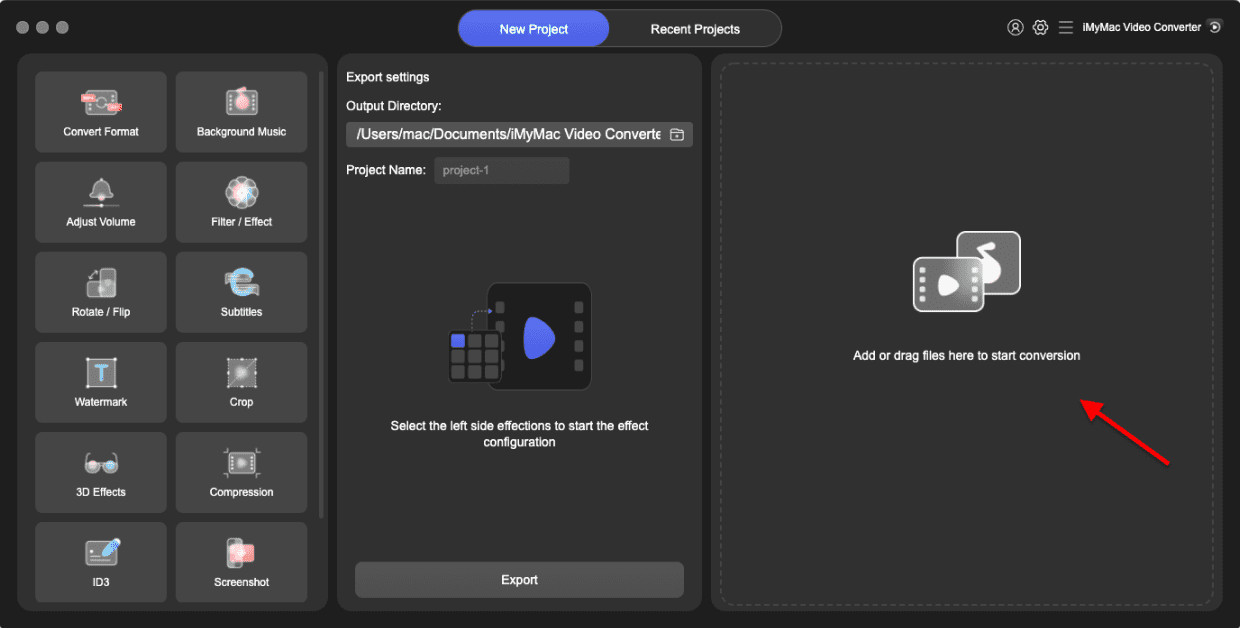
Are you looking for a simple and efficient way to convert MTS to WAV format without compromising quality? Look no further than iMyMac Video Converter. This powerful software allows you to convert video and audio files to over 200 different formats, including WAV.
iMyMac Video Converter also features batch conversion, which allows you to convert multiple files from MTS to WAV format at once. The great thing about this tool is that you can also edit your videos with it. For instance, you can rotate, trim, cut, or crop videos. You can also choose to edit saturation, hue, brightness, and other settings with the tool.
Here are some of its notable features:
- Wide range of supported formats: iMyMac Video Converter supports over 200 different video and audio formats, including popular ones like MP4, AVI, MOV, MP3, and FLAC.
- High-quality output: The software uses advanced conversion technology that ensures the highest possible output quality, with no loss of resolution or audio fidelity.
- Fast conversion speed: iMyMac Video Converter leverages hardware acceleration to speed up the conversion process, allowing you to convert large files in minutes.
- User-friendly interface: The software has a simple and intuitive interface that makes it easy for anyone to use, even without technical expertise.
- Editing tools: In addition to conversion, iMyMac Video Converter also offers a range of editing tools, including trimming, cropping, adding subtitles, and applying effects.
- Preset profiles: The software provides preset profiles for a wide range of devices, including smartphones, tablets, and game consoles, so you can convert videos that are optimized for your device.
Here's a step-by-step guide on how to use iMyMac Video Converter to convert MTS to WAV:
- Download the installer package from the website and then install iMyMac Video Converter on your computer.
- Open the software and select the "Converter" tab from the main menu.
- Click on the "Add File" button and select the MTS file you want to convert.
- Choose WAV as the output format from the drop-down menu.
- Adjust the audio settings if necessary, such as bitrate, sample rate, and channel.
- Select a folder where the converted files will be saved.
- Click on the "Convert" button and wait for the process to complete.
- Once the conversion is finished, locate the WAV file in the output folder.
Part 3. How to Convert MTS Files to WAV Using Online Tools
Let's talk about how to convert MTS to WAV format using online tools. Online tools are a convenient and accessible option for anyone who needs to convert files occasionally or doesn't want to install software on their computer. However, it's important to keep in mind that online tools may have limitations in terms of file size, output quality, and privacy. Some online tools include the following:
Convertio.co
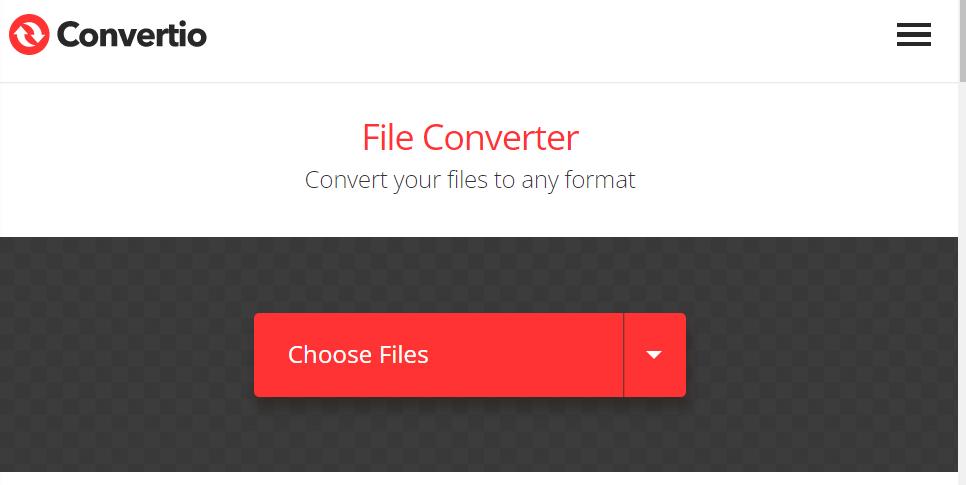
Convertio.co is a popular online file conversion platform that supports a wide range of file formats, including MTS and WAV. Here are some of its unique features:
- Multiple input and output formats: Convertio.co supports over 200 different file formats, including video, audio, image, document, and archive formats.
- High-quality output: The tool uses advanced conversion technology that ensures high-quality output, with no loss of resolution or audio fidelity.
- Cloud-based processing: Convertio.co uses cloud-based servers to process file conversions, which allows for faster processing times and minimizes the strain on your computer.
- User-friendly interface: The tool has a simple and intuitive interface that makes it easy to use, even for beginners.
- Multiple conversion options: Convertio.co offers various conversion options, such as adjusting the audio settings, selecting a custom output format, and choosing a specific part of the video to convert.
However, there are some potential drawbacks to using Convertio.co. One is that the free version of the tool has limitations on file size and the number of conversions you can perform per day. Additionally, some users may be concerned about the privacy and security of their files when using an online tool.
When compared to other online tools for MTS to WAV conversion, Convertio.co stands out for its versatility and ease of use. Other popular online tools for MTS files to WAV conversion include Online-Convert.com and Zamzar.com.
Here's how to use Convertio.co to convert MTS files to WAV:
- Go to Convertio.co and select "Video Converter" from the main menu.
- Click on "Choose Files" and select the MTS file you want to convert.
- Select "WAV" as the output format from the drop-down menu.
- Click on "Settings" to adjust the audio settings, such as bitrate, sample rate, and channel.
- Click on "Convert" and wait for the conversion to finish.
- Once the conversion is complete, click on "Download" to save the WAV file to your computer.
CloudConvert.com
CloudConvert.com is a cloud-based file conversion platform that supports over 200 different file formats, including MTS and WAV. When compared to Convertio.co, CloudConvert.com offers similar features and functionalities. However, one advantage of CloudConvert.com is that it supports batch conversion, which can be useful for users who need to convert multiple files at once.
Here's how to use CloudConvert.com to convert MTS to WAV:
- Visit CloudConvert.com and click "Select Files" to upload the MTS file you wish to convert.
- Select "WAV" from the drop-down menu for the output format.
- To change the audio parameters, including bitrate, sampling rate, and channel, click the gear symbol.
- To start the converting process, click "Start Conversion".
- Click "Download" to save the WAV file to your PC when the conversion is complete.
That's it! With these simple steps, you can convert your MTS files to WAV format using CloudConvert.com.
Zamzar.com
Zamzar.com is a versatile file conversion platform that supports over 1,000 different file formats, including MTS and WAV. Here are some reasons why it's considered one of the best online tools:
- User-friendly interface: The tool has a simple and easy-to-use interface that allows you to upload and convert your files quickly and easily.
- Fast processing time: Zamzar.com uses advanced conversion technology that ensures fast processing times, even for large files.
- High-quality output: The tool produces high-quality output, with no loss of resolution or audio fidelity.
- Multiple input and output formats: The tool supports a wide range of file formats, including video, audio, image, document, and archive formats.
- Integration with cloud storage services: Zamzar.com integrates with popular cloud storage services, such as Google Drive and Dropbox, which makes it easy to access and convert your files.
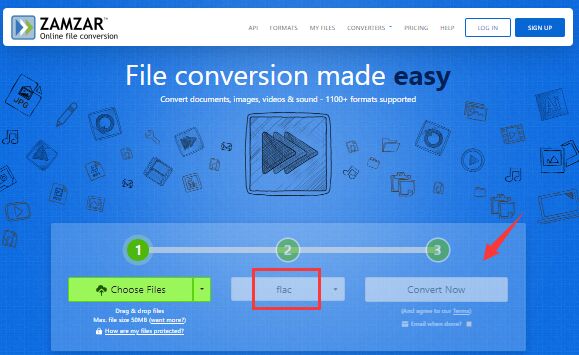
Here's how to use Zamzar.com to convert MTS to WAV:
- Go to Zamzar.com and click on "Add Files" to upload the MTS file you want to convert.
- Select "WAV" as the output format from the drop-down menu.
- Click on "Convert Now" to begin the conversion process.
- Once the conversion is complete, click on "Download" to save the WAV file to your computer.
Part 4. Conclusion
In conclusion, if you're looking for an easy and efficient way to convert MTS to WAV format without losing quality, iMyMac Video Converter is a great option. This powerful tool offers a range of features, including fast conversion speeds, high-quality output, and support for a wide range of file formats.
Additionally, if you're in a situation where you need to quickly convert a file online, Convertio.co, CloudConvert.com, and Zamzar.com are all reliable options with their own unique features and drawbacks. Just be sure to carefully consider your needs and the specifics of your file before choosing an online tool.


