


 Video Converter


While TP files maintain excellent video quality, they often come with compatibility issues, making them difficult to play, edit, or share across devices and platforms. For this reason, converting TP files into a more accessible and widely supported format becomes essential. In this article, we’ll explore the key differences between TP and AVI formats, then walk you through how to convert TP to AVI. Whether you're a casual user or someone who works with large video files frequently, we’ll help you choose the right method that suits your needs.
Contents: Part 1. Difference Between TP and AVI FormatPart 2. Convert TP Files to AVI on Windows/MacPart 3. Convert TP Files to AVI OnlinePart 4. Conclusion
Part 1. Difference Between TP and AVI Format
TP and AVI are both video file formats, but they serve very different purposes and offer contrasting features.
TP, or Transport Stream Packet, is a format primarily used for recording high-definition television broadcasts. These files are typically captured by TV tuner cards and include not only the video and audio streams but also metadata like program information and channel data. TP files are structured to be resilient during data transmission, allowing for recovery from errors or dropped data when streamed over networks. This makes them ideal for broadcast purposes, but not very efficient for playback on everyday media players or devices. TP files are often large in size and may require specialized software for smooth playback or conversion.
In contrast, AVI, which stands for Audio Video Interleave, is a much more universally supported container format developed by Microsoft. It is commonly used for local video playback and editing. AVI files store audio and video data in a way that allows synchronous playback, and the format supports various codecs, making it highly flexible. AVI files are widely compatible with media players, editing programs, and even older hardware.
While TP is optimized for streaming environments and maintaining broadcast integrity, AVI is optimized for accessibility, playback consistency, and editing performance. Converting from TP to AVI essentially shifts your video from a broadcast-ready format to one that’s ready for personal or professional use across a wide range of platforms.
Part 2. Convert TP Files to AVI on Windows/Mac
How to convert TP to AVI? iMyMac Video Converter is a professional-grade yet user-friendly video conversion software that works seamlessly on both Windows and Mac platforms. It's designed to handle a wide variety of file formats—including TP—and convert them into more practical formats such as AVI. This makes it a powerful solution for anyone looking to process high-quality videos from HDTV recordings with ease.
The great thing about this tool is that you can also edit your videos with it. For instance, you can rotate, trim, cut, or crop videos. You can also choose to edit saturation, hue, brightness, and other settings with the tool.
Key Features of iMyMac Video Converter:
- Supports 1000+ formats: Including TP, AVI, MP4, MOV, MKV, and more.
- High-speed conversion: Thanks to hardware acceleration and multithreading.
- Batch conversion: Convert multiple files at once to save time.
- Video editing tools: Basic editing options such as trimming, cropping, adding watermarks, adjusting brightness/contrast, and inserting subtitles.
- Lossless conversion: Maintains original video quality while optimizing file size.
Step-by-Step Guide to Use iMyMac
Let's explore how you can use iMyMac Video Converter to convert TP to AVI effortlessly.
- Start the Mac or Windows version of the iMyMac Video Converter program on your computer. Log into your account after you're finished.
- Dragging and dropping the TP file onto the system's display is an additional option.
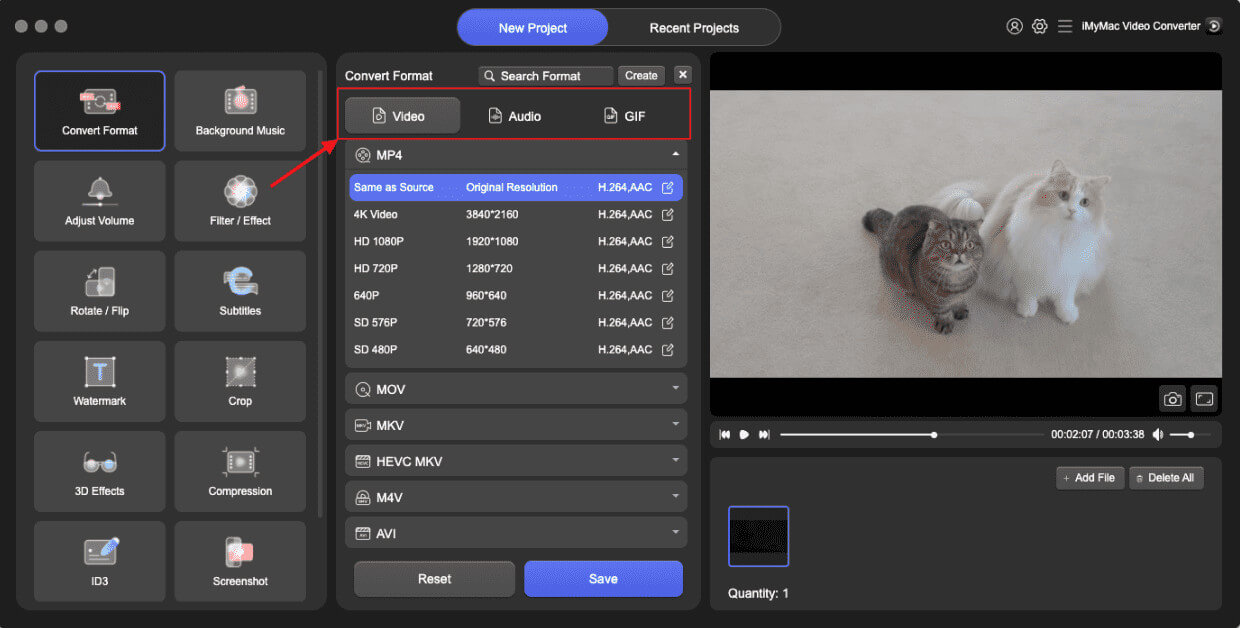
- When you click "Convert Format," a drop-down option allowing you to choose the kind of file the original should be converted into, such as AVI, will display.
- Thanks to the UI, locating file alterations is now simpler. You are allowed to make whatever changes you want to the files.
- By choosing Save, you may save all of your modifications.
- Select a conversion option from the toolbar to begin the conversion process.
Part 3. Convert TP Files to AVI Online
If you're looking for a quick, no-installation-needed solution, several online free video converters can convert TP to AVI. Here are three popular and reliable options:
1. CloudConvert
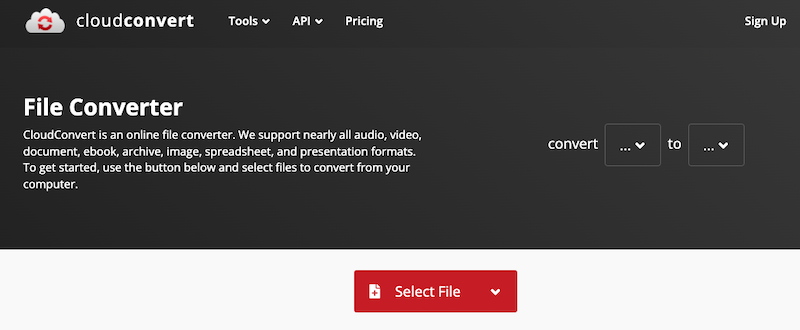
CloudConvert is a robust web-based file conversion service that supports a wide range of formats, including TP and AVI. CloudConvert also integrates with cloud storage services like Google Drive, Dropbox, and OneDrive, making file handling easier. While it’s ideal for occasional conversions, it may not handle very large files as efficiently as desktop software.
2. Convertio
Convertio is a cloud-based tool designed for quick and easy file conversions. It supports over 300 file types and offers optional customization like codec and quality settings. Uploads can come from your local drive or cloud storage. Files are automatically deleted after 24 hours, ensuring user privacy.
3. Online-Convert
Online-Convert offers a detailed video conversion platform with advanced settings. It supports TP to AVI conversion and allows users to tweak video resolution, aspect ratio, frame rate, and audio quality.
Part 4. Conclusion
Converting TP to AVI improves compatibility, usability, and playback performance across a wide range of devices and platforms. While online tools like CloudConvert, Convertio, and Online-Convert offer quick fixes, they are best suited for small files and occasional use. For those dealing with large video files or requiring high-quality, fast, and customizable conversions, iMyMac Video Converter stands out as the best choice. It’s feature-rich, reliable, and optimized for both performance and ease of use. Whether you’re archiving HD recordings or preparing files for editing, converting TP files to AVI has never been easier.


