


 PowerMyMac


Looking to play The Sims 4 on Mac without performance issues or complicated workarounds? Good news—The Sims 4 has official macOS support, which means Mac users can enjoy the game without needing to install Windows or use third-party emulators. Whether you’re a long-time Sims fan or just getting started, playing on Mac is more accessible than ever.
In this guide, we’ll walk you through how to play The Sims 4 on your Mac and which settings to tweak for smoother gameplay. We'll also introduce a powerful Mac optimization tool that can help you get more out of your hardware before and after each gaming session. From system requirements to performance tips, this guide covers everything you need to know to enjoy the full Sims 4 experience on macOS.
Contents: Part 1. How to Download and Play The Sims 4 on a Mac?Part 2. Tips for Playing The Sims 4 on MacPart 3. Bonus: Optimize Your Mac for Smooth GameplayPart 4. Conclusion
Part 1. How to Download and Play The Sims 4 on a Mac?
If you want to play The Sims 4 on Mac, the process is refreshingly simple—thanks to EA offering a native macOS version of the game. Here's a full walkthrough to get started:
Step 1: Check Your Mac’s Compatibility
Before downloading the game, ensure your Mac meets the minimum system requirements below:
- macOS 10.13 (High Sierra) or newer
- Intel Core i5 processor or Apple Silicon (M1, M2, etc.)
- 8GB RAM or more
- At least 25GB of free disk space
- Metal-supported graphics card
Step 2: Download EA App (Previously Origin for Mac)
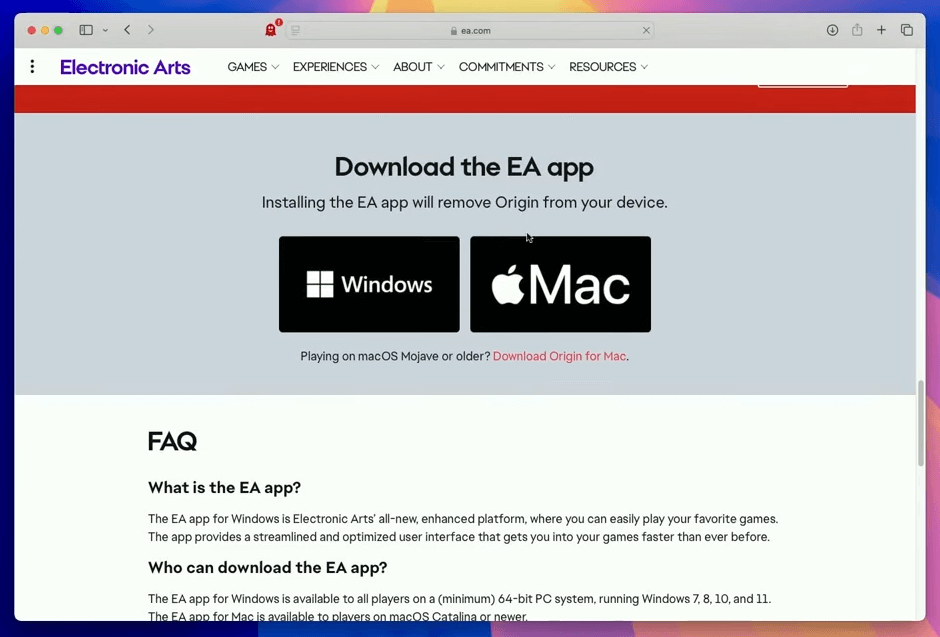
EA has transitioned from Origin to the new EA App for Mac. Here’s how to get it:
- Visit EA’s official website.
- Download the EA App for macOS.
- Install and launch the app.
- Log in or create an EA account.
Step 3: Download and Install The Sims 4
Once inside the EA App:
- Search for The Sims 4.
- Click “Download” (The Sims 4 is free to play as of 2022).
- Wait for the installation to finish, then click “Play.”
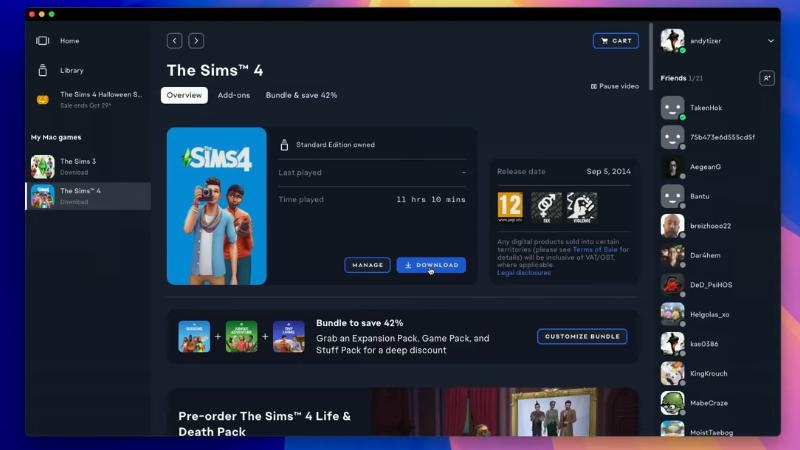
This native version makes it very easy to play The Sims 4 on Mac without additional software.

Optional: Transfer Existing Saves or Mods
If you've previously played on Windows or have mods:
- Save files go in:
Documents > Electronic Arts > The Sims 4 - Transfer them from another computer or external drive
You’re now ready to play The Sims 4 on Mac with the same access and features as PC players.
Part 2. Tips for Playing The Sims 4 on Mac
To ensure the best performance when you play The Sims 4 on Mac, follow these optimization tips:
Adjust In-Game Settings
- Go to Game Options > Graphics
- Set Graphics to Medium or Low for older Macs
- Turn off Vertical Sync for smoother FPS
- Reduce resolution to 1440x900 or 1280x800 on older displays
Close Background Applications
Shut down unnecessary apps like Chrome, Zoom, or Spotify while gaming. These consume RAM and CPU resources that The Sims 4 needs to run smoothly.
 Related Article: How Much RAM Do I Need On My Mac? [Tips to Free up RAM]
Manage Custom Content & Mods
Too many mods can slow down gameplay. Here’s how to avoid that:
- Regularly clean your Mods folder
- Avoid outdated or broken mods
- Use a Mod Manager to stay organized
Avoid Running Out of Disk Space
Keep at least 10–15 GB free at all times. The Sims 4 constantly writes to disk (saves, cache, mods), so low storage can result in crashes or slow loading times.
Related Article: How to Manage Storage on Mac?
Keep macOS and Sims 4 Updated
Game patches and macOS updates often improve performance and compatibility. Always keep both up to date.
Following these tips ensures that when you play The Sims 4 on Mac, you're getting the best possible gaming experience.
Part 3. Bonus: Optimize Your Mac for Smooth Gameplay
To get even more out of your Mac while gaming, consider using iMyMac PowerMyMac, a robust optimization tool specifically designed for macOS. It helps improve performance by removing unnecessary files, managing system memory, and monitoring resource usage in real time.
Key Features of PowerMyMac:
- Smart Cleaner: Quickly removes system junk, cache files, and temporary data to reclaim valuable disk space.
- App Uninstaller: Completely removes unwanted apps and their leftover files.
- Duplicate Finder: Locates and deletes duplicate files eating up your storage.
- File Shredder: Securely deletes sensitive files beyond recovery.
- Privacy Protection: Erases browsing history, cookies, and app traces to protect your data.
- Performance Monitor: Keeps tabs on your CPU, memory, and storage usage in real time.
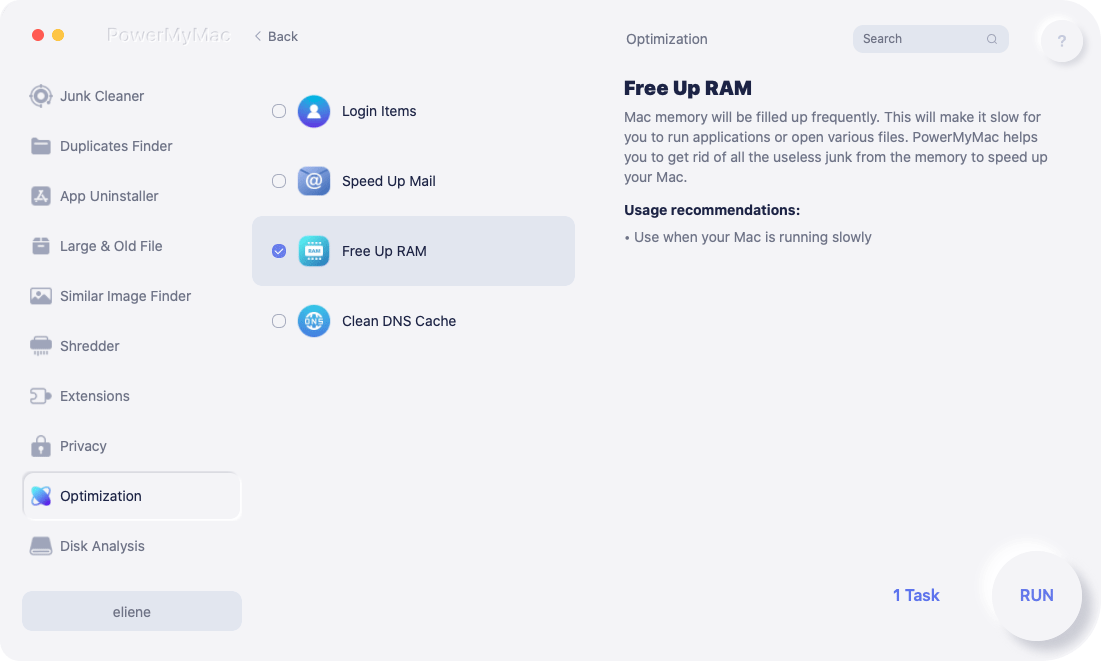
When you play The Sims 4 on Mac, your system handles complex simulations, real-time rendering, and large save files. PowerMyMac helps ensure your Mac isn't bogged down by old files or unused apps. Run PowerMyMac before launching The Sims 4 to clean up RAM and disk space. Use it again after your session to cool down your system and remove leftover cache files.
Part 4. Conclusion
If you've been wondering how to play The Sims 4 on Mac, the good news is that it's not only possible—it's officially supported. You can install the game directly using the EA App for macOS and start playing in minutes, without needing Boot Camp or virtual machines.
For the best experience, optimize your graphics settings, manage background tasks, and use system tools to keep your Mac running at peak performance. A tool like PowerMyMac makes this easy by helping you clear space, free up RAM, and monitor system health.


