


 PowerMyMac


If you’ve ever wished to enjoy your Mac’s screen on a bigger display, setting up Roku for Mac is the perfect solution. This guide walks you through everything. You’ll also learn how to optimize your Mac’s performance for the best streaming quality. Ready to cast content from your Mac to a Roku? Let’s dive in.
Contents: Part 1. Can I Watch Roku on My MacBook?Part 2. Cast Content on Your Mac to Roku: 2 MethodsPart 3. Tip: Optimize Mac’s Performance to Stream BetterPart 4. Conclusion
Part 1. Can I Watch Roku on My MacBook?
The short answer: not directly. The Roku OS isn’t available as a native app on macOS. However, you can still enjoy Roku features by casting or mirroring your screen. The key is connecting your Mac and Roku to the same Wi-Fi network and using screen mirroring or DLNA-compatible apps. With a few simple steps, you can set up Roku for Mac and enjoy content across both devices. Whether it’s a movie, slideshow, or live stream, your Mac can act as a powerful content source for your Roku-enabled TV.
Part 2. Cast Content on Your Mac to Roku: 2 Methods
1. Mirror Your Mac to Roku
If you're aiming for full desktop mirroring from your Mac to a Roku-connected TV, one of the most reliable solutions is using JustStream—a powerful screen mirroring app for macOS. It’s designed for users who want to seamlessly extend or duplicate their Mac screen wirelessly. Setting up Roku for Mac with JustStream is straightforward and gives you full control over streaming resolution, audio support, and media formats.
With JustStream, your Roku device becomes an extension of your Mac, making it perfect for presentations, media playback, and even light gaming. Getting started with JustStream is simple. Here’s a step-by-step walkthrough to mirror your screen and enjoy the full potential of Roku for Mac:
- Install JustStream: Go to the official Eltima Software website and download JustStream. Install and launch the app on your Mac.
- Connect to the Same Wi-Fi Network: Ensure that both your Mac and Roku are on the same wireless network. This is essential for JustStream to detect your Roku device.
- Launch JustStream and Select Your Screen: Click on the JustStream icon from your menu bar. It will display a list of available screens and displays connected to your Mac. Choose the screen or window you want to mirror.
- Choose Your Roku Device: JustStream will scan for available devices on your network. Select your Roku from the list of detected devices.
- Start Streaming: Click the “Start Streaming” button. Your Mac’s screen will now appear on your TV through Roku. You can also choose to add subtitles or stream video files by dragging them into the JustStream interface.
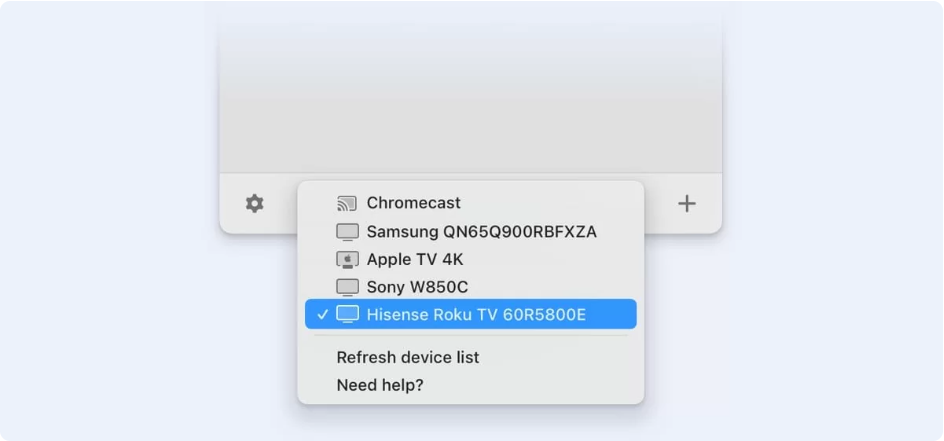
JustStream gives Mac users a native-like experience when working with Roku. If you’re looking for a premium, stable solution to enable Roku for Mac, JustStream is a top-tier option—especially if you prioritize high-quality video and audio without lag or wires.
2. Stream Local Media from Mac to Roku
If you prefer to play video or music files stored locally on your Mac, you can stream them to Roku using VLC Media Player with DLNA enabled.
Steps to stream using VLC:
- Install VLC: Download and install VLC Media Player on your Mac.
- Enable DLNA Streaming: Open VLC > Preferences > Show All Settings. Navigate to Stream Output > Sout Stream > SAP and enable "Announce SAP services on the local network." Go to Playlist > Services Discovery and enable "Universal Plug’n’Play (UPnP)."
- Open VLC on Roku: Install the VLC app from the Roku Channel Store.
- Stream your media: Open the VLC app on Roku. Your Mac should appear under local networks. Browse your shared media and start watching.
This method is particularly useful for movie buffs and music lovers with large local libraries. It’s also an excellent way to reduce reliance on cloud services and still enjoy seamless playback using Roku for Mac.
Part 3. Tip: Optimize Mac’s Performance to Stream Better
To ensure smooth playback and a lag-free experience when using Roku for Mac, your Mac needs to be running at peak performance. That’s where tools like iMyMac PowerMyMac come in. It’s an all-in-one Mac cleaner and optimizer that helps remove junk files, monitor performance, and improve overall speed.
Key Features:
- Smart Cleaner: Removes system junk, app caches, and unnecessary files to free up disk space.
- Memory Monitor: Displays real-time RAM usage and helps release memory with a single click.
- App Uninstaller: Completely removes apps and their residual files.
- Duplicate Finder: Finds and deletes duplicate files that hog space.
- Privacy Cleaner: Clears browser history, cookies, and sensitive data for better privacy.
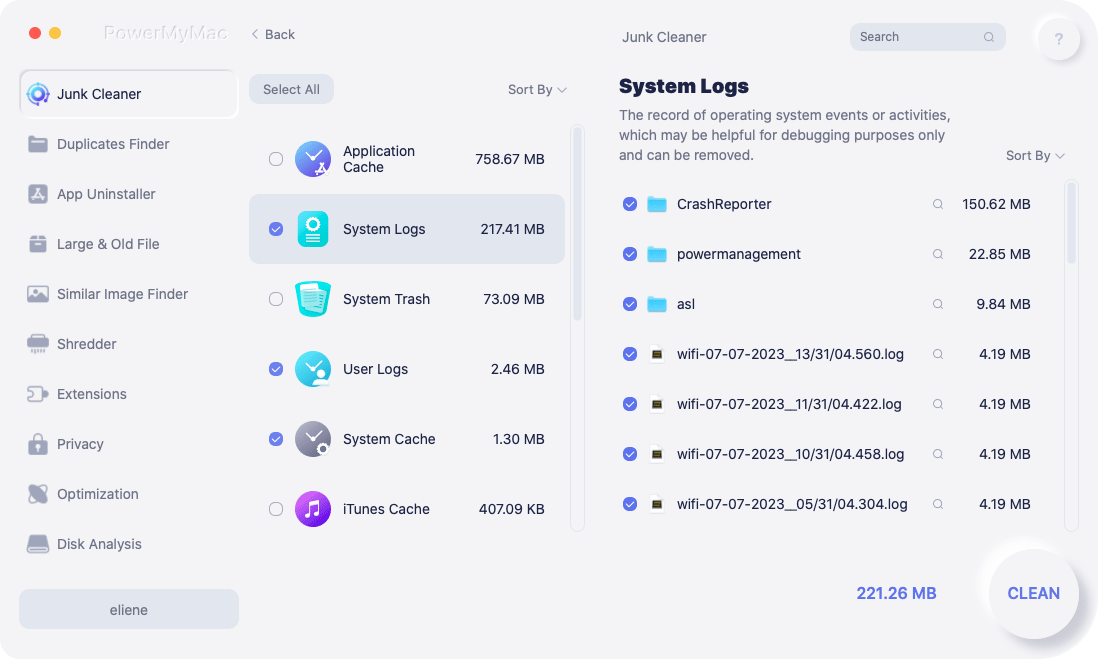
By cleaning and optimizing your system, PowerMyMac ensures your Mac has the resources it needs to mirror screens or stream media without lags or delays. It’s a great companion for getting the most out of Roku for Mac—especially during long streaming sessions or when multitasking.
Part 4. Conclusion
Setting up Roku for Mac is easier than ever with tools like AirScreen and VLC. Whether you’re mirroring your entire screen or just streaming local media, Roku offers flexible, wireless solutions to make your content more accessible. And with apps like iMyMac PowerMyMac keeping your system in top shape, you’ll enjoy a seamless streaming experience every time. So go ahead—connect your Mac to Roku and enjoy your favorite content on the big screen.


