


 Video Converter


AVI (Audio Video Interleave) and XVID (XVID Video Codec) are popular video file formats that have gained widespread usage in the digital realm. While AVI is known for its compatibility with various media players, XVID offers exceptional video compression and playback quality. If you find yourself needing to convert AVI files to the XVID format, you've come to the right place.
In this article, we will take you through the essential steps and provide you with valuable insights to effortlessly convert your AVI to XVID. Whether you're a beginner or a tech-savvy enthusiast, our comprehensive guide will equip you with the knowledge and recommended tools to achieve seamless AVI to XVID conversion.
So, let's dive into the world of video file conversion and unlock the power of transforming your AVI files into the highly efficient XVID format.
Contents: Part 1. What Is XVID Used for?Part 2. How to Convert AVI Files to XVID with Lossless Quality?Part 3. Free Tools to Convert AVI Files to XVID FormatPart 4. Final Thoughts
Part 1. What Is XVID Used for?
XVID files, also known as XVID Video Codec files, are a popular video compression format that offers a balance between file size and video quality. XVID utilizes advanced compression algorithms to significantly reduce the file size of video content without compromising on visual clarity.
XVID files are widely used for various purposes due to their compatibility with a wide range of media players and devices. They are particularly favored for video sharing and distribution over the internet, as they provide efficient file sizes while maintaining good video quality.
The XVID codec is capable of compressing video files into a smaller size, making it easier to store and transfer videos, especially in situations with limited bandwidth or storage capacity. This compression capability also makes XVID files ideal for creating video archives or storing large collections of movies and TV shows on personal computers or external storage devices.
Moreover, XVID is often used by video enthusiasts and professionals for video editing and post-production. By converting AVI files to XVID format, you can reduce the file size of your raw footage or edited videos without sacrificing visual integrity. This makes it easier to work with large video files, enhances workflow efficiency, and enables smoother playback on various editing software.
XVID files offer a versatile solution for video compression and distribution, allowing users to enjoy high-quality videos while keeping file sizes manageable. Whether you're sharing videos online, creating archives, or editing footage, understanding XVID and its applications will empower you to make the most of this efficient video codec.
Why Convert AVI to XVID Format?
There are several reasons why one might choose to convert AVI files to Xvid format:
- File Size Reduction: AVI files tend to have larger file sizes compared to Xvid files.
- Compatibility: Xvid files are widely compatible with various media players, devices, and operating systems.
- Improved Video Compression: Xvid offers advanced video compression capabilities, resulting in smaller file sizes while maintaining decent video quality
- Editing Efficiency: Xvid files are often preferred by video editors as they allow for easier handling of large video files during the editing process
Part 2. How to Convert AVI Files to XVID with Lossless Quality?
When it comes to converting AVI files to XVID format with lossless quality, one reliable tool that can assist you is the iMyMac Video Converter. It can convert video files into more than 150 additional video file formats, with excellent output picture and sound quality. Besides XVID, you can also convert AVI to WMV.
Additionally, you may simply edit your videos, compress, burn, and save media files with our converter. This professional video conversion software offers a user-friendly interface and advanced features to ensure a seamless and high-quality conversion process.
Here's a step-by-step guide on how to convert AVI to XVID using iMyMac Video Converter:
- Download and Install iMyMac Video Converter. Visit the official website of iMyMac Video Converter at https://www.imymac.com/video-converter and download the software. Follow the on-screen instructions to install it on your computer.
- Launch iMyMac Video Converter and Add AVI Files. Launch the software and click on the "Add File" button to import the AVI files you want to convert to XVID. You can add multiple files for batch conversion.
- Select XVID as the Output Format. Select XVID as the desired output format. iMyMac Video Converter provides a wide range of format options, and XVID should be listed among them.
- Adjust Output Settings (Optional). f you want to customize the output settings, such as resolution, bitrate, or frame rate, you can click on the "Settings" button next to the output format. However, for a lossless conversion, it is recommended to keep the default settings.
- Choose Output Folder. Specify the destination folder where you want the converted XVID files to be saved. You can do this by clicking on the "Browse" button and selecting a folder of your choice.
- Start the Conversion Process. Click on the "Convert" button to initiate the AVI to XVID conversion process. iMyMac Video Converter will process the files and convert them to XVID format while maintaining the original quality.
- Access the Converted XVID Files. Once the conversion is complete, you can locate the converted XVID files in the output folder you selected. You can now enjoy your AVI videos in XVID format with lossless quality.
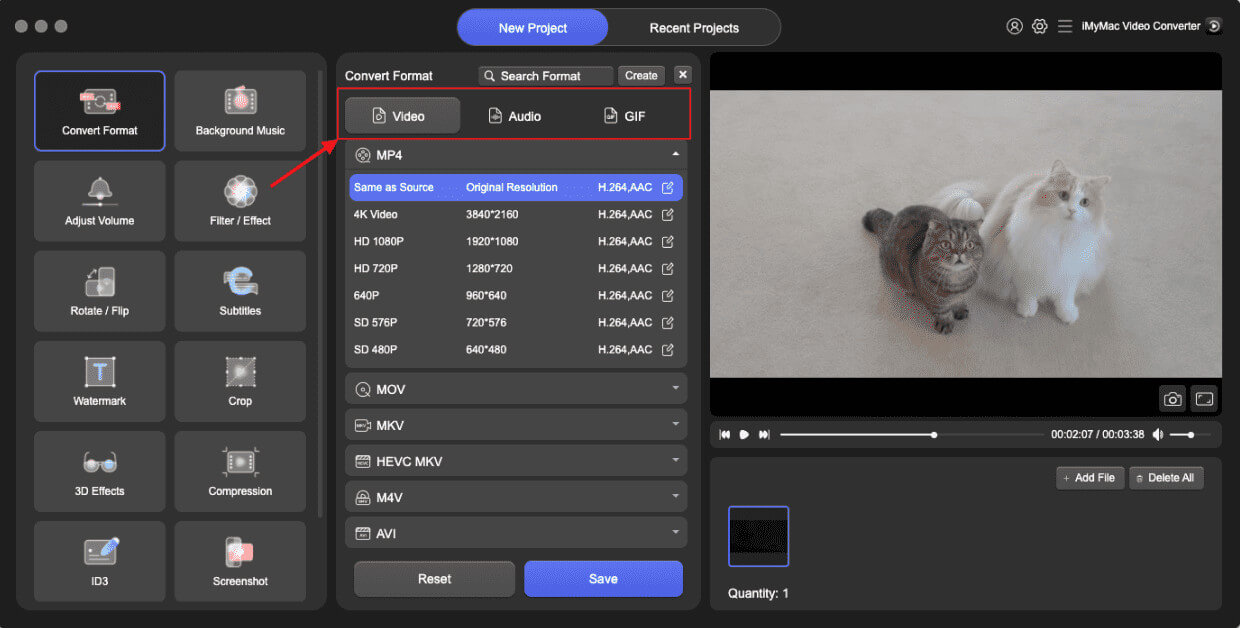
By following this straightforward guide and utilizing the powerful features of iMyMac Video Converter, you can convert your AVI files to XVID format seamlessly and ensure that the quality of your videos remains intact throughout the process.
Part 3. Free Tools to Convert AVI Files to XVID Format
Media.io
If you prefer using an online tool to convert AVI to XVID, Media.io is a popular option. Media.io is a web-based platform that allows you to convert various audio and video formats easily. It offers a straightforward and user-friendly interface for quick file conversions. Here's a guide on how to convert AVI to XVID using Media.io:
- Access Media.io. Visit the Media.io website by typing "Media.io" into your web browser's address bar.
- Upload AVI Files. Click on the "Drag & Drop or Hit to Add File" area to upload your AVI files from your computer. Alternatively, you can click on "Choose File" and navigate to the location of your AVI files to select and upload them.
- Select XVID as the Output Format. Under the "Convert to" section, click on the drop-down menu and choose XVID as the desired output format. Media.io supports a wide range of video formats, and XVID should be among the options available.
- Start Conversion. Click on the "Convert" button to begin the AVI to XVID conversion process. Media.io will start processing your files and convert them to XVID format.
- Download Converted XVID Files. Once the conversion is complete, Media.io will provide a download link for your converted XVID files. Click on the "Download" button next to the file to save it to your computer.
Please note that while Media.io is a commonly used online conversion tool, it is always recommended to review and ensure the trustworthiness and security of any online platform you use to handle your files.
Remember to exercise caution when uploading sensitive or private files to any online service and consider using trusted and reputable software or tools for sensitive conversions or when dealing with confidential data.
Convertio.co
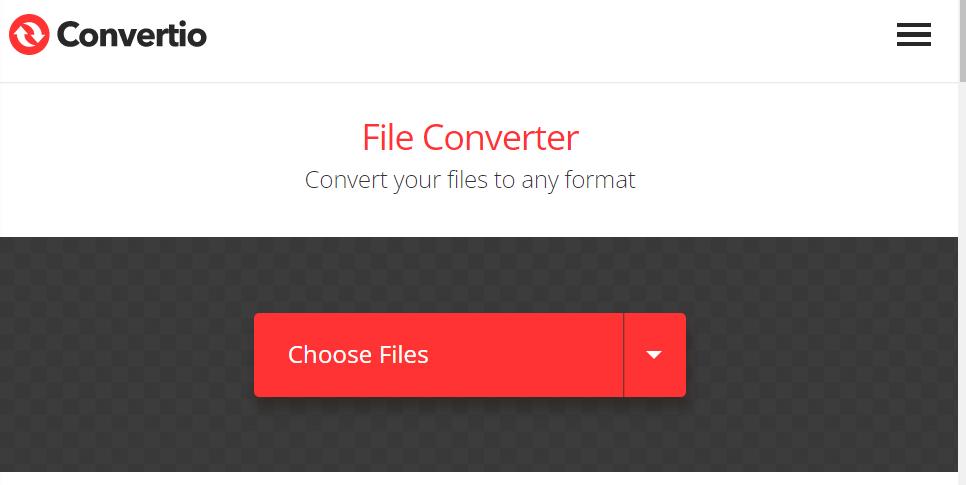
If you prefer using an online tool to convert AVI to XVID, Convertio.co is another popular option. Convertio.co is a web-based file conversion platform that supports a wide range of audio, video, document, and image formats.
Convertio.co also offers additional features such as file editing, adjusting output settings, and saving files to various cloud storage platforms. Explore the platform's options based on your specific needs. It is a great free online tool for converting files.
AnyConv.com
AnyConv.com is an online file conversion platform that allows users to convert various file formats, including documents, images, audio, video, and more. With AnyConv.com, you can convert your AVI files to XVID format quickly and conveniently.
The website provides a user-friendly interface where you can upload your AVI files, select XVID as the output format, and initiate the conversion process. AnyConv.com supports a wide range of file formats and offers a straightforward approach to file conversion. Simply upload your AVI files, choose XVID as the target format, and let AnyConv.com handle the conversion for you.
Part 4. Final Thoughts
Converting AVI files to XVID format opens up a world of possibilities for efficient video compression, compatibility, and enhanced video editing capabilities. Throughout this article, we explored various methods and online tools to facilitate the AVI to XVID conversion process. Among the options discussed, one standout tool that we recommend is iMyMac Video Converter.
iMyMac Video Converter offers a reliable and user-friendly solution for converting AVI to XVID with lossless quality. With its intuitive interface and advanced features, iMyMac Video Converter allows you to effortlessly convert your AVI files while maintaining the original video integrity. The software supports batch conversion, allowing you to process multiple AVI files simultaneously, saving you time and effort.
Additionally, iMyMac Video Converter provides customizable output settings, giving you the flexibility to adjust resolution, bitrate, and other parameters according to your specific needs. Whether you're a video enthusiast or a professional editor, iMyMac Video Converter empowers you to optimize your videos for various platforms and purposes.


