


 Video Converter


Contents: Part 1. Overview: M2TS and MPGPart 2. Convert M2TS Files to MPG on Windows/MacPart 3. Convert M2TS Files to MPG OnlinePart 4. FAQsPart 5. Conclusion
Part 1. Overview: M2TS and MPG
Before explaining how to convert M2TS to MPG, let's learn about what M2TS and MPG files are, and why you might want to convert them.What is M2TS?
M2TS is a file format used for storing high-definition video content on Blu-ray discs. It is a type of MPEG-2 transport stream, which is a container format that can hold multiple streams of audio, video, and other types of data. M2TS files usually contain video content in the form of H.264 or MPEG-2 video, along with multiple audio tracks and subtitles.
What is MPG?
MPG is a standard multimedia format that uses either MPEG-1 or MPEG-2 compression. It’s widely supported across devices, operating systems, and software applications. MPG files are much smaller in size compared to M2TS files and are easier to edit, upload, and share. Despite the smaller file size, MPG maintains decent video quality, making it a practical choice for everyday video use.
 Related Articles: MPG vs MP4: Which is Your Better Format?
Should We Convert M2TS to MPG?
Yes, converting M2TS to MPG is often beneficial for several reasons:
- Better Compatibility: MPG files work seamlessly on most media players and editing software.
- Smaller File Size: MPG compression reduces file size without drastically compromising quality.
- Easier Sharing and Uploading: The smaller, more compatible format is better for emailing or uploading to platforms like YouTube.
- Simplified Editing: Editing M2TS files can be cumbersome due to their structure, while MPG files are more editor-friendly.
Part 2. Convert M2TS Files to MPG on Windows/Mac
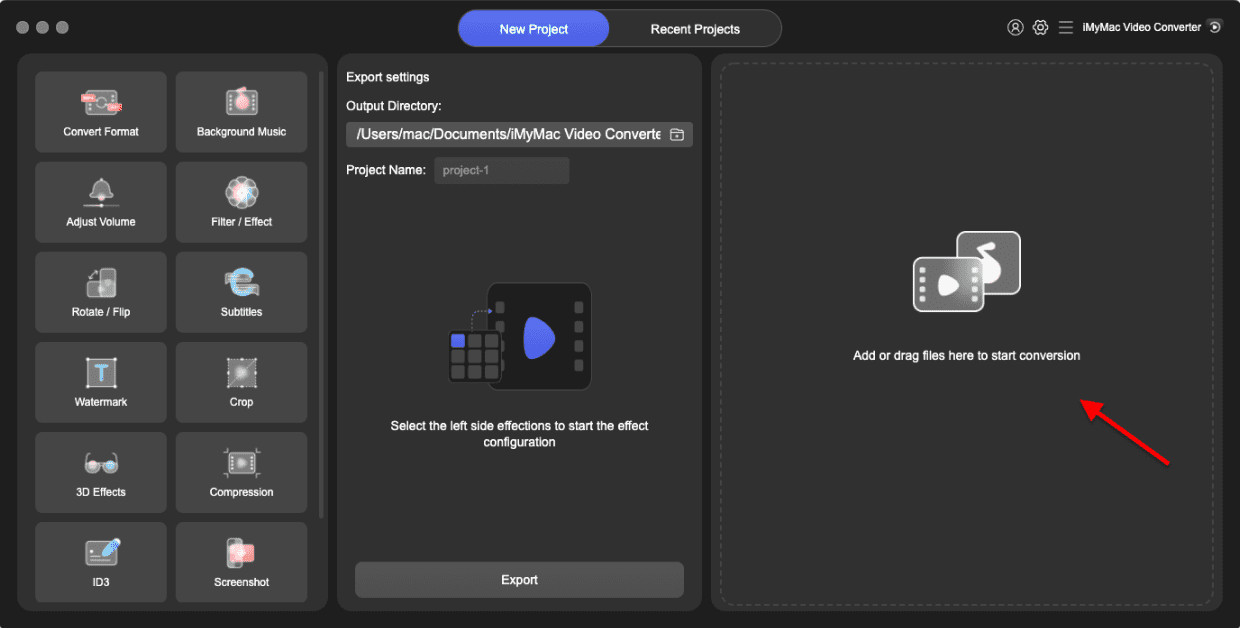
How to convert M2TS to MPG format? If you're looking for an M2TS-to-MPG converter, using iMyMac Video Converter is a great way to achieve a smooth and effective conversion that won't result in quality loss.
iMyMac Video Converter offers a variety of video formats in addition to converting M2TS to MPG, including M2TS to MP4, MOV, AVI, MKV, WMV, and more. Additionally, it supports audio file types including MP3, AAC, AC3, and others. Before conversion, the program also enables you to edit films by cutting, cropping, adding watermarks, and modifying the video effects.
Key Features
- Supports over 200 file formats including M2TS, MPG, MP4, MOV, AVI
- Batch conversion capabilities
- Built-in editing tools for trimming, cropping, and adding watermarks
- High-speed conversions using GPU acceleration
- Maintains high video quality after conversion
- Customizable output settings for video/audio codecs, resolution, etc.
Steps to Convert M2TS Files to MPG with iMyMac
Here are the steps to use iMyMac Video Converter to convert M2TS to MPG:
- Launch iMyMac Video Converter on your computer.
- Click on the "Add File" button to import the M2TS files you want to convert to MPG format.
- Choose the "MPG" format as the output file type.
- Choose the output destination folder where you want to save the converted MPG files.
- Click on the "Convert" button to start the conversion process.
- Once the conversion is completed, you can find the converted MPG files in the destination folder you selected.
This is a paragraph
Part 3. Convert M2TS Files to MPG Online
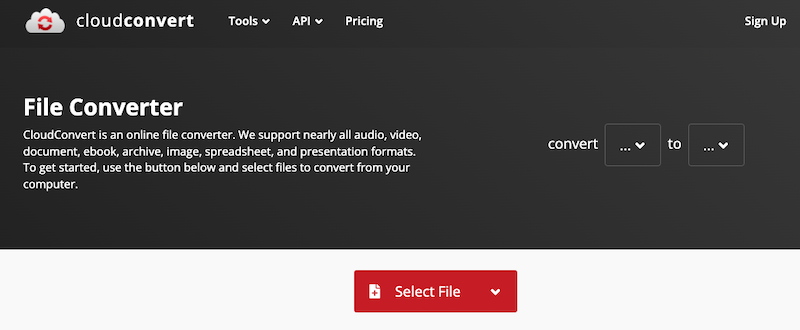
If you prefer not to download software, CloudConvert is an excellent online tool for converting M2TS files to MPG format. It supports over 200 file types and provides advanced customization options, all accessible via a clean web interface. CloudConvert processes files in the cloud, which means it won’t strain your computer’s resources.
Key Features
- Web-based—no installation required
- Drag-and-drop interface
- Advanced output settings (codec, resolution, bitrate)
- Integration with Google Drive, Dropbox, OneDrive
- Secure with data encryption and automatic file deletion
- Offers free tier and paid options for heavy users
Steps to Convert M2TS Files to MPG with CloudConvert
Ready to get started? Follow these tips to convert M2TS to MPG online:
- Go to CloudConvert.com.
- Click “Select File” to upload from your device, or choose to import from Google Drive, Dropbox, or a URL.
- From the dropdown menu, select “MPG” as the desired format.
- Click the wrench icon to access settings such as video resolution, frame rate, aspect ratio, or audio codec. This level of control is perfect for users needing tailored output.
- Hit the “Convert” button. The process may take a few moments depending on file size and server load.
- Once complete, download the converted MPG file to your device or save it directly to your cloud storage.
CloudConvert prioritizes user data security and deletes uploaded files after processing. The platform is free for limited use (up to 25 conversions/day), with premium plans available for higher volume needs. While it’s ideal for occasional conversions, it may not handle very large files as efficiently as desktop software.
Part 4. FAQs
1. Will converting M2TS to MPG reduce video quality?
Not significantly. If settings are kept high, MPG can retain excellent quality while reducing file size.
2. Can I convert M2TS files on my smartphone?
Some online tools like CloudConvert support mobile browsers, but performance may vary depending on file size and device specs.
3. Are M2TS and TS the same?
M2TS is a modified version of the TS (Transport Stream) format optimized for Blu-ray. They are similar but not identical.
4. Is MPG the same as MPEG?
Yes, MPG is essentially a shorthand for MPEG, often used for file extensions.
Part 5. Conclusion
If you need to convert M2TS to MPG, there are many online video conversion tools available that can do that, such as CloudConvert. However, based on its ease of use, advanced features, and reliability, we recommend iMyMac Video Converter. Its user-friendly interface and comprehensive video editing tools make it an excellent choice for users who need to convert video files regularly.


