


 Video Converter


MTS is a high-definition video format used by many camcorders, but it may not be compatible with all devices and media players. If you want to share your MTS videos with friends or family or edit them in a program that doesn't support this format, you'll need to convert them to a more widely compatible format like WMV. In this article, we'll show you how to convert MTS to WMV using a few different methods, so you can enjoy your videos on any Windows device or software. Whether you're a novice or experienced video editor, our step-by-step guide will make the process simple and straightforward.
Contents: Part 1. Quickest Way to Convert MTS Files to WMV Format LosslesslyPart 2. How to Convert MTS Files to WMV Online?Part 3. What Is the Difference between MTS and WMV?Part 4. Conclusion
Part 1. Quickest Way to Convert MTS Files to WMV Format Losslessly
Are you struggling to play your MTS video files on your Windows device or edit them in a program that doesn't support this format? What you need is a reliable MTS converter. Converting your MTS files to a more compatible format like WMV is the perfect solution—and iMyMac Video Converter is here to make it fast and hassle-free. As a powerful video converter, iMyMac not only supports a wide range of formats but also offers high-speed conversion, batch processing, and high-quality output.
Here’s why iMyMac Video Converter stands out from other converters:
- Lossless conversion: iMyMac Video Converter provides lossless conversion from MTS to WMV, ensuring the highest quality output with no loss of data or video quality.
- High-speed conversion: The software can convert your MTS files to WMV format at lightning-fast speeds, thanks to its advanced conversion engine.
- Editing Tools: Includes basic editing features like trimming, cropping, adding watermarks, adjusting brightness, and more. You can also edit your videos with it.
- Easy-to-use interface: iMyMac Video Converter has a user-friendly interface that makes the conversion process simple and straightforward.
- Multiple output formats: iMyMac Video Converter supports many output formats, including WMV, MP4, AVI, MOV, and more.
Now, let's take a look at how to convert MTS to WMV format using iMyMac Video Converter.
- Install and launch iMyMac Video Converter.
- Click the “Add Files” button to import your MTS files to the program.
- Select “WMV” as the output format from the drop-down list under the appropriate section.
- Choose a destination folder for your converted files by clicking the “Browse” button.
- Finally, click the “Convert” button to start the conversion process.
- Once the conversion is complete, you can locate your converted WMV files in the destination folder you selected earlier.
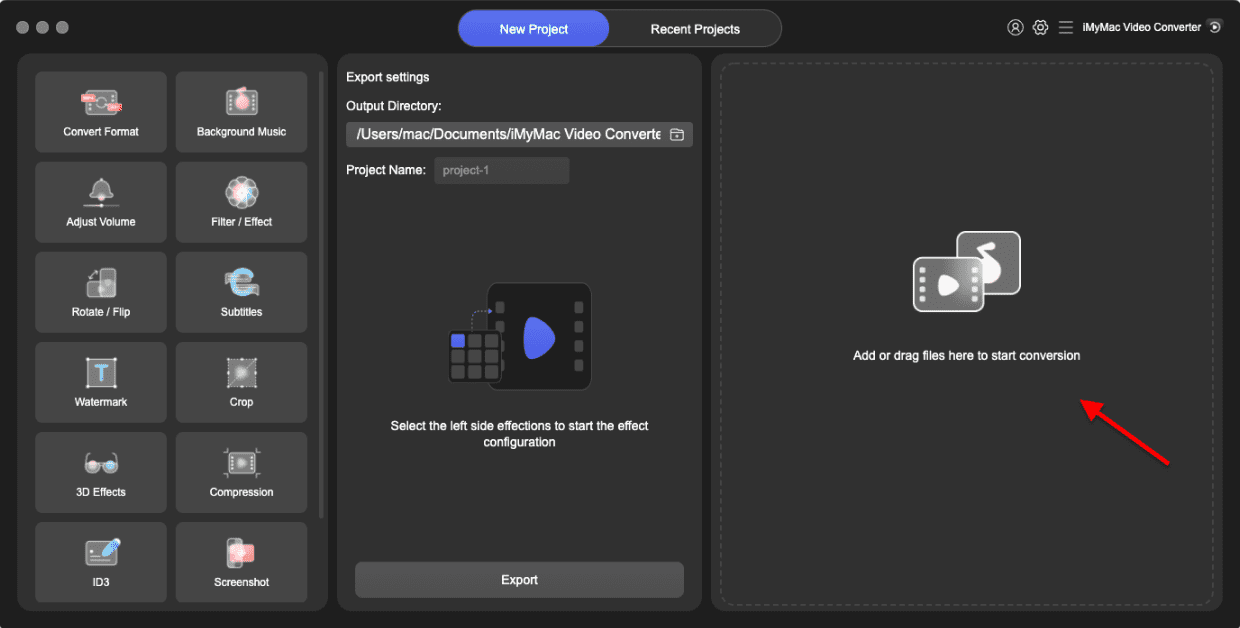
Overall, iMyMac Video Converter is a reliable and efficient tool for converting MTS files to WMV format. Its lossless conversion and high-speed conversion make it stand out from other converters, and its user-friendly interface makes it accessible to all users.
Part 2. How to Convert MTS Files to WMV Online?
Veed.io
Veed.io is a versatile online video editor that also offers video conversion services, including the ability to convert MTS files to WMV format. Here's an overview of how to use Veed.io to convert MTS to WMV online:
Step 1: Go to the Veed.io website and click on the “Upload” button to upload your MTS file.
Step 2: Once the upload is complete, click on the “Export” button.
Step 3: From the dropdown menu, select “WMV” as the output format.
Step 4: Adjust the settings, including the resolution and frame rate, as needed.
Step 5: Click on the “Export” button to start the conversion process.
Step 6: Once the conversion is complete, you can download your converted WMV file to your computer.

Veed.io is a user-friendly tool that offers a simple and straightforward way to convert MTS files to WMV format. Its interface is easy to navigate, and the conversion process is quick and efficient. Additionally, Veed.io offers a range of editing tools that allow you to edit your videos before or after conversion, making it a versatile tool for video editing and conversion needs. However, it's worth noting that Veed.io's free plan only allows for limited usage, and you'll need to upgrade to a paid plan to unlock all of its features.
CloudConvert.com
CloudConvert is another online video converter that allows you to convert MTS files to WMV format. While it shares some similarities with Veed.io, there are a few key differences that set it apart.
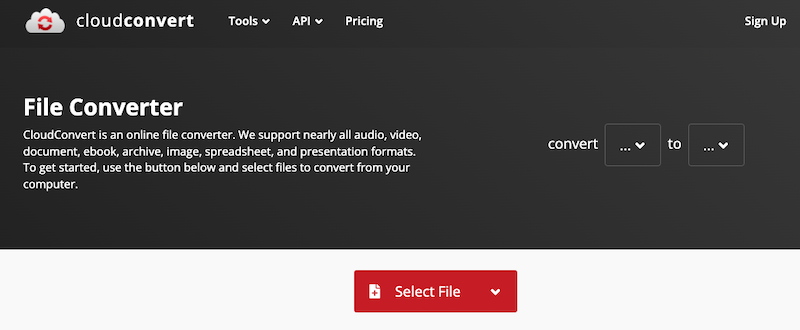
One unique feature of CloudConvert is its support for a wide range of input and output formats. In addition to MTS and WMV, it supports over 200 different file types, making it a versatile tool for a wide range of video conversion needs.
To convert MTS to WMV using CloudConvert, follow these steps:
Step 1: Go to the CloudConvert website and click on the “Select Files” button to upload your MTS file.
Step 2: Once the upload is complete, select “WMV” as the output format from the dropdown menu.
Step 3: Adjust the settings, including the resolution and bitrate, as needed.
Step 4: Click on the “Start Conversion” button to begin the conversion process.
Step 5: Once the conversion is complete, you can download your converted WMV file to your computer.
One advantage of CloudConvert over Veed.io is its flexibility when it comes to file sizes. While Veed.io has a limit on the size of files you can upload for free, CloudConvert allows you to upload and convert files up to 1 GB in size without requiring you to upgrade to a paid plan. Additionally, CloudConvert offers a more advanced set of customization options, allowing you to fine-tune your conversion settings to get the exact output you need.
FreeConvert.com
FreeConvert.com is another online video converter that can be used to convert MTS files to WMV format. Like Veed.io and CloudConvert, it offers a convenient and user-friendly way to convert videos online. However, there are some differences that set it apart from these other tools.
One of the main strengths of FreeConvert.com is its ease of use. Its simple interface makes it easy to upload your MTS file and select WMV as the output format. It also offers a range of customization options, including the ability to adjust the resolution, bitrate, and other settings, making it a flexible tool for video conversion.
One potential drawback of FreeConvert.com is that it has a file size limit of 1 GB. This means that if you have a large MTS file that you need to convert, you may need to use a different tool. Additionally, while FreeConvert.com is a free tool, it does require you to create an account in order to use it, which may be a deterrent for some users.
To convert MTS to WMV using FreeConvert.com, follow these steps:
Step 1: Go to the FreeConvert.com website and click on the “Choose Files” button to upload your MTS file.
Step 2: Once the upload is complete, select “WMV” as the output format from the dropdown menu.
Step 3: Adjust the settings, including the resolution and bitrate, as needed.
Step 4: Click on the “Convert to WMV” button to begin the conversion process.
Step 5: Once the conversion is complete, you can download your converted WMV file to your computer.
FreeConvert.com is a user-friendly and flexible online video converter that offers a range of customization options. While it has a file size limit and requires you to create an account to use it, it can be a useful tool for those looking to convert smaller MTS files to WMV format.
ConvertFiles.com
Another online video converter that lets you convert MTS files to WMV format is ConvertFiles.com. It provides a quick and easy way to convert movies online, much like the other programs we've covered.
Support for a broad range of input and output formats, including video, audio, picture, and document formats, is one of ConvertFiles.com's distinctive characteristics. It is therefore a flexible tool for a variety of conversion requirements outside of video.
Use ConvertFiles.com to convert MTS to WMV by doing the following steps:
Step 1: The first step is to go the ConvertFiles.com website and upload your MTS file by selecting “Browse” from the menu.
Step 2: After the upload is finished, choose “WMV” from the dropdown option for the output format.
Step 3: To start the converting process, click the “Convert” button.
Step 4: Download the converted WMV file to your PC when the conversion is finished.
The 250 MB file size restriction on ConvertFiles.com is one possible downside. This implies that you might need to use a different program if you need to convert a larger MTS file. Although ConvertFiles.com is a free tool, using it does involve entering a verification code, which can add an extra step to the conversion process.
ConvertFiles.com, in conclusion, is a flexible online video converter that accepts a variety of input and output formats. It can be a helpful tool for individuals wishing to convert smaller MTS files to WMV format even if it has a file size restriction and an additional verification process.
Part 3. What Is the Difference between MTS and WMV?
MTS and WMV are two different video file formats, and there are some key differences between them. Here are some of the main differences:
- Codec: MTS files are typically encoded using the MPEG-2 codec, while WMV files use the Windows Media Video codec.
- Compression: WMV files are typically more compressed than MTS files, which means they take up less space on your hard drive. However, this can also result in a loss of quality compared to the original video.
- Quality: MTS files are typically higher quality than WMV files, due in part to their larger file size. This means that if you are working with high-definition video, MTS may be a better choice for preserving the original quality.
- Compatibility: WMV files are more widely compatible with different software and devices than MTS files. This is because WMV is a Microsoft proprietary format, while MTS is primarily used in Sony and Panasonic camcorders.
- Editing: MTS files can be more difficult to work with when editing, due in part to their large size and the need for specialized software. WMV files, on the other hand, are more easily edited using common video editing software.
In summary, the choice between MTS and WMV will depend on your specific needs and circumstances. If you are looking for high-quality video with less compression and are willing to sacrifice some compatibility, MTS may be a good choice. However, if you are looking for a more widely compatible format that is easier to work with for editing, WMV may be the better choice.
Part 4. Conclusion
In conclusion, there are several ways to convert MTS to WMV, including online tools like Veed.io, Cloudconvert.com, FreeConvert.com, and ConvertFiles.com. Each tool has its strengths and weaknesses, depending on factors such as file size limits and conversion speed.
However, if you are looking for a reliable and easy-to-use video converter that offers lossless conversion with high-quality output, I highly recommend iMyMac Video Converter. It's a powerful tool that offers unique features such as batch conversion and customizable output settings, and it's available for both Mac and Windows users. With iMyMac Video Converter, you can convert your MTS files to WMV quickly and easily, without any loss of quality.


