


 Video Converter


As a standardized format, MP4 often plays without any issues on the majority of gadgets and streaming devices, such VLC, QuickTime, and Windows Media Player. The standard codec for uploading a video to sites such as YouTube, Vimeo, and others is often MP4. For long years, online radio broadcasters were using RAM files, the reason a lot of customers desire to convert RAM to MP4. A RAM file type uses streaming technology, which eliminates the requirement to wait before a download to finish and enables users to view videos or enjoy music as the information is being installed. Media streaming information for the RealAudio codec is included in a text document called a RAM file.
Contents: Part 1. What Is RAM FilePart 2. Easy Way to Convert RAM Files to MP4 on Mac/ Windows Part 3. Convert RAM Files to MP4 with Online ToolsPart 4. Conclusion
Part 1. What Is RAM File
A Real Audio Metadata (RAM) format is a specific kind of Real Audio file which only includes one or more URLs for RealMedia streams or RealAudio that are already online on a web server. It will route the multimedia player towards the video or music's true online location. RAM files contain text files that lack any real video or audio information; hence, it is often difficult to convert RAM to MP3. Therefore, the suggested converted file would be MP4. Also, using a particular RAM player seems to be the best option when you wish to access RAM files. The section after that will demonstrate how to convert RAM to MP4 files via RAM converters in greater detail.
Part 2. Easy Way to Convert RAM Files to MP4 on Mac/ Windows
iMyMac Video Converter is a trustworthy choice that you can rely on. You could be capable to iMyMac Video Converter as well as a lot of other well-known formats. The program won't let anybody down when you need to modify your multimedia content, including by slicing, modifying, or blending audio or video files. By utilizing the customize option, you could also alter the bitrate, sampling rate, and channel of the settings. The great thing about this tool is that you can also edit your videos with it. For instance, you can rotate, trim, cut, or crop videos.
Moreover, movies may be turned into any preferred audio or video format. Every user may benefit from the conversion efficiency. Users may learn more about the phases listed below and assess if the iMyMac Video Converter works well by reading in-depth descriptions of each one.
This method for converting RAM to MP4 is detailed in the steps below.
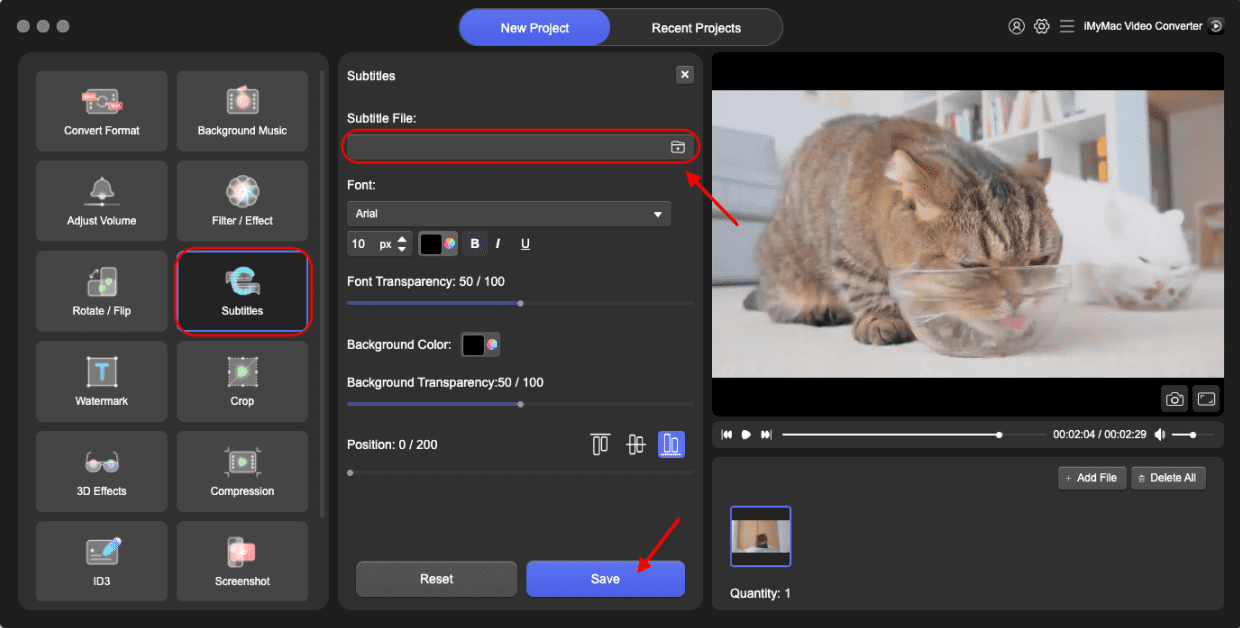
- Open iMyMac Video Converter first. Add the RAM files in the application that you are currently converting with.
- When you pick Convert Format as the output format, MP4 is the choice. Choose the destination folder you want, then save your changes.
- To start the RAM to MP4 conversion process, select Convert. Click the Newest Projects area to see the MP4 file.
Part 3. Convert RAM Files to MP4 with Online Tools
Some people prefer to convert RAM to MP4 files using a free multimedia converter instead of using a RAM player to access them.
zamzar.com
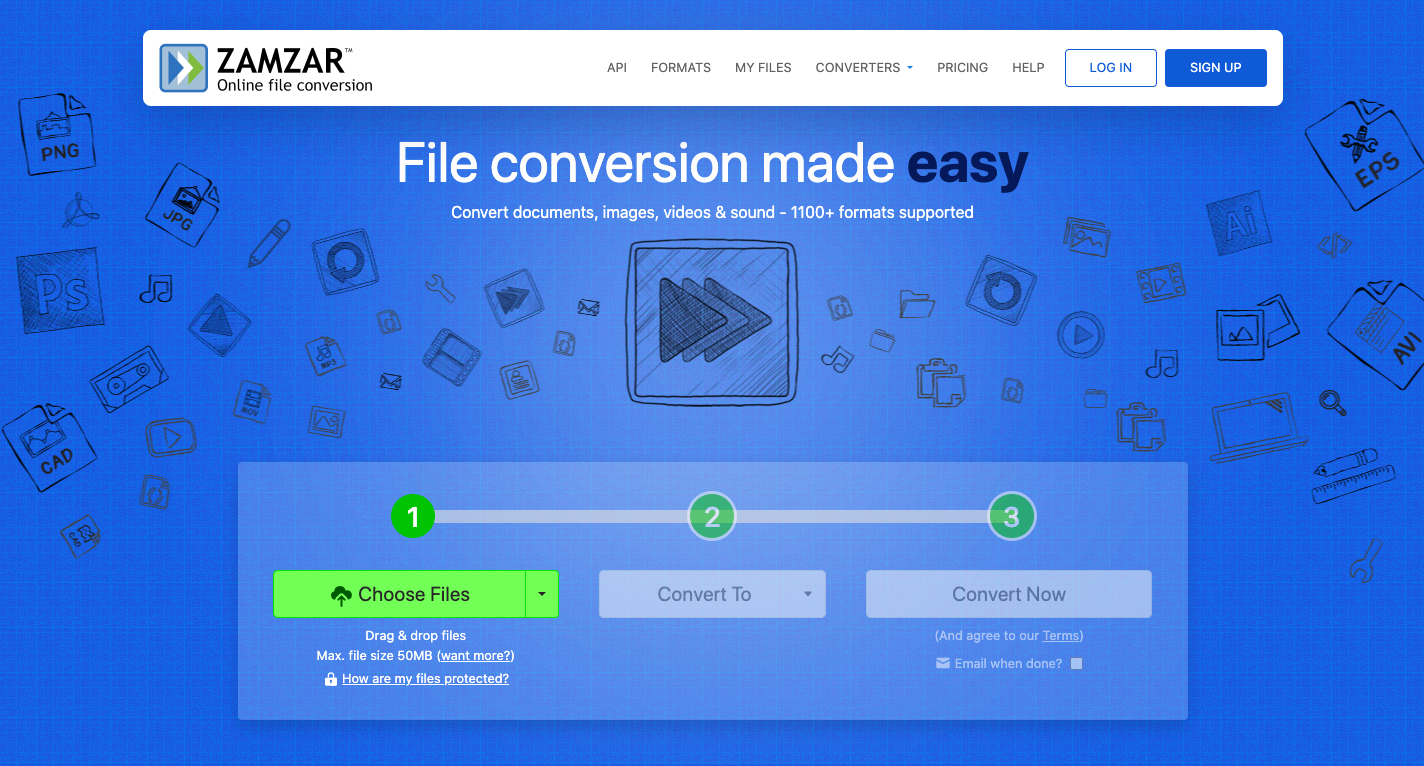
The best option is to utilize Zamzar to convert RAM to MP4 instantly without the need to install any extra software. It works across all of the current browsers and offers options for bulk conversion with the same capability as offline alternatives. There are just three steps that must be finished before you can begin accessing the changed MP4 file, making the process rather simple and easy.
- Out from drop-down list, choose the RAM file you wish to convert.
- Choose MP4 as the codec in which you wish to store the RAM file you would like to convert.
- To begin the conversion of RAM files to MP3 files, select "Convert" from the drop-down list.
FileZigZag.com
FileZigZag is indeed a free web tool for converting files and can archive and share cloud-based versions of your documents, photos, audio files, and video. With such a free web tool that enables you to change files into a range of various formats, FileZigZag can make your document converting simple. You may convert any Word documents into PDF or any PDF files to Word as well as other document formats with the FileZigZag web tool.
- Convert video files into animated GIFs.
- 264 conversion for camera video recorders
- Transform material into any audio or video format.
- Convert archiving compression format.
- Explore the FileZigZag.com website.
- Select which files you want to use to convert.
- Choose MP4 as the format you wish to convert the file to.
- Choose "Convert" in the drop-down menu.
- The time it takes for documents or files for becoming accessible for downloading may sometimes change, dependent on the size and type of the material.
OnlineConvertFree.com
Tools for converting files and documents are offered by OnlineConvertFree. The service UI is now offered in 15 different languages. Hundreds of thousands of customers use the website daily. Among the most comprehensive listings of supported codecs can be found on the document converting website is onlineconvertfree.com.
- You may convert RAM to MP4 by dragging and dropping them into the website; no registration, email account, or watermark is required.
- Immediately deleting your RAM files after uploading them. After 24 hours, converted documents are then removed. using cutting-edge SSL encryption to make sure that all data transfer is safe.
- There is no need for you to deal with the difficulty of downloading any program. No resources from your machine will be needed in the process of converting RAM to MP4 since they are all done on the cloud.
Part 4. Conclusion
You may now select the program you'll use to convert RAM to MP4 based on what is stated in this guide. Among the numerous advantages of utilizing the internet service would be that consumers won't need to download anything or subscribe individually. The built-in Video Converter in iMyMac PowerMyMac makes converting movies simple.


