


 Video Converter


TS (Transport Stream) files are commonly used for broadcasting high-quality video content over digital television or streaming systems. While TS files are efficient for transmission, they aren't always compatible with popular media players or devices. This can pose a challenge when users try to edit, view, or share TS files across various platforms. If you're dealing with TS files and want better compatibility and convenience, converting them to MPEG format is a smart move. Here in this post, we will share easy ways to help you convert TS to MPEG.
Contents: Part 1: Why Convert TS Files to MPEG?Part 2: Best Way to Convert TS Files to MPEG on Windows/MacPart 3: How to Convert TS Files to MPEG Free OnlinePart 4: Conclusion
Part 1: Why Convert TS Files to MPEG?
TS files are typically used in digital broadcasting environments and are known for their ability to store multiple pieces of data (such as video, audio, and subtitles) in a single stream. This makes them great for transmission but less ideal for editing or playback on standard consumer devices.
Here are several reasons to convert TS to MPEG:
- Compatibility: MPEG files are supported by nearly all major media players and devices, including Windows Media Player, VLC, iPhones, Android phones, and smart TVs. TS files often require specialized software to play.
- Ease of Editing: Most video editing programs like Adobe Premiere Pro, Final Cut Pro, and iMovie handle MPEG files more smoothly than TS files.
- File Size and Compression: MPEG offers better compression while maintaining quality, resulting in smaller file sizes. This makes storage, sharing, and uploading faster and more efficient.
- Streaming and Sharing: MPEG files are preferred for uploading to YouTube, Vimeo, and other online platforms. They are easier to stream, ensuring a better viewing experience for audiences.
By converting TS to MPEG, you unlock the flexibility to use your video content in more ways, across more devices and platforms.
Part 2: Best Way to Convert TS Files to MPEG on Windows/Mac
If you want a reliable and professional way to convert TS to MPEG, iMyMac Video Converter is one of the best tools available. It supports a wide range of formats, ensures high-quality output, and provides a user-friendly interface suitable for beginners and advanced users alike. Not only MPEG, this powerful software also allows you to easily convert your TS files to MP4, WMV, MOV, AVI, and more, with just a few clicks.
In addition to format conversion, iMyMac Video Converter also offers built-in editing features such as trimming, cropping, adding subtitles, and adjusting video effects. Whether you're preparing videos for playback, editing, or sharing, this tool provides a user-friendly interface and excellent performance on both Windows and Mac platforms.
Let’s see how to convert TS to MPEG with iMyMac Video Converter.
- Launch the iMyMac Video Converter software on your computer, either the Mac or Windows version. Once you're done, log into your account.
- Another option is to just drag and drop the TS file into the system's display.
- When you click "Convert Format," a drop-down option letting you pick the kind of file the original should be converted into, such as MPEG, appears.
- Finding file modifications is now much easier, thanks to the user interface. You may alter the files, whatever you like.
- You may save all of your changes by selecting Save.
- To start the converting process, choose a conversion option from the toolbar.
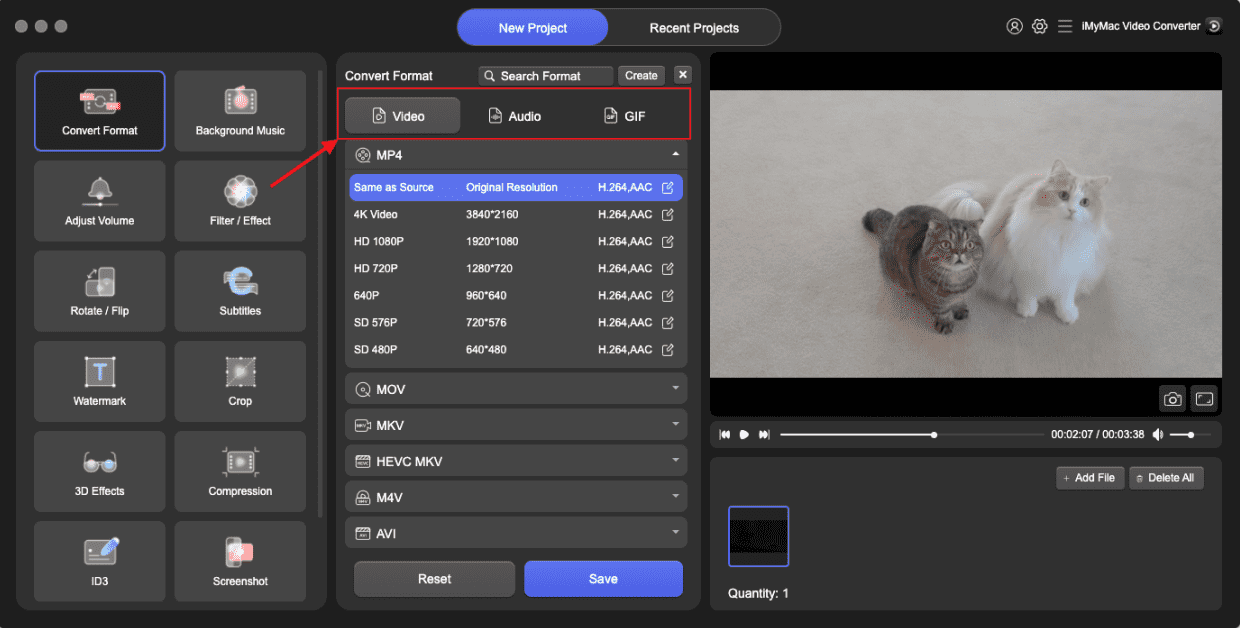
It’s ideal for users who want high-quality results with minimal effort. Whether you're working with home videos, TV recordings, or online streams, iMyMac ensures that your conversion process is smooth, quick, and effective.
Part 3: How to Convert TS Files to MPEG Free Online
If you're looking for a quick and free solution to convert TS to MPEG without installing software, Online-Convert.com is a great option. It’s a web-based tool that lets you convert TS files to MPEG in a few simple steps, all through your browser.
Features of Online-Convert:
- Completely free to use.
- No registration required for basic conversions.
- Converts a wide range of formats, including TS to MPEG.
- Allows basic settings adjustments like resolution, frame rate, and audio quality.
- Works on all major browsers across Windows, Mac, and mobile devices.
Follow the steps below to convert TS to MPEG with Online-Convert.
- Go to https://www.online-convert.com/.
- From the homepage, navigate to the “Video Converter” section and choose “Convert to MPEG.”
- Click the “Choose Files” button to upload your TS file. You can also import files from Dropbox, Google Drive, or a URL.
- If needed, change settings like video resolution, audio bitrate, and file size under the “Optional Settings” section.
- Click “Start” to begin converting. The platform will process your file, which may take a few minutes depending on the size.
- Once the conversion is finished, download the MPEG file to your device.
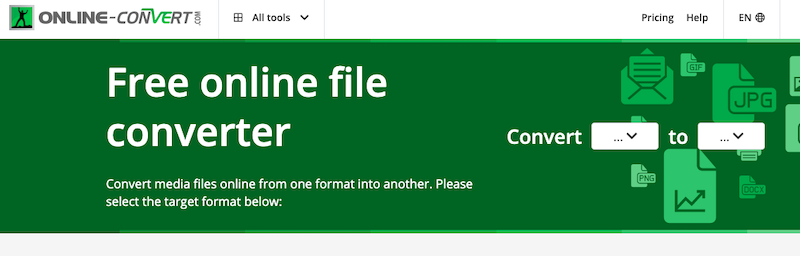
Online-Convert.com is perfect for users who only need occasional conversions or are working on the go. It’s fast, easy to use, and doesn’t require installation—just upload, convert, and download. However, you should ensure a stable internet connection for faster uploads and downloads when using an online tool. For batch conversions or larger files, consider using the paid version or desktop software like iMyMac.
Part 4: Conclusion
Converting TS files to MPEG can significantly improve playback compatibility, editing convenience, and sharing flexibility. Whether you choose a robust desktop solution like iMyMac Video Converter for professional-quality results or a free online tool like Online-Convert for quick tasks, the process to convert TS to MPEG is straightforward and accessible. With the right tools, you can make your TS videos more versatile and easier to manage across all platforms and devices.


